For Teams: Team Members
For Teams: Team Members
In QuickMail, you can easily grant access to colleagues or clients using their own email addresses. This allows seamless collaboration in managing an account without the need to share logins.
Note: You can add as many team members and guests as needed at no additional charge.
In this article:
Types of team access in QuickMail
Admins
Team Members
Guests
How to add a team member?
How to change team member roles?
How to add guests?
Where can I see each team member's activities?
Why are campaigns, replies, or email accounts not visible to other team members?
FAQs
What Are the Types of Team Access in QuickMail?
There are three types of team access in QuickMail: Admins, Team Members, and Guests.
Admins
Admins can do everything except:
- Manage private email accounts and campaigns owned by a different team member.
Team Members
Team members can do everything except:
Manage private email accounts and campaigns owned by a different team member.
Change the card on the billing page.
Purchase or update the subscription.
Buy email verification credits.
Guests
Guests can or cannot have edit access. If a guest has edit access, they can do everything except:
Manage private email accounts and campaigns owned by a different team member.
Access workspace settings.
How to Add a Team Member?
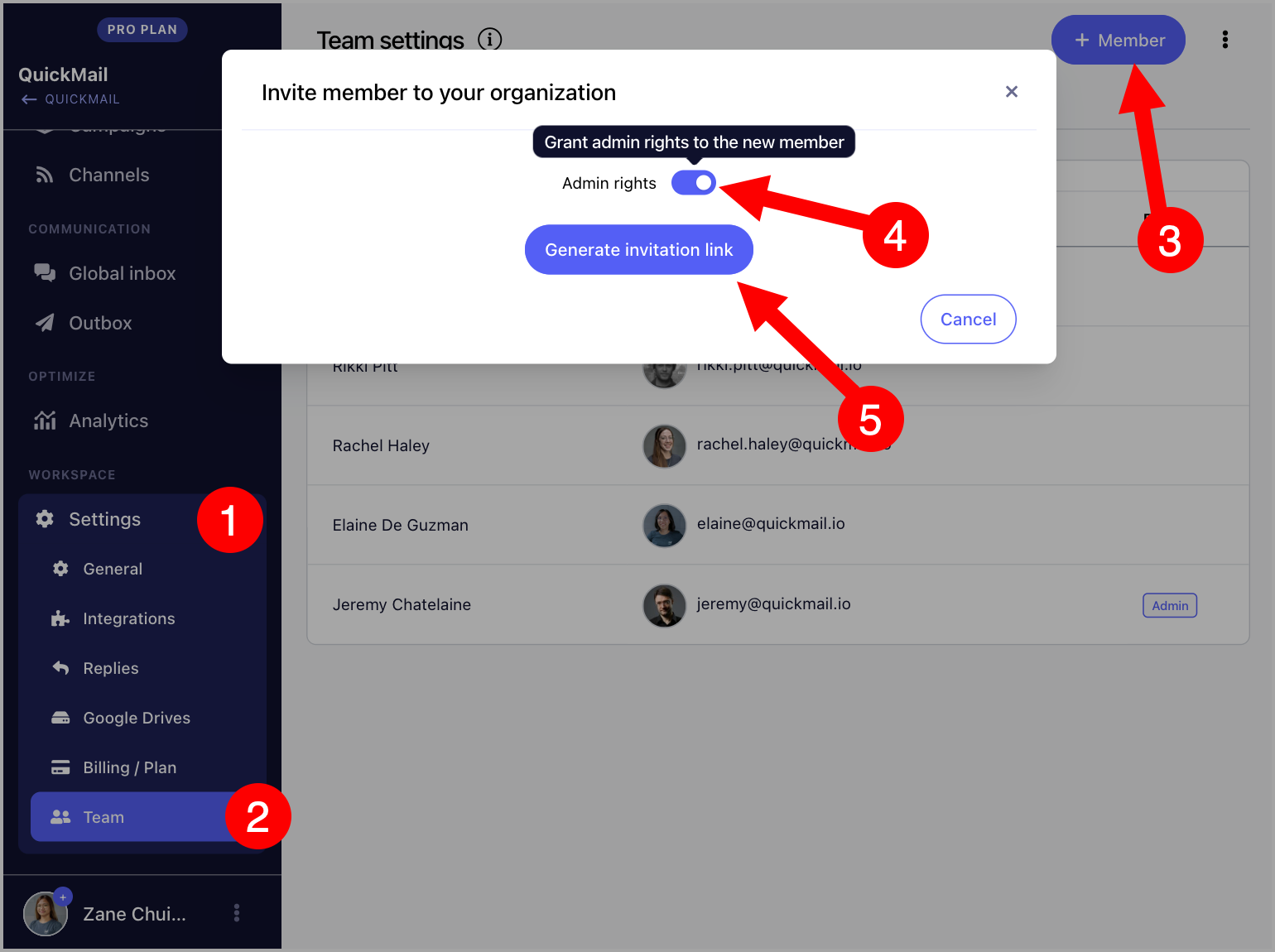
Go to Settings → Team → click + Member → toggle Admin Rights on if you would like to provide admin access → click Generate Invitation Link.
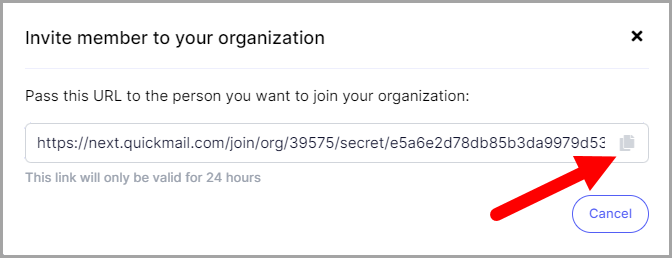
Copy the invite link → send it to the person you want to add.
New team members can log in with their email (Google or Outlook) or LinkedIn account.
Note: An invite link expires once used. A new invite link must be generated for each additional team member.
How to Change a Team Member's Role?
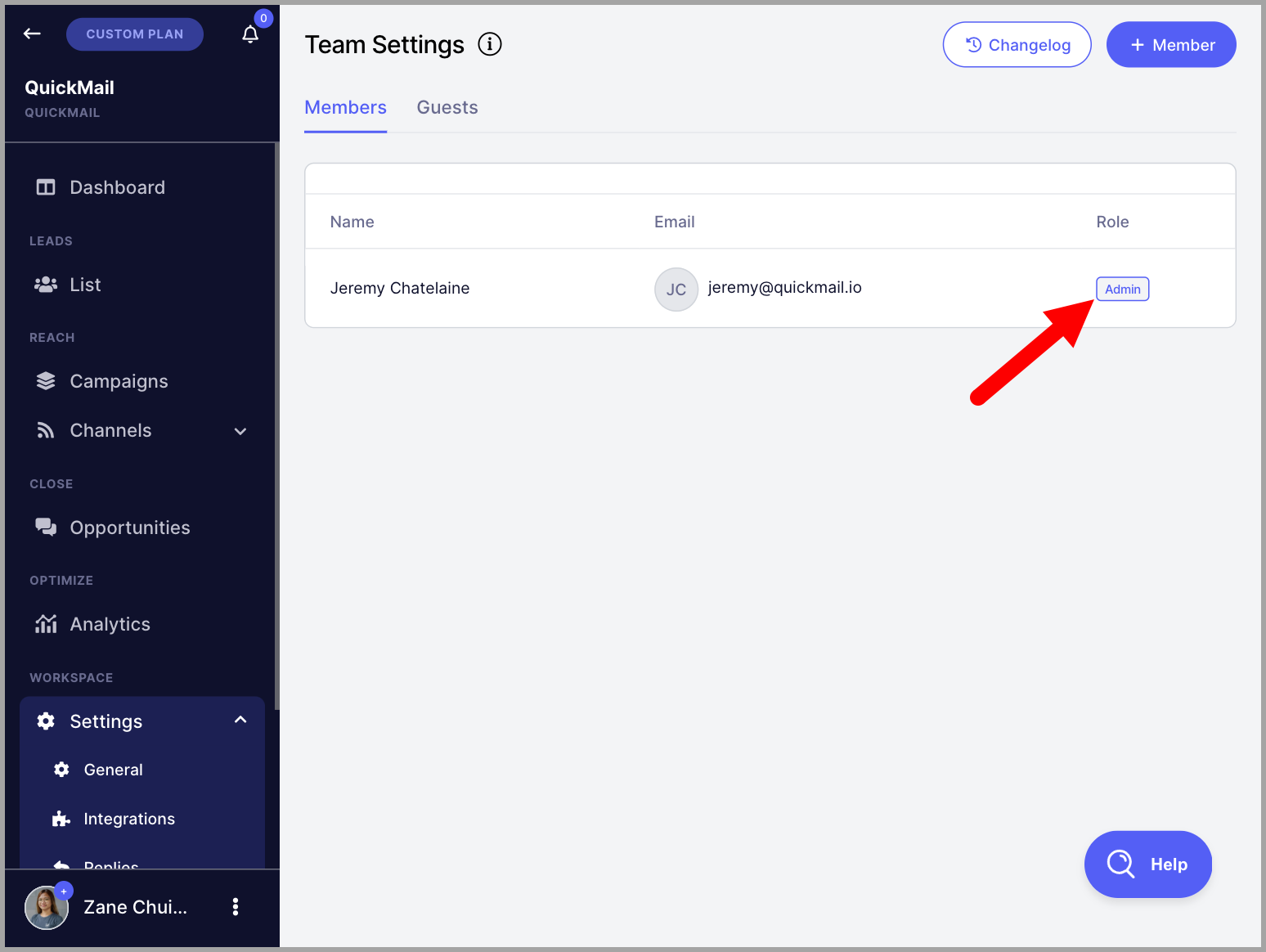
Once a team member is added, they will appear under the Members tab in Team Settings, showing whether they are an admin or not.
To grant or remove admin access, click on the team member and change their admin access.
How to Add Guests?
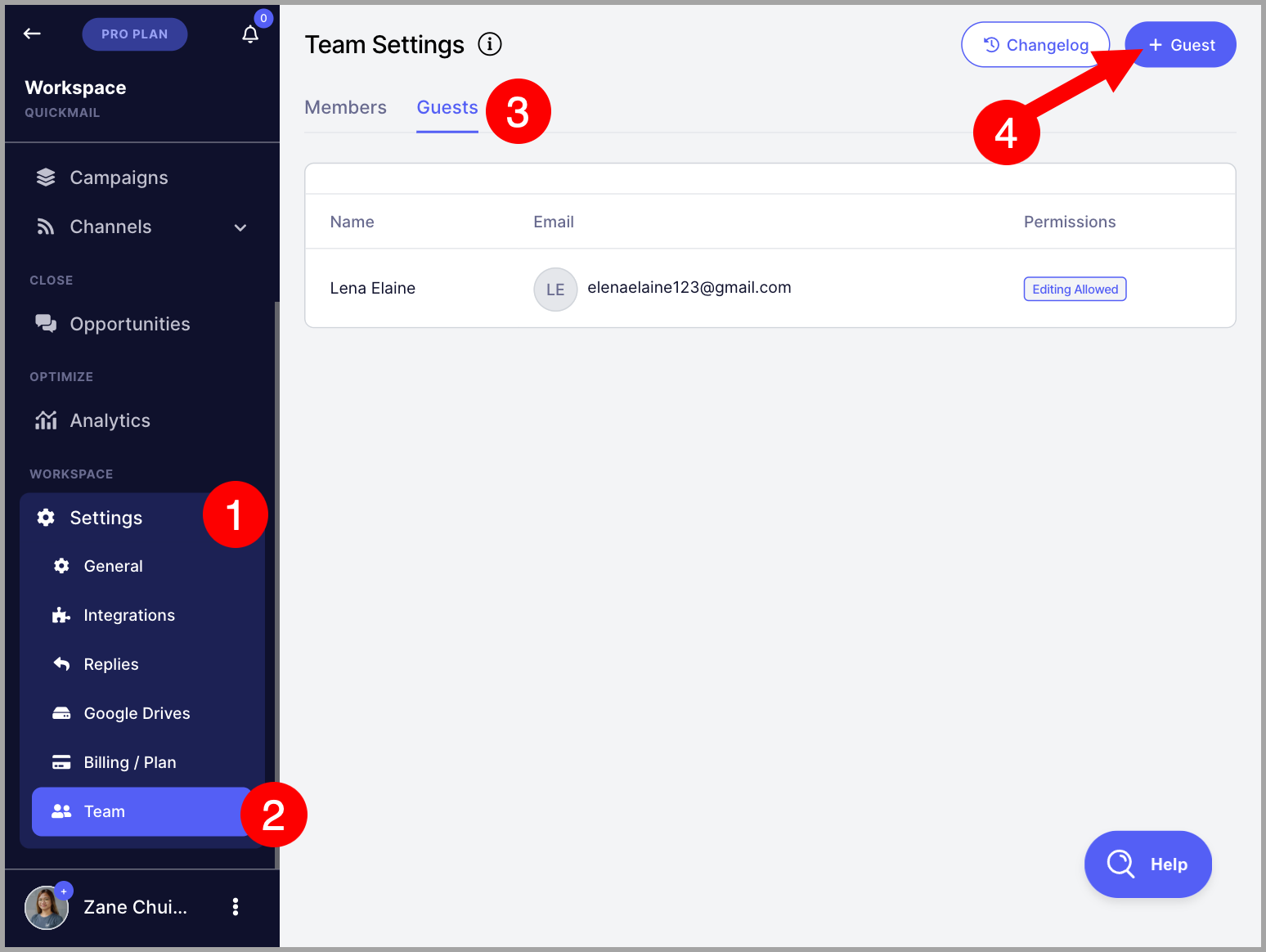
Go to Settings → Team → Guests tab → click + Guest in the top-right corner.
Select your preferred editing permission → click Generate Invite Link.
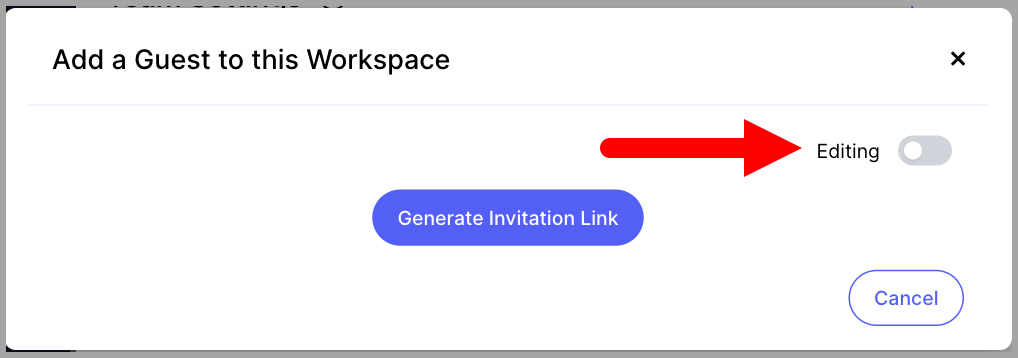
Copy the invite link and send it to your client.
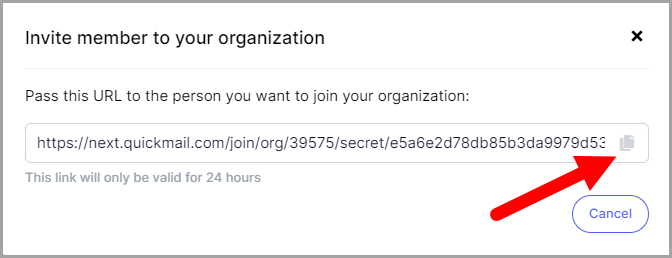
Note: Invitation links are only valid for 24 hours.
Where Can I See Each Team Member's Activities?
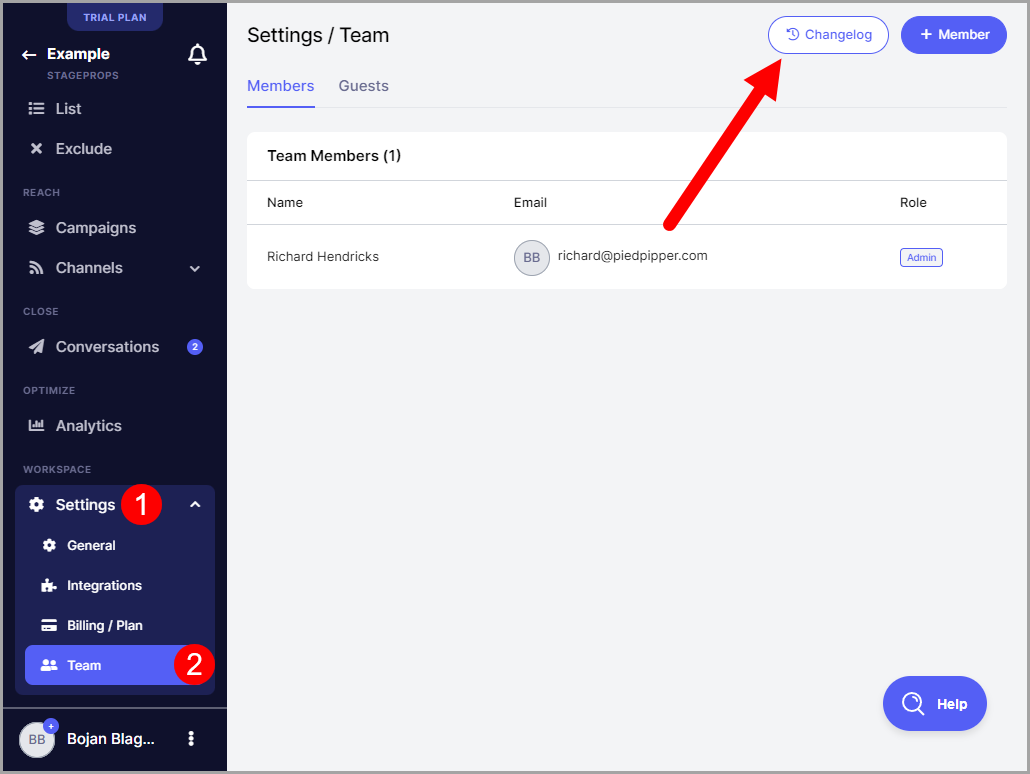
All activities can be seen and filtered on the Changelog page.
Go to Settings → Team → Changelog.
Why Are My Email Accounts, Inbox Items, and Campaigns Not Visible to Other Team Members?
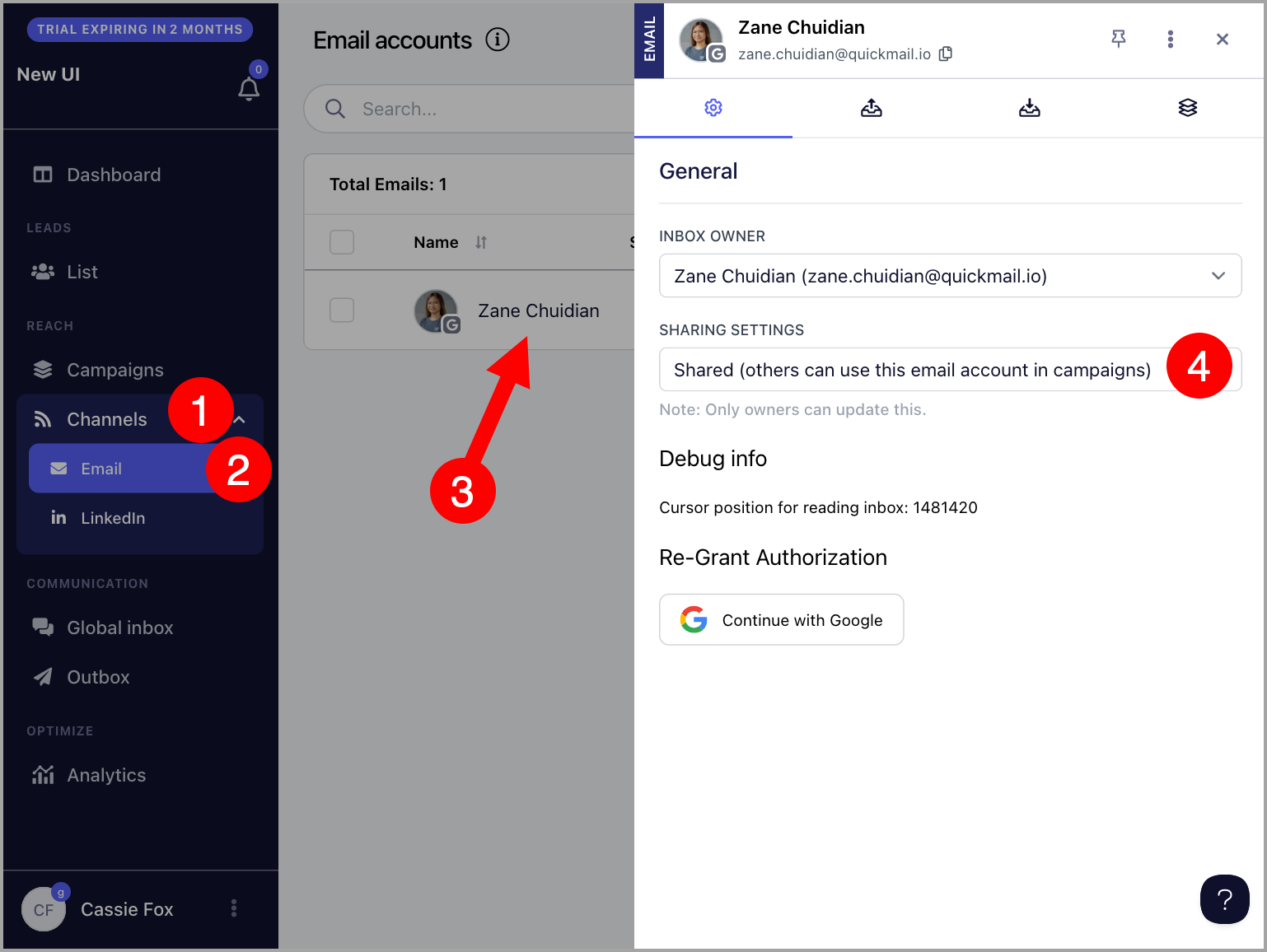
Email accounts, Inbox items, and campaigns are private by default and are only visible to their owners. To make them visible to other team members, they must be set to Shared.
Share an email account
Go to Email → click the thumbnail of the email account → change the sharing settings.
Share a campaign
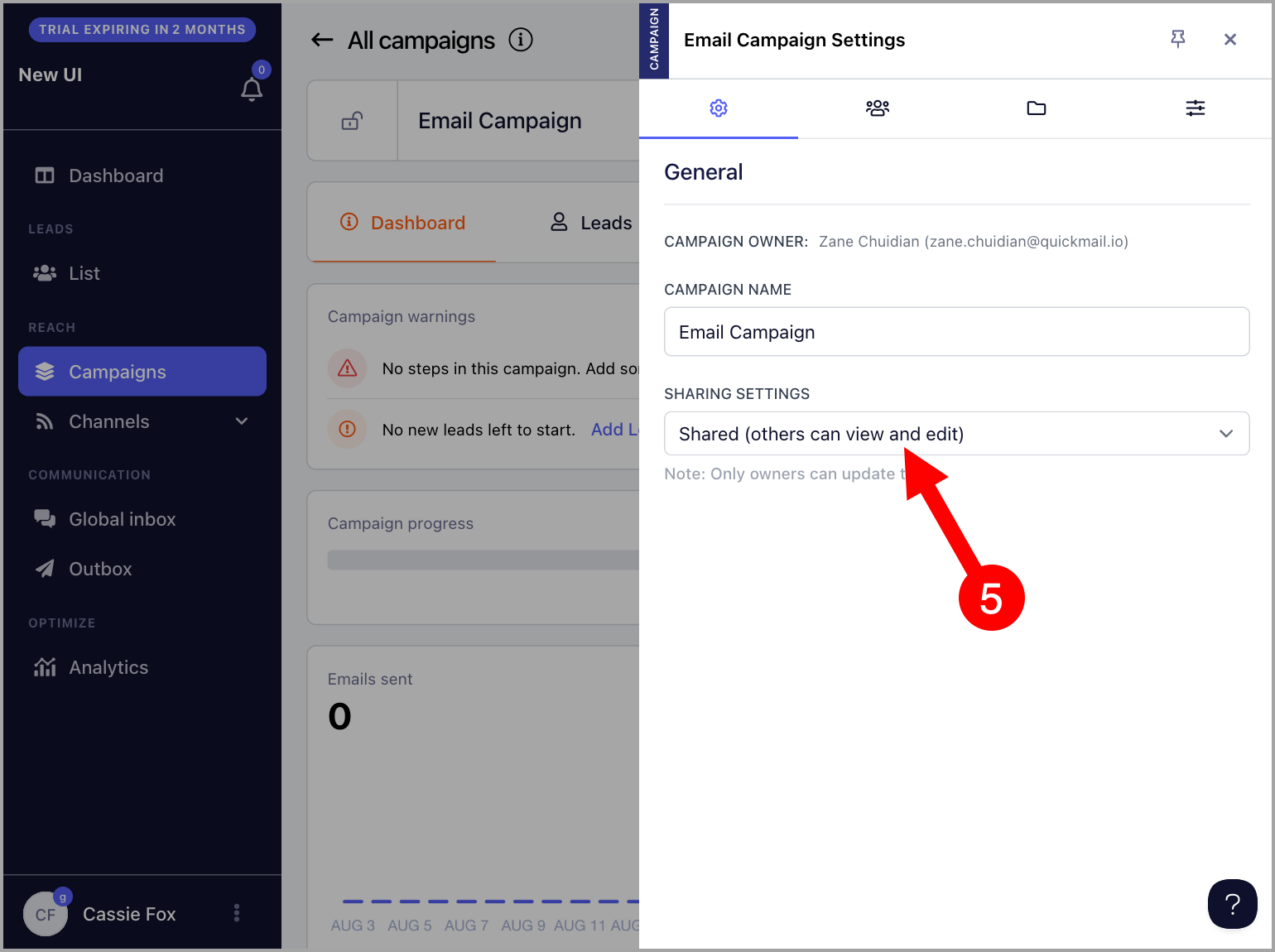
Go to the campaign → click the gear icon.
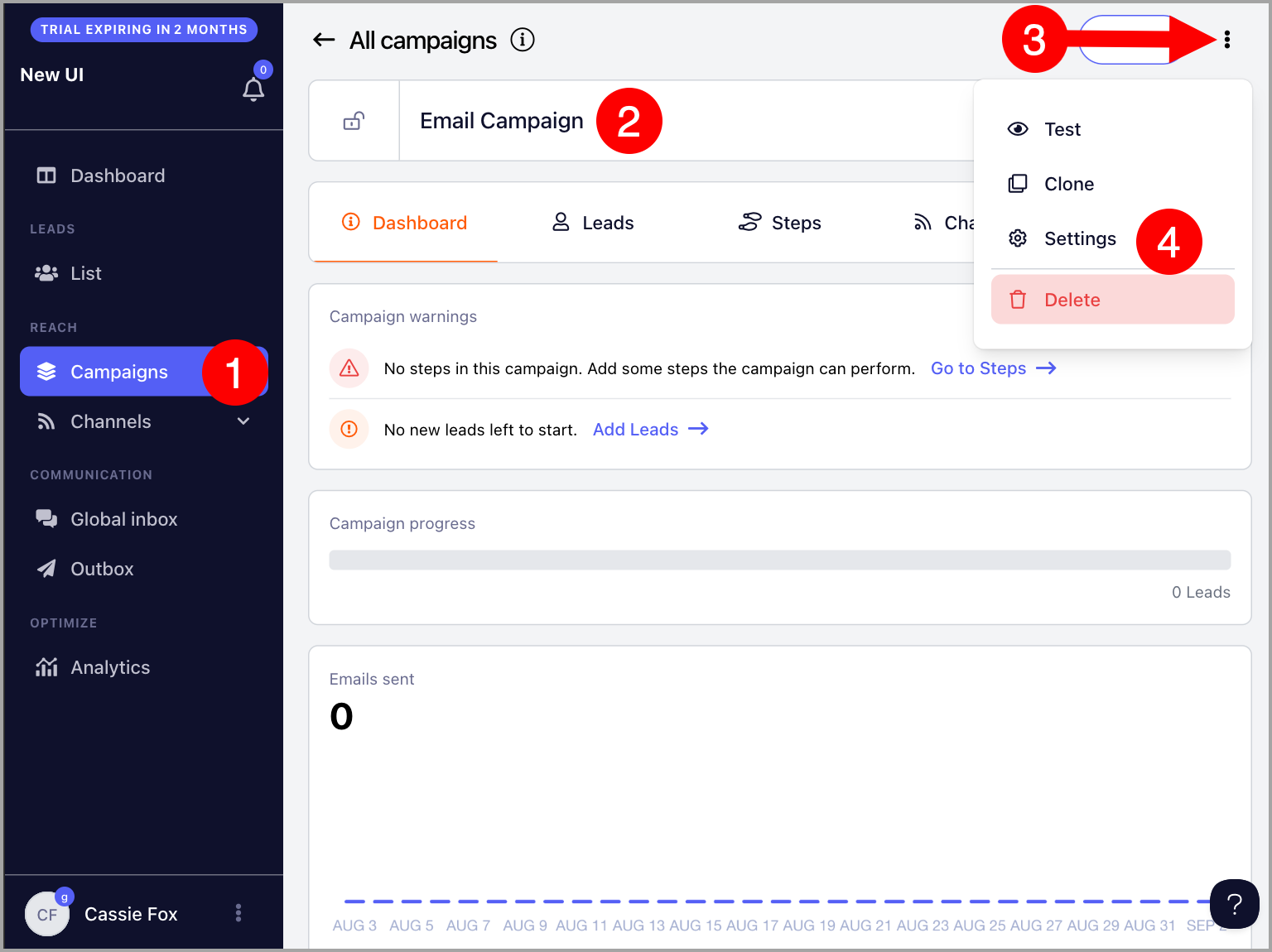
Change the Sharing Settings to Shared.
FAQs
Q: Can I limit my team member's activity?
A: That is not possible yet. If you need this feature, send an email to support@quickmail.io explaining your use case. The workaround for now is to add them as guests instead.
Q: Why can't I generate an invite link?
A: Only team members of the account can generate an invite. If the email address you are using to access QuickMail is not added as a team member, attempting to generate an invite link will result in a permission error.
Q: How many team members can I add?
A: There is no limit to the number of team members you can add.