Managing Your QuickMail Subscription
Managing Your QuickMail Subscription
In this article:
What's included in the 14-day trial?
What happens after the 14-day trial?
What's Included in Each QuickMail Plan?
How to View Your Current Subscription?
How to Upgrade or Downgrade Your Plan?
How to Cancel Your Subscription?
What's Included in the 14-Day Trial?
When creating a new account, your workspace is placed on a 14-day free trial by default.
Trial includes:
Up to 100 leads (does not replenish daily)
Unlimited inboxes
Up to 100 emails per day
Applies generally across all plans (not tied to a specific plan)
What Happens After the 14-Day Trial?
You will not be charged automatically
Your account will exit trial mode
To continue using QuickMail, you must manually subscribe to a plan
If you do nothing, your account will remain inactive for sending
No payment will be taken unless you choose to subscribe
You can upgrade at any time or simply leave the account inactive.
What's Included in Each QuickMail Plan?
QuickMail offers three plans designed for different stages of outreach, whether you're just getting started, growing your business, or managing outreach for multiple clients.
| Feature | Starter Plan | Growth Plan | Agency Plan |
|---|---|---|---|
| Price | $49/month | $99/month | $299/month |
| Email Senders | Unlimited | Unlimited | Unlimited |
| LinkedIn Accounts | Unlimited | Unlimited | Unlimited |
| LinkedIn Automation | ✅ | ✅ | ✅ |
| Sales Navigator Import | — | ✅ | ✅ |
| Import from LinkedIn Posts | — | ✅ | ✅ |
| Send LinkedIn Voice Messages | — | ✅ | ✅ |
| Send InMail Messages | — | ✅ | ✅ |
| Users | Unlimited | Unlimited | Unlimited |
| Workspaces | 1 Workspace | 1 Workspace | 2 Workspaces included (+$49 per extra workspace) |
| Uploaded Contacts | 1,000 | 25,000 | 100,000 |
| Emails Sent per Month | 5,000 | 100,000 | 500,000 |
| Free AutoWarmer with MailFlow | ✅ | ✅ | ✅ |
| Zapier Integration | ✅ | ✅ | ✅ |
| API Access | — | ✅ | ✅ |
| Webhook Access | — | — | ✅ |
| Support | Expert Support | Priority Expert Support | Priority Expert Support |
| Free Trial | 14-Day Free Trial | 14-Day Free Trial | — |
How to View Your Current Subscription?
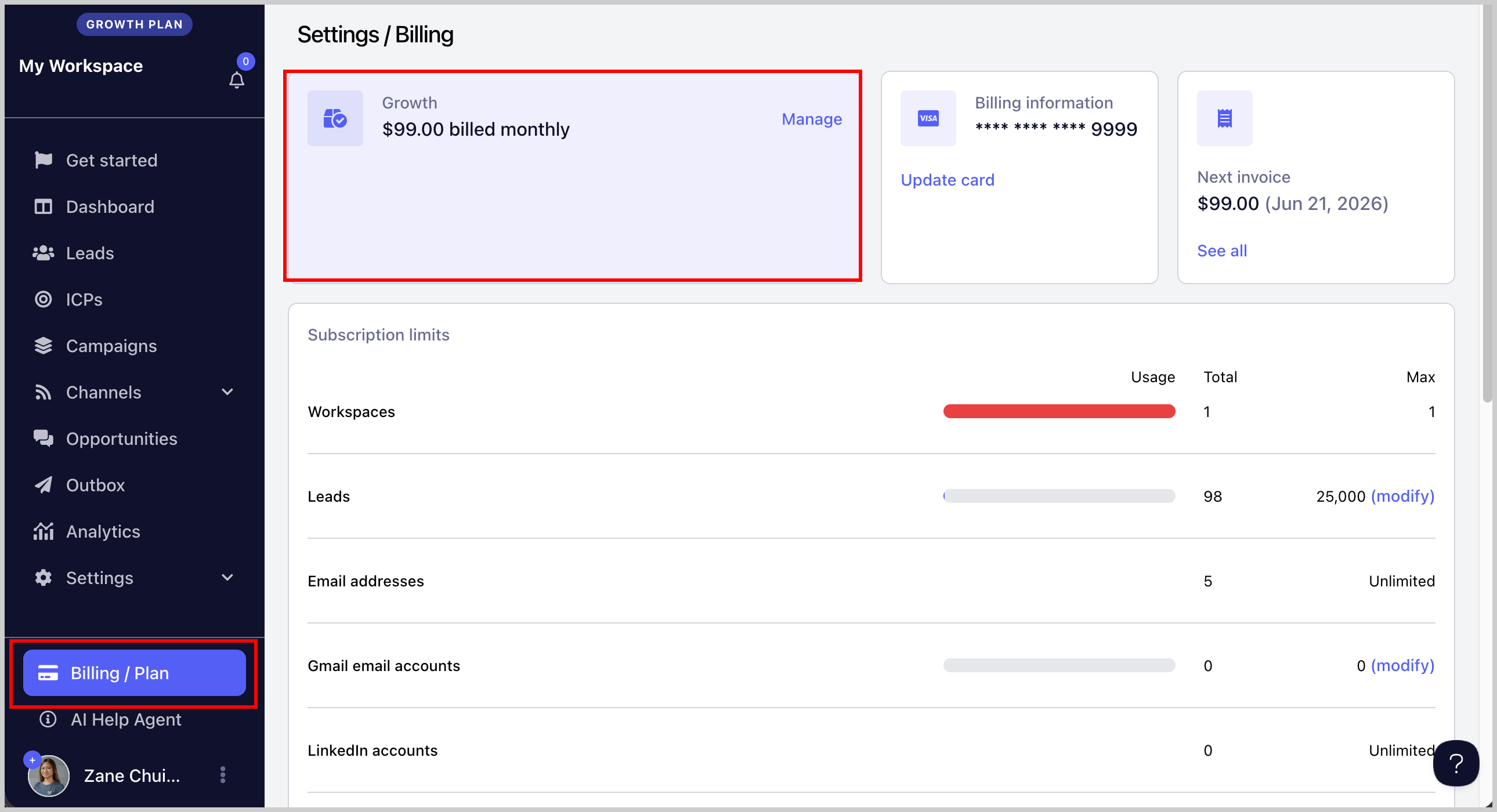
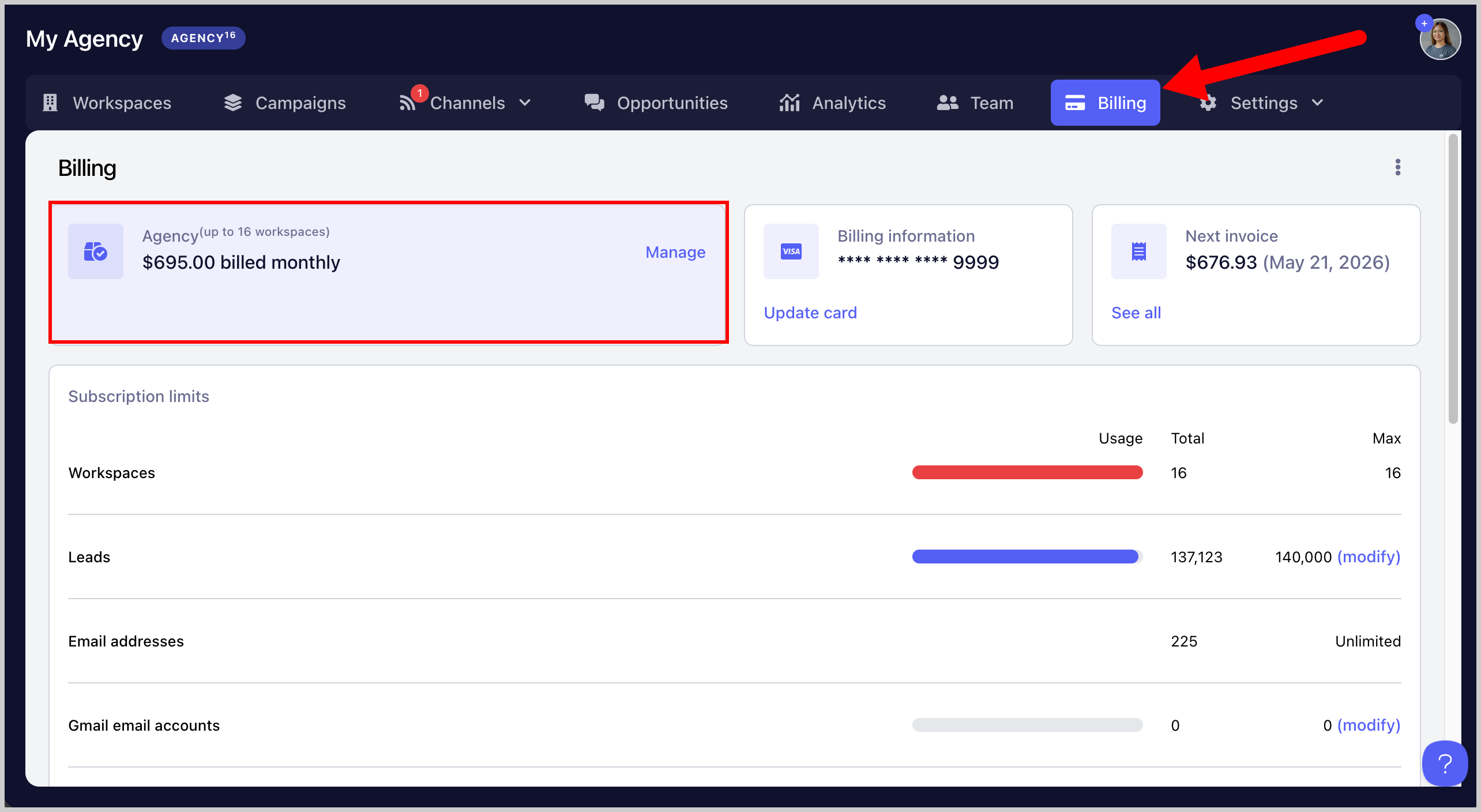
You can view your subscription by going to the Billing/Plan page, or simply check the banner in the upper left-hand corner of your workspace to see which plan you're on or how many days are left in your trial.
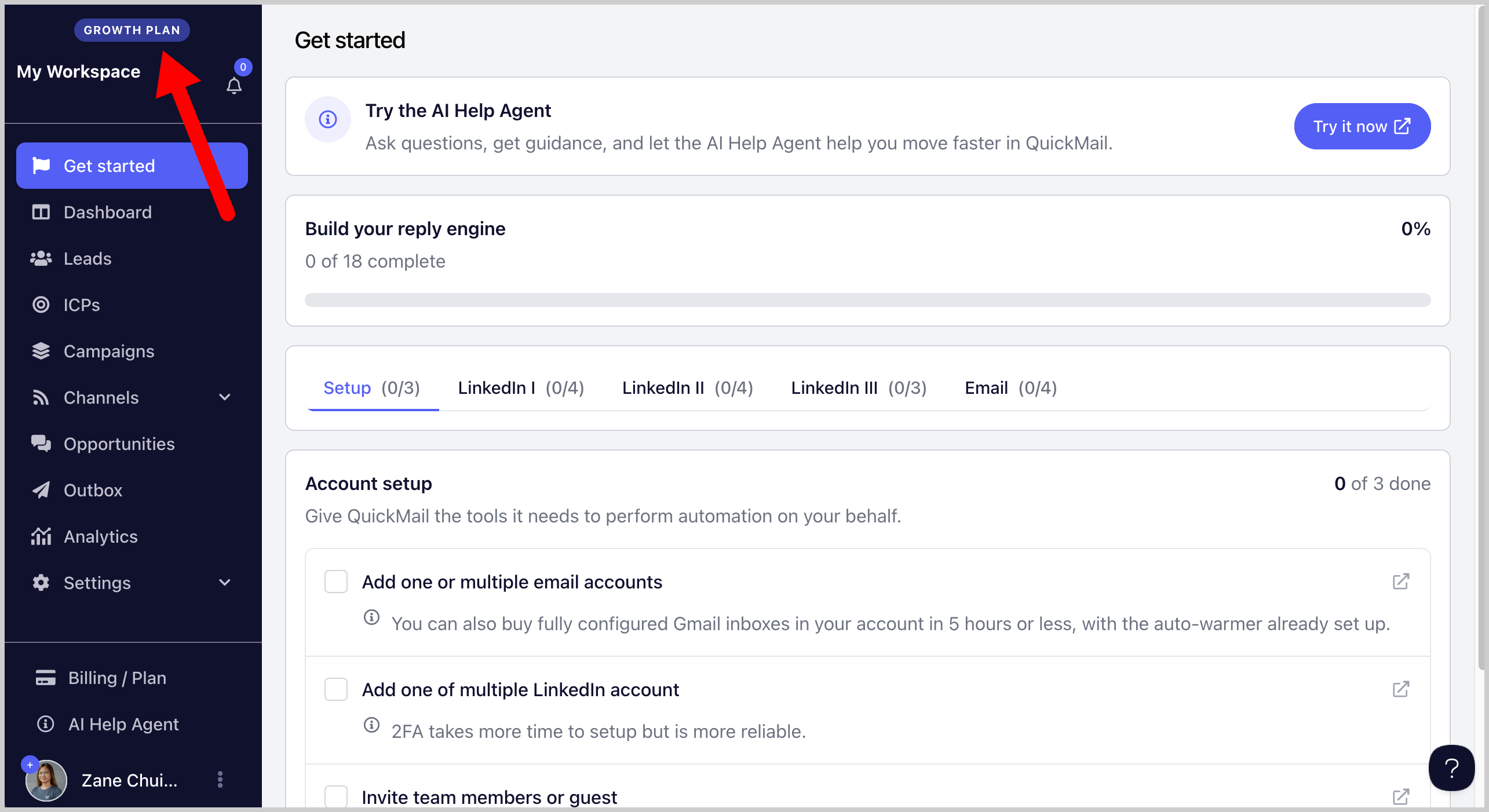
- For Team Accounts (Users on Starter and Growth): To manage your subscription, go to the Billing/Plan page in your workspace.
- For Agency Accounts (Users on the Agency plan): Agency subscriptions are managed from the Billing/Plan page in the Agency Dashboard.
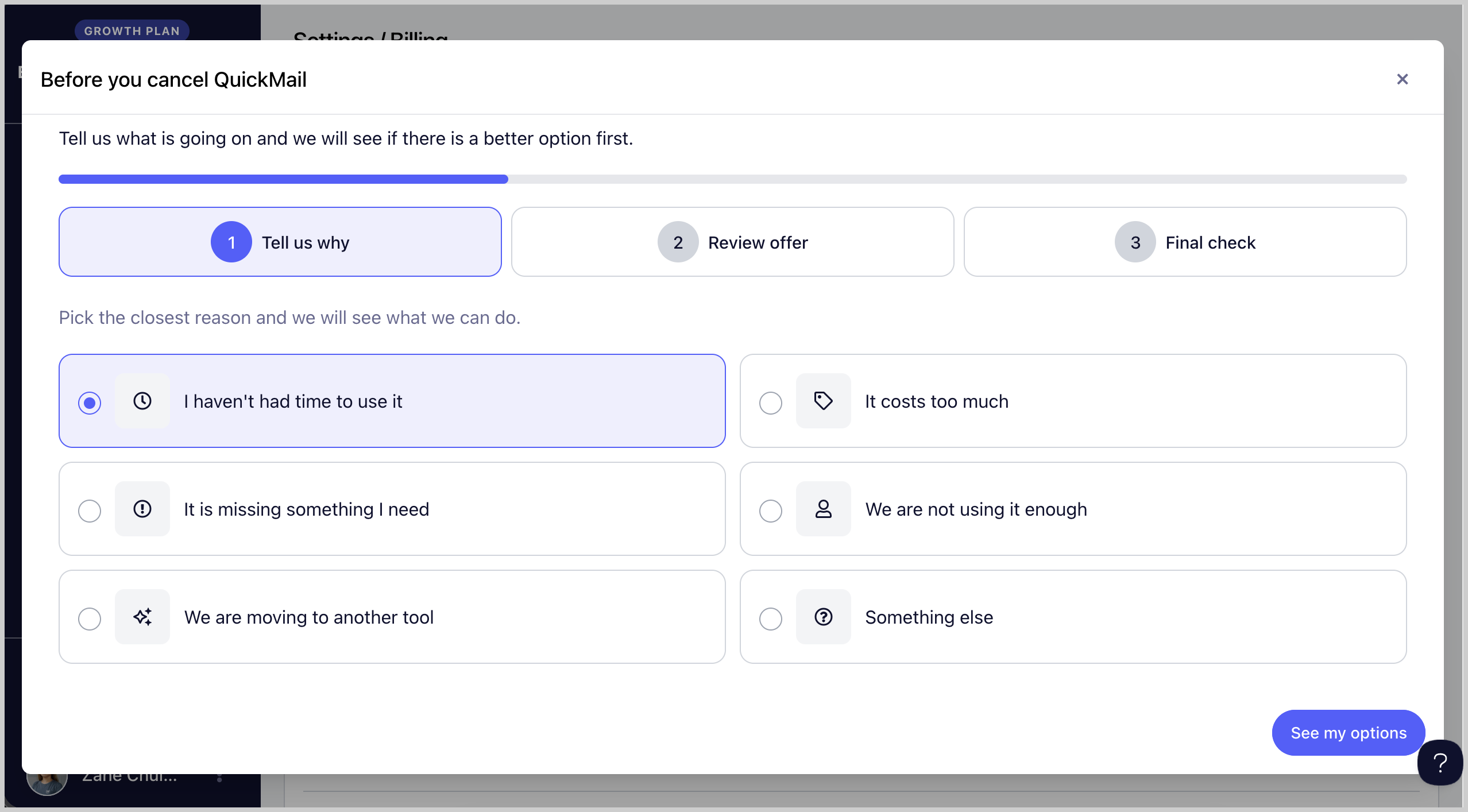
How to Upgrade or Downgrade Your Subscription?
To upgrade or downgrade your plan, go to the Billing/Plan page → click the Manage button → select your preferred plan → click Update Subscription to apply the changes.
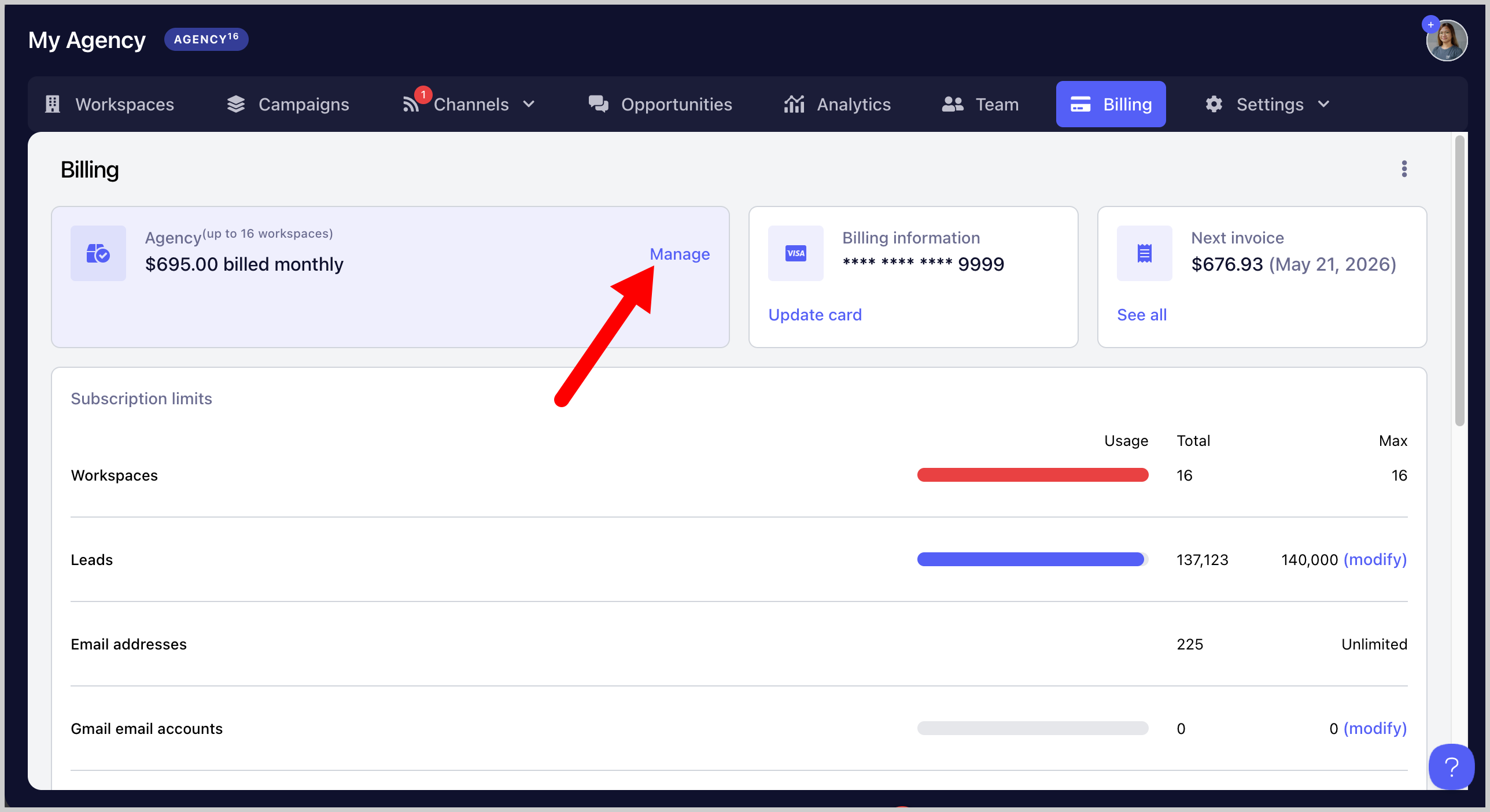
Tip: If you're on an old/legacy pricing plan and would like unlimited email accounts, higher lead storage, or an increased email sending limit, we can move you to our new pricing structure (Starter, Growth, Agency). Email us at support@quickmail.io to request the switch.
Our pricing changes from time to time so if you're seeing a pricing on this article that's no longer available on your account, it's highly likely an old pricing.
We can't put anyone on the old pricing once it's discontinued but we grandfather plans. So if you are on the old pricing, you will stay there unless you cancel and resubscribe or request support to switch you.
For a more detailed guide on our pricing, please check here: https://quickmail.com/pricing/
Note: Only admins can change the billing information of the account. Team members can make changes to the subscription but guests and inbox access can't.
How to Cancel Your Subscription?
To cancel your plan, go to the Billing/Plan page → click the Manage button → click Cancel Subscription → follow the on-screen instructions to confirm the cancellation.