Troubleshooting: Campaign is not sending
Troubleshooting: Campaign is not sending
There are several reasons why a campaign may not be sending emails. Here are some of the most common ones:
Campaign is paused
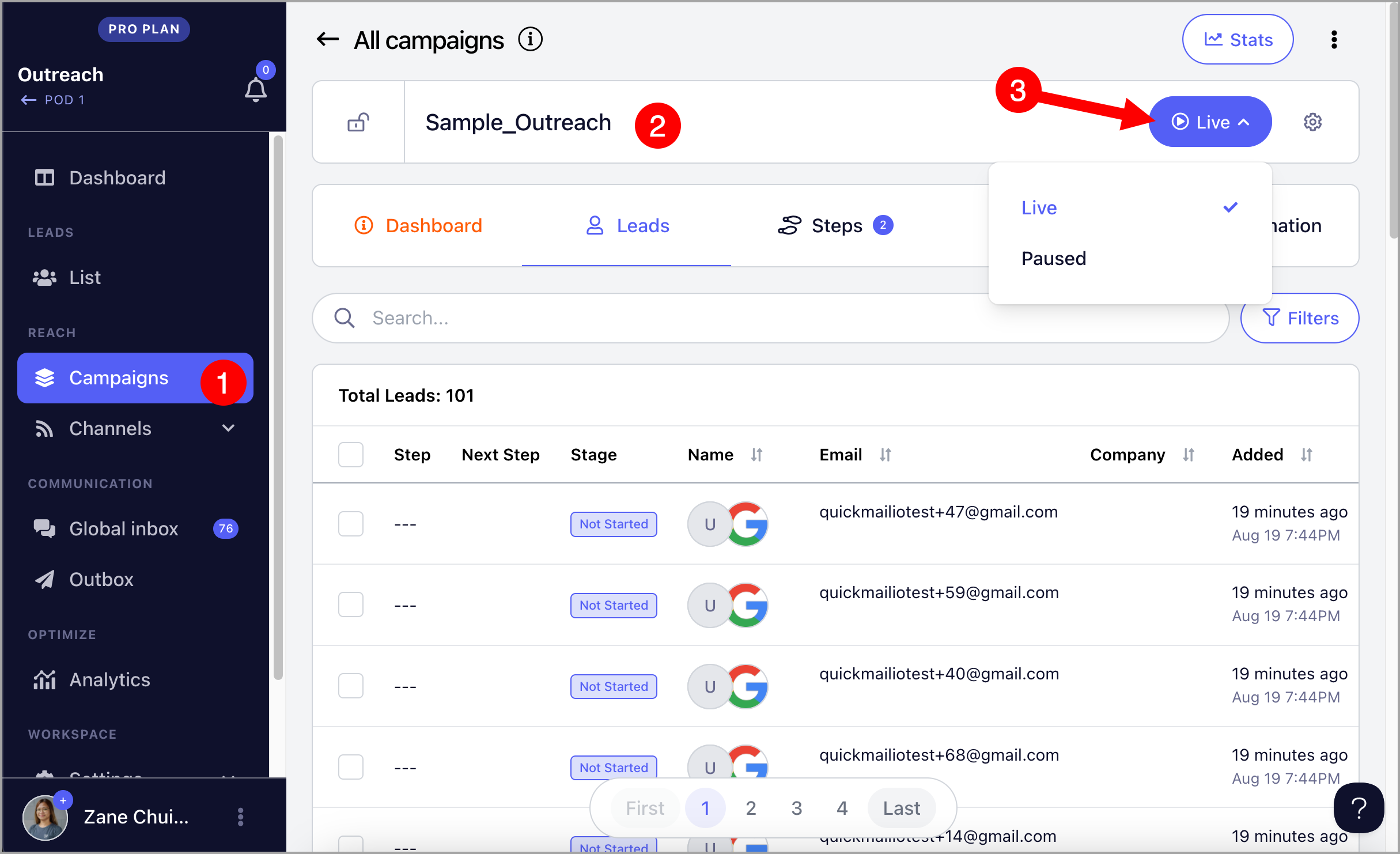
When campaign is paused, no emails will be sent and Triggers won't also run.
**Solution: **To set the campaign live, go to the campaign → click the Paused button → set live
Leads have not yet started
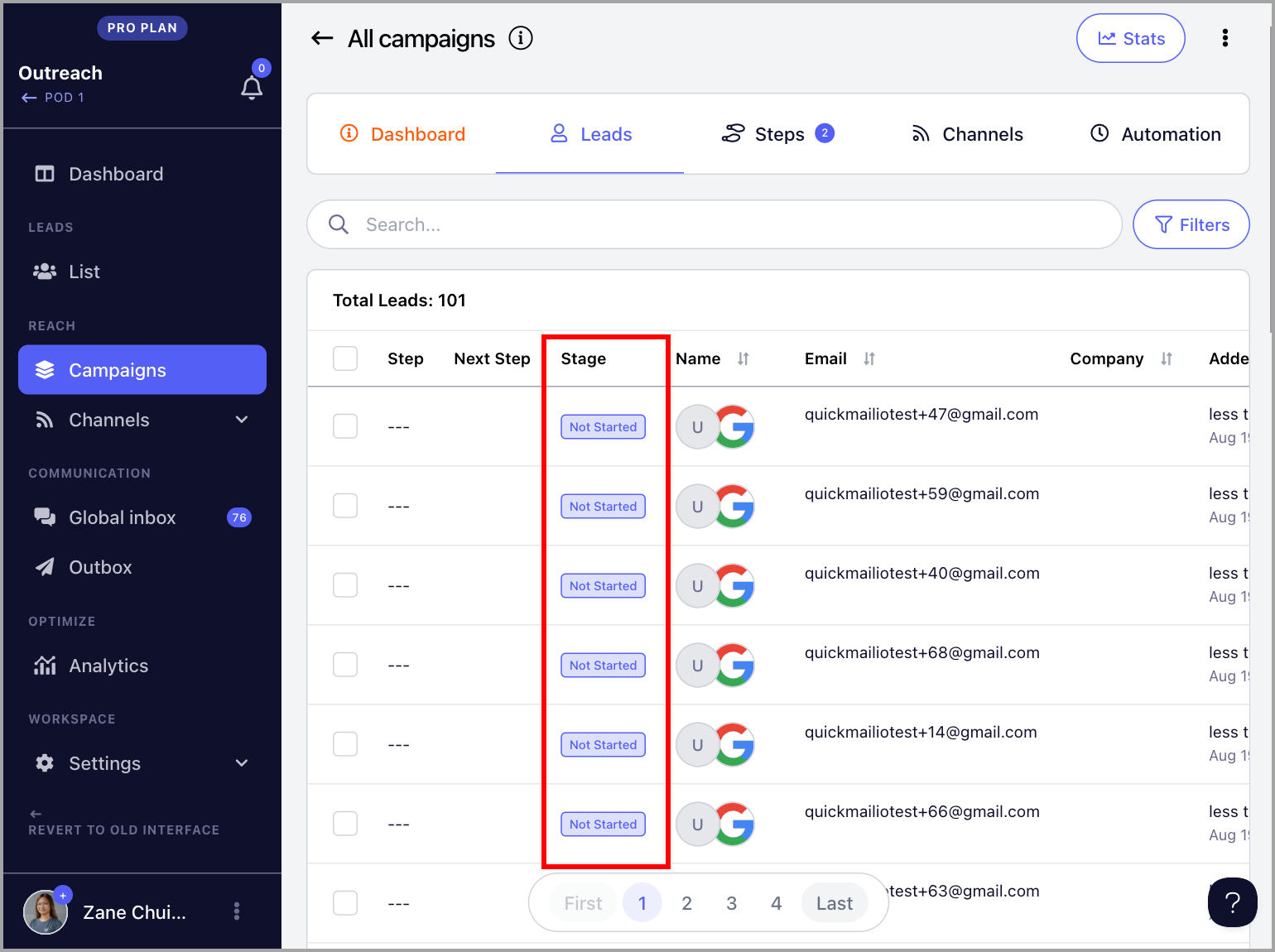
When leads are added to the campaign, their status will be on "Not Started" status.
Solution: **To start sending emails, the leads must be started . This can be done manually to start sending emails right away or by setting up Triggers.
Triggers were created after the scheduled time for the day
Triggers allow users to automate when and how many leads start a campaign. However, they cannot be applied retroactively.
For example, if Triggers are set up or edited at 12 PM but scheduled to start leads at 9 AM, they will only take effect the next day because today's Triggers (9 AM) has already passed.
Solution 1: **If you'd like to start sending emails immediately, it's possible to manually start the leads
**Solution 2: **Create a temporary Trigger. When creating a Trigger, make sure to allow at least 15 minutes, as it sometimes takes time for the system to sync new Triggers.
Solution 3: Wait for the next scheduled Trigger to run
Not enough time allowance when creating Triggers
It sometimes takes time for the system to sync new Triggers.
Solution**: When creating a Trigger, make sure to allow at least 15 minutes.
For example, if you want to start new leads at 9 AM on the same day, create the Trigger by 8:45 AM. Otherwise, wait for the next scheduled Trigger.
Send times doesn't allow sending emails
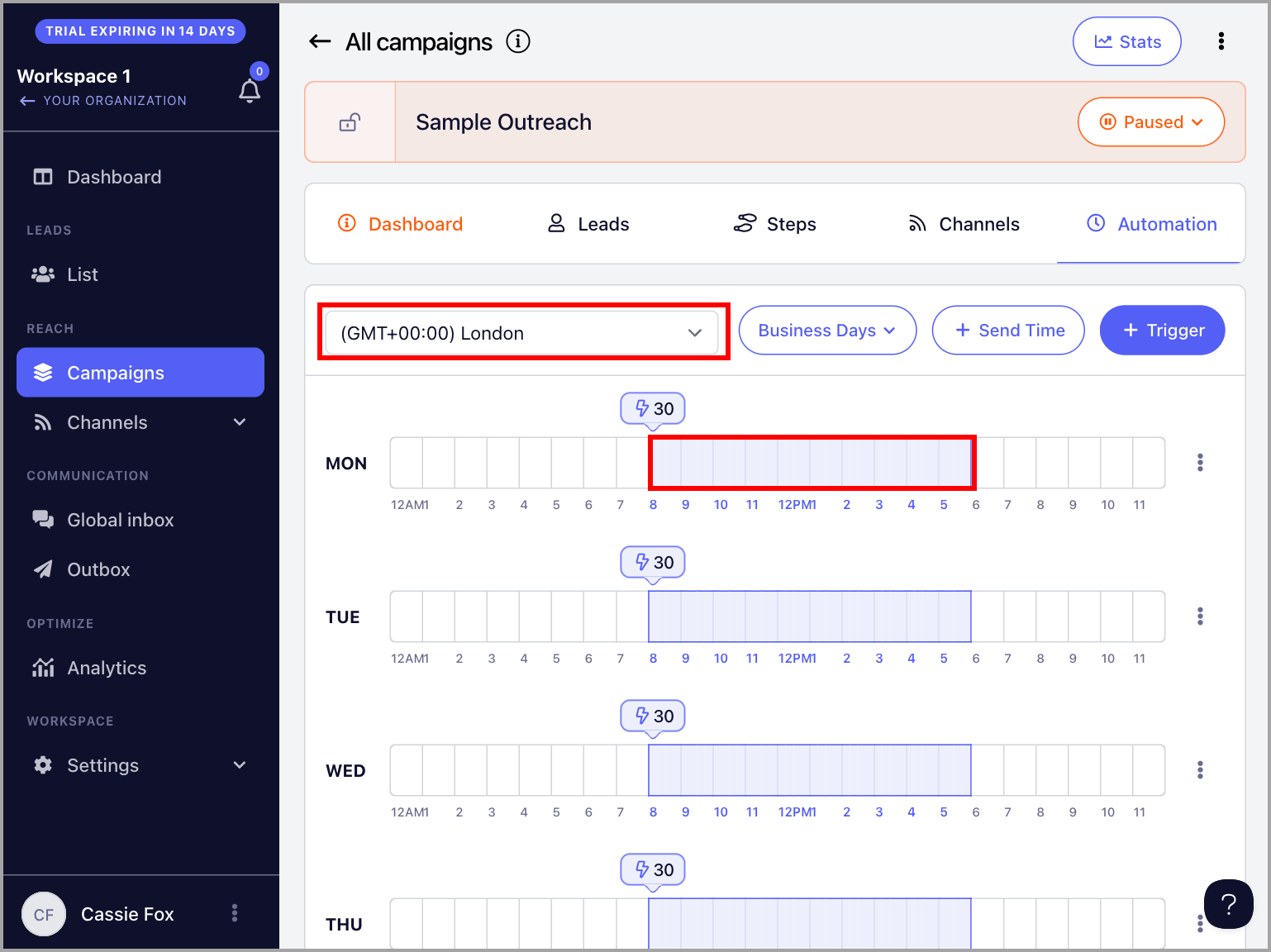
Send times control when the campaign is allowed to send emails. If it's outside send times, no emails will be sent despite being queued.
To see the Send Times and Timezone, go to the campaign → Automation
Email account for sending has reached the daily limit
When an email account reaches its daily sending limit, it will stop sending emails until the limit resets.
Technically, emails are sent on a first-come, first-served basis. This means the inbox will prioritize sending emails that are first in the send queue.
If several campaigns have emails due on the same day, follow-ups may wait in the queue until the next allowed send window / quota reset.
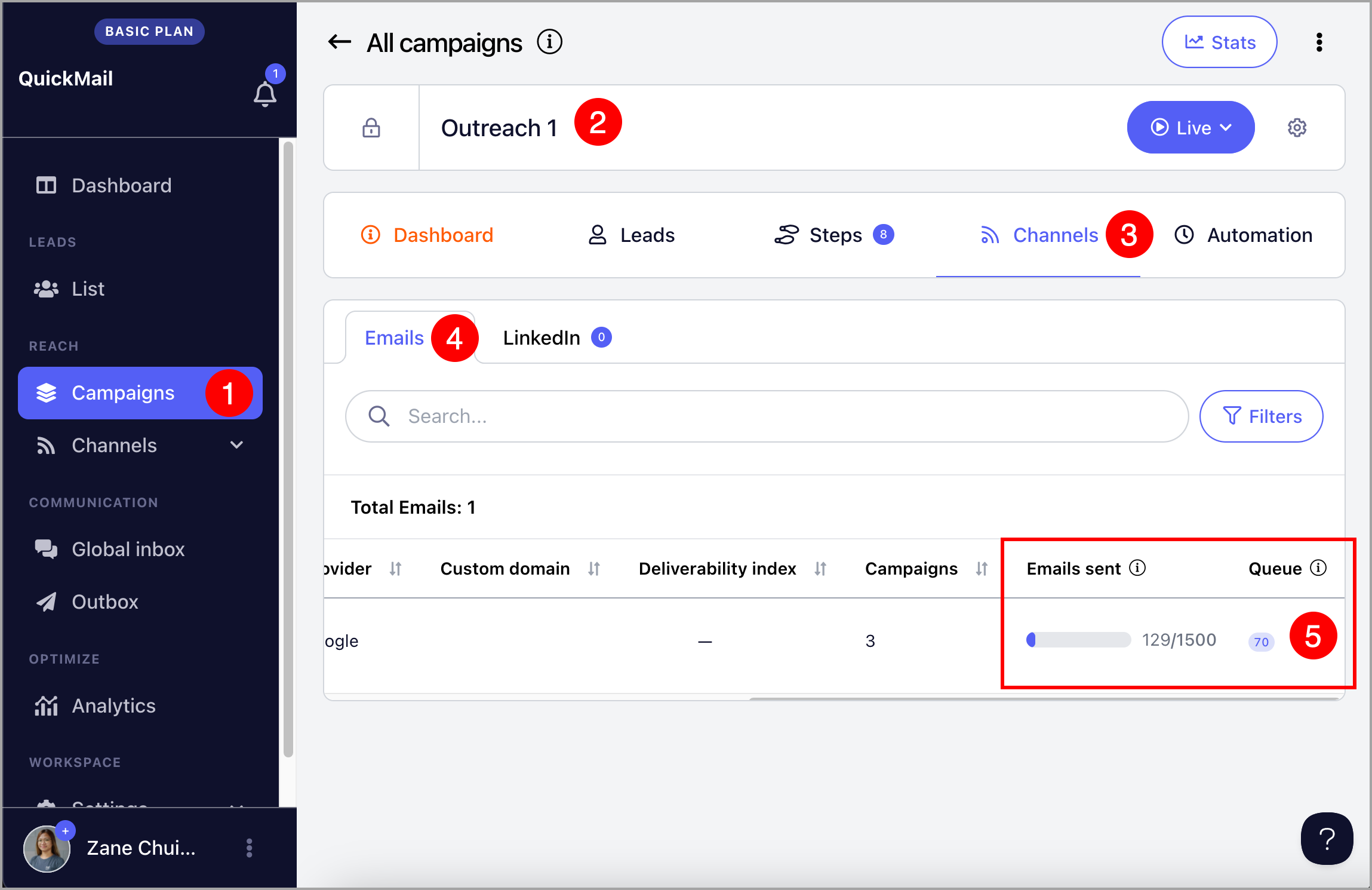
To check for the number of emails that have been sent and those queued to be sent, go to the campaign → Channels → Emails → Scroll to the right to see queue
To check for the daily email limit of the email account, go to Channels → Click on an email account to open inbox settings → Sending tab → Default limit
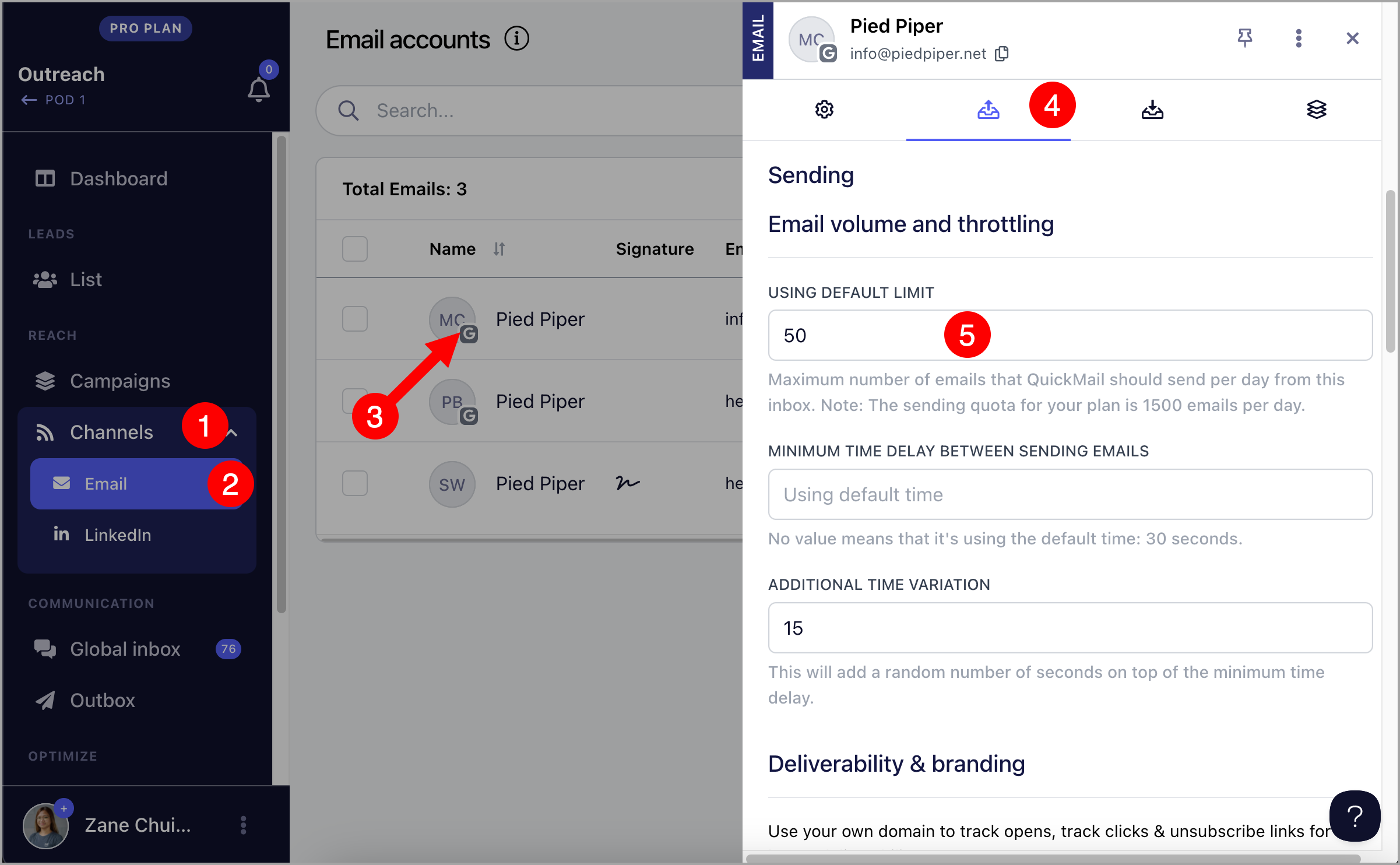
It's also possible to access the inbox settings by clicking on an email account under Channels in the Campaign.
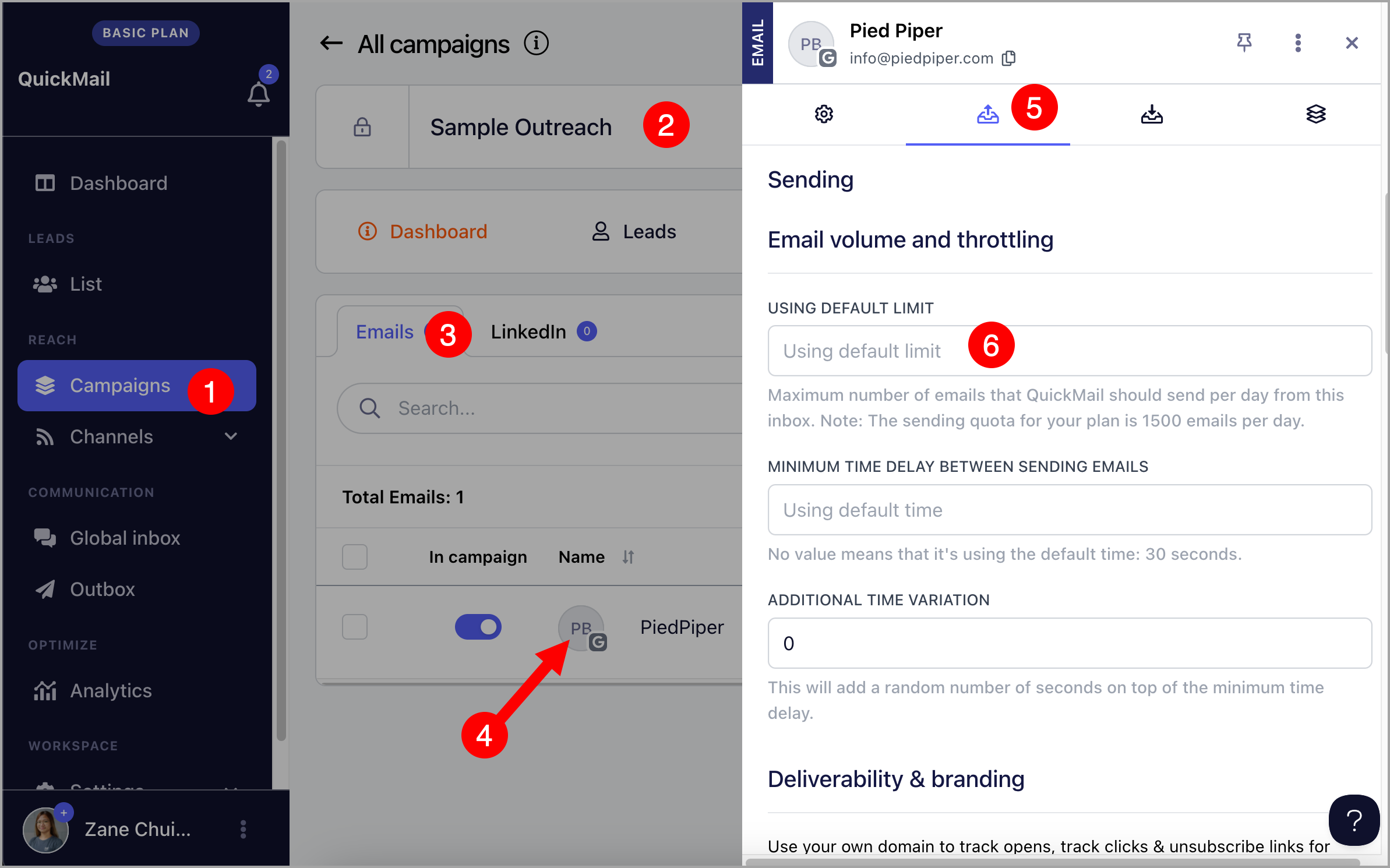
To prevent and fix the issue caused by insufficient inbox daily sending limits, you have a few options:
You can slightly increase the daily email limit so the inbox has more sending capacity.
You can add additional email accounts to distribute and handle a higher sending volume.
Alternatively, you can reduce the number of leads entering the campaigns via Triggers, so the inbox has enough capacity to handle both new emails and follow-ups at the same time.
This will help ensure follow-ups are sent on time without being queued or delayed.
To change the number of leads in the Triggers, go to the Automation page in the campaign → Clear triggers → Add new triggers
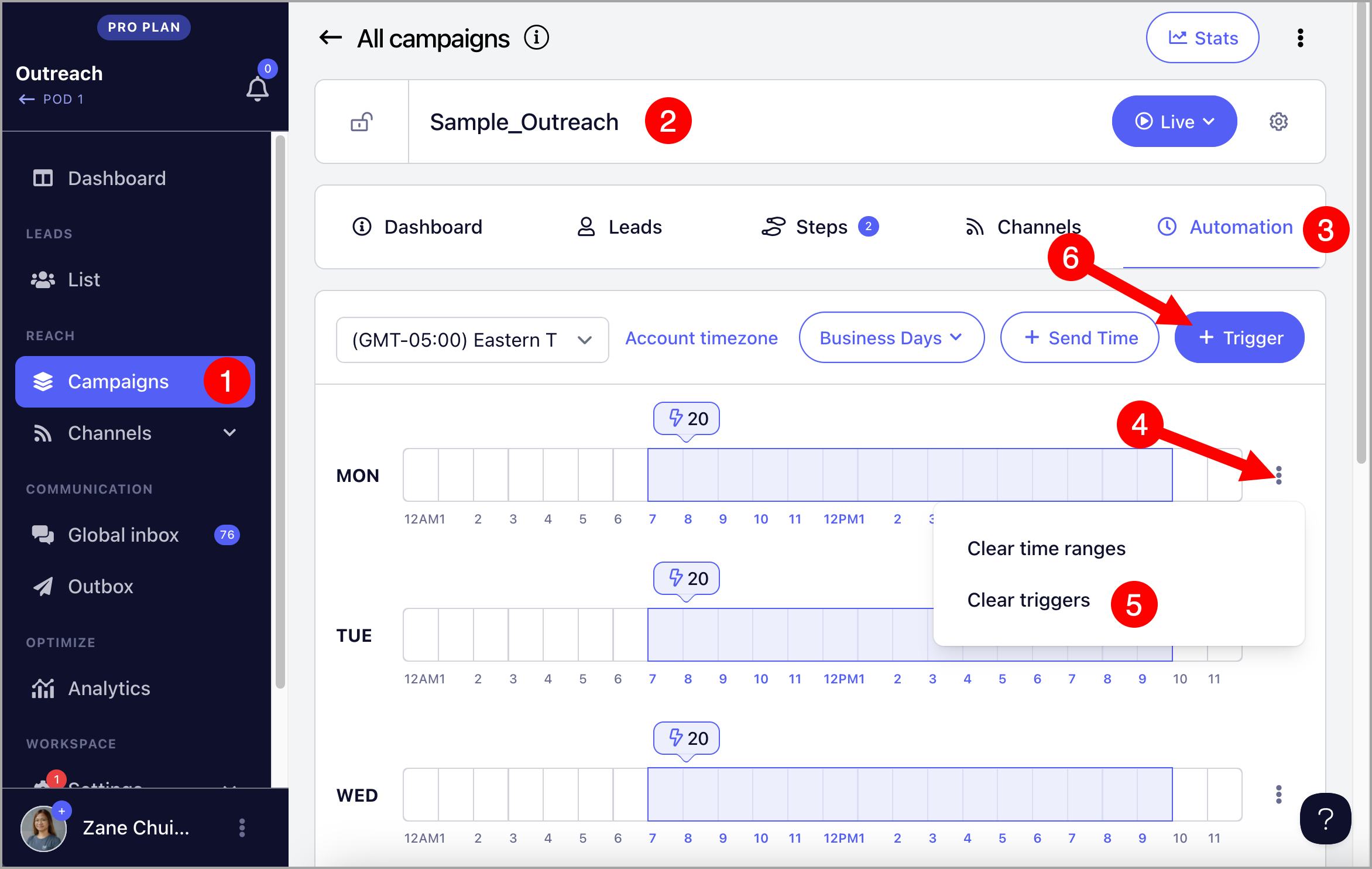
Pro Tip: You can copy and usethis calculator to see the ideal number of leads to add to your campaignTriggers.
Workspace is paused
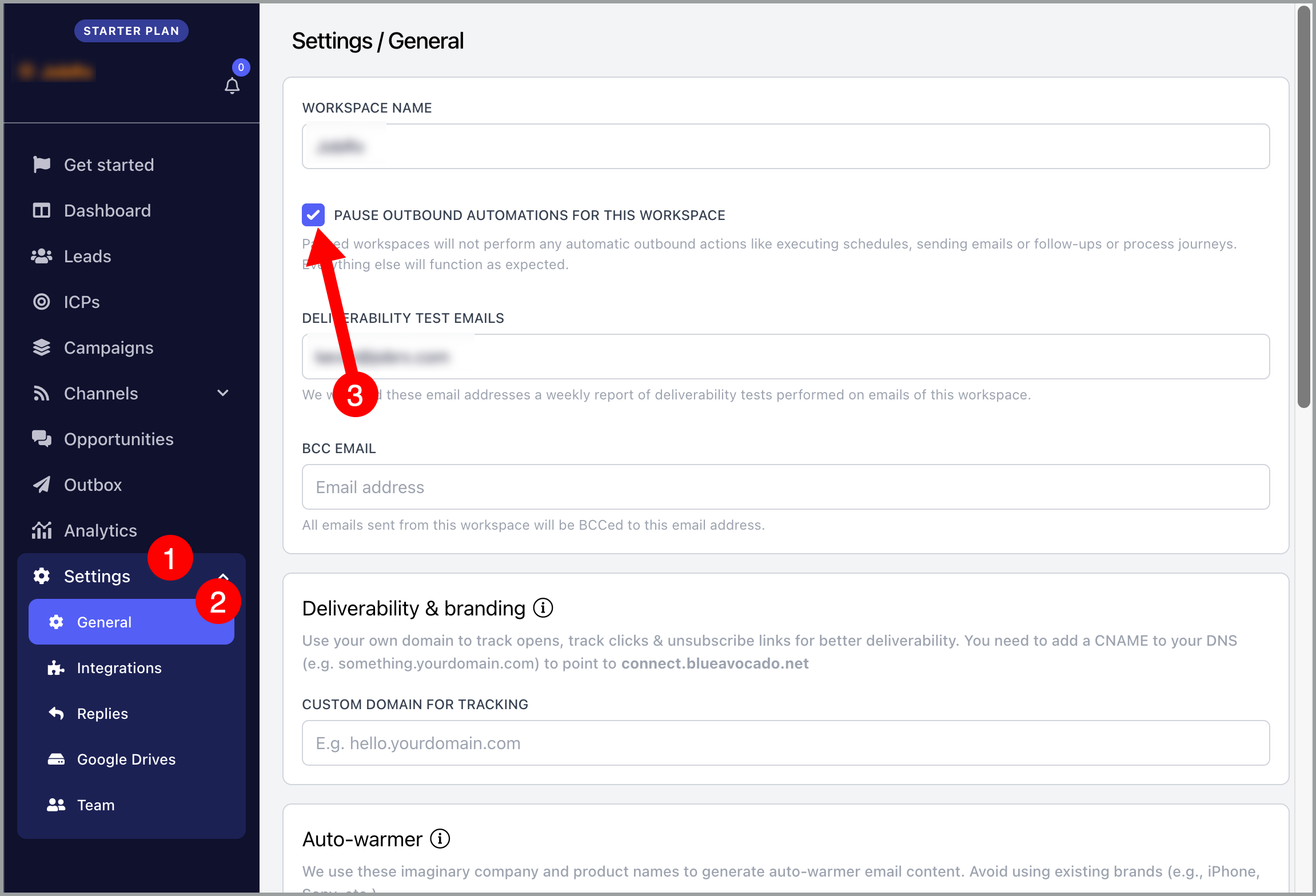
When a workspace is paused, no leads and automation will be processed. This includes triggers, sending the emails, leads moving to the next step, and others.
To solve the issue, please go to the general settings of your campaign and uncheck the checkbox "pause outbound automations for this workspace."
All leads in the campaign are currently on a LinkedIn Connection Request Step
By default, the LinkedIn Connection Request step setting 'Wait until the connection is accepted to resume campaign' is enabled, so the leads that have been sent a Connection Request may appear stuck.
This is because the campaign is still waiting for the leads to accept the connection request before it proceeds to the next step. Technically, LinkedIn doesn't allow sending LinkedIn messages to leads you're not yet connected with. Thus, this option.
The step that the leads are currently in, or previously passed through, was deleted.
Deleting a step while a campaign is already running breaks the sequence for any leads that are currently in that step or have already passed through it. Unfortunately, this cannot be repaired once it happens. As a way around it, you can filter leads that are on that step, and then add them to another campaign to continue sending.
To avoid this issue, it's best not to delete steps after a campaign has started. Instead, you can disable the step or create a new campaign with the desired changes.
My campaign has leads but it says "no new leads left to start." Why is that?
This only refers to leads who are in the "Not Started" status. So if your leads are already running the campaign, it's normal to see this.
If you don't have any more leads to add to the campaign, you can safely ignore this.