Setting a Daily Sending Limit
Setting a Daily Sending Limit
In this article:
Why limit daily email sends?
How does the daily sending limit work?
How to set it up for a single email account?
How to set it up for multiple email accounts?
Why Limit Daily Email Sends?
The daily sending limit allows you to control how many emails are sent from an email account each day. This is useful for several reasons:
Warming up a new email account — new email accounts should be warmed up gradually to build a good sender reputation. Being able to adjust the limit makes it easy to increase sending volume incrementally as the account establishes its reputation.
Spreading campaign volume across multiple email accounts — different email accounts may have different sending capacities. Setting individual limits makes it easy to control how much of a campaign's volume is handled by each account.
Reserving capacity for emails outside QuickMail — email service providers impose daily sending limits to prevent abuse. If QuickMail uses up your entire daily limit, you will not be able to send manual emails or follow-ups outside of QuickMail.
Note: If you need to control the times and days a campaign can send emails, use send times. If you need to control the number of leads starting the campaign daily, use triggers. Here is a guide on how to use Triggers.
How Does the Daily Sending Limit Work?
The daily sending limit sets the maximum number of emails that can be sent from an email account within a single day. The limit resets every midnight in the account's timezone.
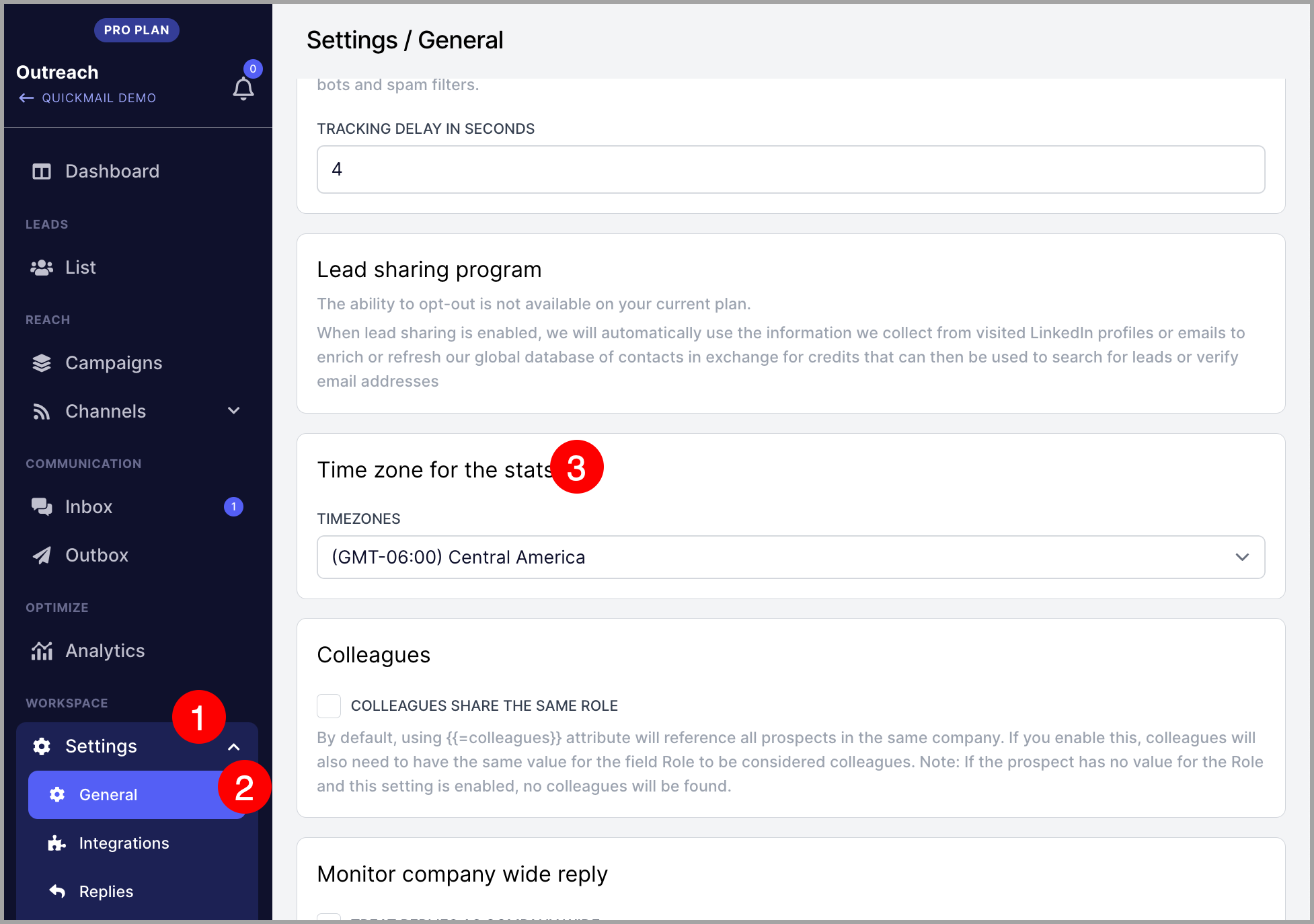
To check your account timezone, go to General Settings.
How to Set It Up for a Single Email Account?
Go to Email → click the email account you want to configure → Sending → scroll down to Maximum number of emails that QuickMail should send per day from this inbox → set your preferred limit.
How to Set It Up for Multiple Email Accounts?
Go to Email → select the email accounts you want to configure → Set Daily Sending Limit. Enter the limit → click Confirm.