Handling Out-of-Office Replies
Handling Out-of-Office Replies
In this article:
What are out-of-office replies?
How does QuickMail detect out-of-office replies?
What happens if a lead is marked as out-of-office?
How do I change the default delay of 14 days?
Where do I see out-of-office replies?
How do I send emails immediately to leads marked as out-of-office?
What Are Out-of-Office Replies?
Out-of-office replies are automated email responses that notify the sender that the recipient is temporarily unavailable. They typically include details such as the expected return date and alternative contact information.
How Does QuickMail Detect Out-of-Office Replies?
QuickMail automatically checks email accounts every 10 minutes for new responses and is designed to identify automated out-of-office replies and distinguish them from regular replies.
What Happens if a Lead Is Marked as Out-of-Office?
When a lead is marked as out-of-office, QuickMail automatically adds a 14-day delay on top of the existing wait step before sending the next email.
For example, if the lead's next email was scheduled to send in 3 days, QuickMail will instead wait 17 days (3 days + 14-day out-of-office delay).
This ensures emails are sent when the recipient is more likely to be available, improving the chances of engagement.
How Do I Change the Default 14-Day Delay?
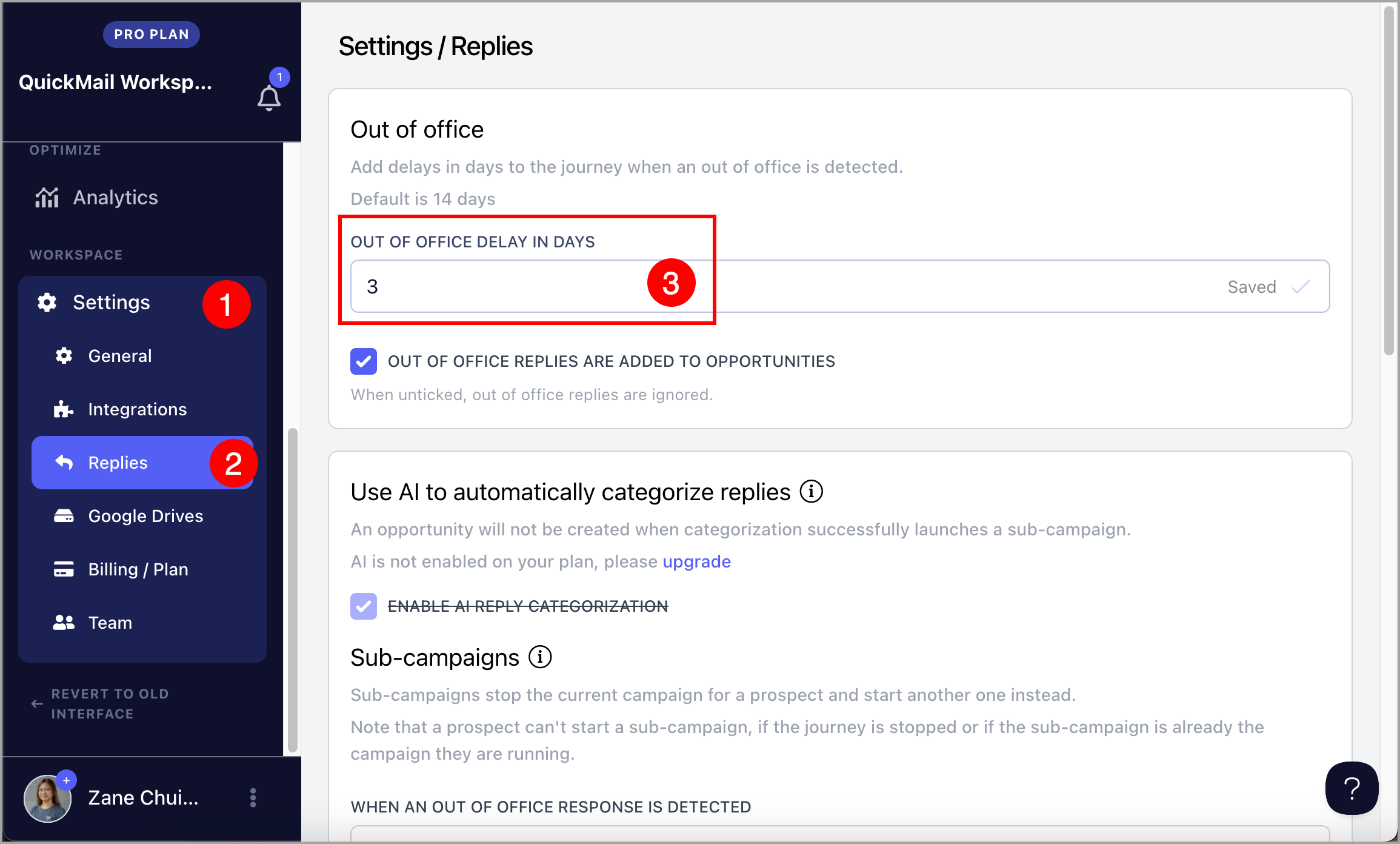
Go to the account's reply settings and edit the out-of-office delay in days. Here is an example with it set to 3 days:
Where Do I See Out-of-Office Replies?
Out-of-office replies can be viewed in the Inbox. This helps you identify whether a lead is temporarily unavailable or has left the company.
Their out-of-office message may also include useful details such as their expected return date or an alternate contact, allowing you to adjust your follow-up strategy accordingly.
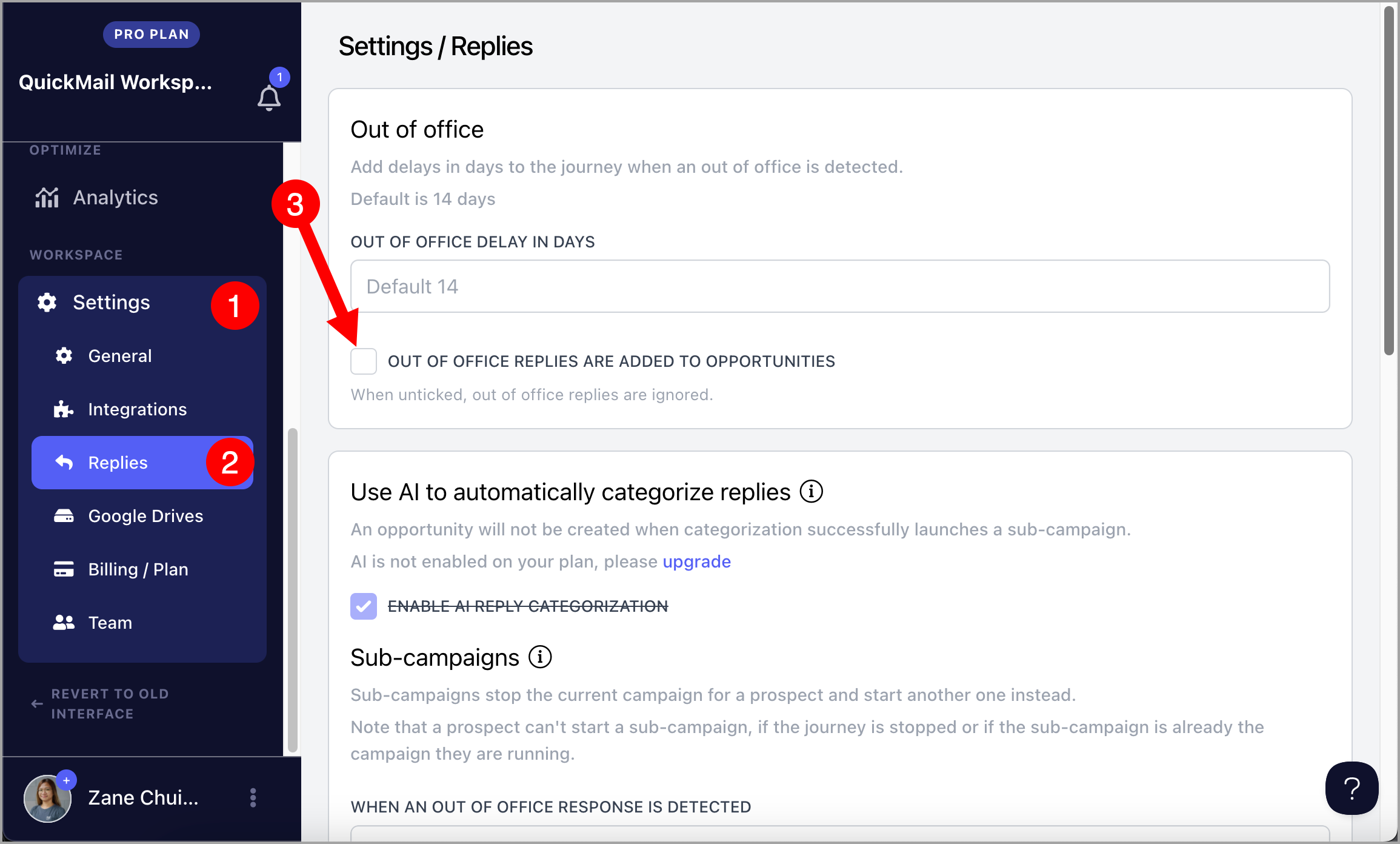
If you do not want out-of-office replies to appear in the Inbox, go to Settings → Replies → uncheck Out of office replies are added to Opportunities.
How Do I Send Emails Immediately to Leads Marked as Out-of-Office?
Leads marked as out-of-office can be resumed immediately or on a specific date and time.
To resume a lead, click the lead's name or thumbnail on the List page to open the quick view → Campaigns tab → click the menu icon (three vertical dots) for the campaign → Resume Progress → select a date → Confirm.
Note: On rare occasions, an out-of-office reply may be detected as a regular reply, causing the lead to stop receiving emails from the campaign. In this case, you can resume the lead immediately or on a specific date and time using the same steps above.