Handling Replies with the Inbox
Handling Replies with the Inbox
In this article:
Why use the Inbox?
What can I do with the Inbox?
What are the types of items in the Inbox?
Where can I find the Inbox?
Responding to a lead's reply
Selecting an email account to send from
Marking replies as pending
Marking replies as won or lost
Snoozing and unsnoozing conversations
Viewing or downloading the original email (EML)
Categorizing replies
Attaching files
Completing a task
Completing a call task
Completing a draft
Filtering the Inbox
Assigning conversations to team members
Inbox reports
Adding notes
Exporting conversations
Status bar
Bulk actions
Why Use the Inbox?
The Inbox keeps all your lead replies from different campaigns and email accounts in one place, so you never miss a response. Each conversation is displayed as a single thread, making it easy to track the full history with a lead. You can also manage tasks, calls, and draft emails directly from the same view.
The Inbox also uses AI to summarize conversations, suggest responses, and categorize replies, helping you stay organized and focus on the leads that matter most.
What Can I Do with the Inbox?
Respond to, view, and manage email replies
Respond to, view, and manage LinkedIn replies
Complete tasks
Complete call tasks and make calls via third-party phone dialers such as Aircall
Edit and send drafts for manual emails
Send attachments
What Are the Types of Items in the Inbox?
Email replies (envelope icon)
LinkedIn replies (LinkedIn icon in lead's thumbnail)
Accepted LinkedIn connection requests
Tasks (clipboard icon)
Call tasks (phone icon)
Drafts (leaf icon)
Sent emails (paper plane icon)
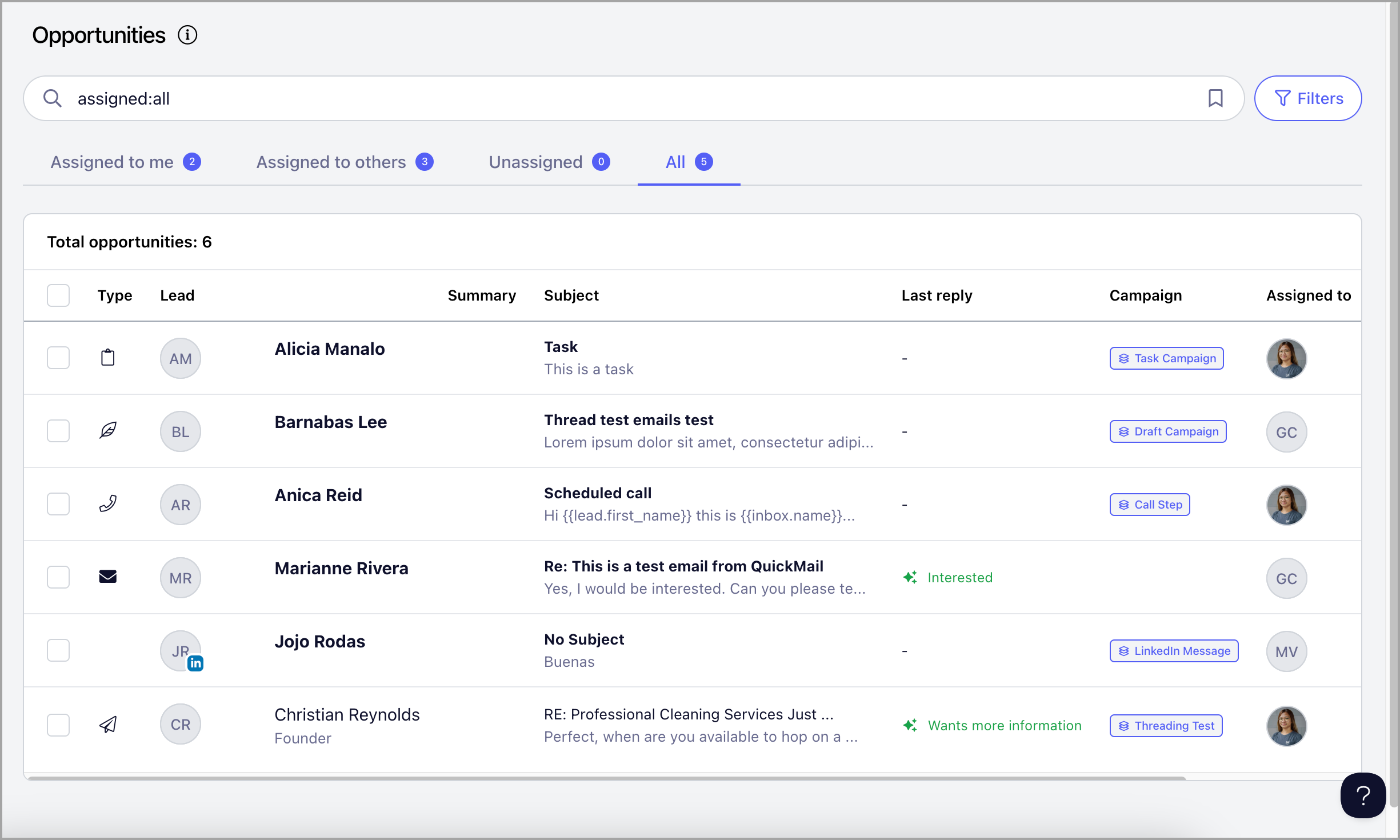
Where Can I Find the Inbox?
The Inbox can be found on the Inbox page or in a lead's quick view. Note that it will only appear in the quick view if there is a conversation associated with that lead.
Responding to Replies
Replies displayed in bold are active items that need to be addressed. Opening a reply will not remove the bold formatting on its own.
To respond, click the message in the Inbox → click Reply.
Once you send your reply, the conversation will automatically be marked as pending and will no longer appear in bold.
Tip: If you are having difficulty composing a reply or following a long email thread, Drafting Replies with AI may help.
Selecting an Email Account to Send From
To select which account to send from, choose one of the options in the From field.
Tip: When an email account is deleted, the lead replies from that account are not deleted. You can still reply to the lead using a different email account.
Marking Replies as Pending
Once you respond to a conversation, it is automatically marked as pending and will no longer appear in bold.
To mark a conversation as pending without replying, open the reply in the Inbox → click the Active button → set to Pending.
This moves the conversation to the bottom of the list and removes the bold formatting, making it easier to differentiate active from pending replies.
Marking Replies as Won or Lost
Replies can be marked as Won or Lost to help identify and close potential deals.
Note: Marking a reply as Won or Lost will automatically archive it. To view archived conversations, use the filters.
To mark a reply as Won or Lost, open the reply in the Inbox → click the Status button → select Won or Lost.
Snoozing and Unsnoozing Conversations
If a reply does not need immediate attention, you can snooze it to focus on more urgent conversations.
Note: Snoozed replies will not appear in your list until the snooze ends or the lead sends another reply. To view snoozed conversations, use the filters.
To snooze or unsnooze a conversation, select it from the Inbox → click the Snooze or Unsnooze button.
Viewing or Downloading the Original Email (EML)
The Inbox displays a readable version of each email, including the subject and message content. You can also view or download the original email for additional details such as the email source, attachments, and other information not shown in the preview.
To do this, go to the conversation → click the menu icon (vertical ellipsis) → select Download or Show Original.
Categorizing Replies
Categorizing replies generates stats for positive and negative replies in the analytics. If you are on the Expert plan, replies will be categorized automatically.
To manually categorize a reply, go to the conversation → click the menu icon (vertical ellipsis) → Change Reply Type → select a reply category.
Note: It is not yet possible to customize the available reply categories.
Tip: To learn more about AI Reply Categorization, check out this guide: Categorizing Replies with AI.
Attaching Files
To attach a file to a conversation, click the Attach File button in the reply editor.
Completing a Task
Tasks are automatically generated when a lead reaches a task step. To complete a task, open the conversation with the clipboard icon → click Mark as Complete.
Completing a Call Task
Call tasks are automatically generated when a lead reaches a call step. To complete a call task, open the conversation with the phone icon → click Mark as Complete.
Tip: You can make calls from QuickMail as long as you have a phone dialer app installed on your computer. The lead must also have a phone number saved to their profile. For more information, check out this guide: Call Steps.
Completing a Draft
If an email step is set to be sent manually, a draft will be generated. From the Inbox, you can view, edit, and send the draft.
To complete a draft, open the conversation with the leaf icon → click Mark as Complete.
Filtering the Inbox
The Inbox can be filtered to quickly find specific conversations. Available filter criteria include:
State (All, Active, Pending, Archived)
Status (Won, Lost, Open)
Snoozed
Last updated
Team member assigned
Campaign
Email account
Type of task
Incomplete or complete tasks
Assigning Conversations to Team Members
QuickMail automatically assigns replies to the owner of the email account that received them. The team member who added the email account becomes its owner by default.
Email accounts added via an invite link do not have an owner, so replies from those accounts will appear under the Unassigned tab.
To automatically assign new conversations from a specific email account to a team member, go to Email Accounts → Change Inbox Owner.
To manually assign a team member to an existing conversation, go to the Inbox → select the conversation → assign a team member.
Inbox Reports
Replies are detected when QuickMail scans your email accounts for new responses. As a result, no email notifications are sent for new conversations. To receive a daily summary instead, you can enable Inbox Reports.
Enabling Inbox Reports is currently only available in the old interface. If you are using the new interface, follow these steps:
Step 1. Get your workspace number from the URL. On the Inbox page, the URL will look like this:
https://next.quickmail.com/workspace/15/opportunities/list
The number after workspace/ is your workspace number (in this case, 15).
Step 2. Replace XXX in the URL below with your workspace number and open it in your browser:
https://next.quickmail.com/account/XXX/settings/replies
Step 3. Check the Opportunity Reports box → select the days and times you would like to receive reports → click Update.
Adding Notes
Notes are internal memos that can be added to any conversation. To add a note, open the conversation → click Add Note.
A text editor will open where you can write and format your note directly in the conversation thread.
Exporting Conversations
Exporting allows you to download a CSV containing detailed information about your conversations, including message history, sender and recipient addresses, and the date each message was received.
To export, go to the Inbox → select the conversations you want to export → click Export.
The CSV will be sent to the email address you use to log in.
Status Bar
Whenever the status of a conversation changes, the change is logged and displayed in a status bar at the top of the latest reply. This allows team members to see who has previously managed the conversation and what actions were taken.
Status changes logged include: Active, Pending, Won, Lost, and reassignment to a different team member.
Bulk Actions
Multiple conversations can be managed in bulk. Available bulk actions include:
Snoozing
Unsnoozing
Adding an assignee
Removing an assignee
Archiving
Deleting
To use bulk actions, select multiple conversations — one by one, by page, or all at once — then click the desired action.