Setting up API V2
Setting up API V2
These are mostly just JSON samples for API calls.
Here's the complete API documentation to use: https://api.quickmail.com/help
For convenience, we have a web app that you can use to test your integrations with your live data in QuickMail. Here's where you can access it: https://api.quickmail.com/v2/graphiql
API rate limit is 10 requests per 10 seconds
In this article:
- Creating an API Key
- API Authorization
- API Documentation
- API Endpoint
- JSON samples for API calls:
- Getting Agency information including name, ID, and URL
- Getting workspaces IDs, names, and URLs
- Getting campaign IDs, names, and URLs
- Getting campaign stats based on a specific campaign
- Getting email account IDs
- Creating campaigns
- Creating email steps
- Creating email variation
- Creating Wait step
- Updating send times
- Assigning/unassigning email accounts to/from campaigns
- Creating custom properties
- Setting custom properties
- Creating Tags
- Setting Tags
- Getting the number of available, active, and completed leads in a campaign
- Getting the number of leads that ran into an error
- Getting leads
- Deleting Leads
- Moving to the next page
- Filtering: Exclude/Include workspace IDs
- Ruby samples
- Creating a lead
- Retrieving a lead's information
Creating an API key
To create an API key, please refer to this guide: Creating an API key in QuickMail
Authorization
To get started, paste this on the headers:
{
  "Authorization": ""
}
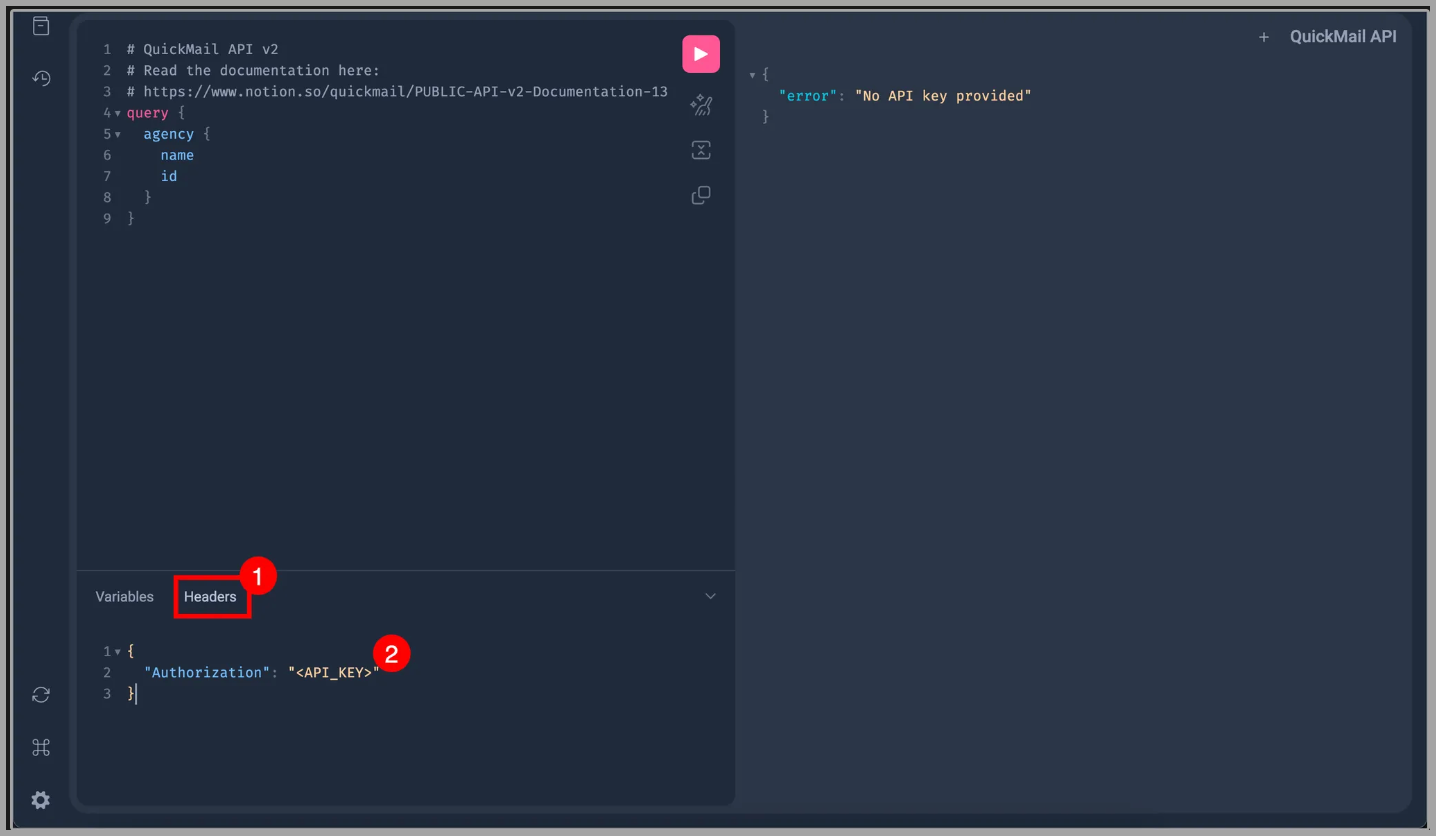
Then, generate your API in QuickMail and replace the word
Here's an article to help you generate an API key.
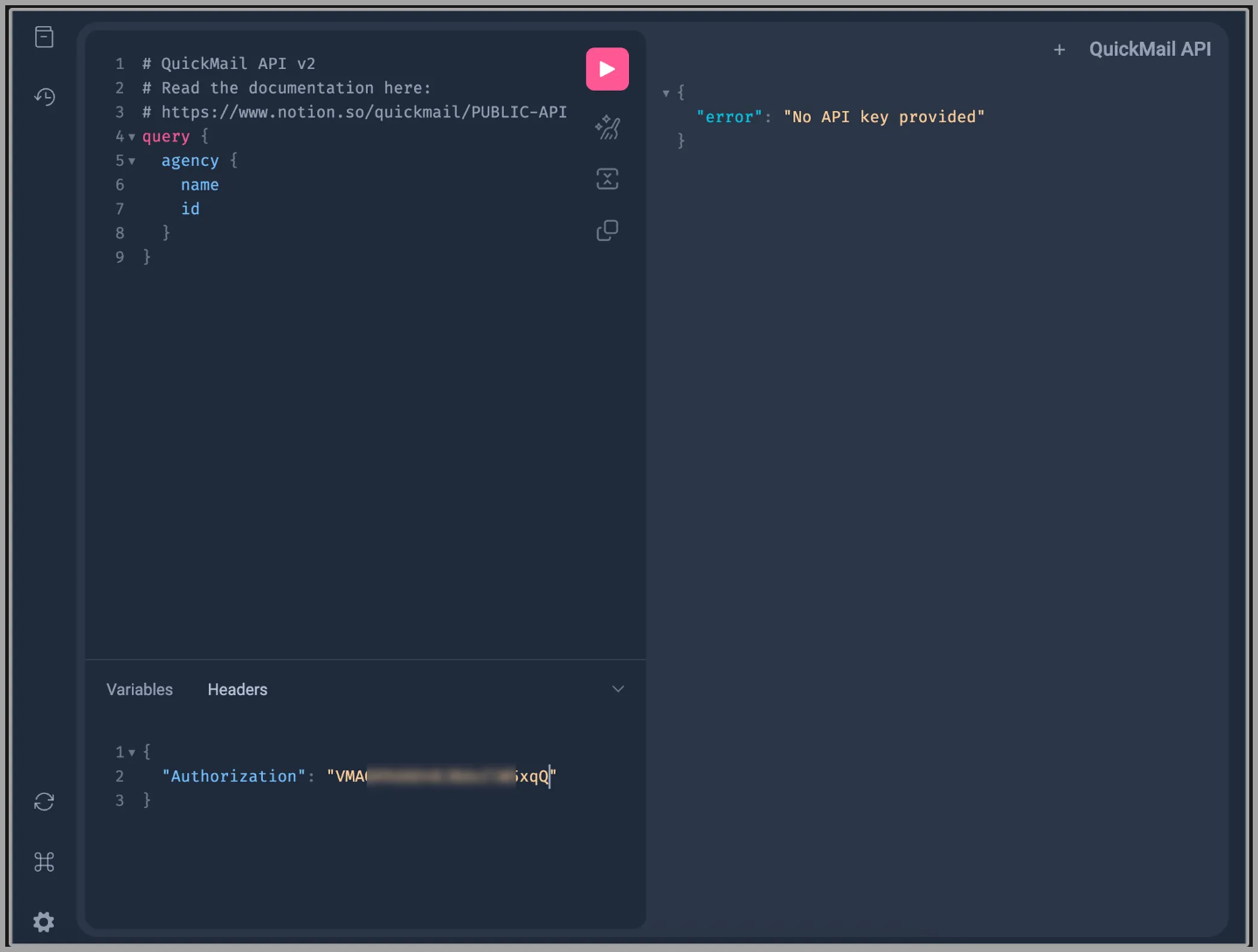
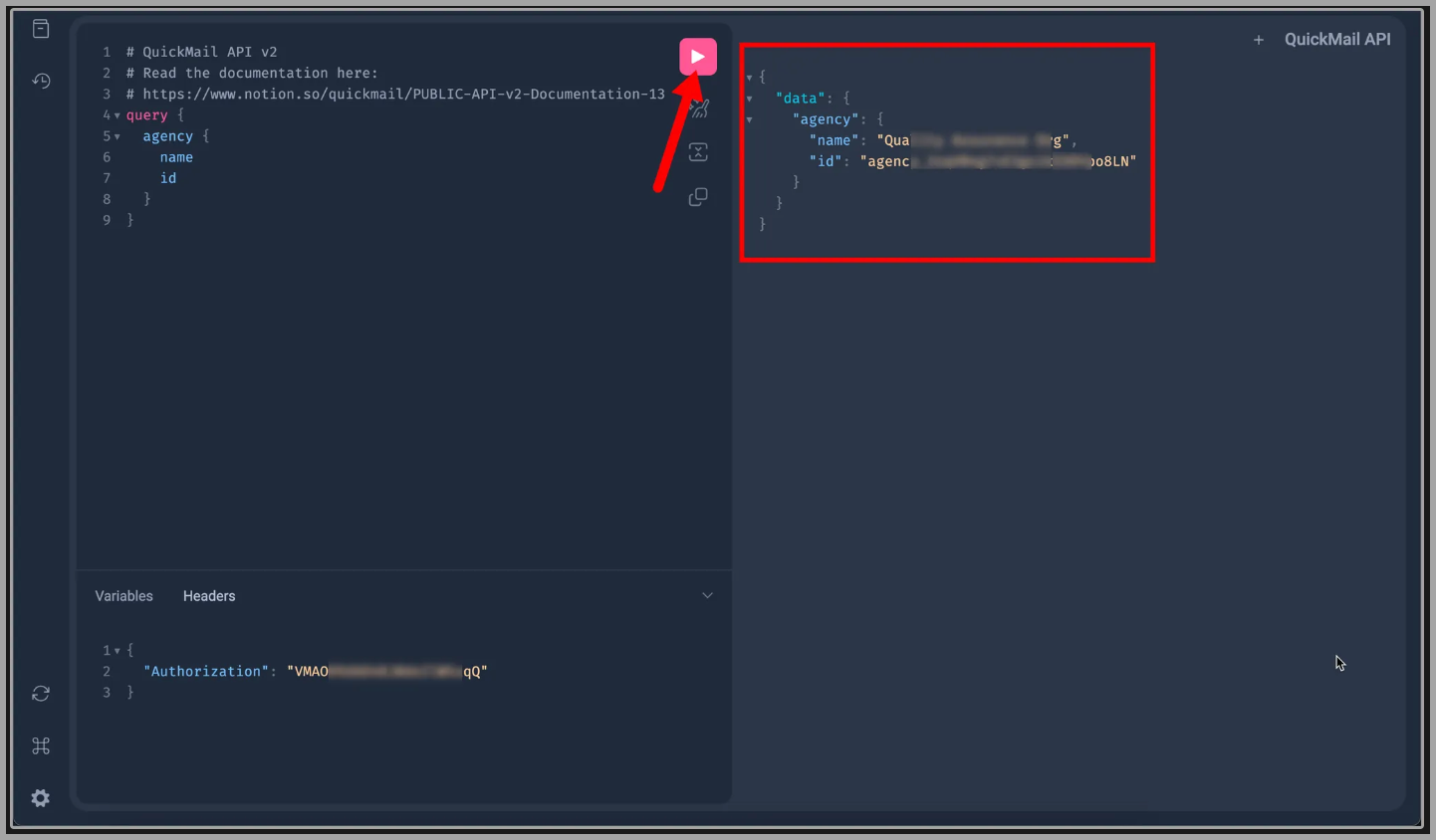
Next, click the play button. If the API key is valid, it should show the name of your agency, as well as the ID. Like this:
Common error/s when setting up authorization
If it shows an error, please double-check that the API key pasted is correct and that it's still on the agency dashboard. (It can be deleted by other team members)
Once the API key has been corrected or a new one added, just replace the old one on the headers and press the play button again.
Documentation
Here's the full documentation: https://api.quickmail.com/help
Endpoint
To use the API directly, send POST requests directly to: https://api.quickmail.com/v2/graphql
This URL is different from the GraphiQL page URL: https://api.quickmail.com/v2/graphiql
JSON samples
Getting Agency information including name, ID, and URL
{
  agency {
    id
    name
    appUrl
  }
}
Getting workspaces IDs, names, and URLs
{
  agency {
    id
    name
    appUrl
    workspaces {
      nodes {
        id
        name
        appUrl
      }
    }
  }
}
Getting campaign IDs, names, and URLs
{
  agency {
    id
    name
    appUrl
    campaigns {
      nodes {
        id
        name
        appUrl
      }
    }
  }
}
Getting campaign stats based on a specific campaign
{
  agency {
    id
    name
    appUrl
    campaign(id: "add-the-campaign-id-here") {
      id
      name
      appUrl
      stats {
        clicks
        opens
        replies
        repliesPositive
        repliesNegative
      }
    }
  }
}
Getting email account IDs
{
  agency {
    id
    name
    appUrl
    workspaces {
      nodes {
        id
        name
        appUrl
      }
    }
    emailAccounts {
      nodes {
        id
      }
    }
  }
}
This only pulls up the list of inboxes/email sender in the account. It doesn't pull up the stats related to the inboxes such as open, clicks, replies, sent emails, etc.
Creating campaigns
mutation createCampaign {
  createCampaign(
    input: {
      workspaceId: "add-workspace-id-here",
      name: "Campaign 2",
    }
  ) {
    campaign {
      id
      name
    }
  }
}
Creating email steps
mutation createEmailStep {
  createEmailStep(
    input: {
      campaignId: "add-campaign-id-here",
      subject: "insert subject here",
      body: "insert body here",
      continueThread: Boolean,
      openTracking: Boolean,
      clickTracking: Boolean,
      draft: Boolean,
      plainText: Boolean,
      cced: "insert cc email here",
      bcced: "bcc here"
      preview: "The preview text snippet shown before opening the email in the user mail client.",
      paused: Boolean,
      clientMutationId: "A unique identifier for the client performing the mutation."
    }
  ) {
    step {
      id
    }
  }
}
Creating email variation
mutation addEmailVariation {
  addEmailVariation(
    input: {
      stepId: "campaign step ID here",
      subject: "insert subject here",
      body: "insert body here",
      continueThread: Boolean,
      openTracking: Boolean,
      clickTracking: Boolean,
      draft: Boolean,
      plainText: Boolean,
      cced: "insert cc email here",
      bcced: "bcc here"
      preview: "The preview text snippet shown before opening the email in the user mail client.",
      paused: Boolean,
      clientMutationId: "A unique identifier for the client performing the mutation."
    }
  ) {
    variation {
      id
    }
  }
}
Creating Wait step
mutation createWaitStep {
  createWaitStep(
    input: {
      campaignId: "insert campaign ID here",
      unit: "days",
      value: 3
    }
  ) {
    step {
      id
    }
  }
}
Updating send times
mutation updateCampaignAutomation {
  updateCampaignAutomation(
    input: {
      campaignId: "insert campaign ID here",
      timeZone: "UTC",
      businessDays: {
        sunday: boolean,
        monday: boolean,
        tuesday: boolean,
        wednesday: boolean,
        thursday: boolean,
        friday: boolean,
        saturday: boolean
      },
      timeRanges: [
        {
          day: monday, startTime: "00:00", endTime: "00:00",
          day: tuesday, startTime: "00:00", endTime: "00:00"
        }
      ]
    }
  ) {
    campaign {
      id
    }
  }
}
Assigning/unassigning email accounts to/from campaigns
mutation setCampaignEmailAccounts {
  setCampaignEmailAccounts(
    input: {
      campaignId: "insert campaign ID here",
      emailAccountIds: ["email ID", "email ID"],
      assign: boolean
    }
  ) {
    emailAccounts {
      id
    }
    campaign {
      id
    }
  }
}
Creating custom properties
mutation createCustomProperty {
  createCustomProperty(
    input: {
      workspaceId: "workspace_5Mk2rvQpagb0aTLVXGDKRN4E",
      name: "name of property",
      value: "default value"
    }
  ) {
    customProperty {
      id
      name
    }
  }
}
Setting Custom Properties
mutation setCustomProperty {
  setCustomProperty(
    input: {
      workspaceId: "workspace_xxxx",
      customPropertyId: "custom_property_xxx",
      leadIds: [
        "lead_xxx",
        "lead_xxx"
      ],
      value: "set via v2 API"
    }
  ) {
    leads {
      id
      customProperties {
        nodes {
          id
          name
          value
        }
      }
    }
  }
}
Creating Tags
mutation createTag {
  createTag(input: { workspaceId: "workspace_xxxxx", name: "newtag" }) {
    tag {
      id
      name
    }
  }
}
Setting Tags
mutation setTags {
  setTags(
    input: {
      workspaceId: "workspace_xxx",
      leadIds: [
        "lead_xxx",
        "lead_xxx"
      ]
      tagIds: [
        "tag_xxx",
        "tag_xxx",
      ],
      assign: true # or false to untag
    }
  ) {
    leads {
      id
      tags {
        nodes {
          id
          name
        }
      }
    }
  }
}
Getting number of available, active, and completed leads in a campaign
{
  campaigns {
    nodes {
      id
      name
      leadStatus {
        total
        active
        available
        completed
      }
    }
  }
}
Getting number of leads that ran into an error
{
  campaigns {
    nodes {
      id
      name
      leadStatus {
        failed
      }
    }
  }
}
Getting leads
query getLeads {
  leads {
    edges {
      node {
        id
        email
        firstName
        lastName
        fullName
        title
        role
        phone
        linkedinId
        language
        score
        appUrl
      }
    }
  }
}
Deleting leads
mutation {
  deleteLeads(input: { workspaceId: "workspace_a3ZyeOmKbzDXAiLzMXDY5APE", leadIds: ["lead_r6zQLkOd0pnQiGVERvwaj14g", "lead_KQdYzj8W7OnJiY90AbaBeL6p"], permanent: false }) {
    clientMutationId
  }
}
Moving to the next page
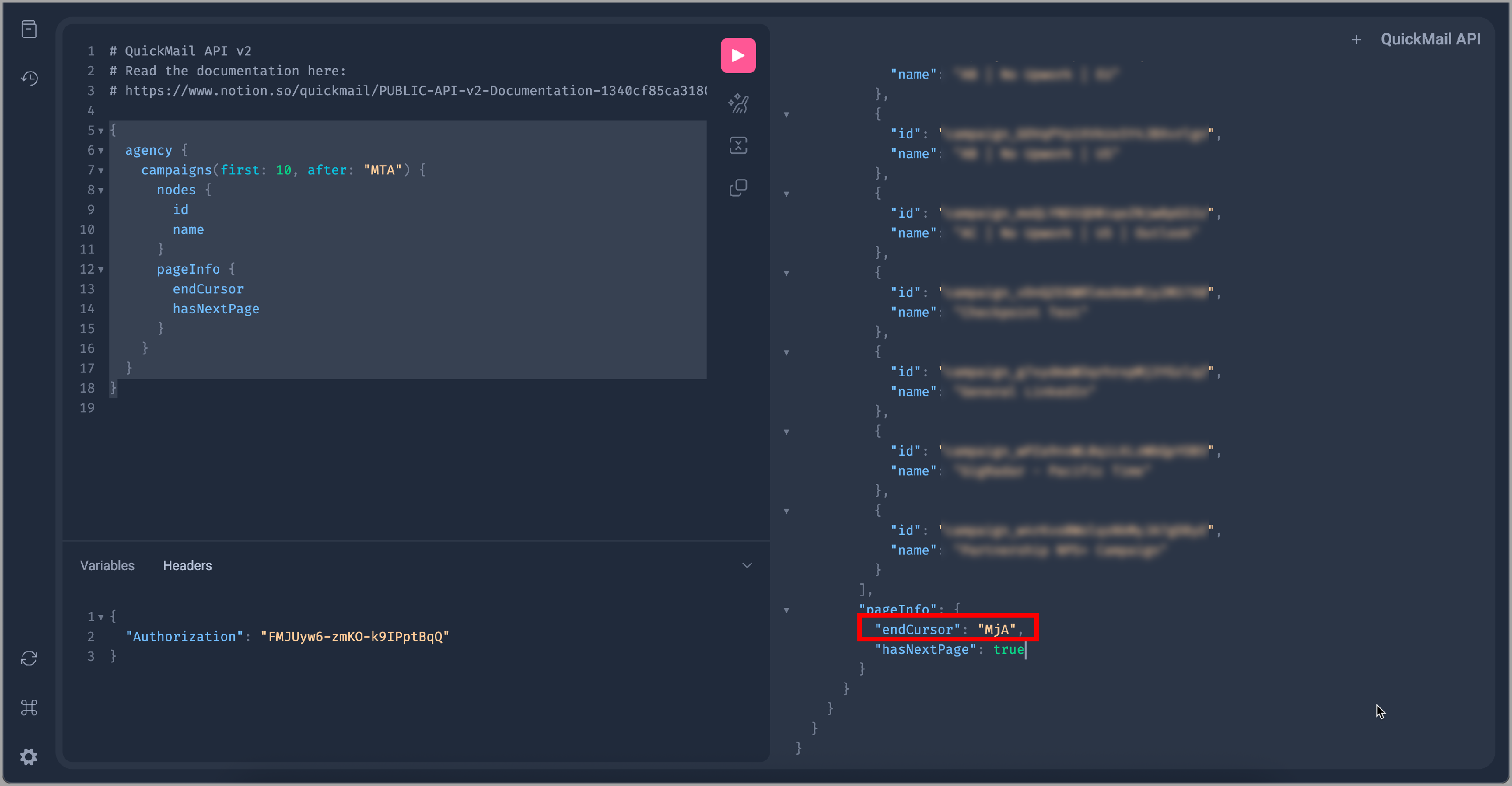
We only show the 1st 10 items on the 1st page.
So you need to use this JSON to move to the next page.
{
  agency {
    campaigns(first: 10, after: "MTA") {
      nodes {
        id
        name
      }
      pageInfo {
        endCursor
        hasNextPage
      }
    }
  }
}
To move to the next pages, use the endCursor code and insert it into campaigns(first: 10, after: "endCursor")
Filtering: Exclude Workspace IDs
query {
  campaigns(
    excludeWorkspaceIds: [
      "workspace_ID1",
      "workspace_ID2",
      "workspace_ID3"
    ]
  ) {
    nodes {
      name
      appUrl
      id
    }
  }
}
Filtering: Include Workspace IDs
query {
  campaigns(
    includeWorkspaceIds: [
      "workspace_ID1",
      "workspace_ID2",
      "workspace_ID3"
    ]
  ) {
    nodes {
      name
      appUrl
      id
    }
  }
}
Ruby Samples
Creating a lead
quickmail_key = 'your api key'
workspace_id = 'workspace_yourworkspace_id'

email = 'john@ibm.com'

mutation = <<~TEMPLATE
  mutation CreateLeads($input: CreateLeadsInput!) {
    createLeads(input: $input) {
      leads {
        id
        email
      }
    }
  }
TEMPLATE

variables = { input: { workspaceId: workspace_id, leads: [{firstName: 'John', email: 'john@ibm.com'}] } }

query = { query: mutation, variables: }

options = {
  url: 'https://api.quickmail.com/api/v2/graphql',
  headers: {
    authorization: "#{quickmail_key}",
    accept: 'application/json',
    content_type: 'application/json'
  },
  method: :post,
  payload: query.to_json
}

response = RestClient::Request.execute(options)

body = JSON.parse(response.body)

errors = body.dig('errors')
Retrieving a lead's information
quickmail_key = 'your api key'

workspace_id = 'workspace_yourworkspace_id'

email = 'john@ibm.com'

payload = <<~TEMPLATE
  {
    workspace(id: "#{workspace_id}") {
      id
      name
      leads(text: "#{email}") {
        nodes {
          id
          email
        }
      }
    }
  }
TEMPLATE

query = { query: payload }

options = {
  url: 'https://api.quickmail.com/api/v2/graphql',
  headers: {
    authorization: "#{quickmail_key}",
    accept: 'application/json',
    content_type: 'application/json'
  },
  method: :post,
  payload: query.to_json
}

response = RestClient::Request.execute(options)

body = JSON.parse(response.body)

errors = body.dig('errors')