Managing Exclusion Lists (For Agencies)
Managing Exclusion Lists (For Agencies)
In this article:
Why keep an agency exclusion list?
How does it work?
How to add domains to the agency exclusion list?
How to add email addresses to the agency exclusion list?
How to automatically add leads to the exclusion list if they unsubscribe from a workspace?
How to automatically add a domain to the exclusion list if a lead unsubscribes from a workspace?
What if I want an email address excluded only from certain workspaces?
What if I want a domain excluded only from certain workspaces?
Why Keep an Exclusion List?
Keeping an exclusion list helps you:
Comply with laws like CAN-SPAM, GDPR, and CASL, which require honoring opt-out requests.
Reduce the risk of being blacklisted by email providers.
Protect your sender reputation by avoiding re-contacting leads who have already opted out.
Filter out irrelevant contacts to improve targeting.
How Does It Work?
If a domain or email address is added to the agency exclusion list, it cannot be contacted from any workspace under the agency. If a lead using an excluded address or domain is added to a campaign, they will be automatically skipped.
If only an email address is excluded, other leads from the same domain can still be contacted. If a domain is excluded, all leads using that domain will be blocked.
How to Add Domains to the Agency Exclusion List?
Go to the Agency Dashboard → Exclude tab.
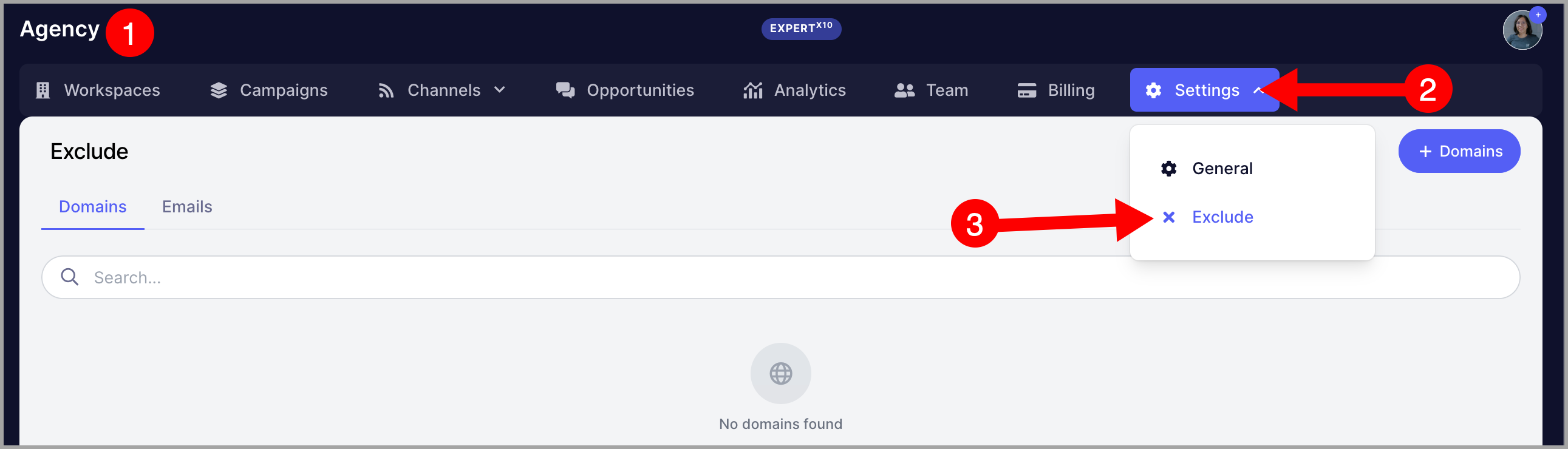
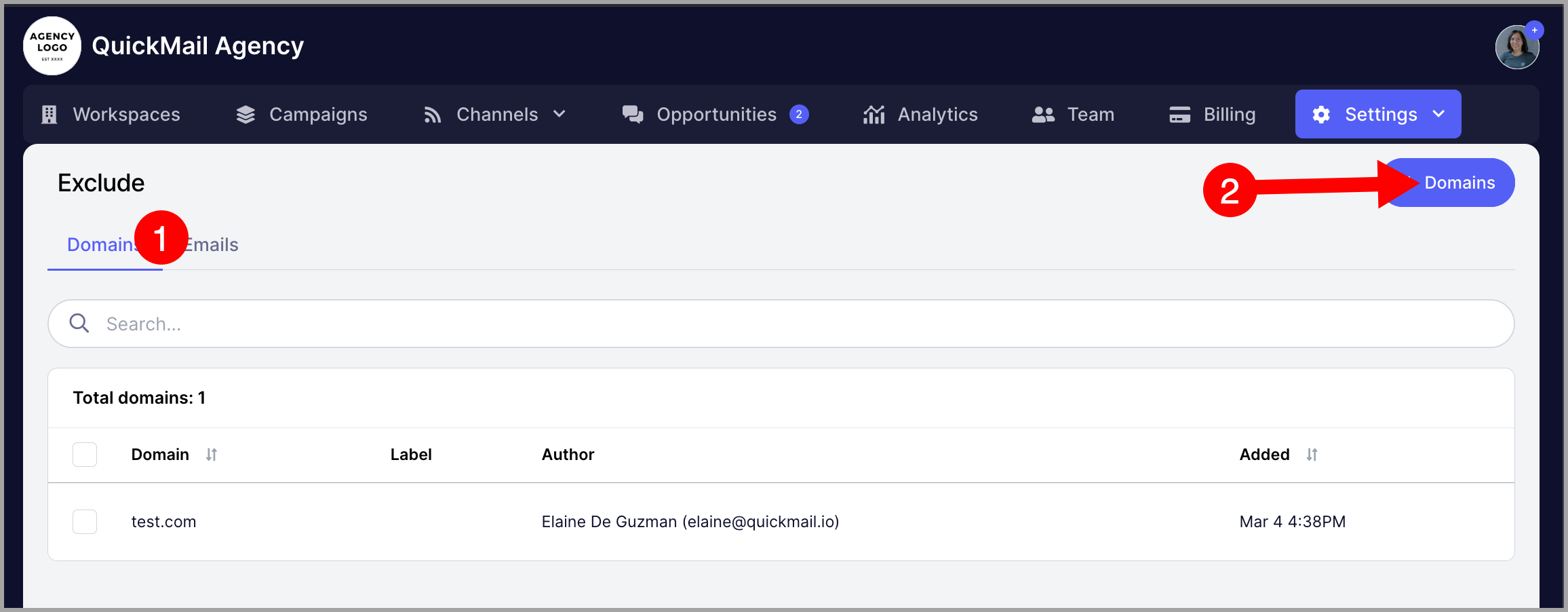
Click Domain → Add Domains.
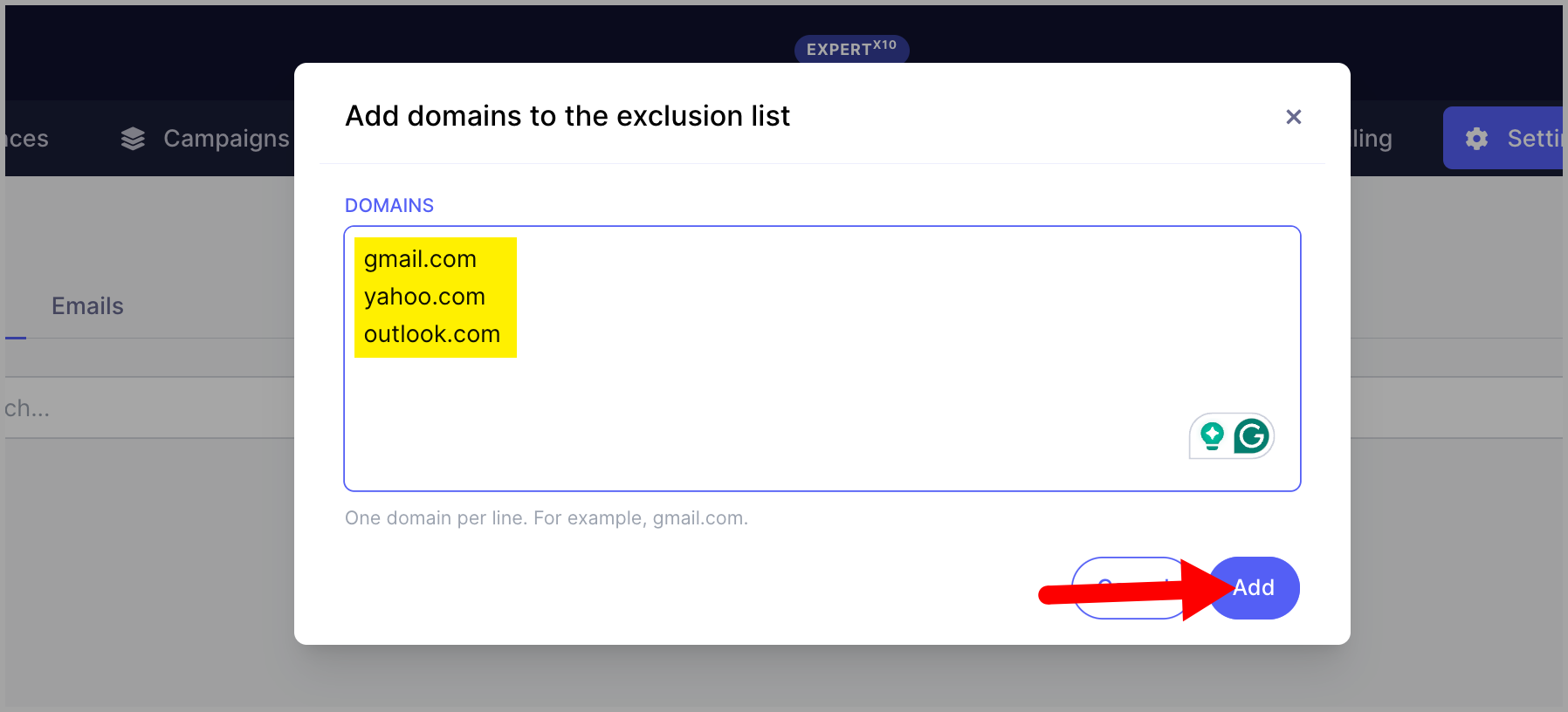
Important: Do not include www before the domain, as it will be interpreted as a subdomain.
You can add multiple domains at once — enter one domain per line.
How to Add Email Addresses to the Agency Exclusion List?
From the same page, go to the Emails tab → add addresses, one per line → click Add.
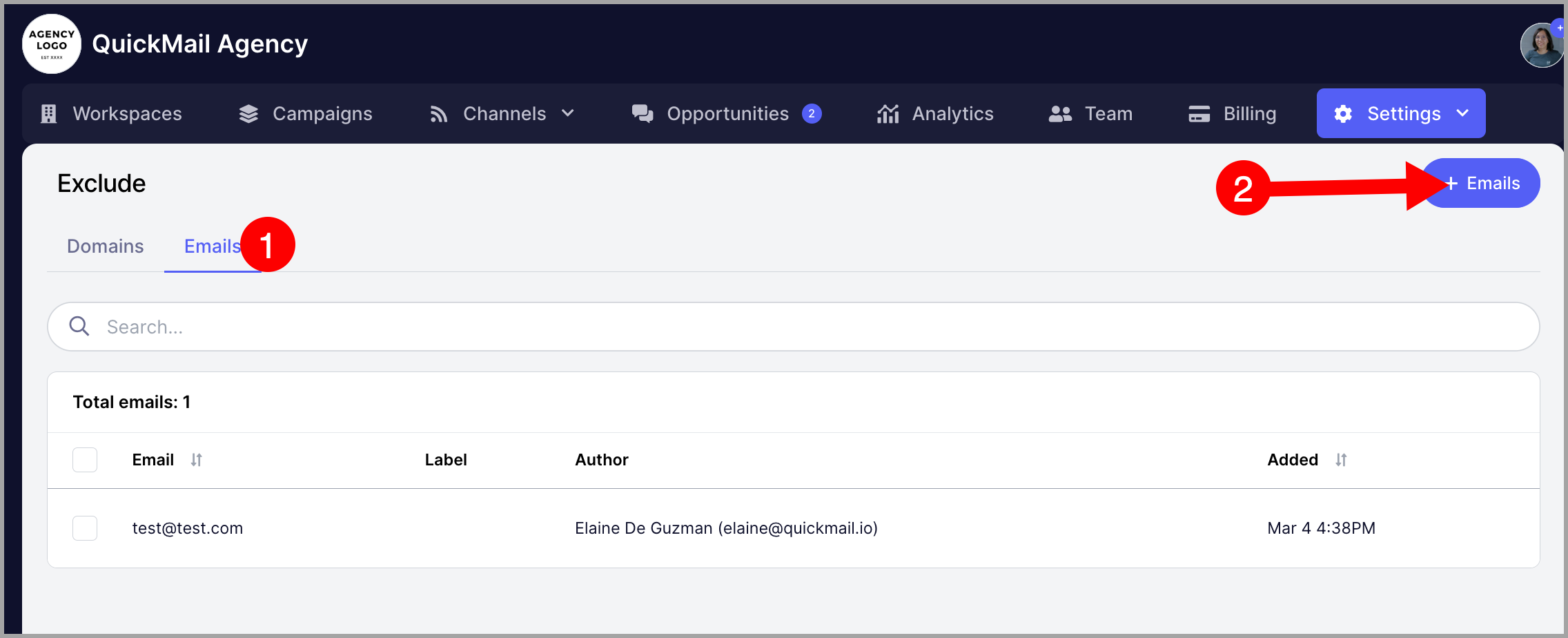
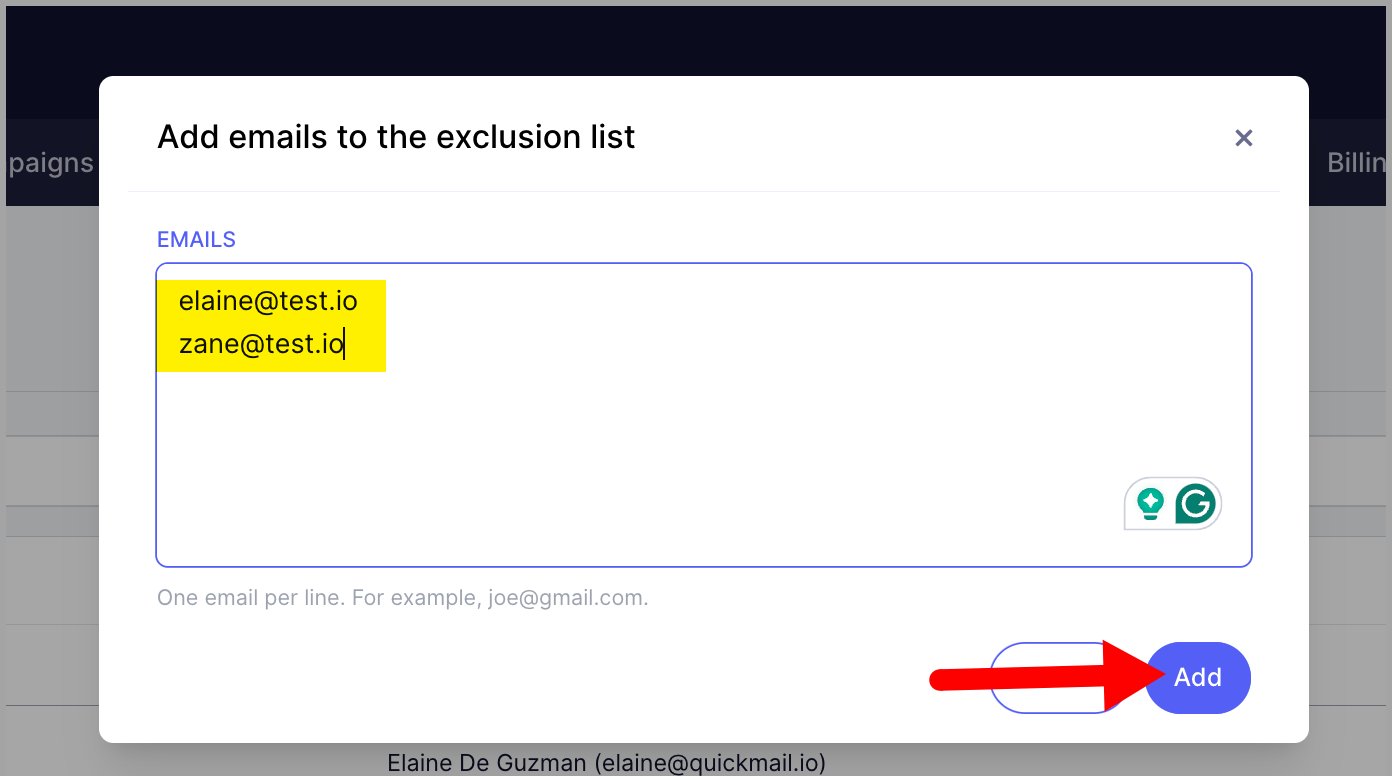
All added domains and email addresses will show who added them and when. If entries were added via automation, the source will also be displayed.
Source types and what they mean:
API — marked as Do Not Contact via API.
Zapier — marked as Do Not Contact via Zapier automation.
Campaign — marked after completing a Do Not Contact sub-campaign.
AI — marked after a reply was categorized as an unsubscribe request.
Learn more about automatically handling unsubscribes here.
How to Automatically Add Leads to the Exclusion List if They Unsubscribe from a Workspace?
Go to the workspace Settings → General Settings → enable Update Organization Do Not Contact.
When enabled, leads will automatically be added to the agency exclusion list if they are:
Manually marked as Do Not Contact.
Unsubscribed from a campaign.
Marked via Zapier or API.
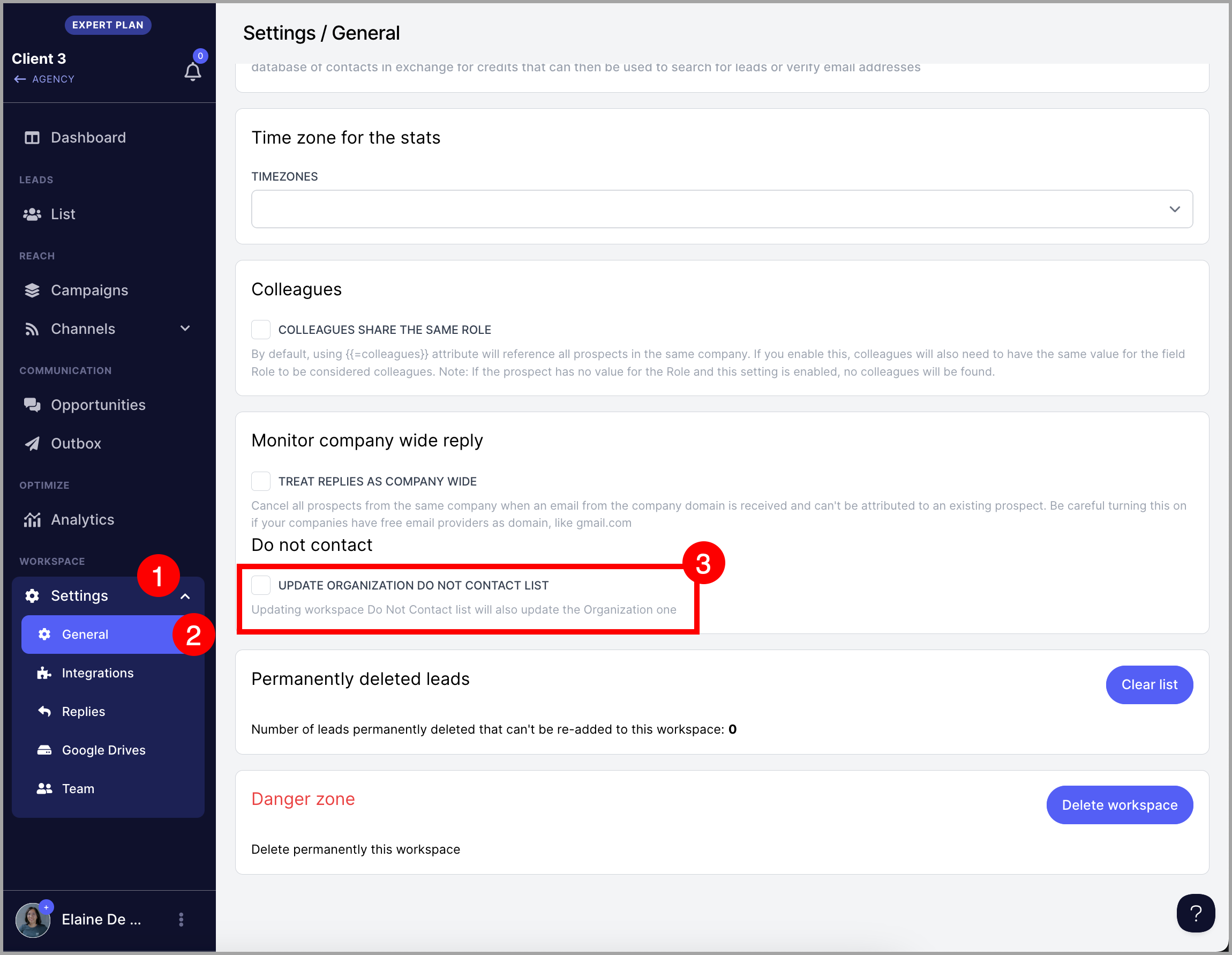
Domains added to a workspace's DNC domain list will also be added to the agency exclusion list when this setting is enabled.
Note: This setting must be enabled in each workspace for it to apply across the entire agency.
How to Automatically Add a Domain to the Exclusion List if a Lead Unsubscribes from a Workspace?
This is not currently supported. As a workaround, domains must be added to the agency exclusion list manually.
What if I Want an Email Address Excluded Only from Certain Workspaces?
Add the lead to those specific workspaces and mark them as Do Not Contact. Here is a quick guide: Marking Leads as Do Not Contact.
What if I Want a Domain Excluded Only from Certain Workspaces?
Sure, that's possible. Simply go to the Leads page of a specific workspace, click on the ellipsis, and click exclude list. From there, you'll see an option to add domains to the exclude list.
Note: To ensure domains and email addresses are only excluded from specific workspaces and not the entire agency, make sure to turn off Update Organization Do Not Contact before marking them as Do Not Contact or adding domains to the DNC domain list.