Narrowing Down Your List Using Filters
Narrowing Down Your List Using Filters
In this article:
Why filter leads?
How to filter leads?
Unsubscribed / Do Not Contact leads
Leads with specific email validity
Leads created in a specific timeframe
Leads with and without specific tags
Leads in a specific number of campaigns
Leads in specific campaigns
Lead status in a campaign
Leads with opens or clicks
How to share filtered leads?
How to save filters?
Why Filter Leads?
Filters allow you to narrow down your lead list and quickly find the leads you are looking for based on specific criteria. This saves time and helps you find leads more accurately than searching manually.
How to Filter Leads?
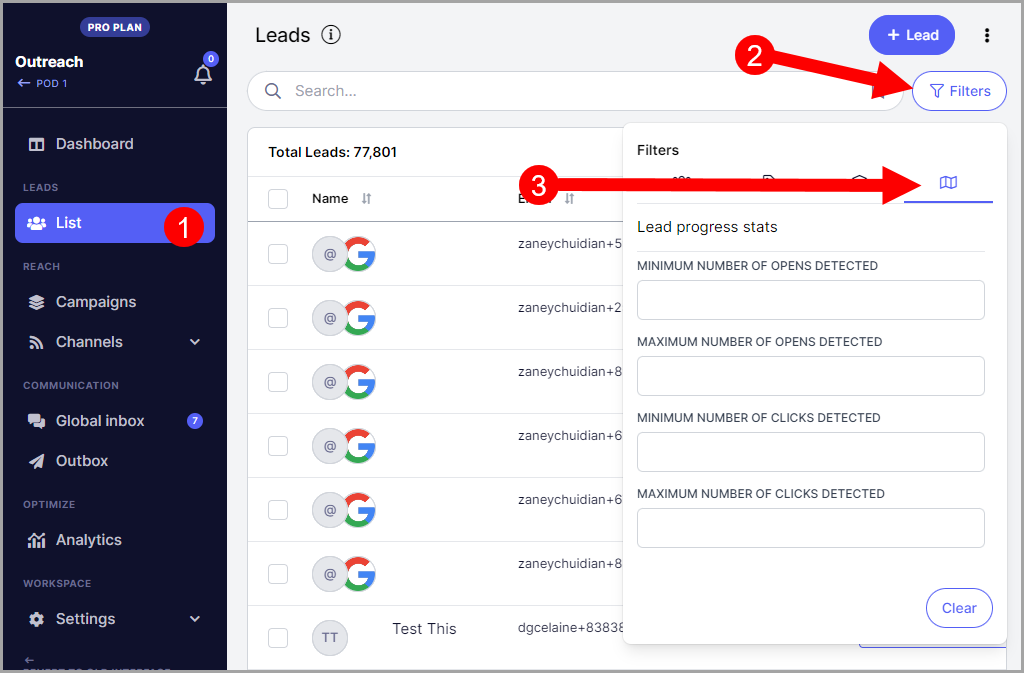
Go to the Leads page and click Filters. This will open a window showing all available filters.
Unsubscribed / Do Not Contact Leads
Leads are marked as Do Not Contact if they unsubscribed from a campaign, or if they were manually marked as Do Not Contact.
To filter for these leads, click the relevant radio button under the first tab:
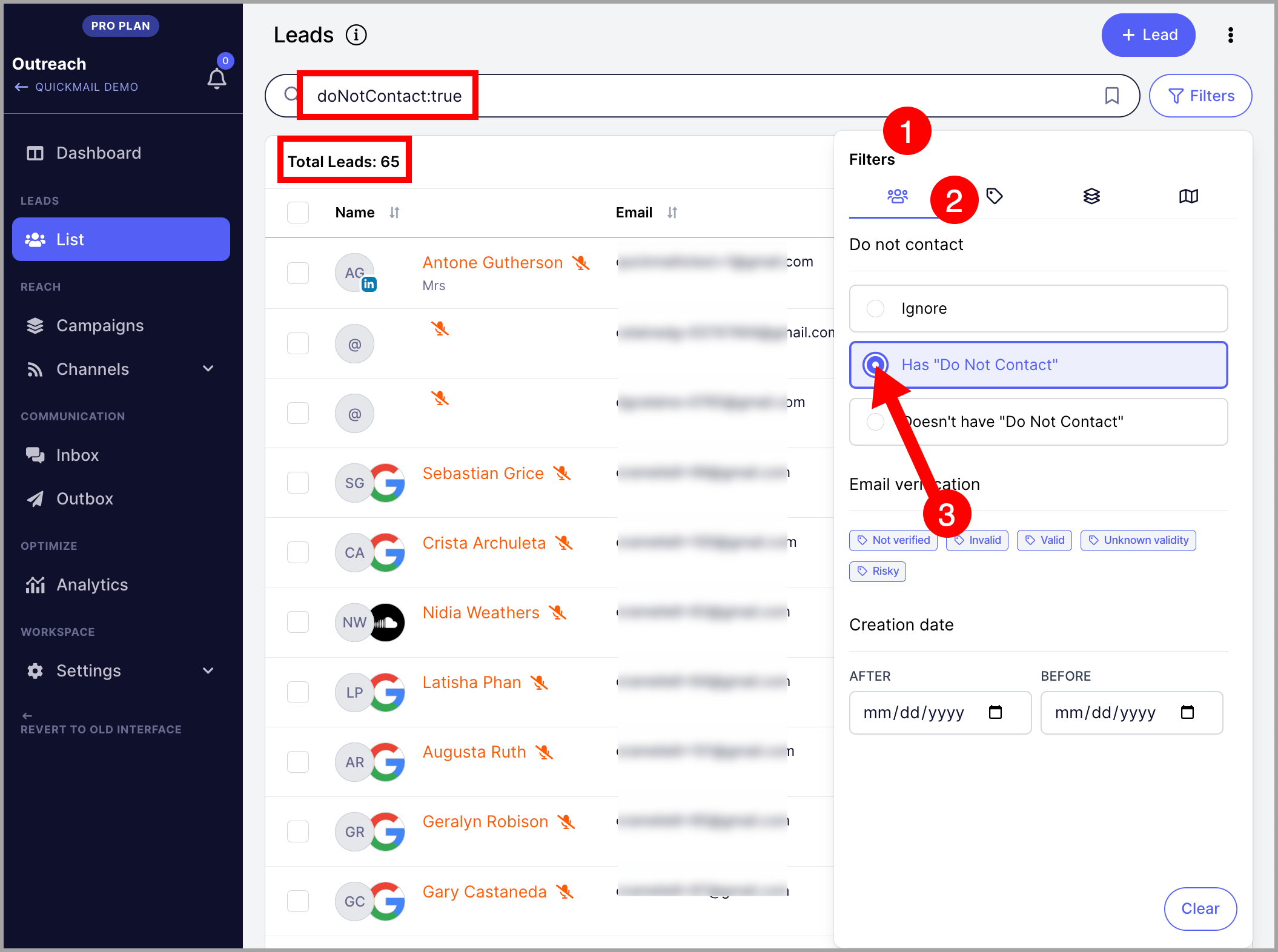
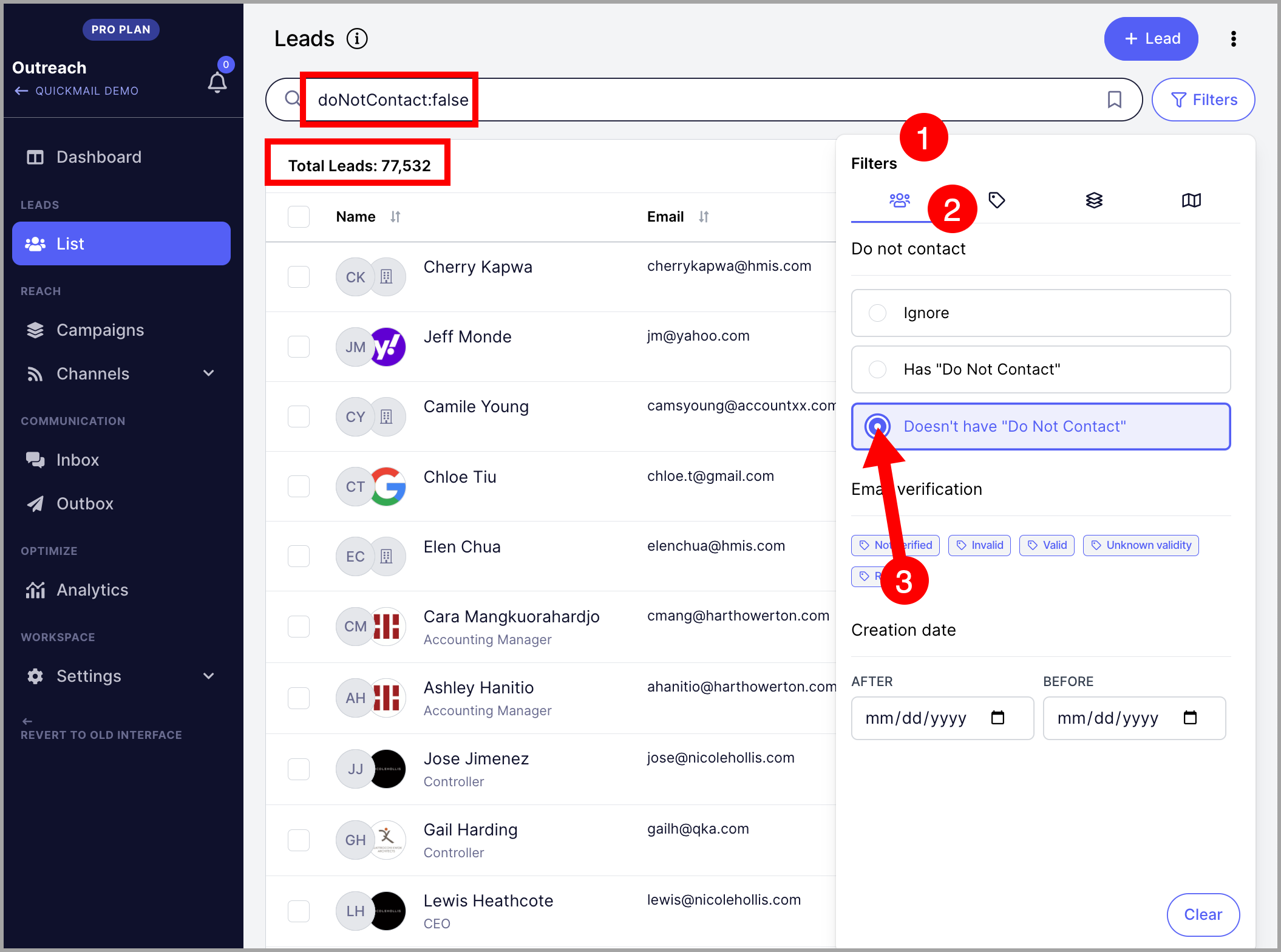
You can also use this filter to find leads that are not marked as Do Not Contact.
Leads with Specific Email Validity
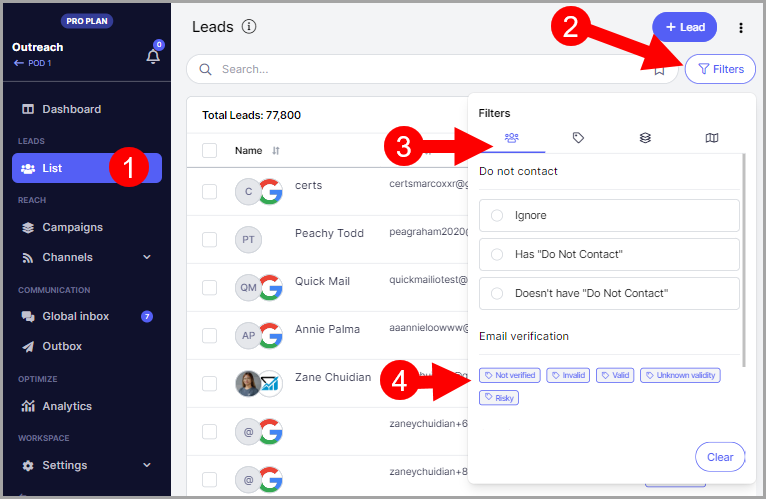
Select any status under Email Verification to filter leads based on their email validity.
Pro tip: To verify emails in QuickMail, set up an email verification tool. Here is a detailed guide on email verification.
Leads Created in a Specific Timeframe
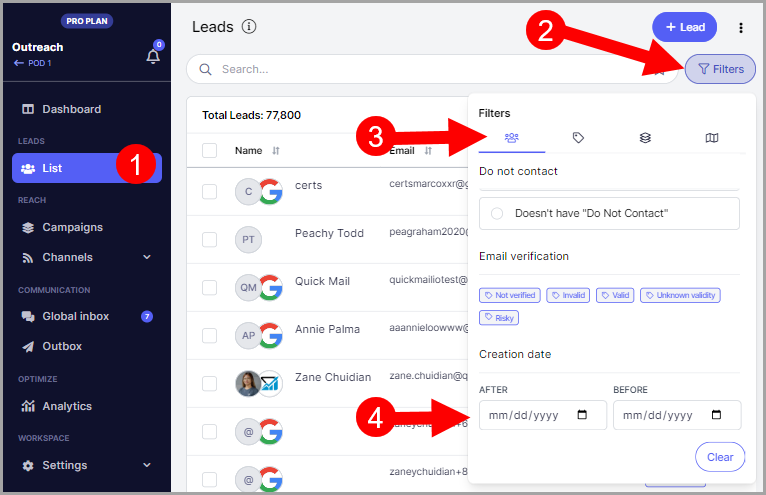
Filter leads by their creation date by setting a start and end date. Use the After date as the start and the Before date as the end.
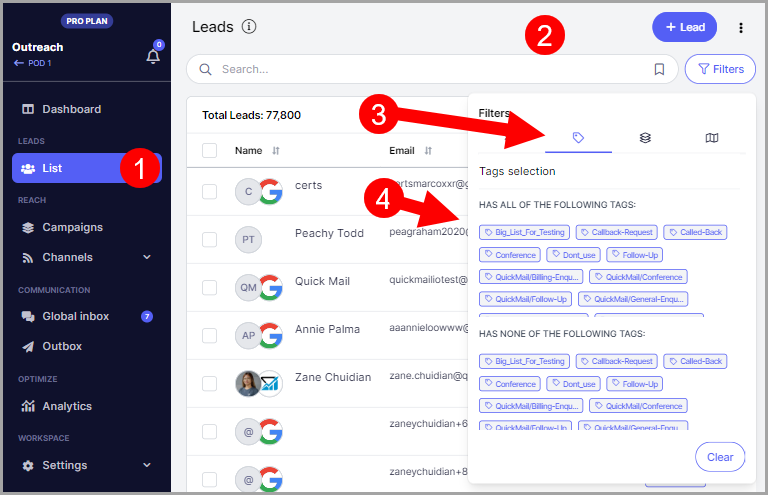
Leads with and Without Specific Tags
Filter leads based on tags they have or do not have.
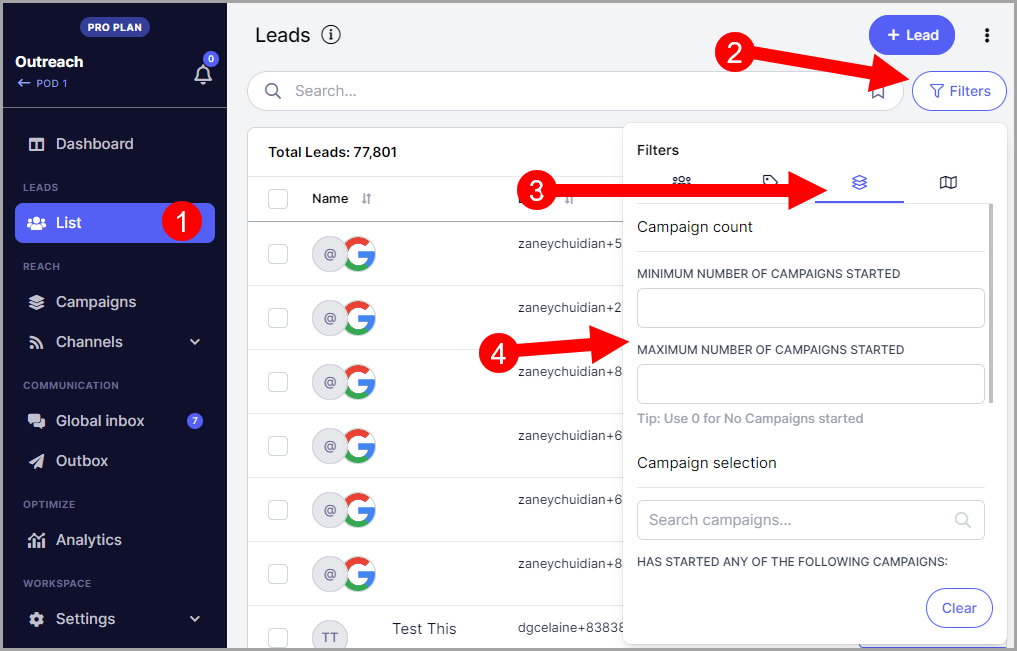
Leads in a Specific Number of Campaigns
Filter leads based on how many campaigns they are part of.
Leads in Specific Campaigns
Filter leads based on which campaigns they are participating in by selecting a campaign under “Has Started the Following Campaigns.”
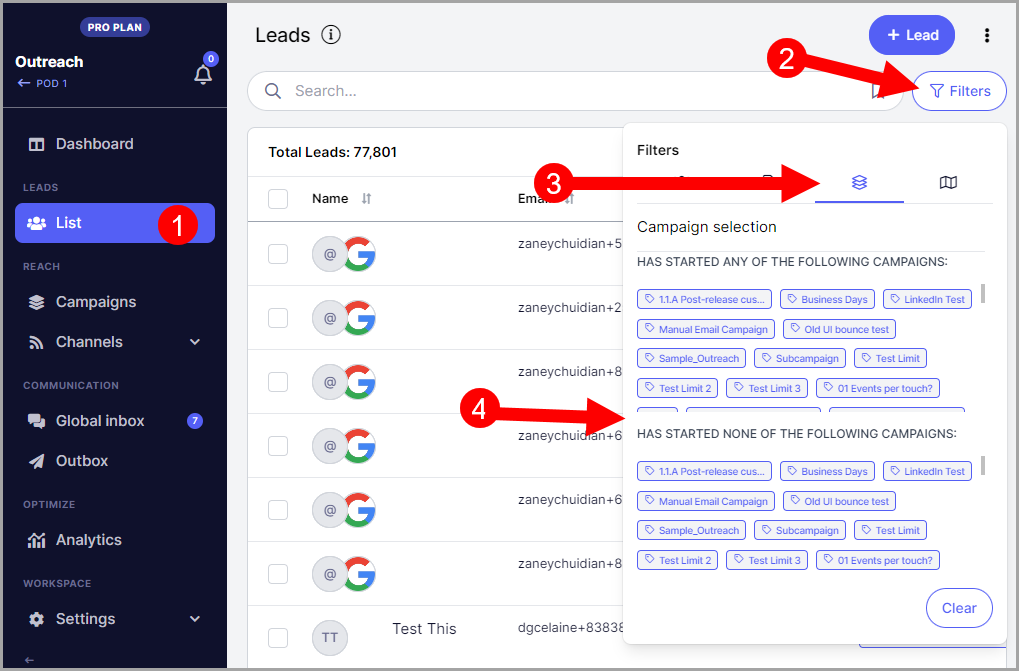
On the other hand, users can also filter leads who are not part of a campaign by selecting a campaign under “Has Started None of the Following Campaigns.”
Lead Status in a Campaign
Filter leads by their status within a campaign, such as replied or on a specific step. You can also filter by status change date.
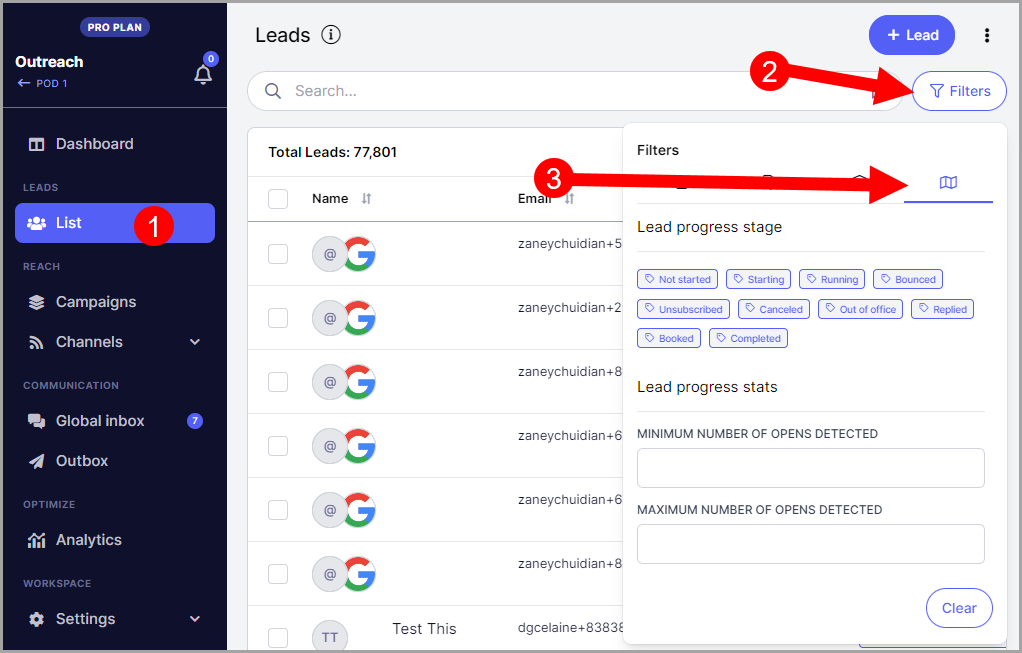
Leads with Opens or Clicks
Filter leads based on whether they have opened or clicked emails.
Leads who haven't been sent any emails
Leads who haven’t received any emails yet are either Running on Step 1 or have a Not Started status. You can find them using either of these journey filters:
Status: Running, with both the minimum and maximum step set to 1
Status: Not Started, to find leads who haven’t started the campaign yet
How to Share Filtered Leads?
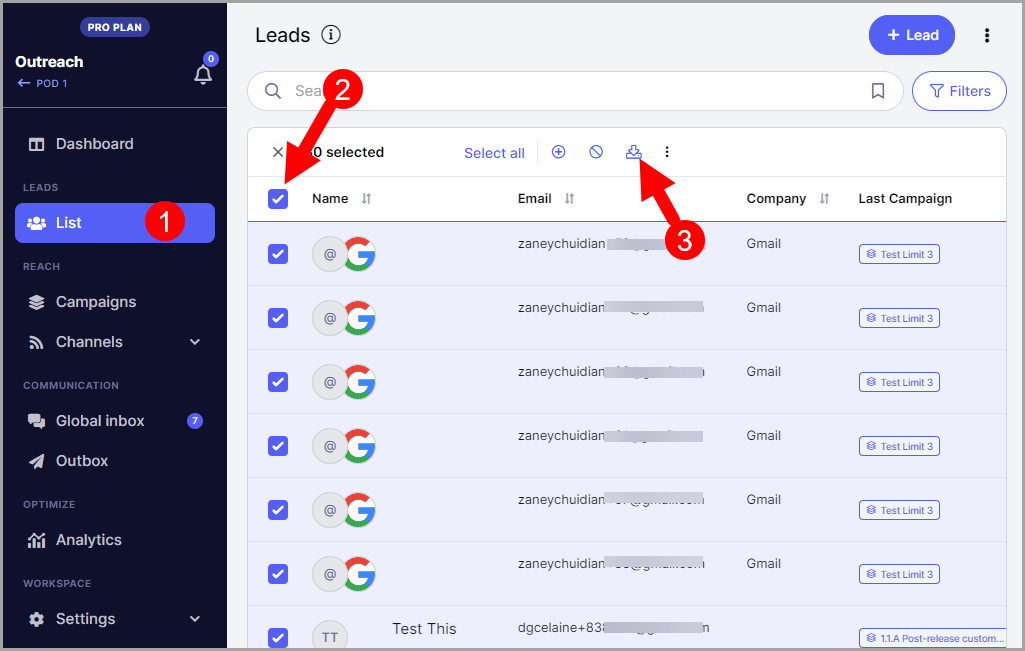
To share filtered leads with team members or save them for record keeping, select all filtered leads → Select All → Export to download a CSV file.
How to Save Filters?
To save a custom filter for future use, apply your filters first, then click the bookmark icon in the search bar and enter a name for the filter.
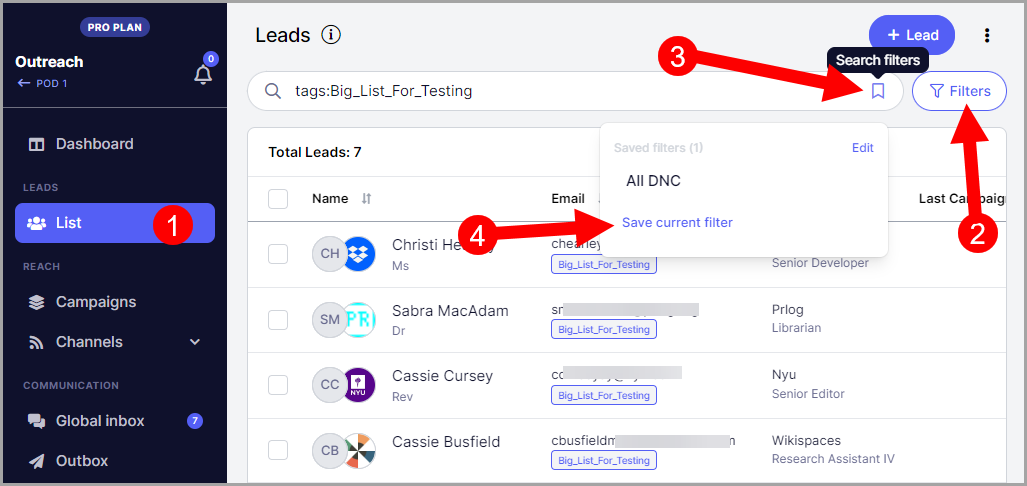
Saved filters will be available for reuse, so you do not need to recreate the same filter repeatedly.