How to BCC Emails to Salesforce
How to BCC Emails to Salesforce
Blind copying emails to Salesforce allows you to automatically log communication without needing a native integration, ensuring all interactions are tracked and accessible in your CRM.
In this article:
Step 1: Find your Salesforce BCC email
Step 2: Add the BCC email to QuickMail
Step 1: Find Your Salesforce BCC Email
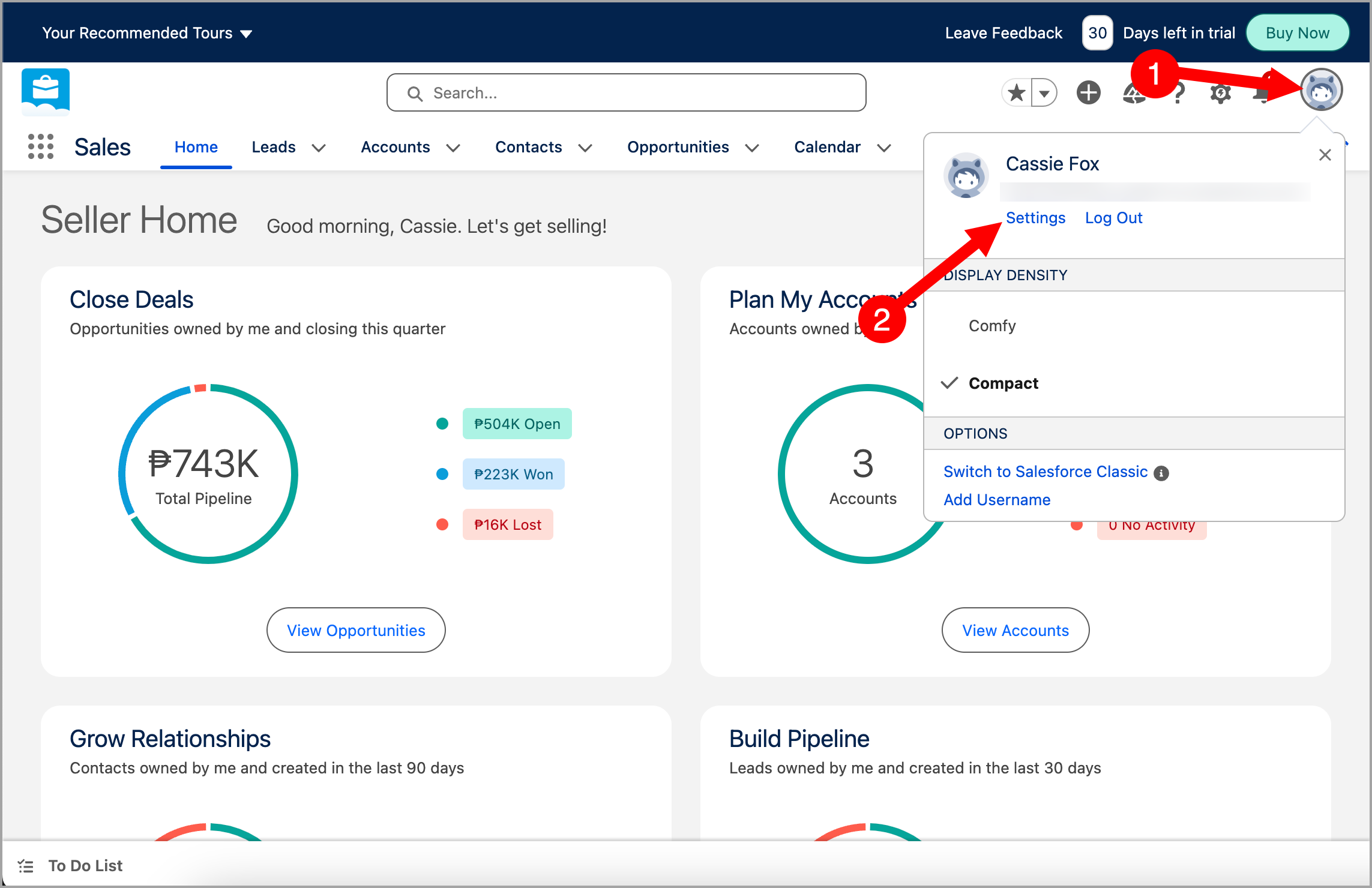
Go to Salesforce → click your thumbnail in the upper right corner → Settings.
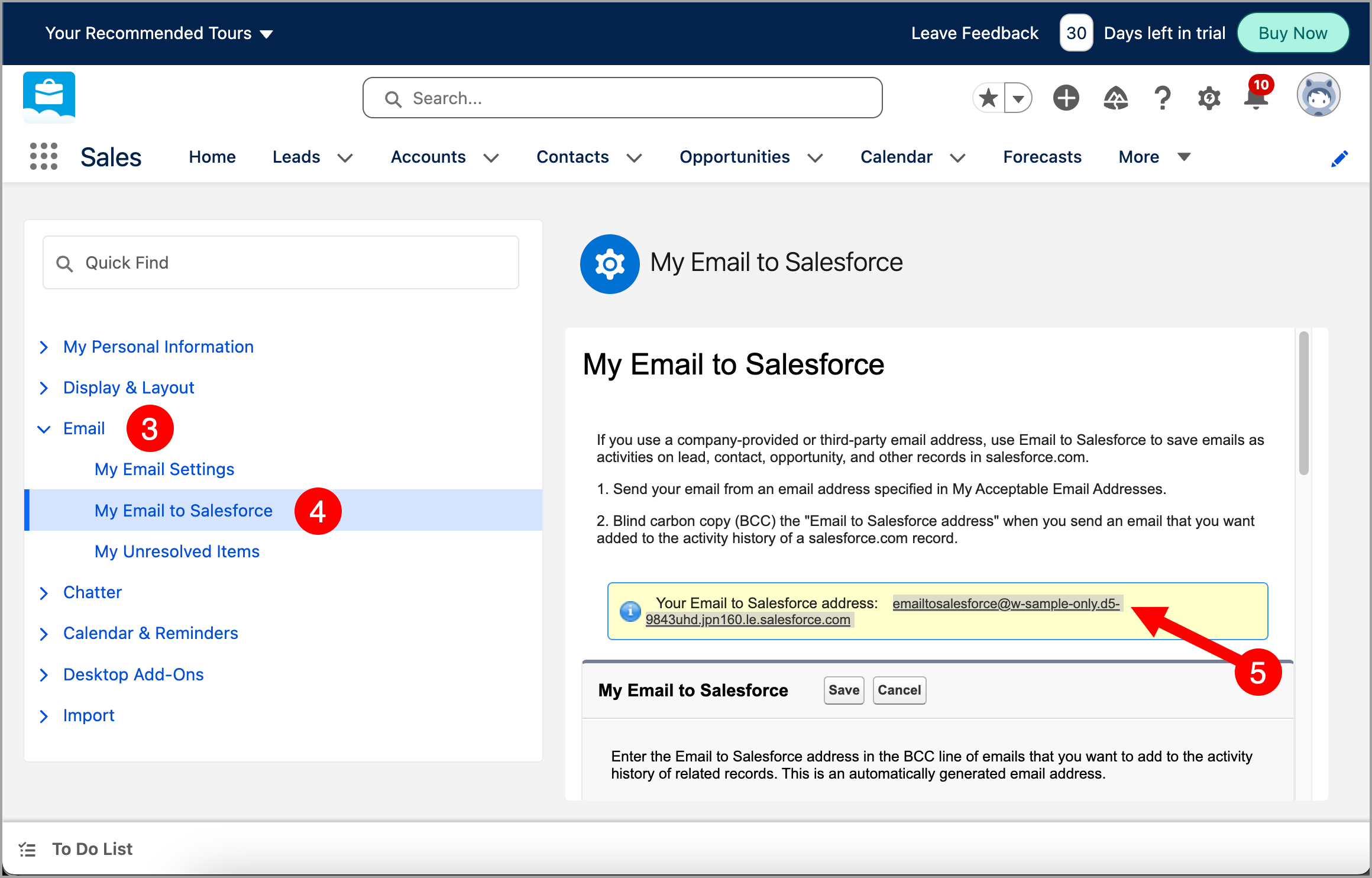
Select the Email tab → click My Email to Salesforce → copy your Email to Salesforce address (highlighted in yellow).
Step 2: Add the BCC Email to QuickMail
Paste the Email to Salesforce address into QuickMail. There are two ways to do this:
Option 1: Workspace Level
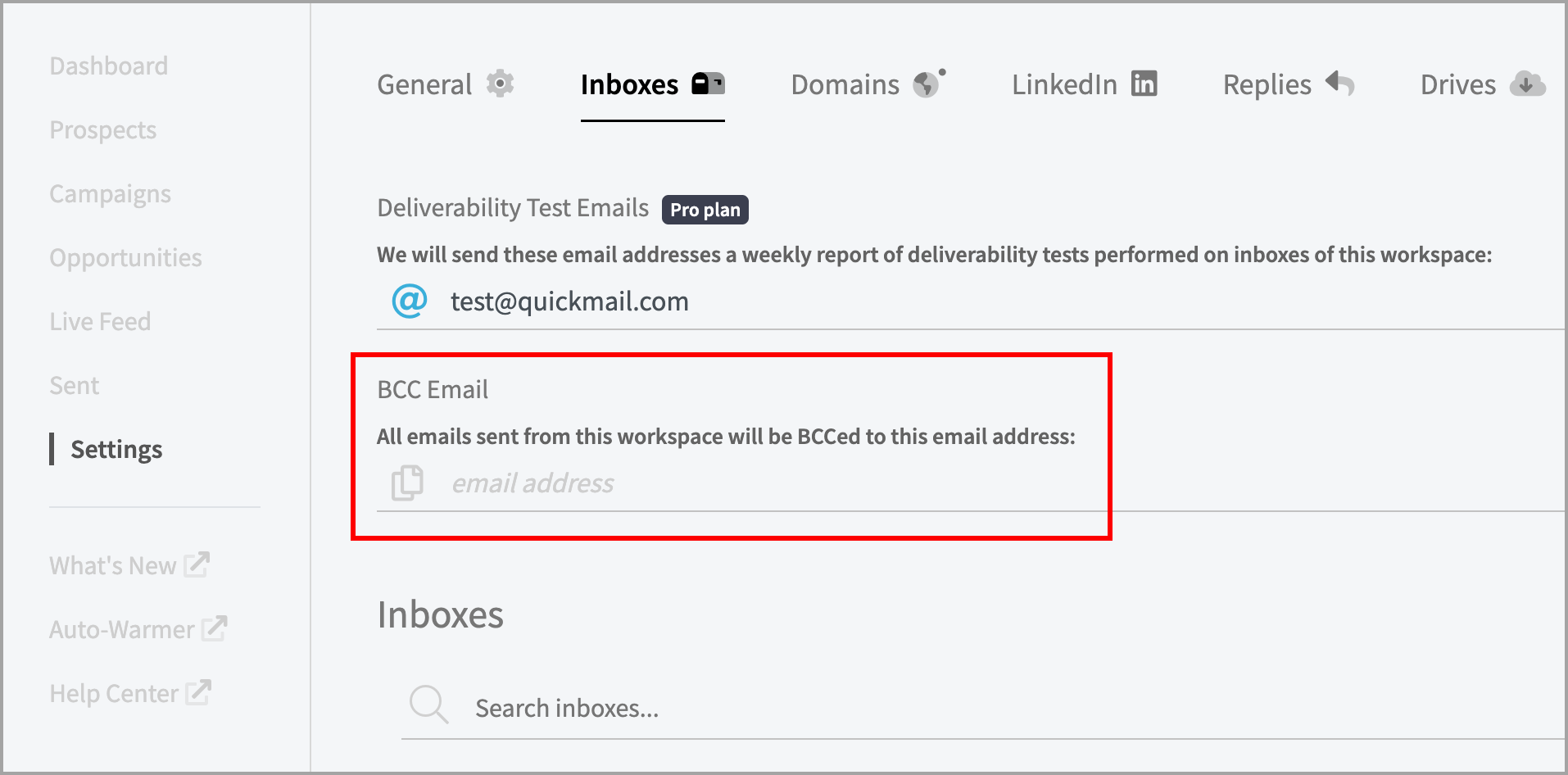
Adding a BCC email at the workspace level automatically BCCs all emails sent from the workspace, regardless of which email account is used.
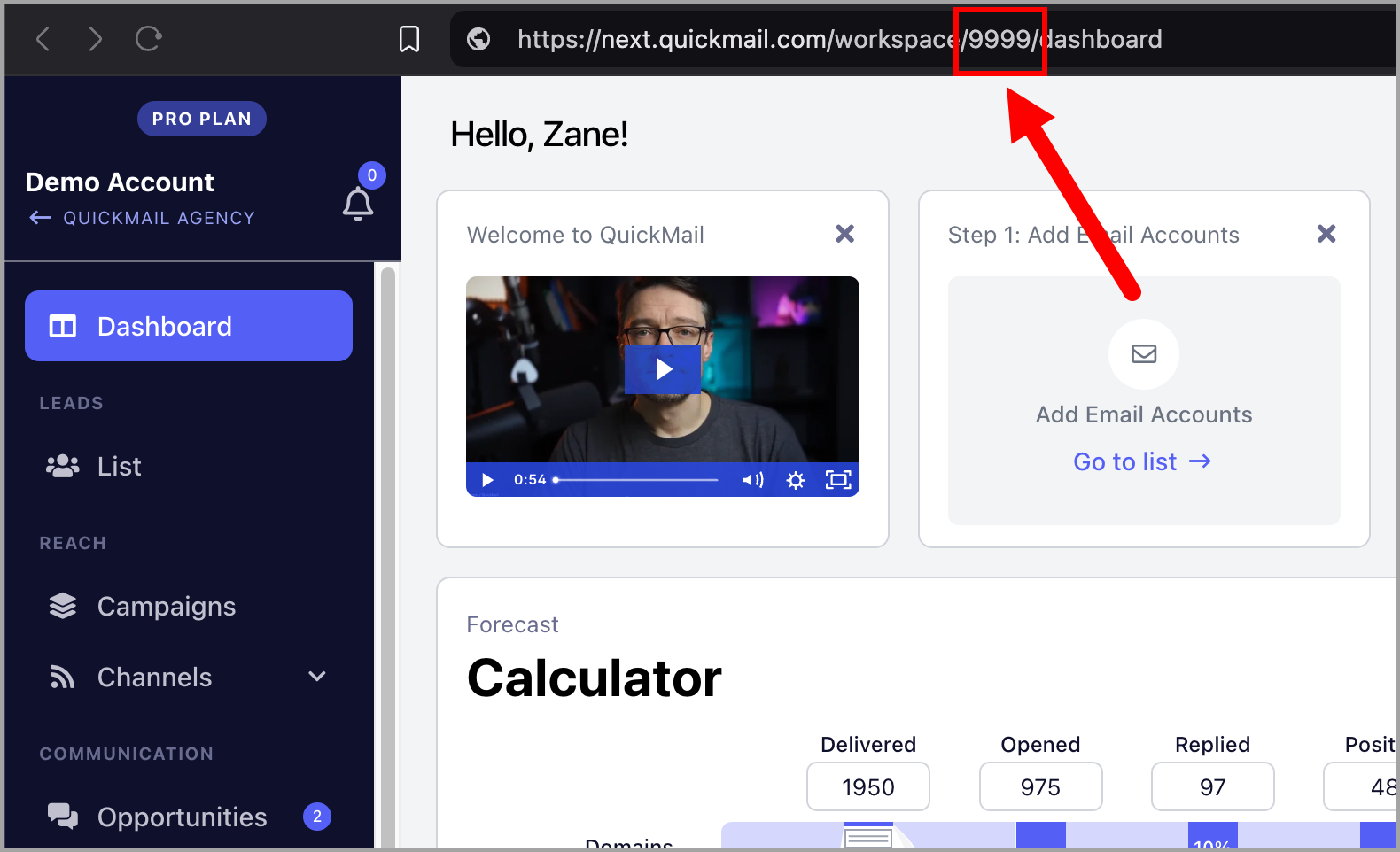
Note: Workspace-level BCC is currently only available in the old interface. To access it, go to the URL below and replace your-workspace-ID with your actual workspace ID:
https://next.quickmail.com/account/your-workspace-ID/settings/inboxes
Here is where you can find your workspace ID:
Option 2: Email Account Level
Adding a BCC email at the email account level BCCs emails sent from that specific email account only.
Go to Email → click the email account → under Sending Settings, fill in the BCC Email field.