Integrating QuickMail with Pipedrive
Integrating QuickMail with Pipedrive
In this article:
How does the integration work?
How to set it up?
How to import leads from Pipedrive to QuickMail?
How to export leads from QuickMail to Pipedrive?
How does the integration work while it's paused?
How to delete the integration?
How Does the Integration Work?
Adding a contact in QuickMail creates a contact in Pipedrive and vice versa.
Editing contact information such as names, companies, phone numbers, tags, and custom properties syncs both ways.
Editing tag names and creating tags in QuickMail will update and create custom fields in Pipedrive.
If a tag is deleted in QuickMail, the tag name in Pipedrive will have "(deleted)" appended to it.
Creating and deleting custom properties in QuickMail will create and delete them in Pipedrive. Deleted properties will have "(deleted)" in their names.
Existing contacts can be imported from Pipedrive to QuickMail and exported from QuickMail to Pipedrive.
Editing synced QuickMail tag and custom property names in Pipedrive will not reflect in QuickMail, but the sync will continue to work.
How to Set It Up?
Go to Settings → Integrations → scroll down → Pipedrive → log in to your Pipedrive account.
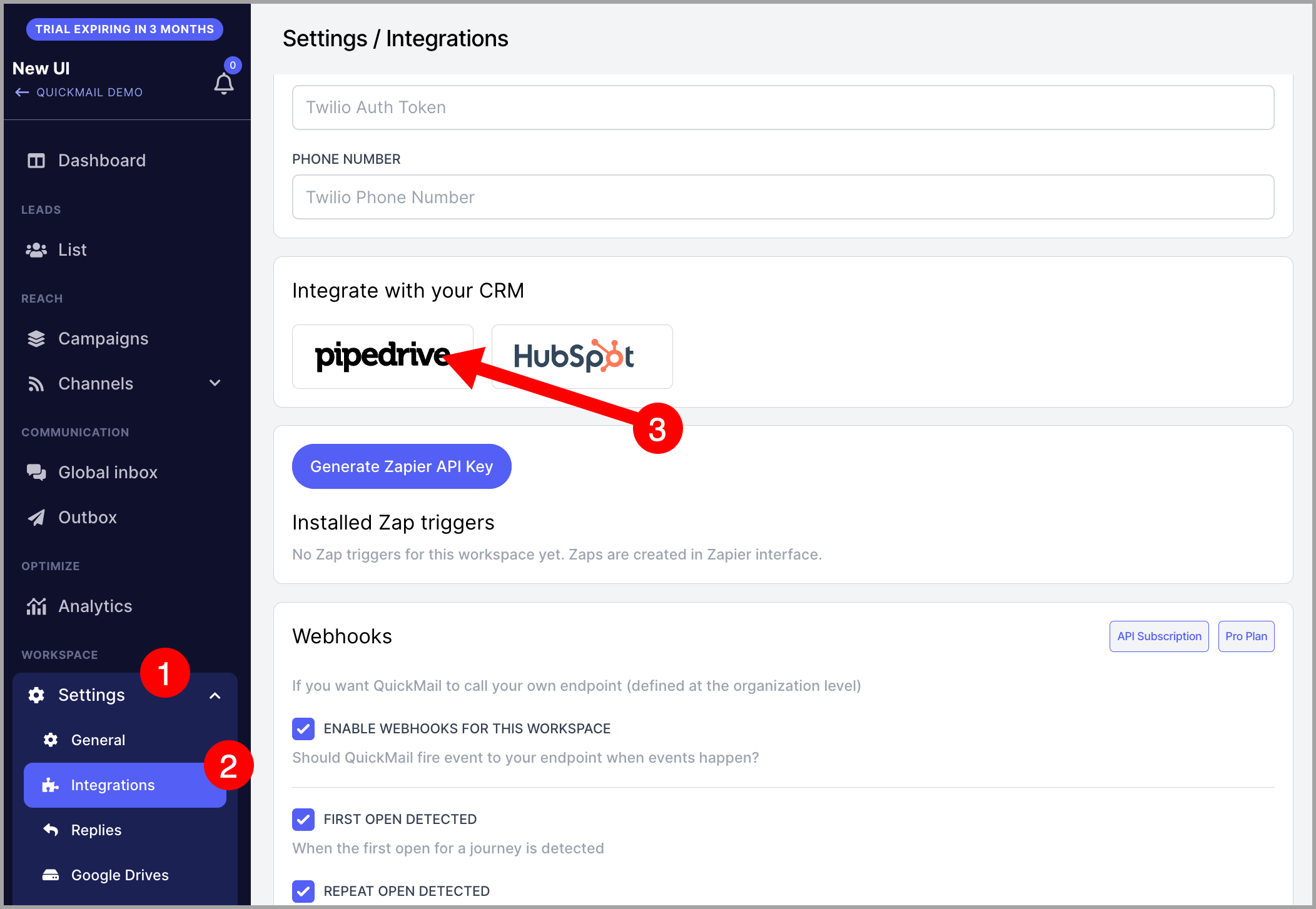
Note: The first Pipedrive installation must be done by a user who is an admin in Pipedrive. Otherwise, you will encounter an error.
How to Import Leads from Pipedrive to QuickMail?
Under the Pipedrive integration on the add-ons page, click Import all existing prospects from Pipedrive.
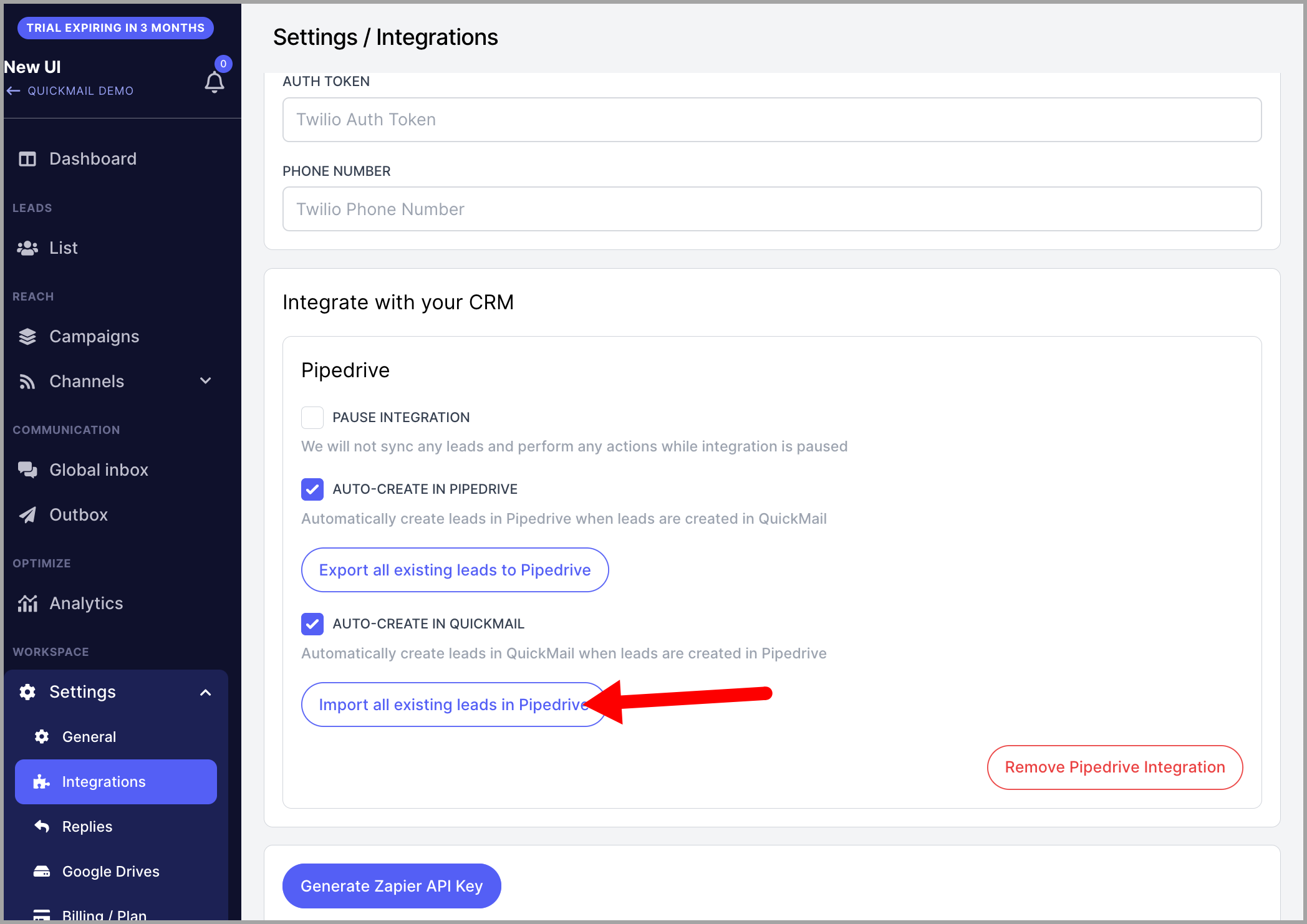
This will add all contacts from Pipedrive to QuickMail, including their name, email address, company, and phone number.
How to Export Leads from QuickMail to Pipedrive?
On the same page, click Export all existing prospects to Pipedrive.
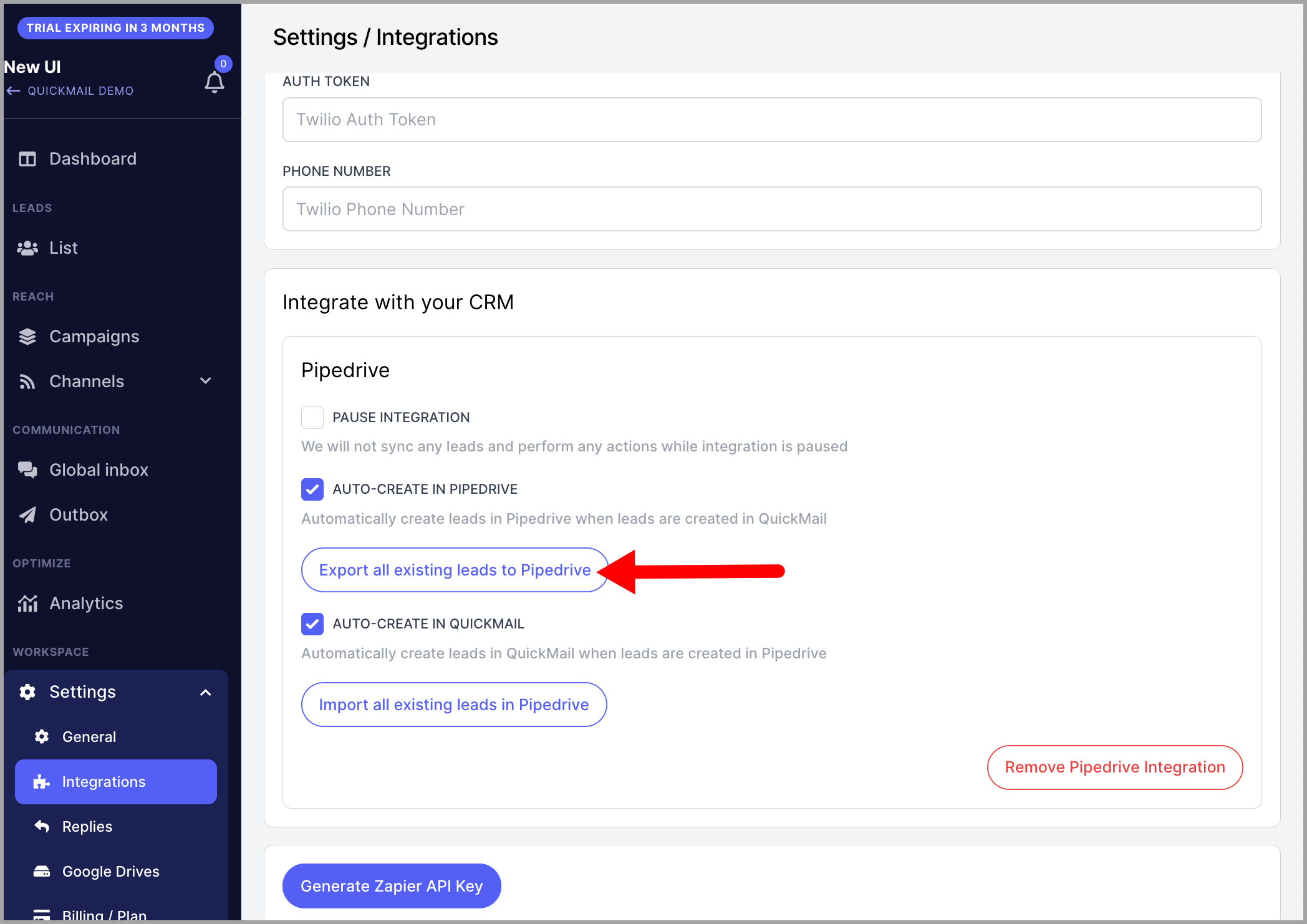
This will add all leads from QuickMail to Pipedrive, including their email address, name, company, phone number, tags, and custom properties.
Note: An import and export cannot run at the same time. If you try to start one while the other is in progress, you will see an error — this is expected behavior.
How Does the Integration Work While It's Paused?
While paused, the following will not happen:
Creating a contact in QuickMail will not create a contact in Pipedrive, and vice versa.
Two-way sync of contact information such as names, phone numbers, tags, and custom properties will not work.
The following will still work while the integration is paused:
Creating tags in QuickMail will create a custom field in Pipedrive.
Deleting tags in QuickMail will add "(deleted)" to the custom field name in Pipedrive.
Changing tag names in QuickMail will update the custom field name in Pipedrive.
Creating custom properties in QuickMail will create a custom field in Pipedrive.
Deleting custom properties in QuickMail will add "(deleted)" to the custom field name in Pipedrive.
How to Delete the Integration?
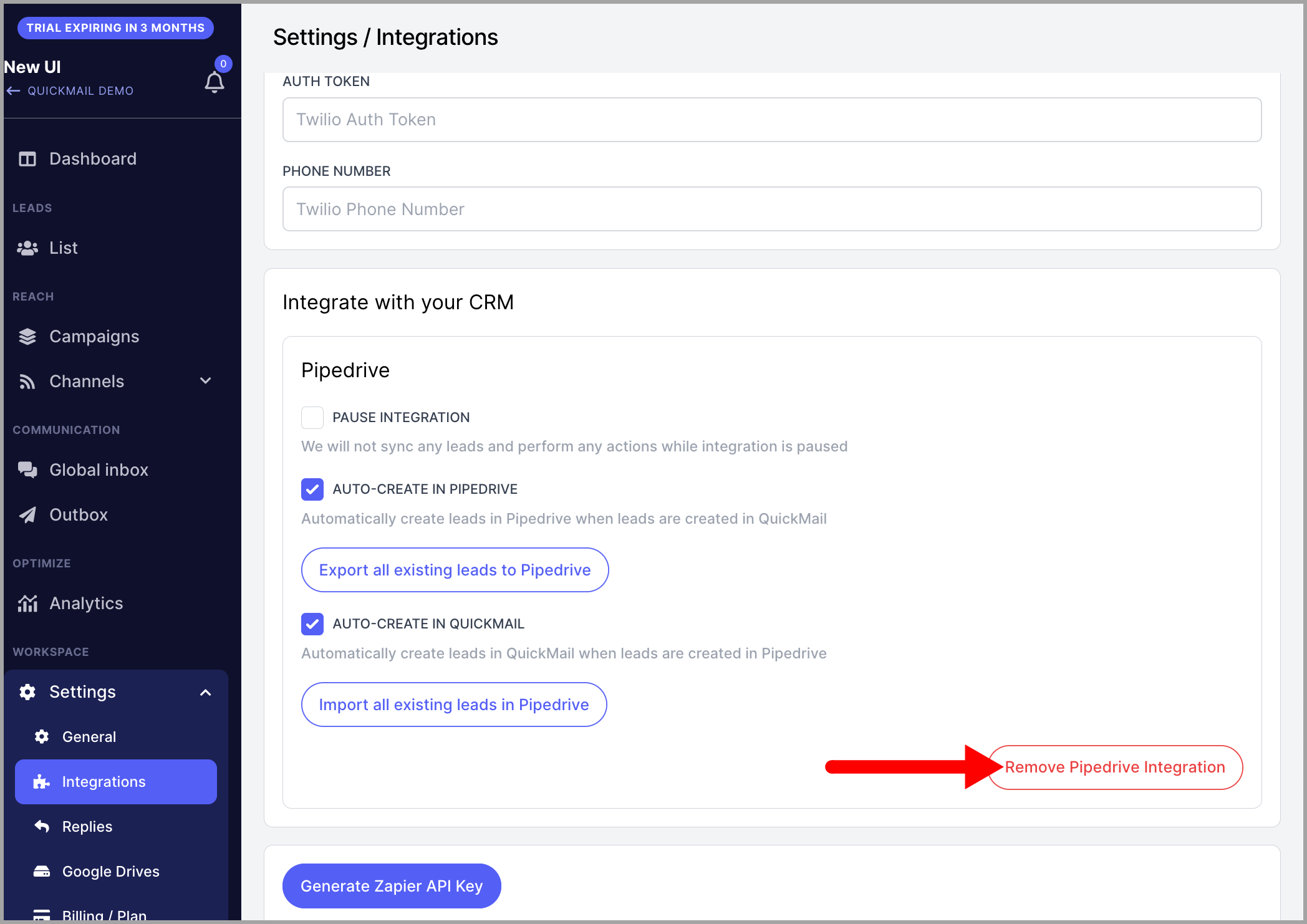
Go to Settings → Add-ons → Pipedrive → click Remove Pipedrive Integration.