Integrating Twilio with QuickMail (SMS)
Integrating Twilio with QuickMail (SMS)
In addition to email steps, QuickMail can send SMS messages via Twilio.
In this article:
How to set up Twilio?
How to associate a phone number with leads in QuickMail?
How to add an SMS step in a campaign?
How to manage SMS replies?
How to Set Up Twilio?
First, go to Twilio and create a new account.
Note: While on a Twilio trial, messages will be prefaced with "Sent from your Twilio trial account." It may be best to upgrade to a paid Twilio account before using this in a live campaign.
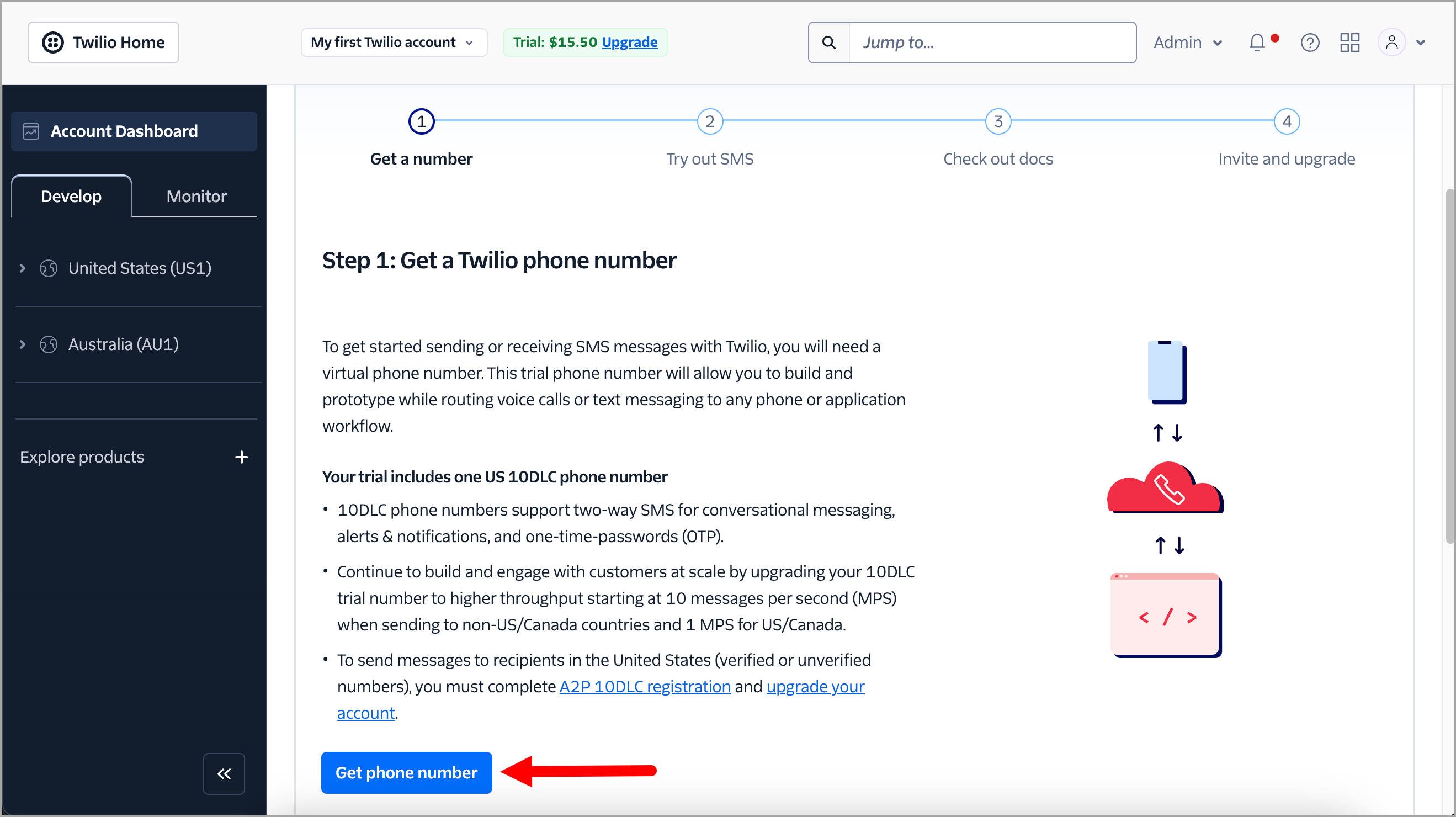
Step 1. Go to the Twilio Dashboard and get a phone number.
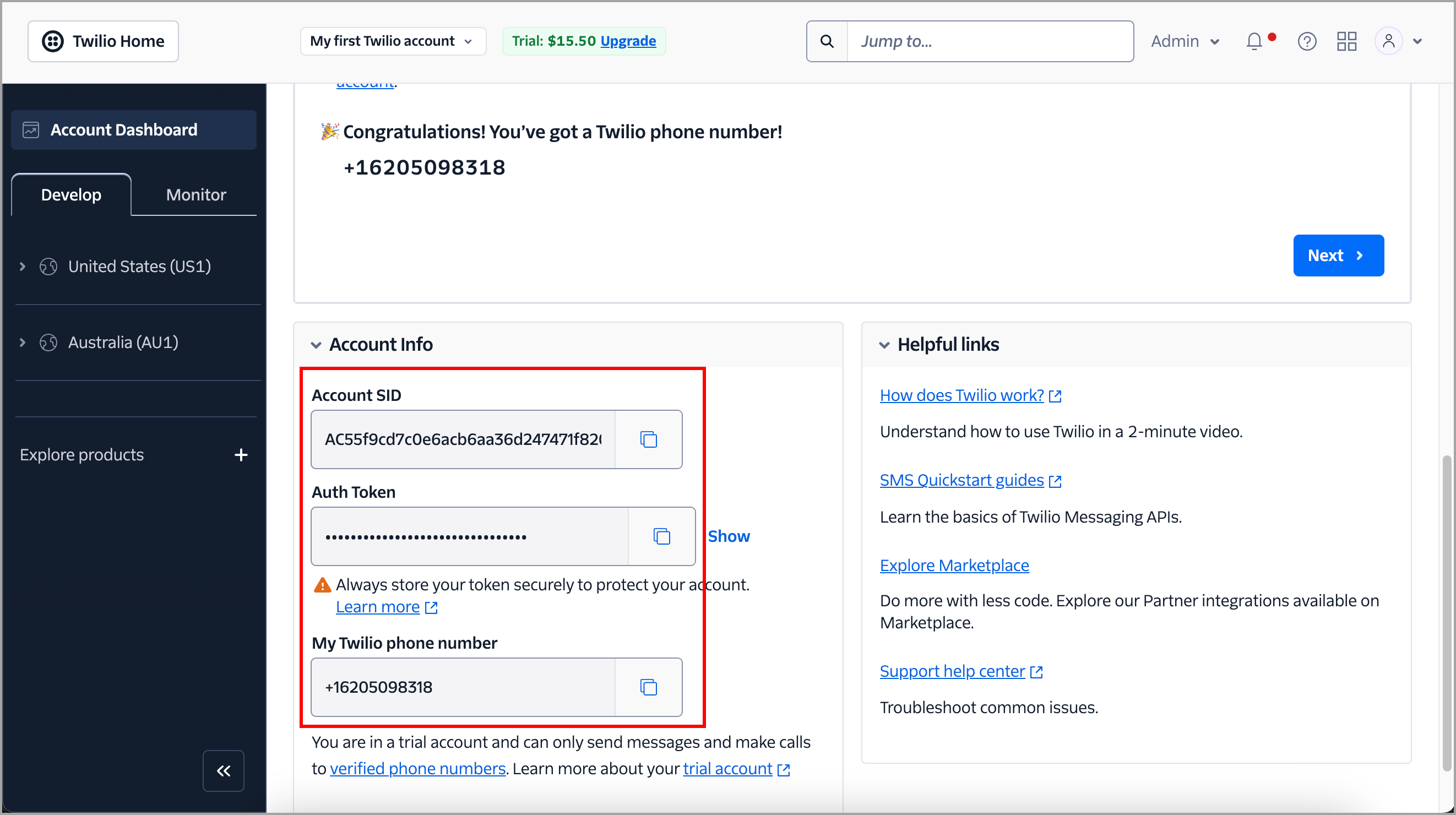
Step 2. On the same page, scroll down and locate the Twilio Account SID, Auth Token, and Twilio phone number.
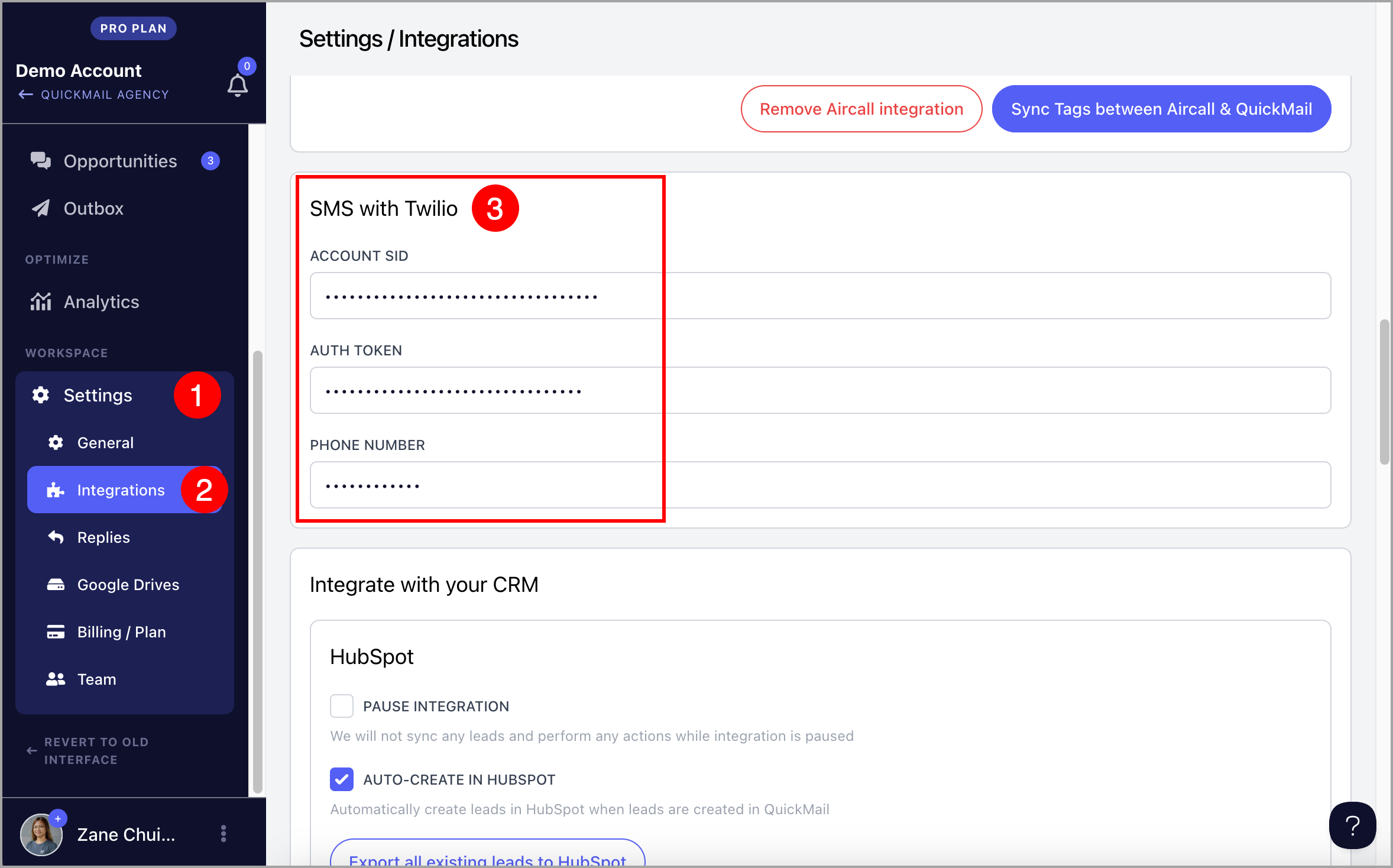
Step 3. In QuickMail, go to Settings → Integrations → scroll down to the SMS with Twilio section → paste the Twilio Account SID, Auth Token, and Twilio phone number.
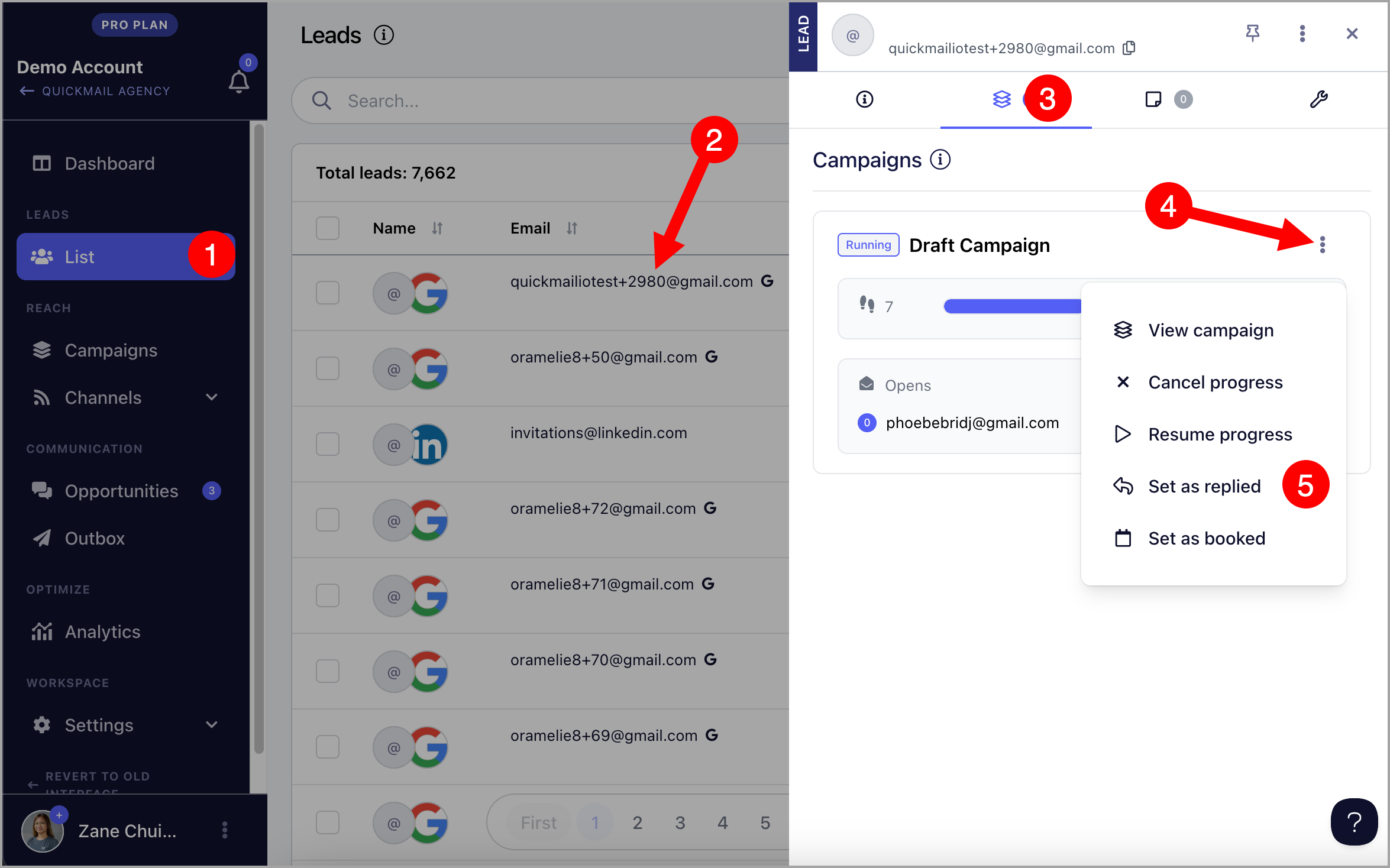
How to Associate a Phone Number with Leads in QuickMail?
All phone numbers must be in E.164 format — a plus sign (+) followed by the country code and phone number.
For example, the US number (555) 123-4567 should be formatted as: +15551234567
More information on E.164 formatting can be found on Twilio's page here.
Phone numbers in this format can be added to leads either via a CSV or Google Sheets import, or manually.
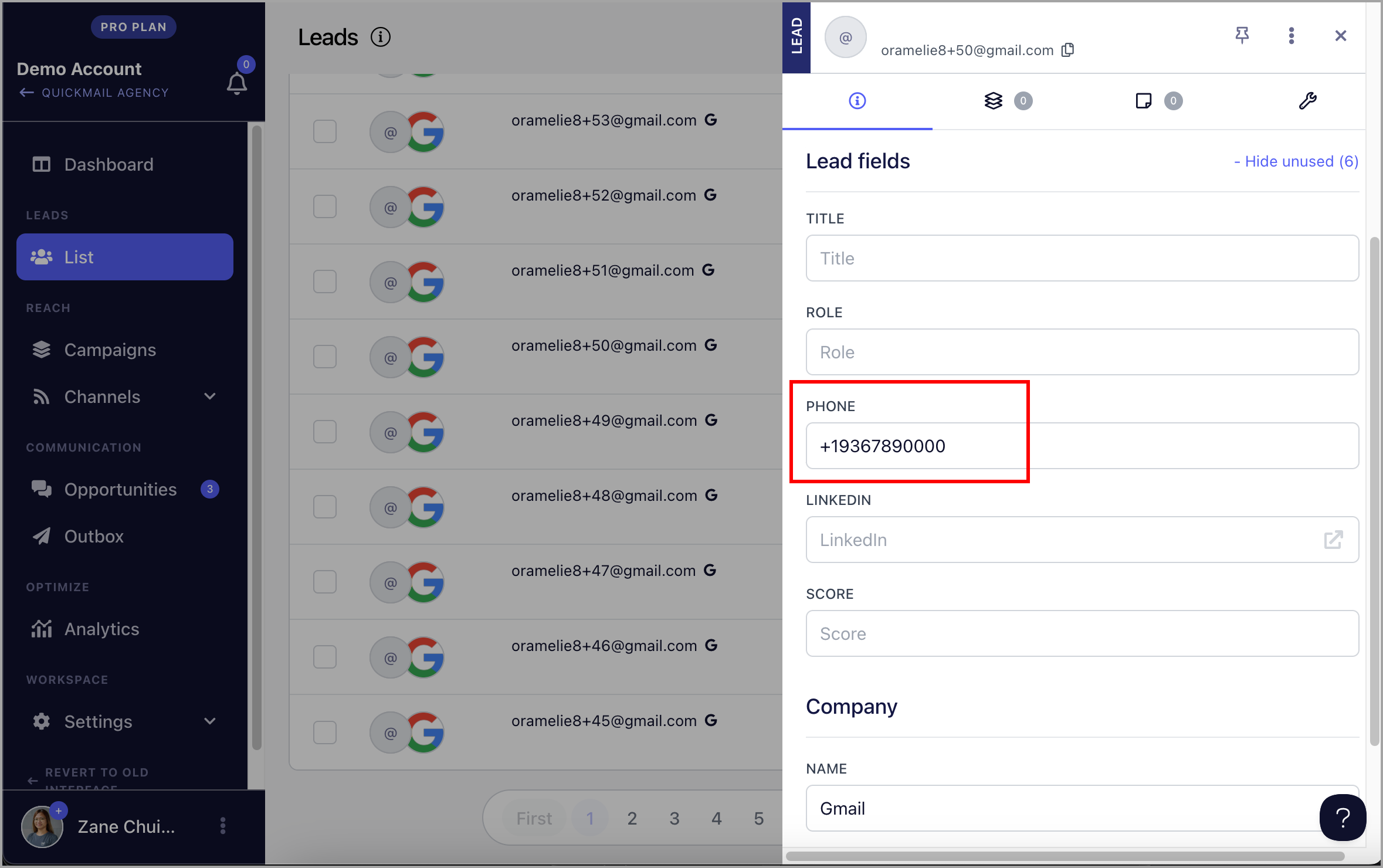
Note: An email address is required to add a lead in QuickMail, even if you only plan to send them SMS messages.
How to Add an SMS Step in a Campaign?
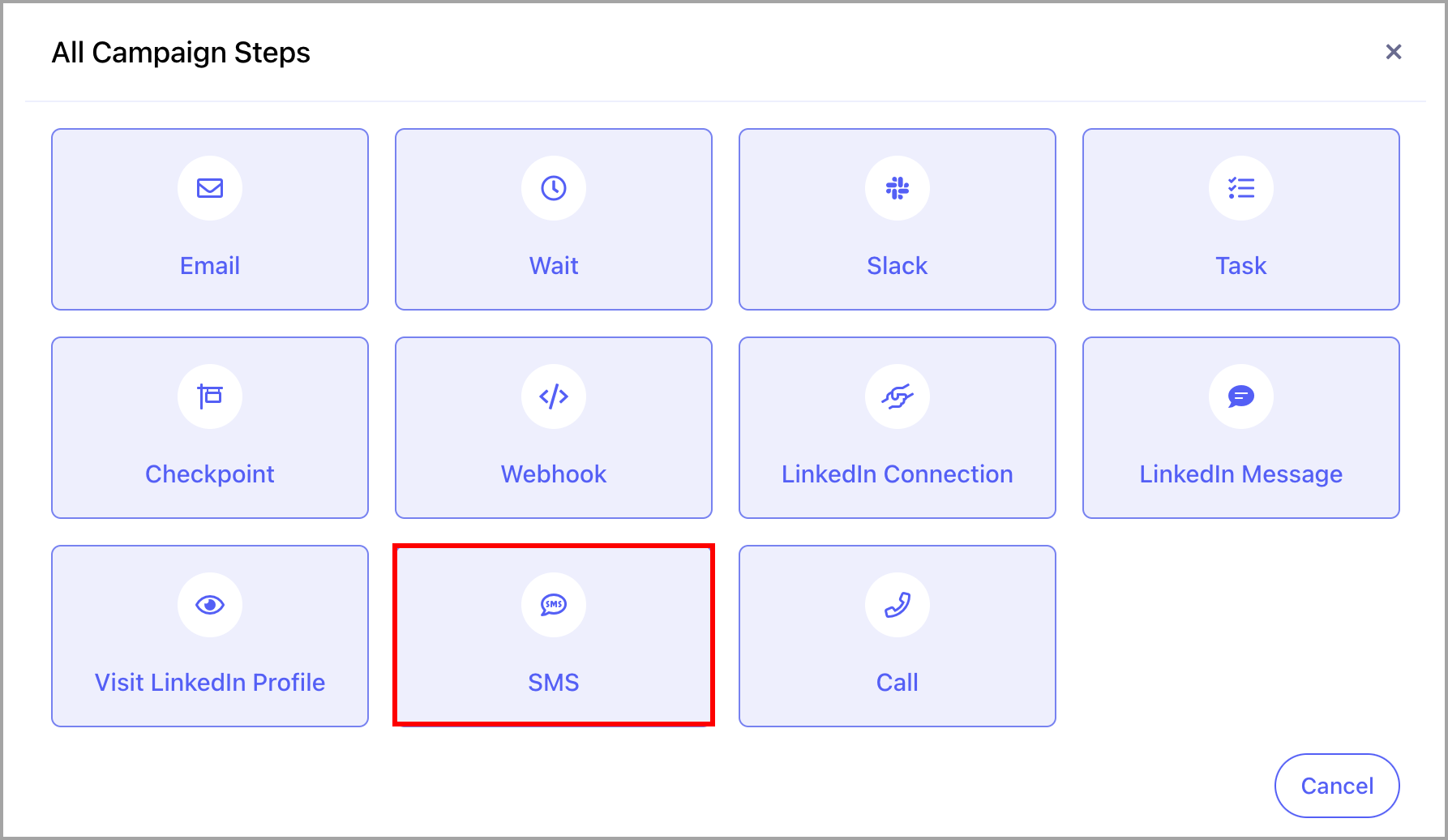
When creating steps in a campaign, there is an option to include an SMS step. From there, you can enter the text of the message and use custom properties for personalization.
Important: A single SMS message supports up to 160 characters, or up to 70 characters if the message contains Unicode characters such as emojis or Chinese characters. Learn more about SMS character limits on Twilio's page.
How to Manage SMS Replies?
When a lead replies to an SMS step, the reply is visible in the Programmable SMS Dashboard in Twilio.
Important: Unlike email replies, SMS replies are not detected by QuickMail and will not prevent subsequent steps from being sent. After receiving a reply, the lead must be manually marked as "Replied" in the campaign to stop additional steps from sending.