Managing Google Drives
Managing Google Drives
QuickMail allows you to link one or more Google Drive accounts to import leads or set up Auto-Import using Google Sheets.
In this article:
For Workspaces
Connecting a Google Drive to a workspace
Disconnecting a Google Drive account from a workspace
Re-authenticating a Google Drive account in a workspace
For Agencies
Connecting a Google Drive to an agency
Disconnecting a Google Drive account from an agency
Re-authenticating a Google Drive account in an agency
Troubleshooting
- Error: App is blocked
- Import options greyed out, can't select a column
Connecting a Google Drive Account to a Workspace
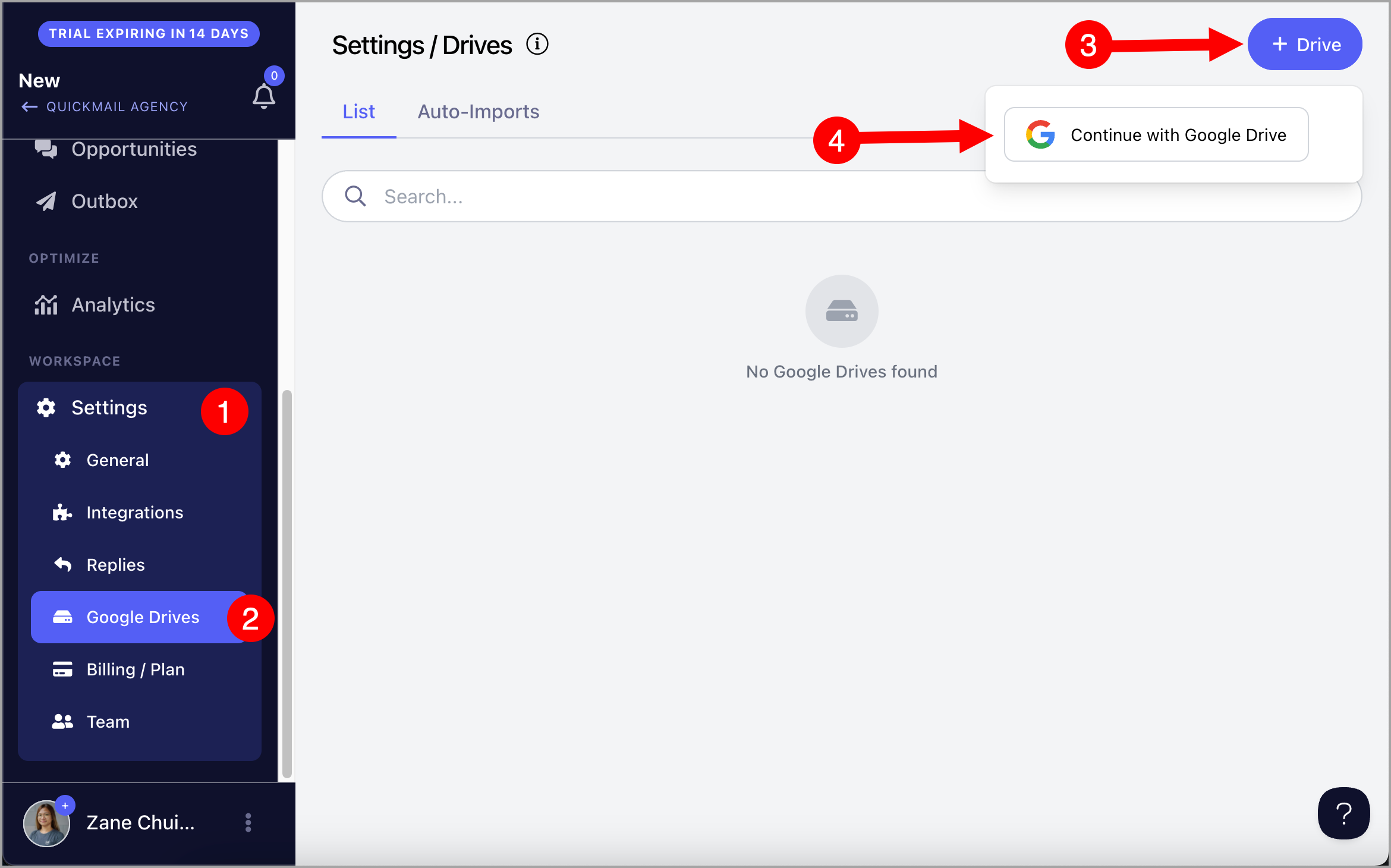
Go to Settings → Google Drives → + Drive → Continue with Google Drive.
Once the drive is added, it will appear on that page.
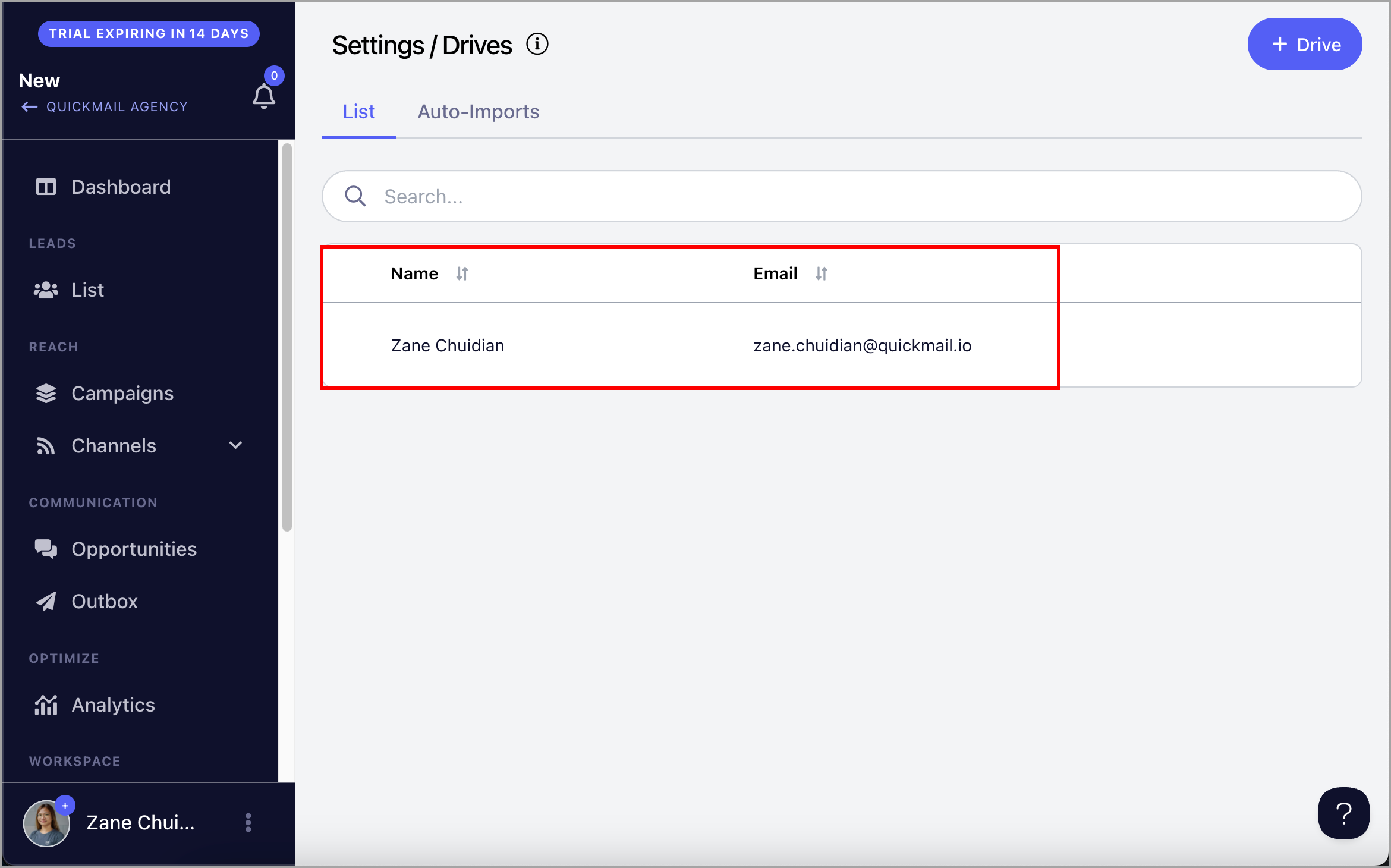
After that, Google Sheets will be available as an import option on the Leads page.
Disconnecting a Google Drive Account from a Workspace
Go to the workspace → Settings → Google Drives → click on the Google Drive → click the menu icon (three vertical dots) → Delete.
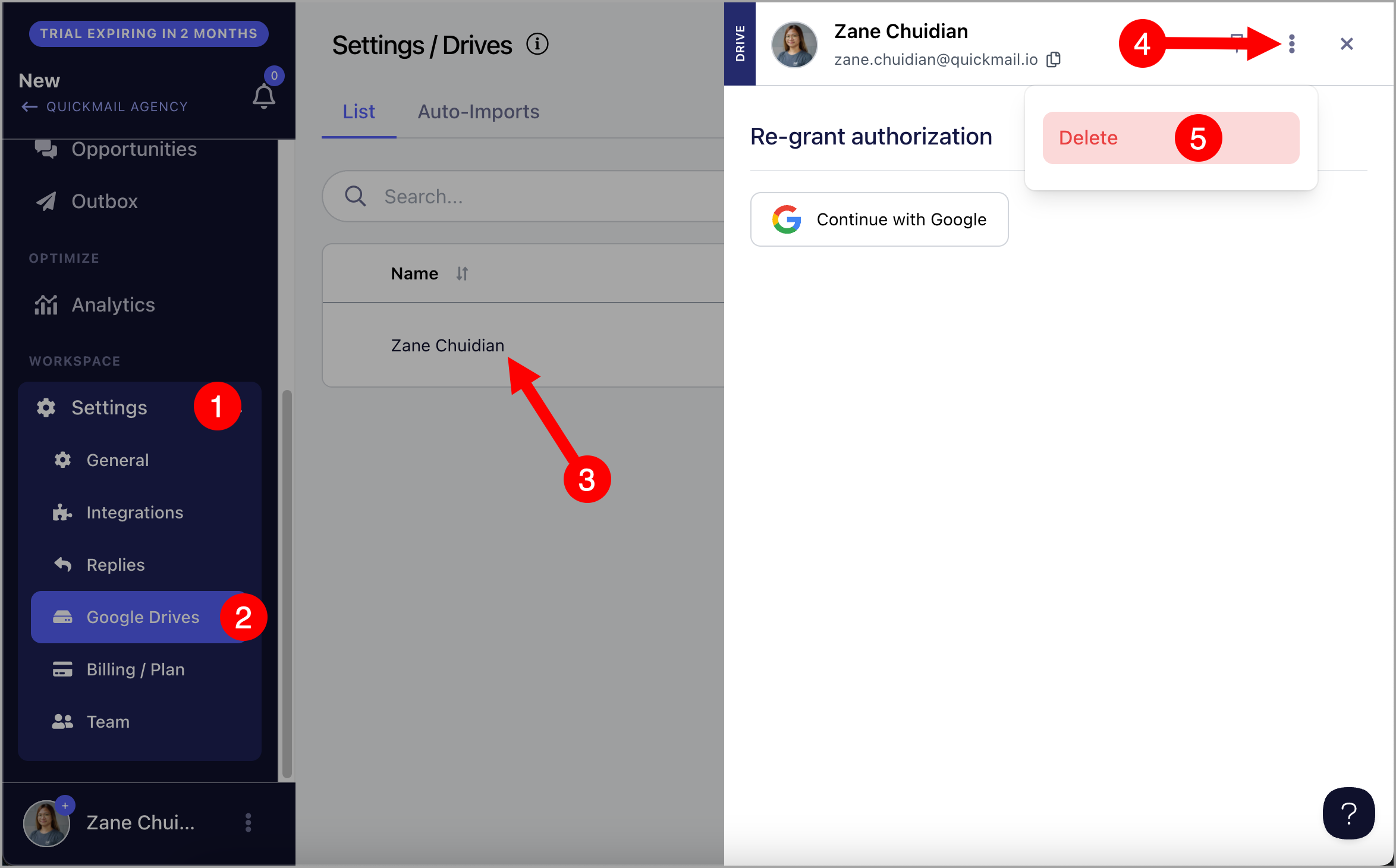
Warning: Deleting a Google Drive account will also delete all auto-imports associated with it.
Re-authenticating a Google Drive Account in a Workspace
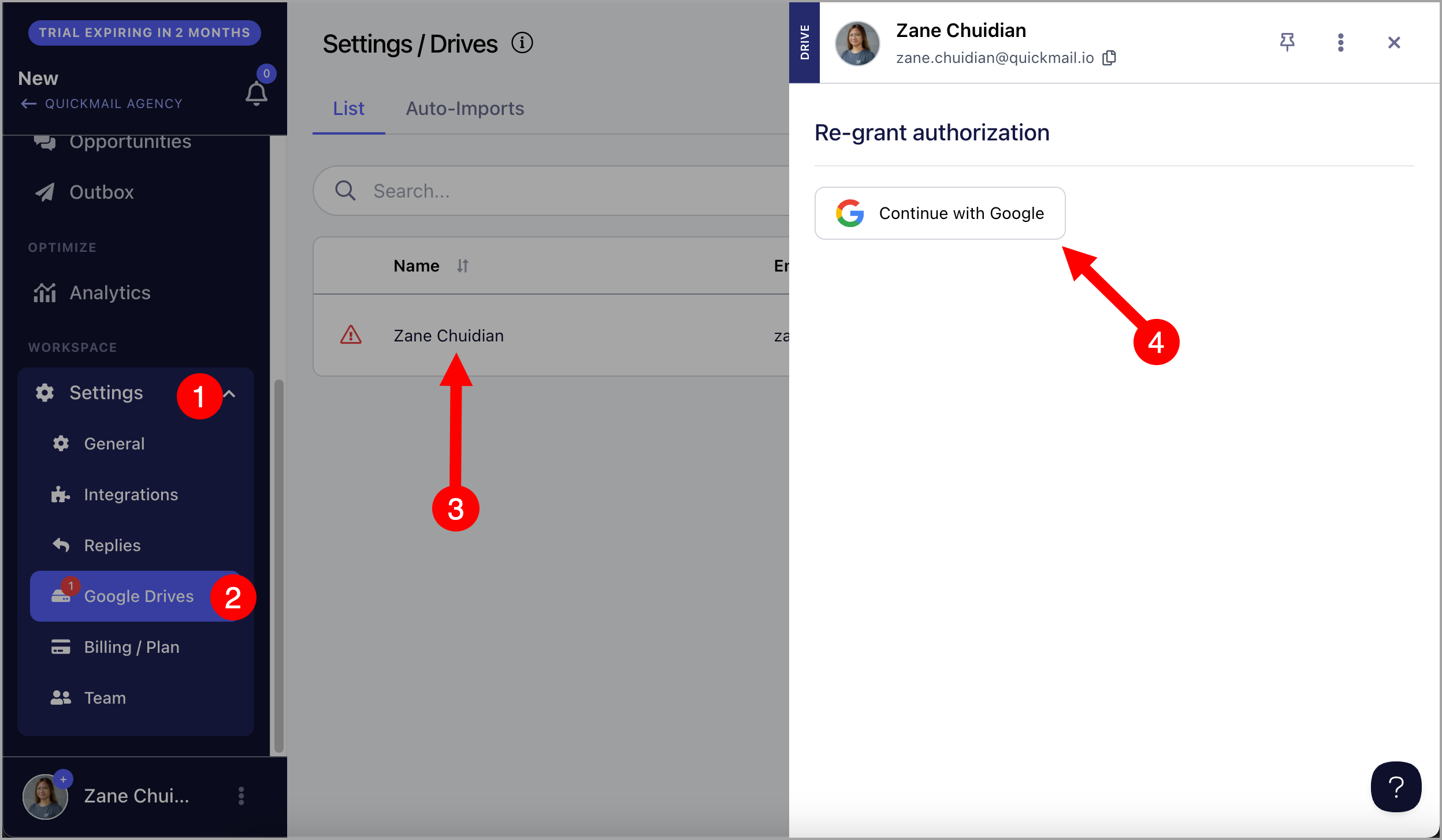
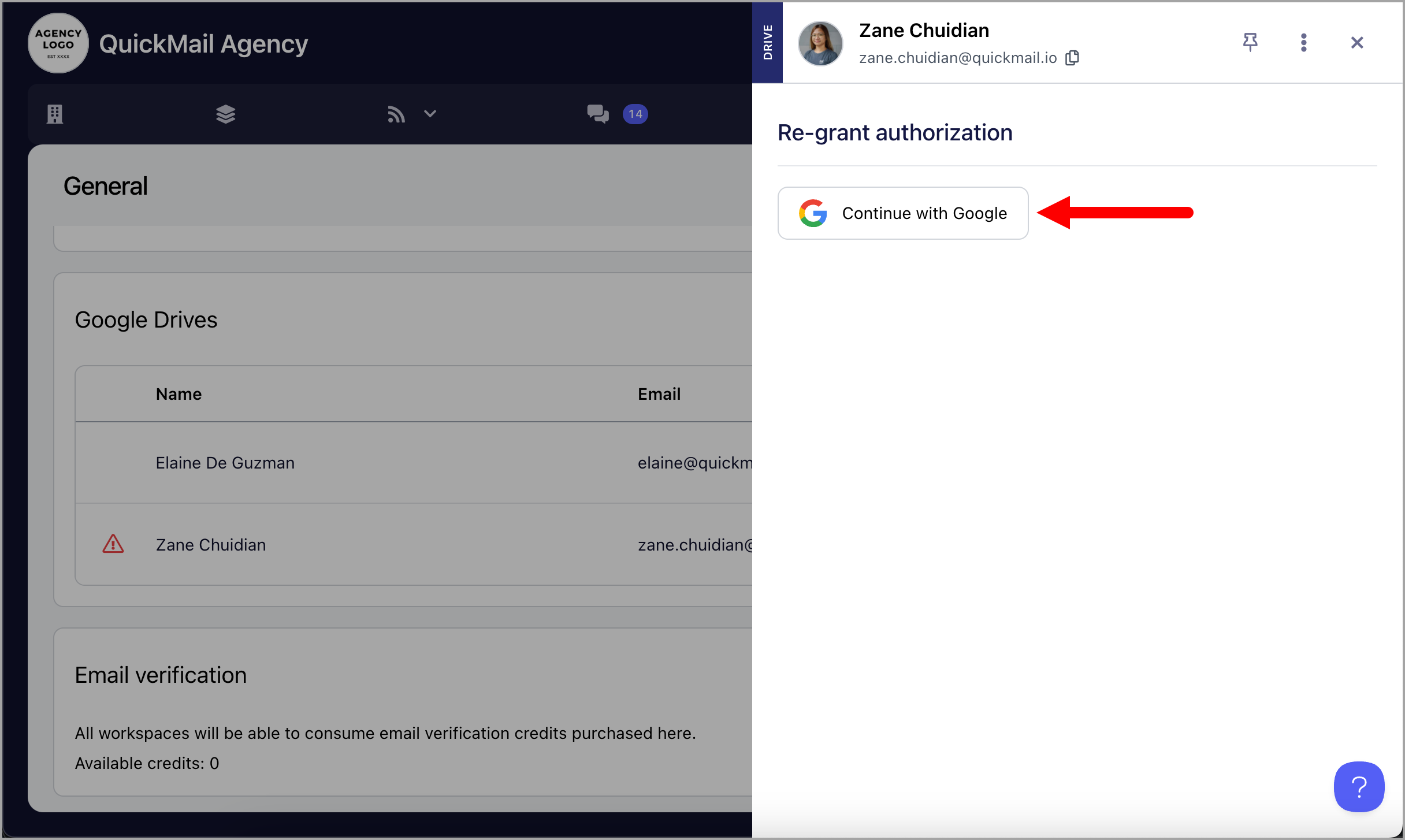
When QuickMail's permission to your Google Drive is revoked, the connected drive will be disconnected. When this happens, a red warning icon will appear in Settings and next to the affected Google Drive account.
To reconnect, go to Settings → Google Drives → click on the Google Drive → Continue with Google.
Connecting a Google Drive Account to an Agency
If you have multiple workspaces in an agency, you can link a Google Drive account at the organization level. This saves time by making the drive available across all workspaces without having to add it individually to each one.
Go to the Agency Dashboard → Settings → Add Google Drive → Continue with Google Drive.
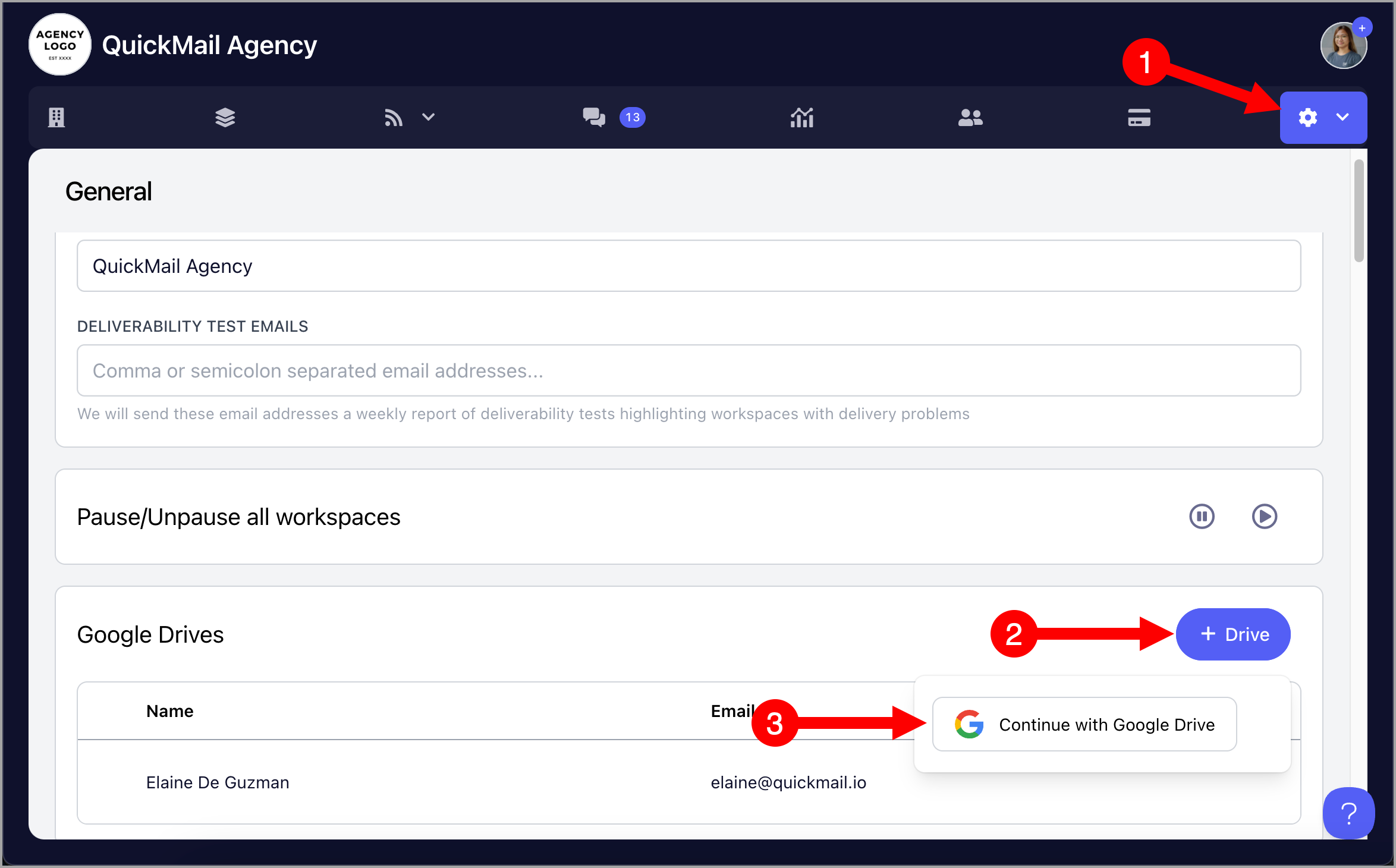
Once added, all workspaces in the organization will be able to import sheets from that drive.
Disconnecting a Google Drive Account from an Agency
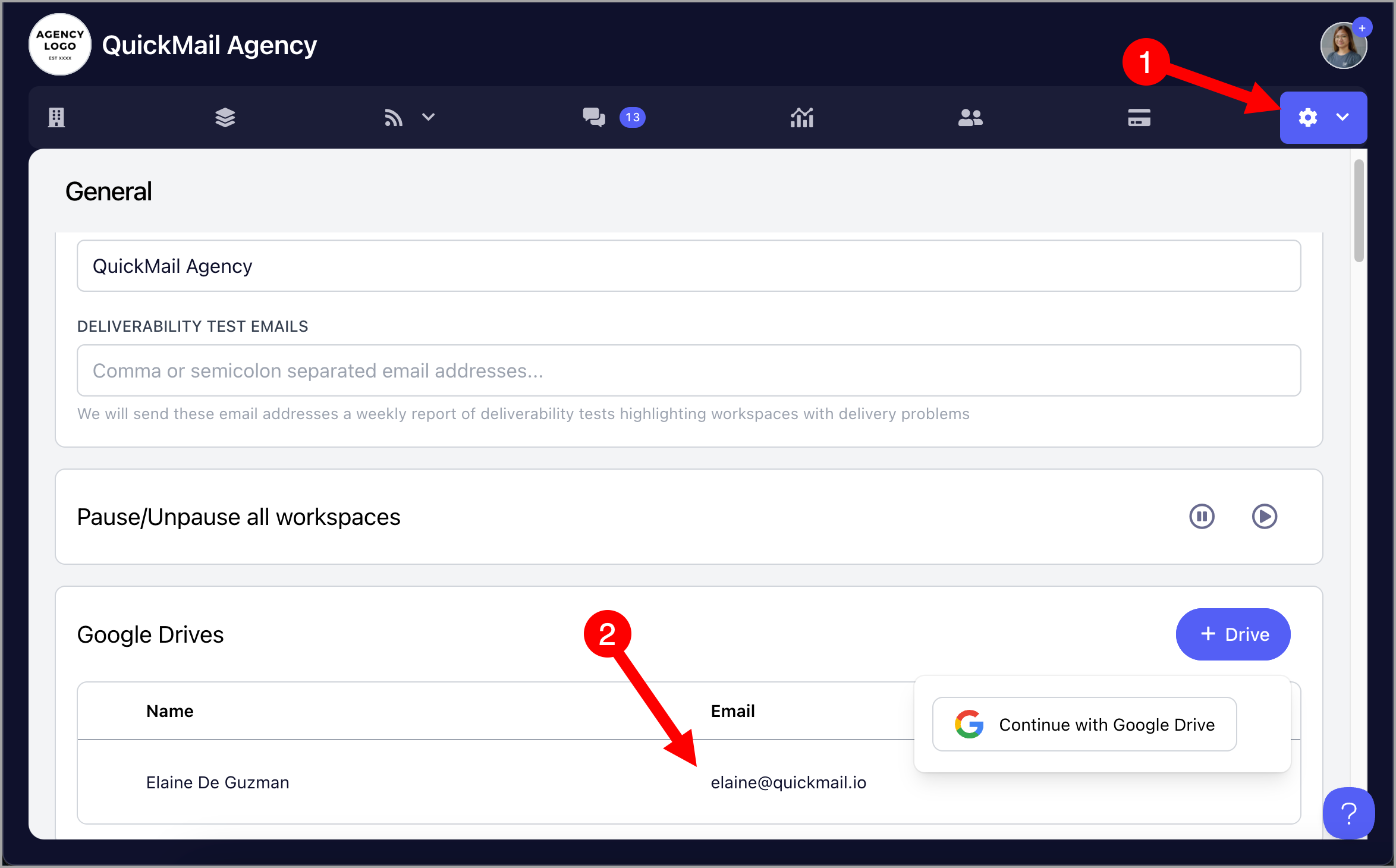
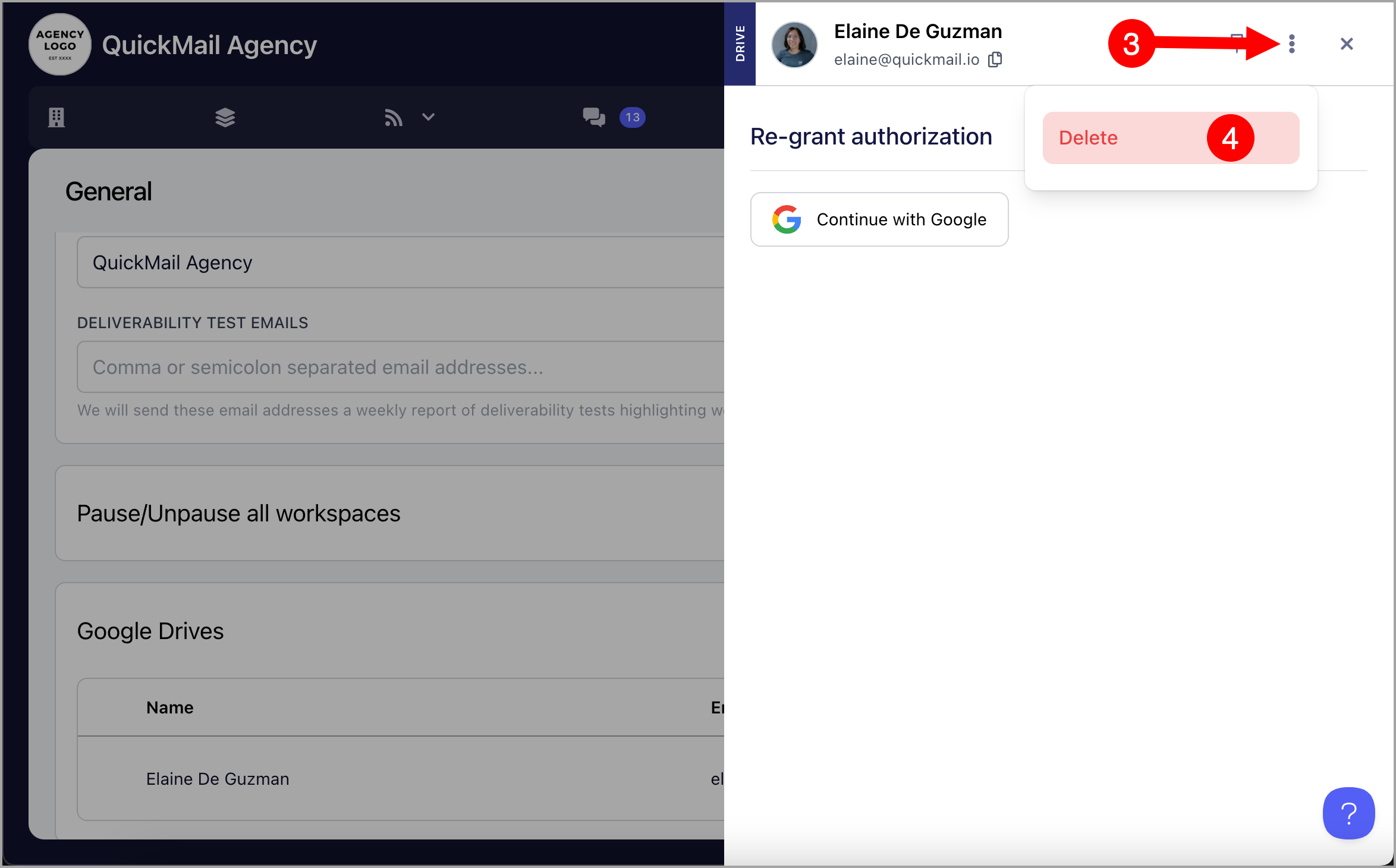
Go to the Agency Dashboard → Settings → click on the Google Drive → click the menu icon (three vertical dots) → Delete.
Re-authenticating a Google Drive Account in an Agency
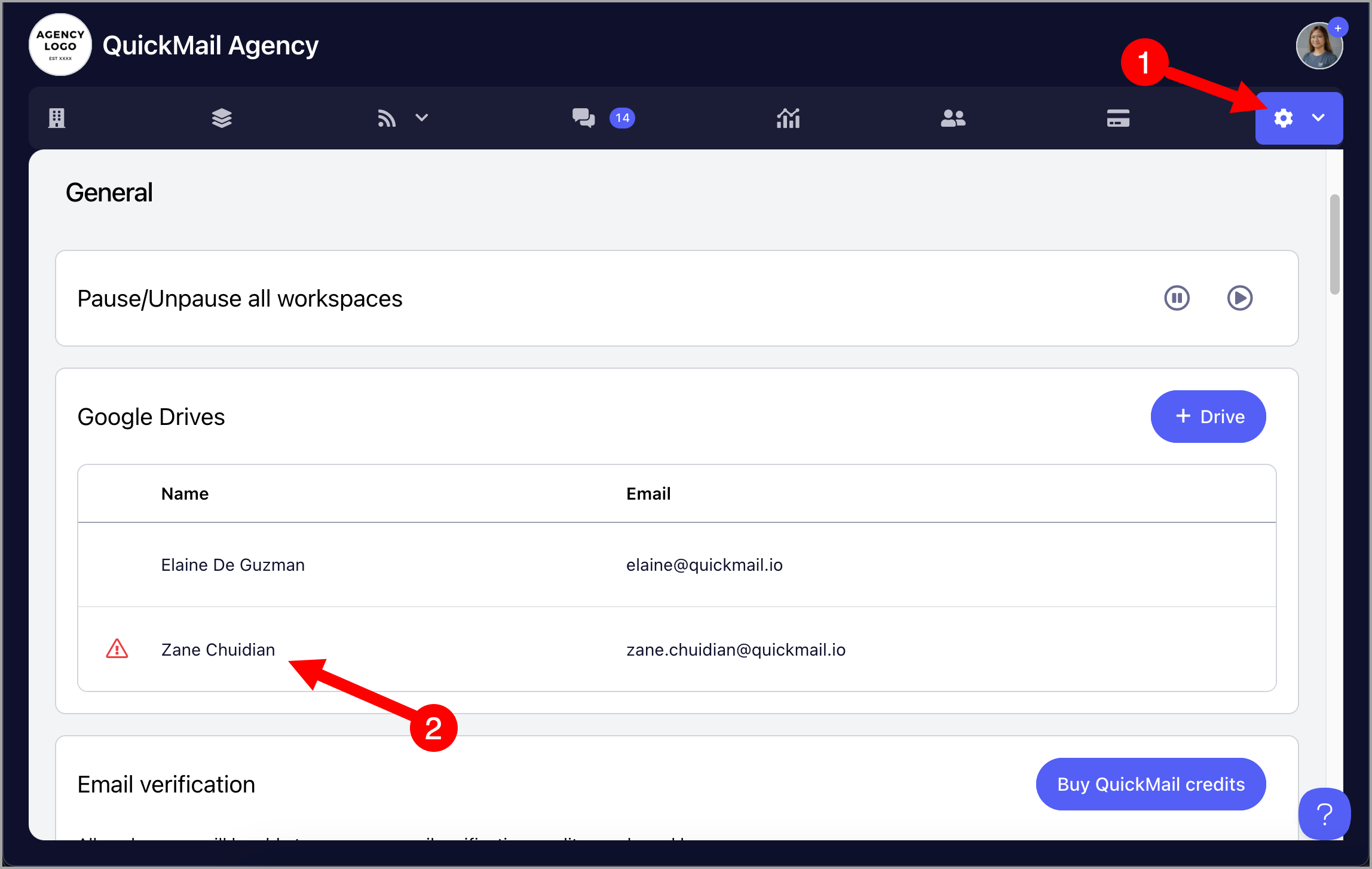
When QuickMail's permission to your Google Drive is revoked, the connected drive will be disconnected. When this happens, a red warning icon will appear in the Agency Dashboard Settings and next to the affected Google Drive account.
To re-authenticate, go to the Agency Dashboard → Settings → click on the Google Drive → Continue with Google → follow the prompts from Google.
Troubleshooting: Error App is Blocked
The error 'App is Blocked' can occur when your client's Google Workspace administrator has restricted third-party apps, or if Advanced Protection is enabled on your Google account.
To resolve this, your email provider or Google Workspace administrator will need to remove the third-party app restrictions in the Google admin settings.
Google provides instructions here: https://support.google.com/a/answer/13288950?hl=en
Unfortunately, this isn't something we can control, as it's a security restriction configured within your client's Google Workspace account.
It might be worth reaching out to your email provider or Google Admin to have them remove third-party app restrictions.
Troubleshooting: Import options greyed out, can't select a column
The issue with greyed out import option can happen if the Google Sheet has too many columns, or the Google Sheet is in a Shared Drive.
Move or make a copy of the Google Sheet to your Main/Personal Google Drive to fix this.