Adding LinkedIn Accounts
Adding LinkedIn Accounts
In this article:
How to add a LinkedIn account?
Option 1: Via browser extension (recommended)
Option 2: Via credentials + 2FA
Option 3: Via cookies
Troubleshooting
I added the LinkedIn account, but I can't find it.
My LinkedIn lost permission. How do I reconnect?
I'm getting an error when adding my LinkedIn account.
How to Add a LinkedIn Account?
There are three ways to add a LinkedIn account in QuickMail.
Tip: If you do not have access to the LinkedIn account directly, you can generate an invite link instead. Go to LinkedIn > +LinkedIn > Get invite link (The invite link can be reused and will expire after 30 days)
Option 1: Via Browser Extension (Recommended)
Step 1. Log in to the LinkedIn account you want to add.
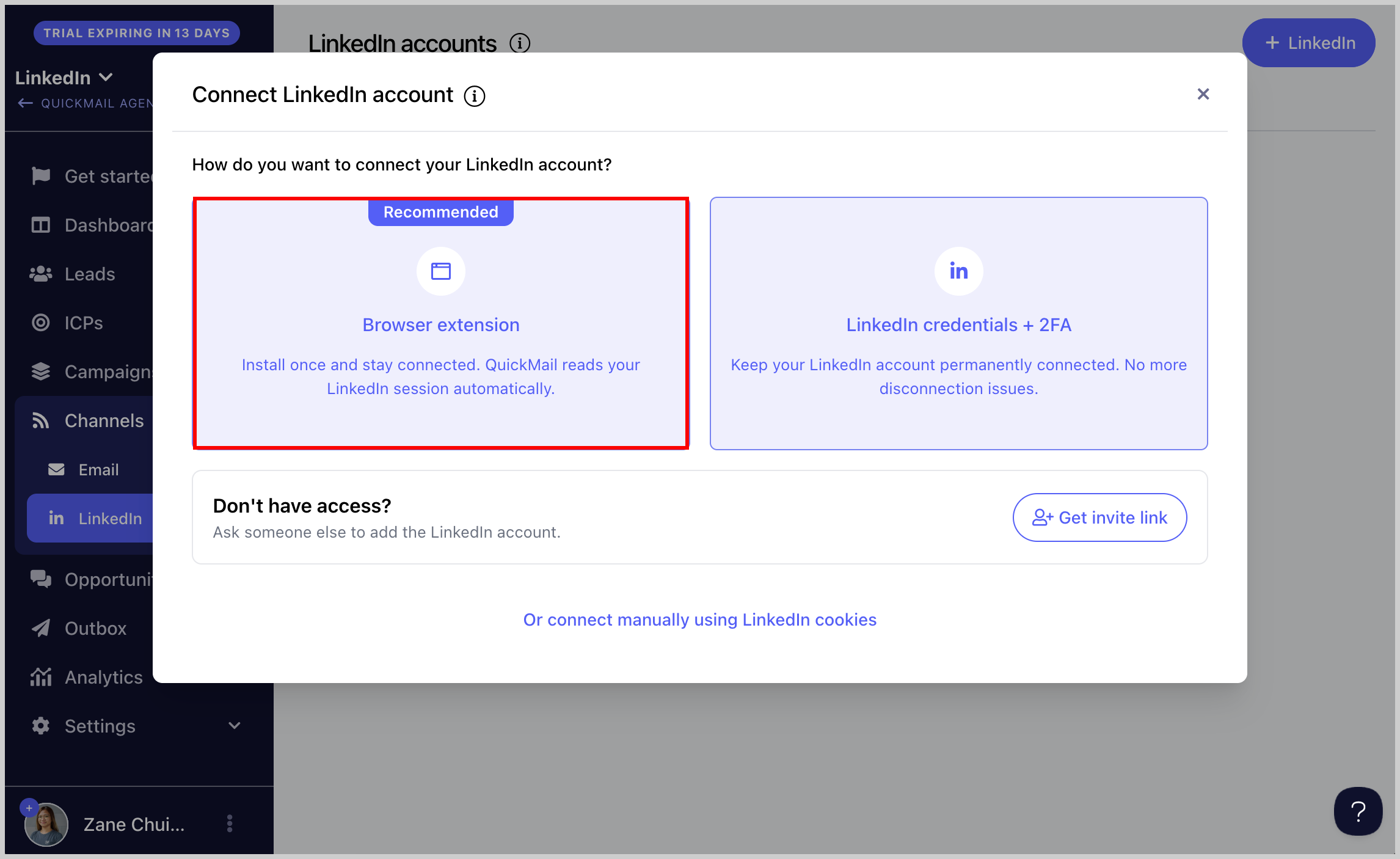
Step 2. In a separate browser tab, open QuickMail and go to LinkedIn → click Browser Extension.
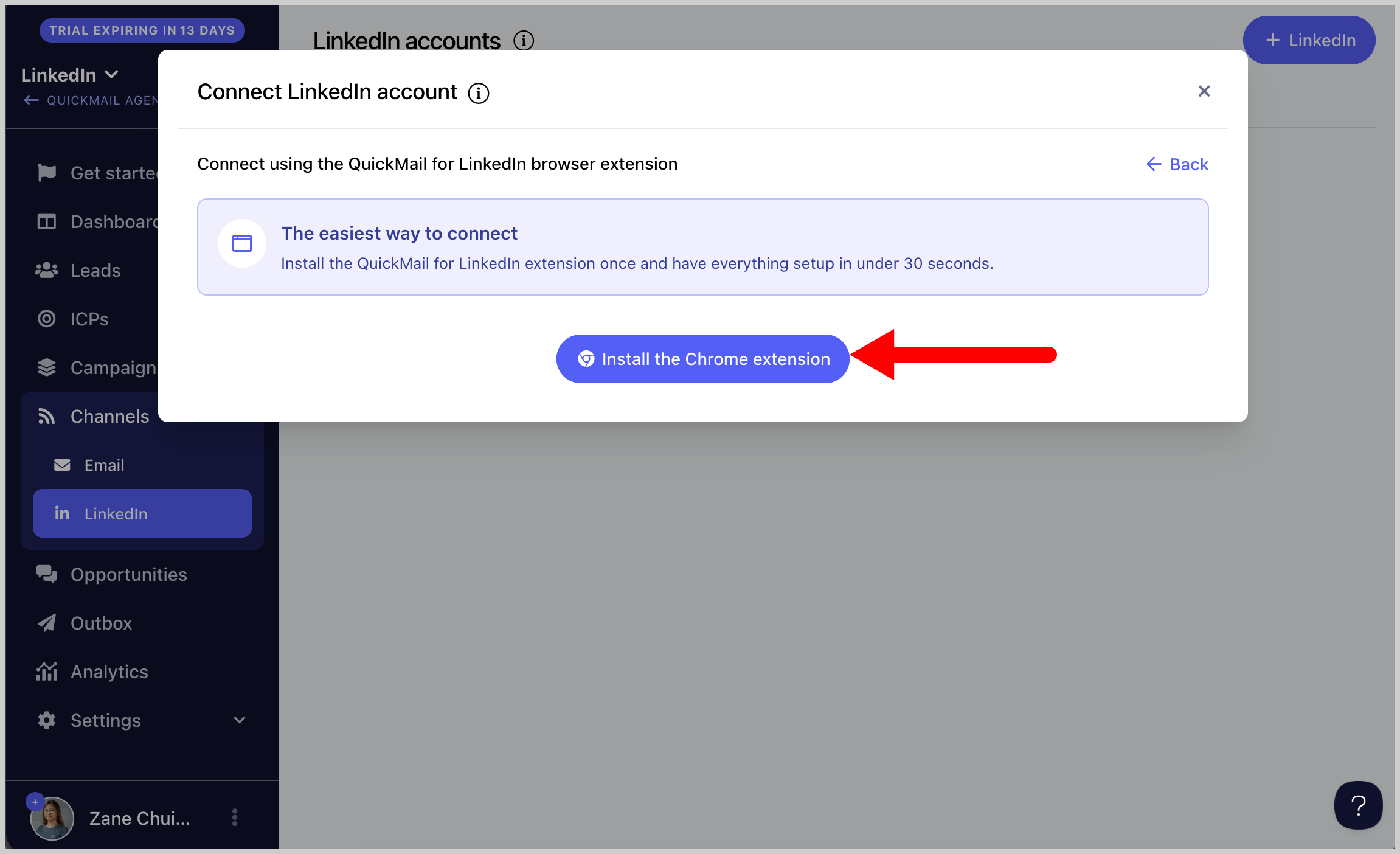
Step 3. Click Install the Chrome Extension.
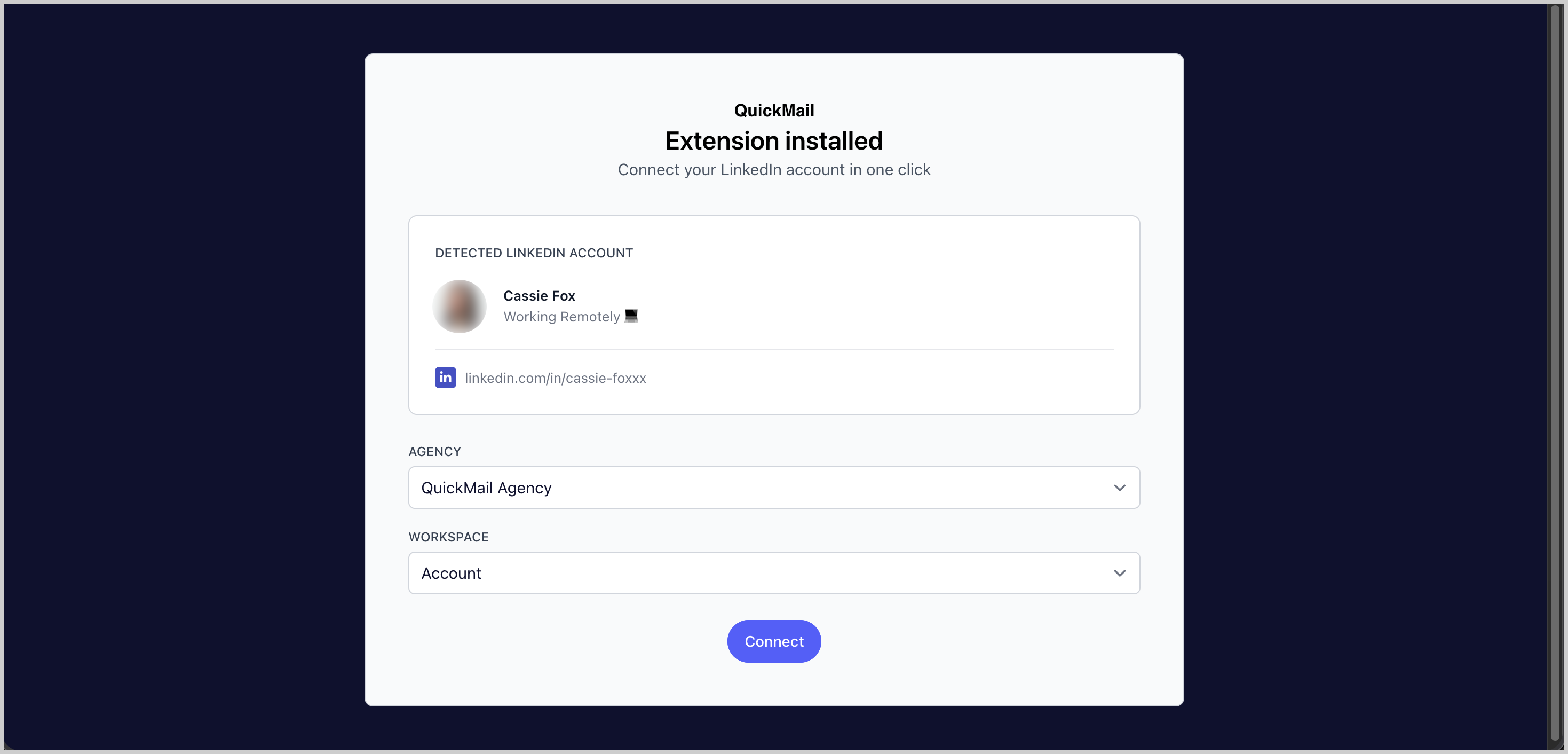
Step 4. Once the extension is installed, a new tab will open. The LinkedIn account currently signed in will be detected automatically. Select the account and the workspace where you would like to add it.
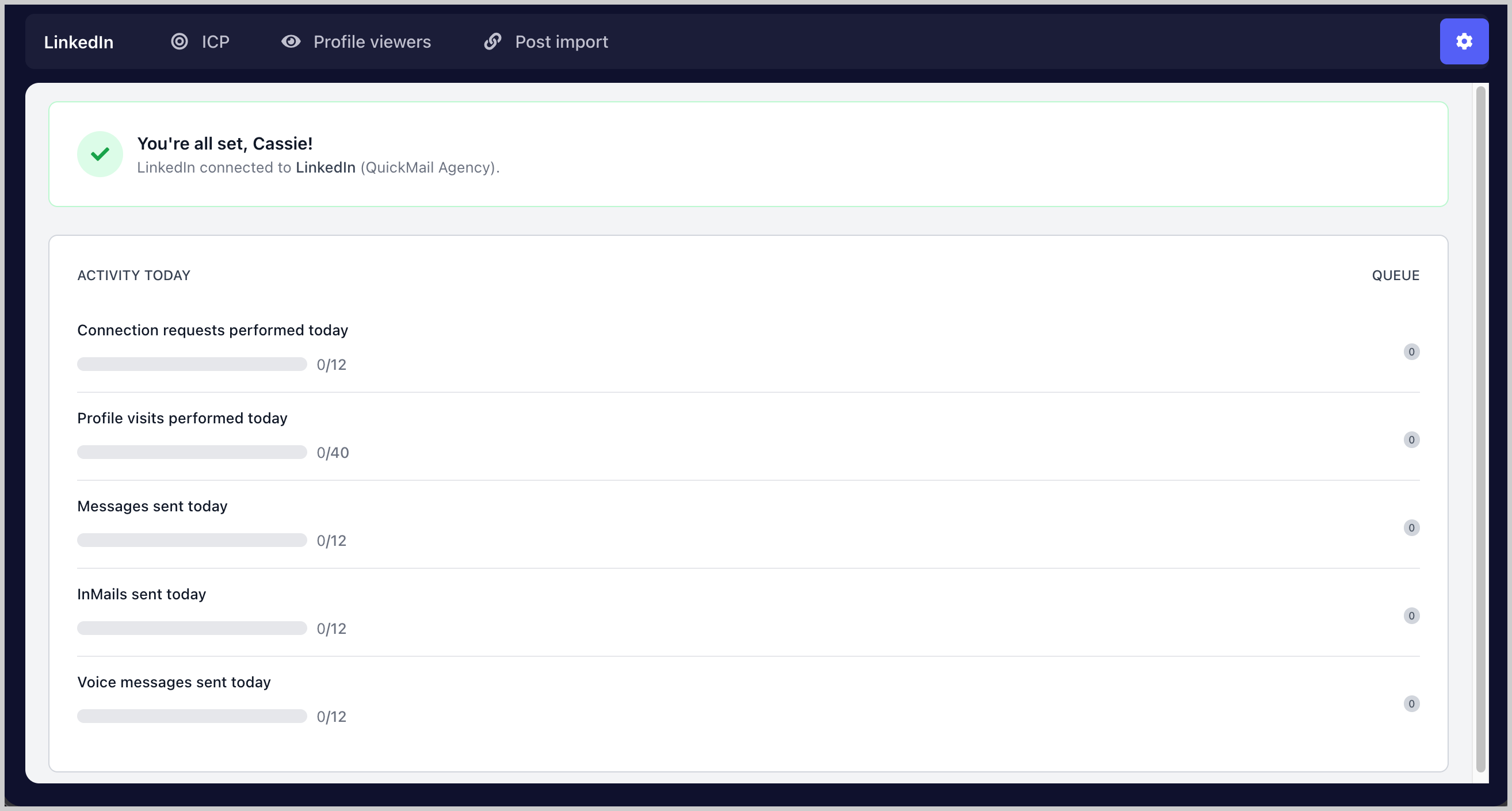
Step 5. You will receive a confirmation indicating whether the LinkedIn account was added successfully. From the same page, you can also view the LinkedIn account activity.
Option 2: Via Credentials + 2FA
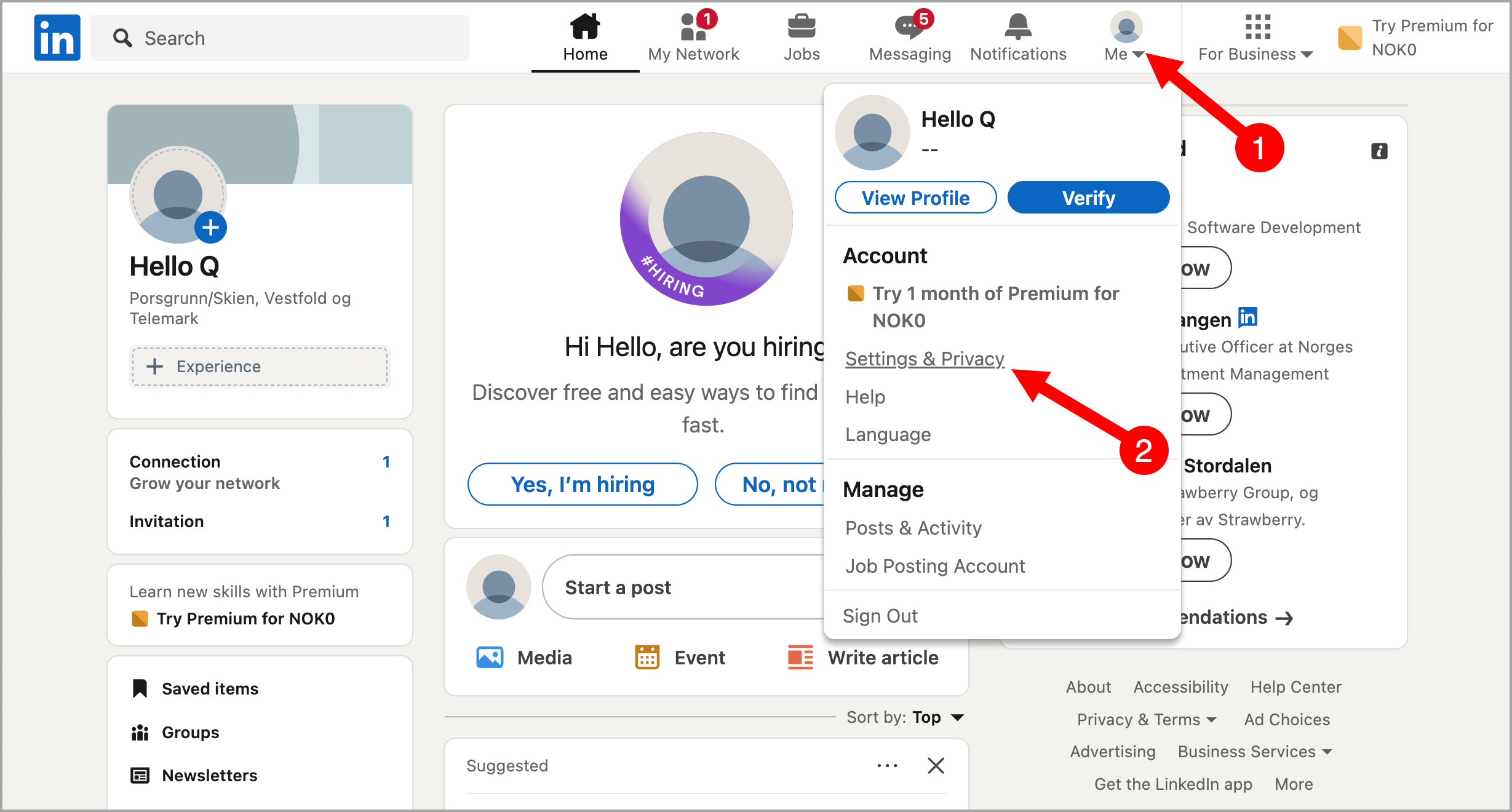
Step 1. Log in to your LinkedIn account in a separate browser tab → click Me → Settings & Privacy.
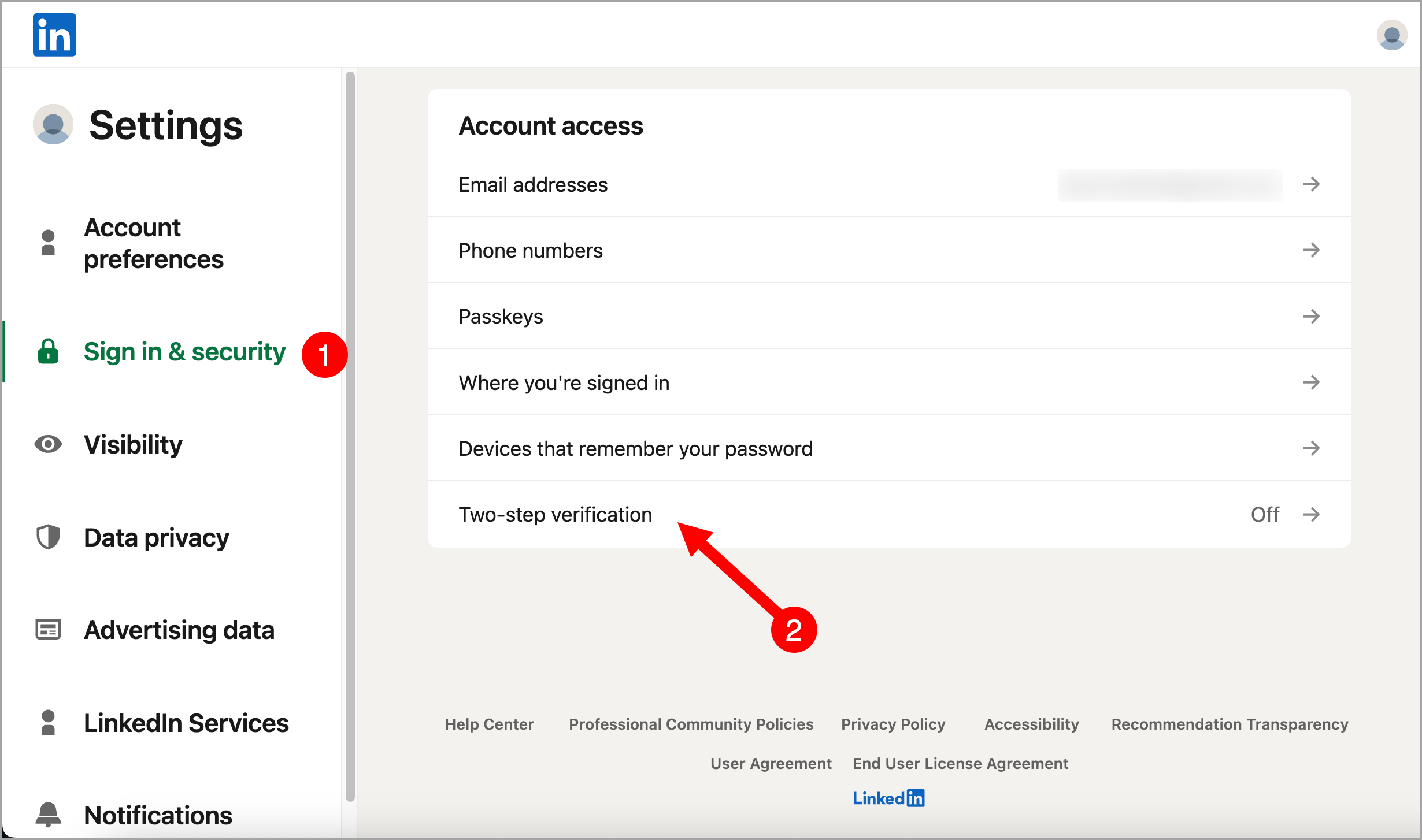
Step 2. Go to Sign in & Security → click Two-Step Verification.
If two-step verification is already enabled, temporarily disable it, then proceed to the next step.
If two-step verification is not enabled, proceed to the next step to enable it.
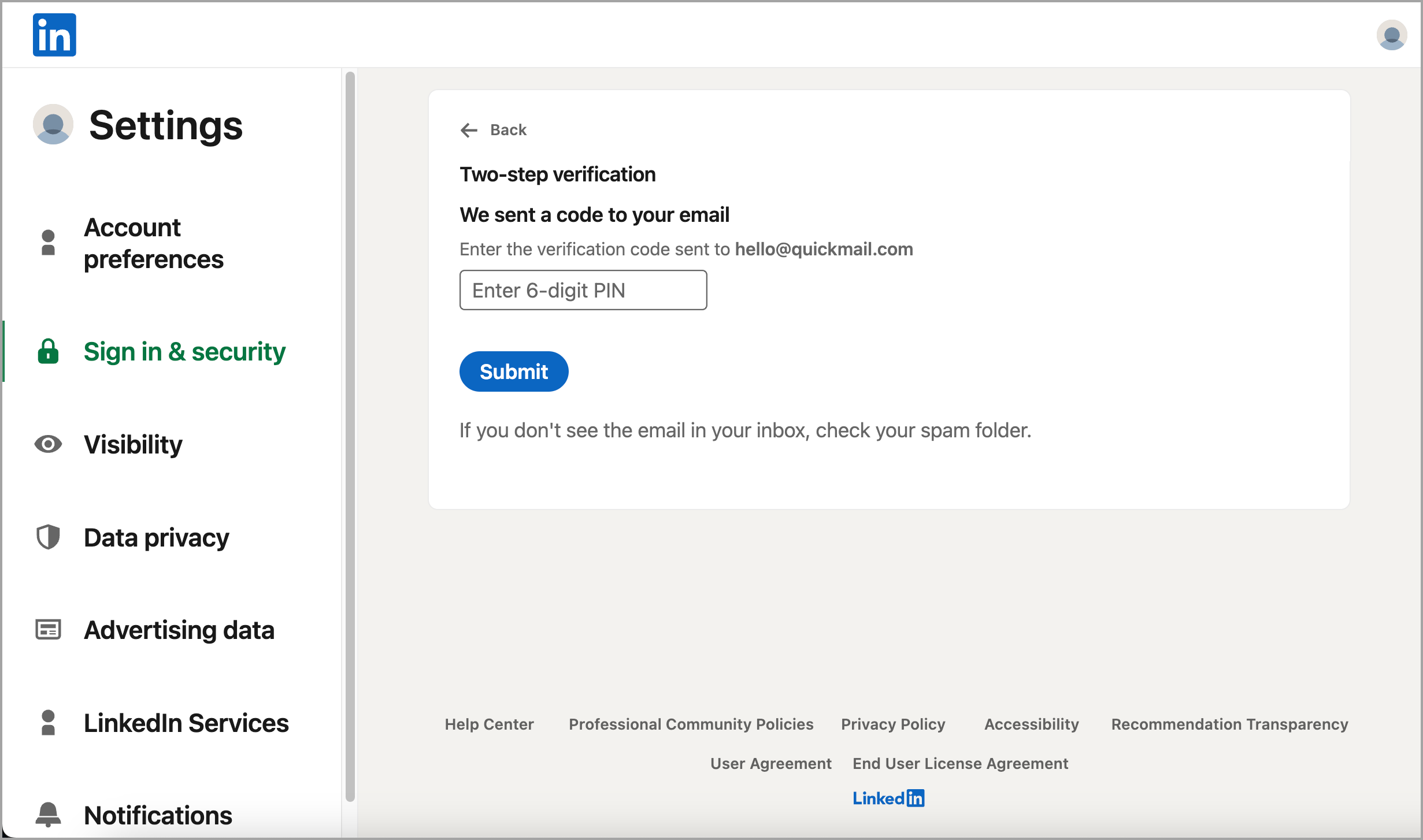
Step 3. Enable two-step verification → enter the code sent to your email address → click Submit.
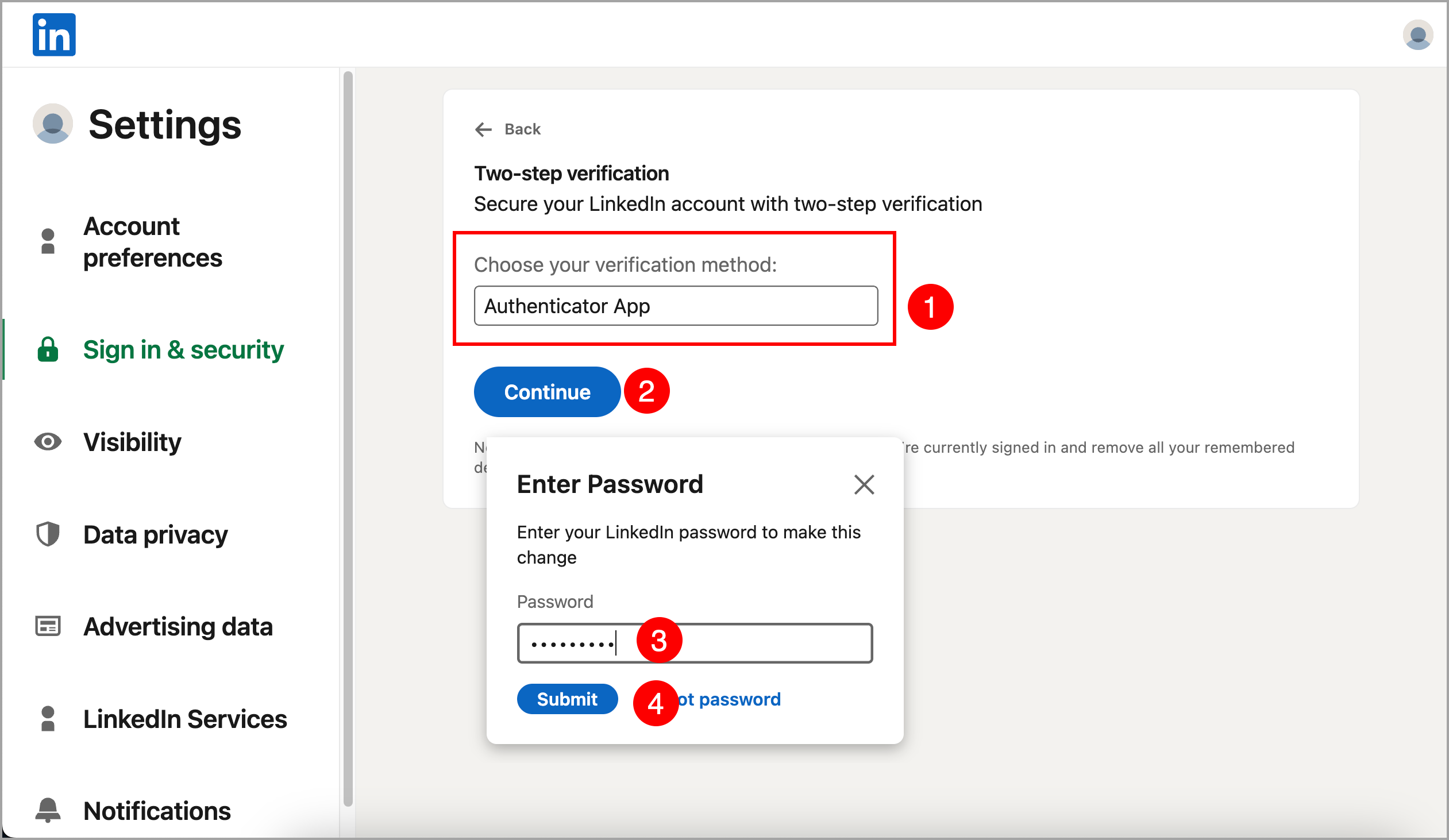
Step 4. Select Authenticator App → click Continue → enter your LinkedIn password to proceed.
Step 5. Download an authenticator app on your mobile phone, such as Google Authenticator or Microsoft Authenticator.
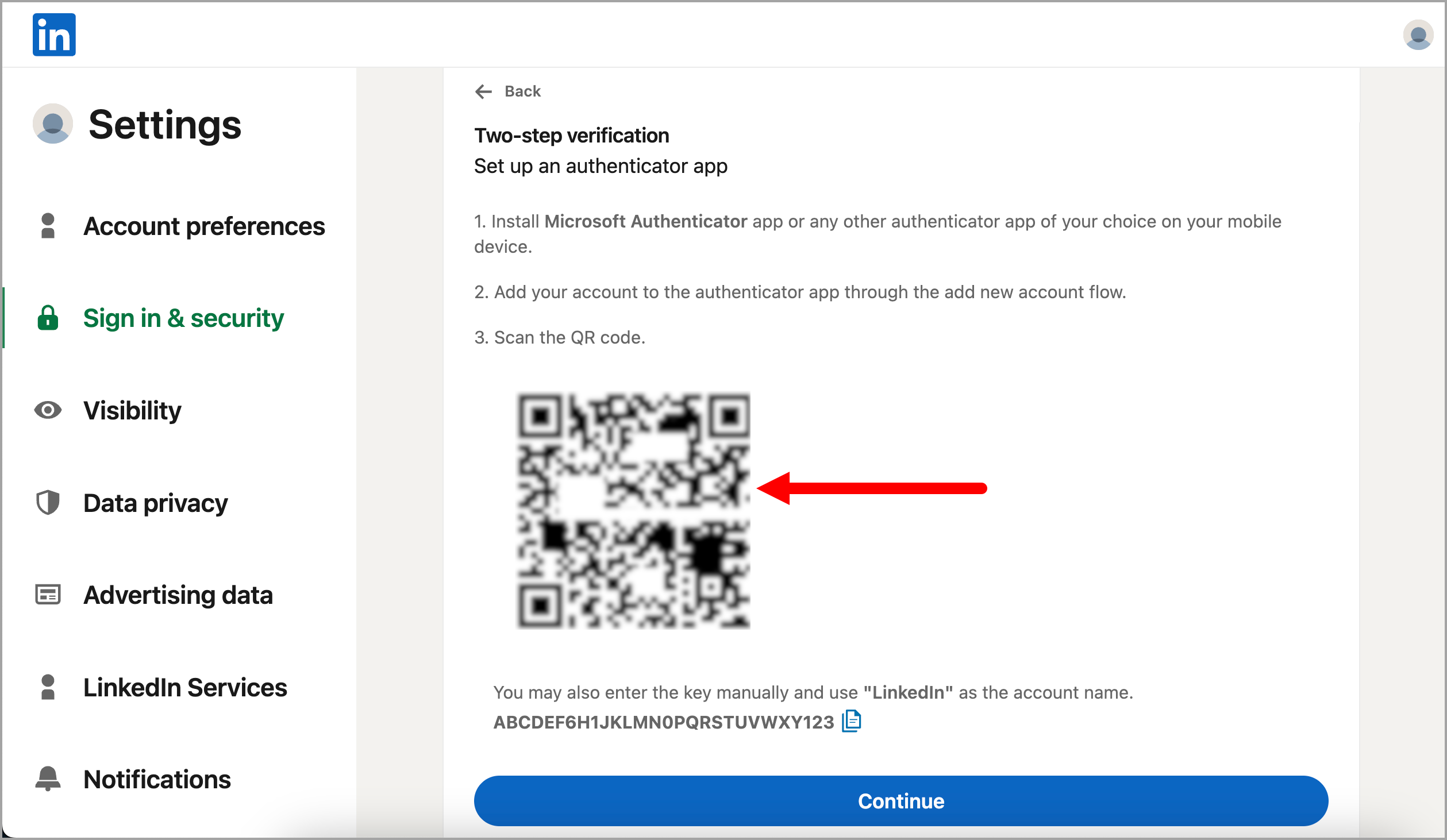
Step 6. In your authenticator app, open the QR scanner and scan the QR code displayed on your screen. This will add your LinkedIn account to the authenticator app.
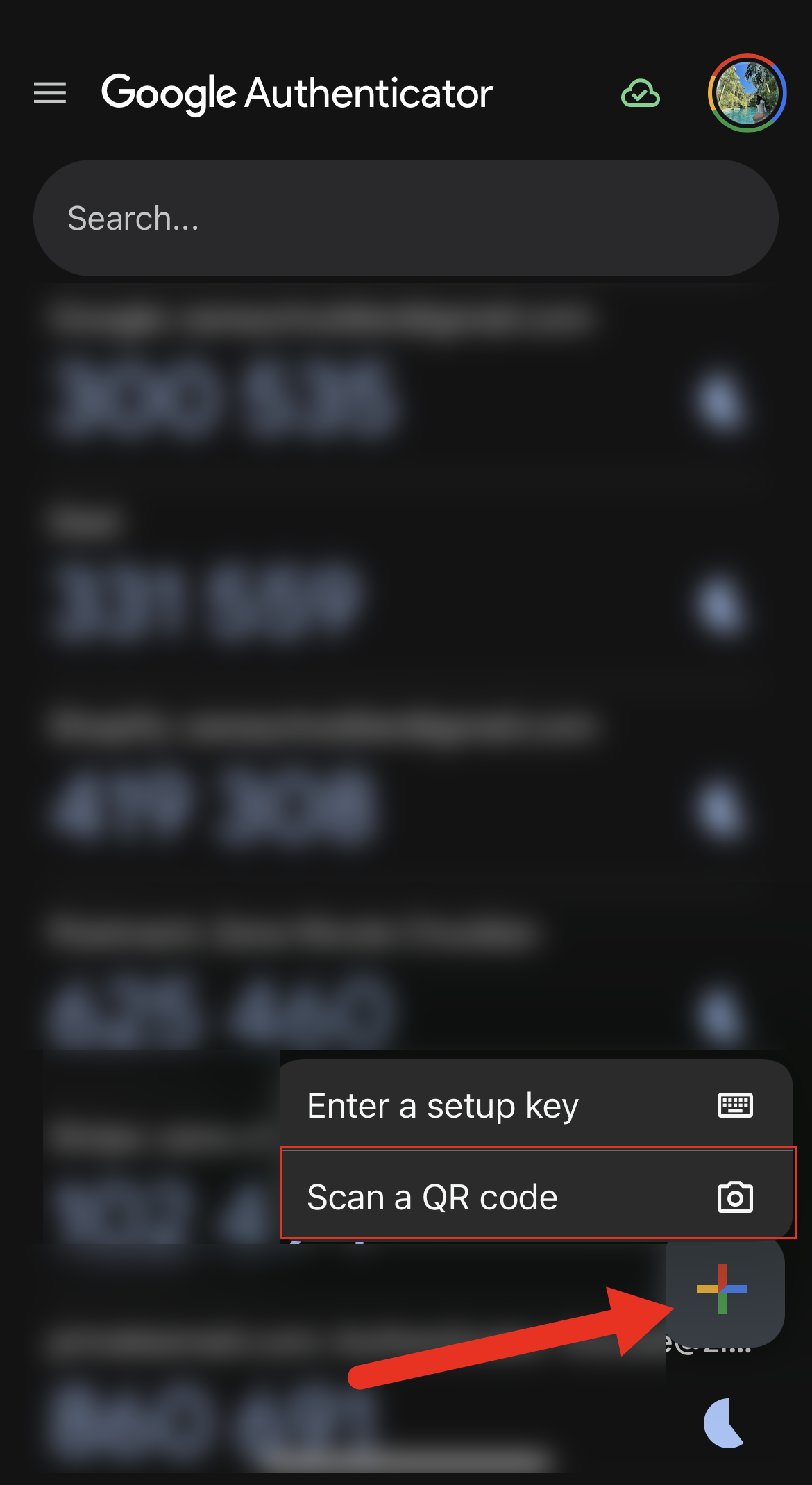
For Google Authenticator, here is where to find the QR scanner:
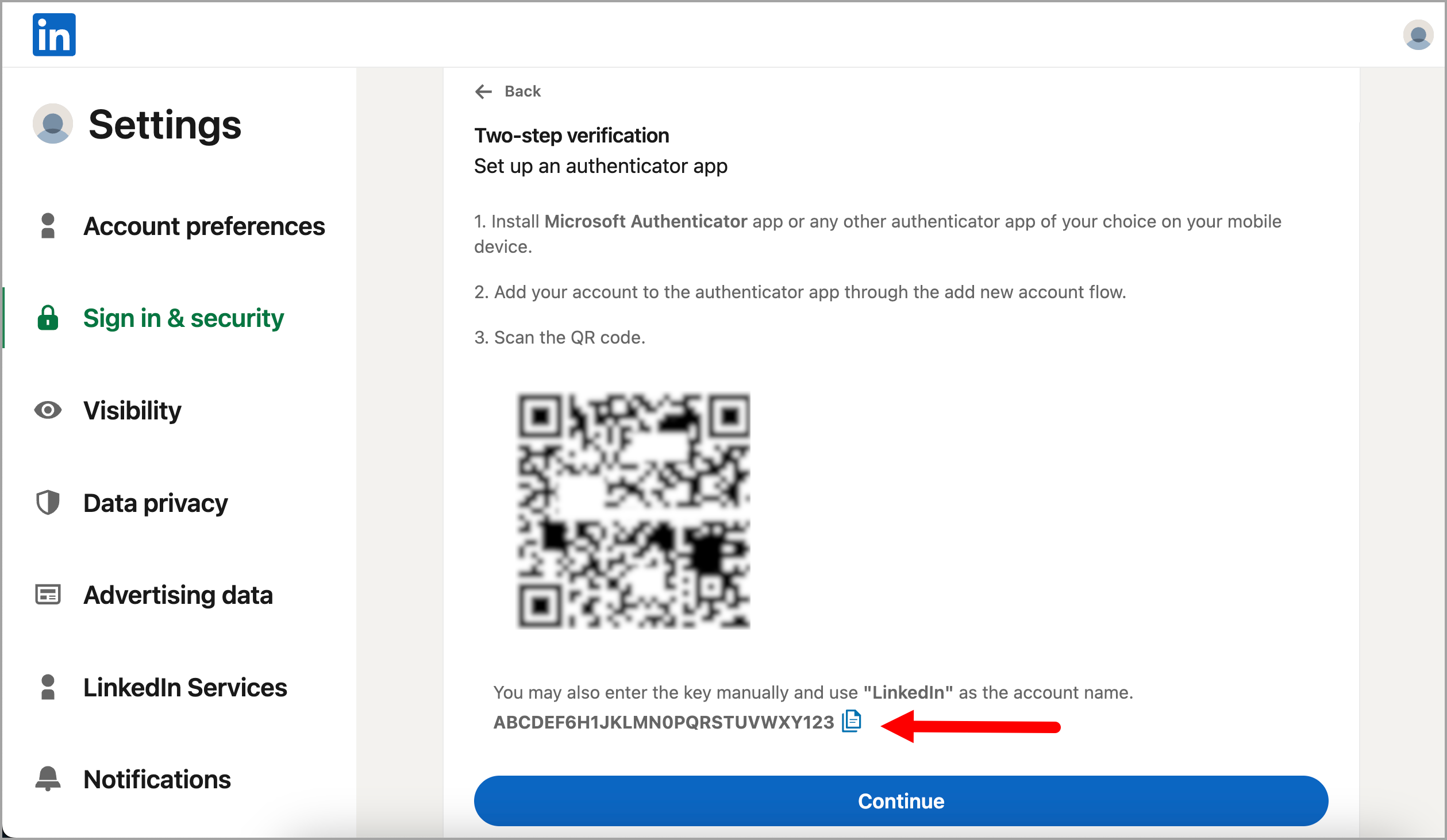
Here is the page where the QR code appears:
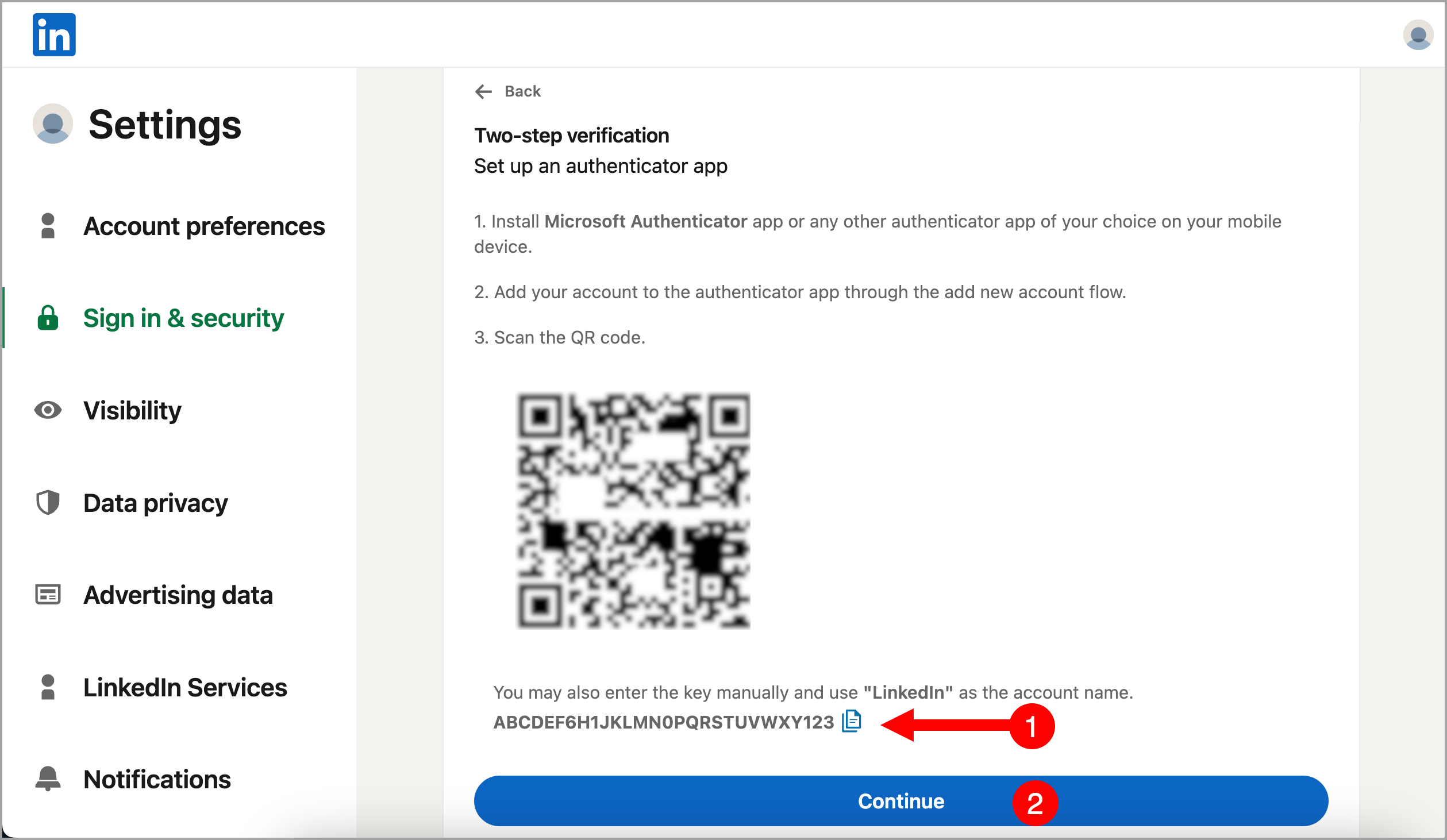
Step 7. Once the authenticator is set up, copy the code shown below the QR code and save it somewhere safe (such as a Notepad file) → click Continue.
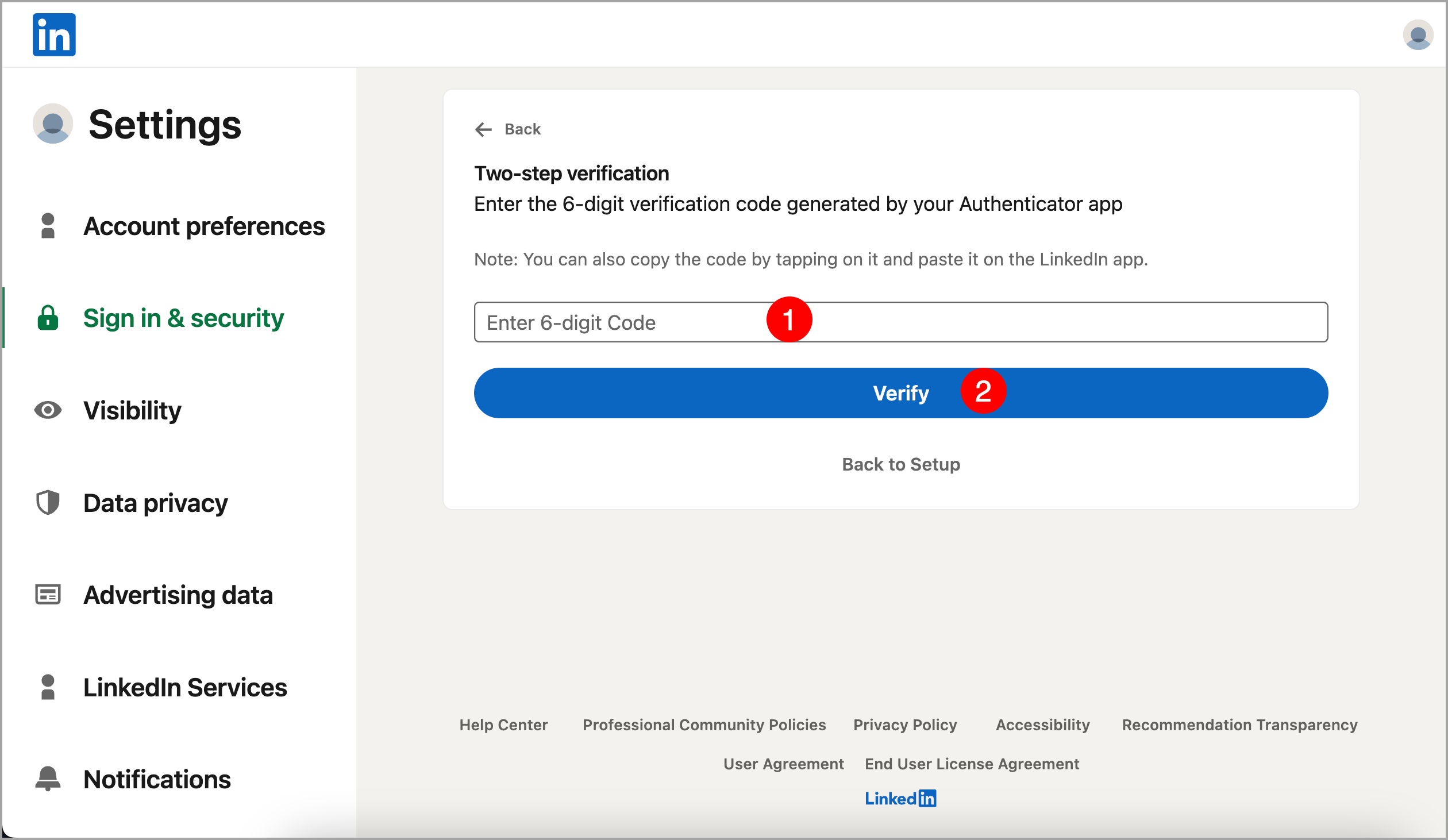
Step 8. Enter the code shown in your authenticator app → click Verify. Two-factor authentication is now set up on your LinkedIn account.
Step 9. Log out of your LinkedIn account, log back in, then fill in the authenticator code being asked.
Step 10. Once you're logged in, logout again.
Step 11. Copy the 2FA code you saved earlier.
Step 12. In QuickMail, go to LinkedIn → + LinkedIn → LinkedIn Credentials + 2FA.
Step 13. Select your country → enter the email address and password associated with your LinkedIn account → paste the 2FA code → click Add.
Note: It may take a few minutes for the LinkedIn account to be added, but no longer than an hour.
If it's still not added after a few minutes, go to Settings → Team → Ellipsis → Changelog and check if there's an error.
If you're encountering the “2FA challenge not found” error, please try logging in to LinkedIn, then logging out again before attempting to add the LinkedIn account to QuickMail.
Step 13.
Option 3: Via Cookies
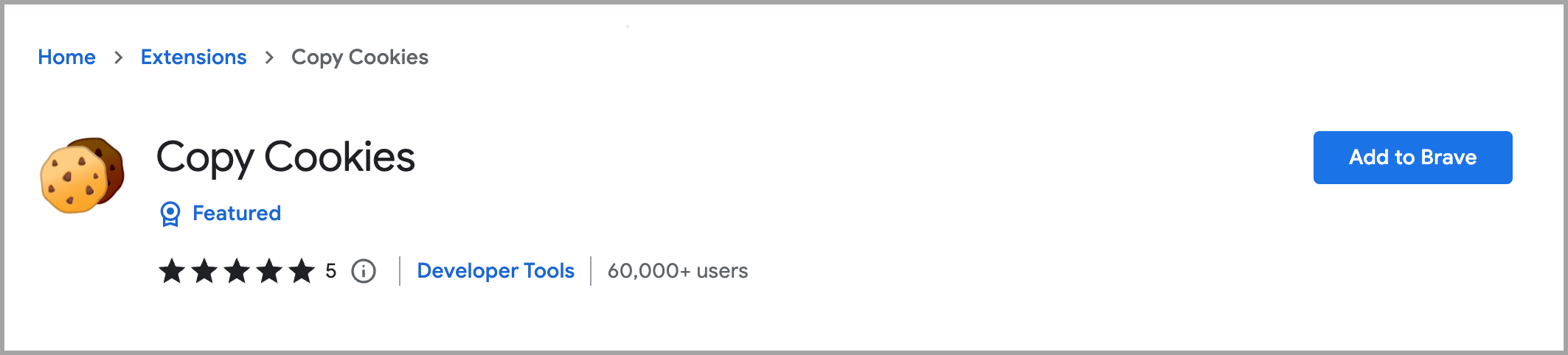
Step 1. Install the cookies extension on your browser using this link.
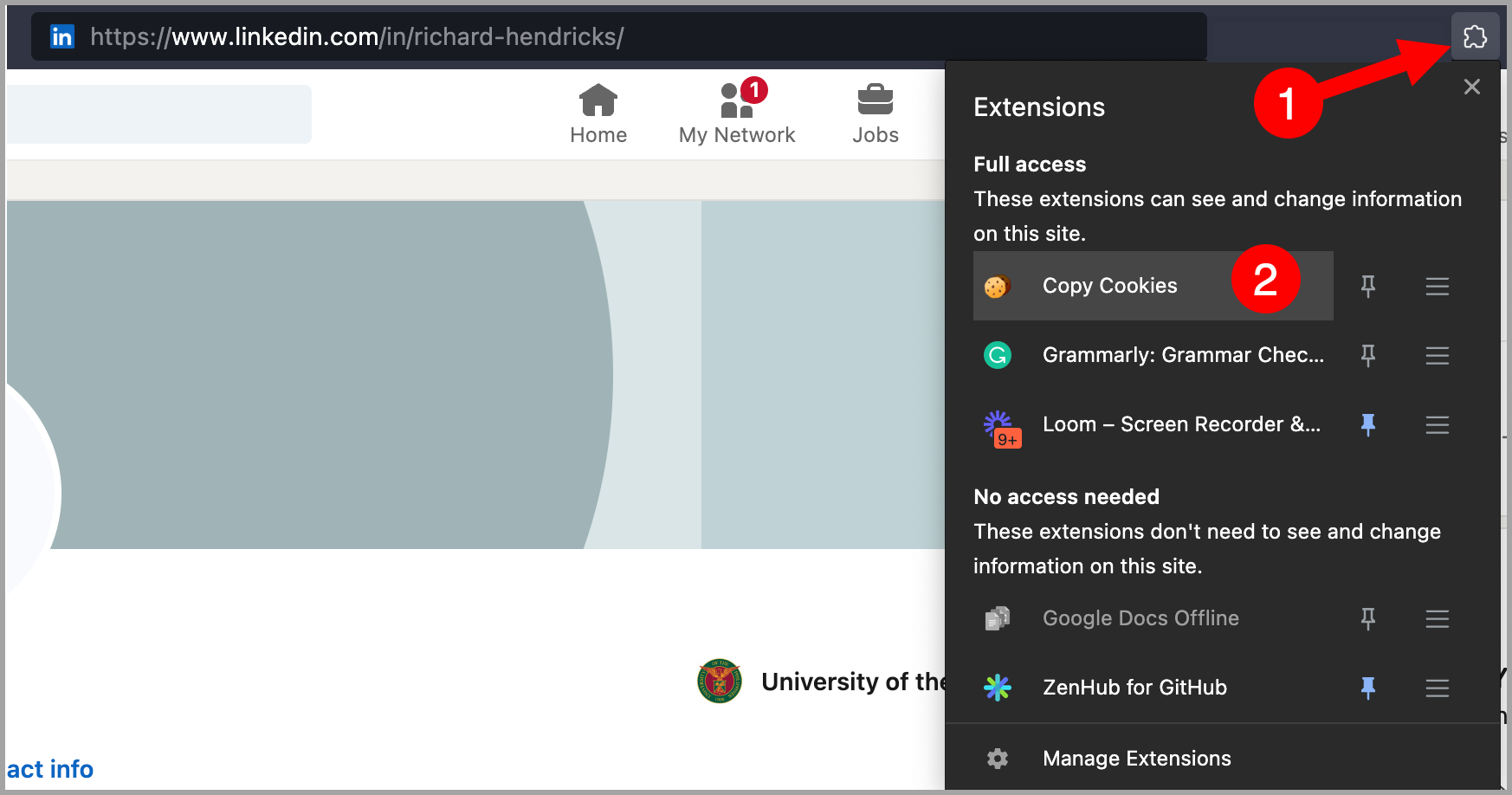
Step 2. Go to your LinkedIn profile and click the cookie icon to copy the page cookies. If you do not see the cookie icon, click the puzzle icon in your browser toolbar to view all installed extensions.
Step 3. In QuickMail, go to LinkedIn → + LinkedIn → LinkedIn Cookies.
Step 4. Select your country → paste the cookies → click Add. The LinkedIn account will be added immediately.
Important: Logging out of your LinkedIn account will disconnect it from QuickMail by invalidating the cookies. To avoid this, log in through an incognito window and close the window when done without logging out.
Troubleshooting
I Added the LinkedIn Account but I Can't Find It. Why?
If you can't see a LinkedIn account, it may be set to private. Private LinkedIn accounts are only visible to the person who added them, meaning the email address that was used to log in to QuickMail when the account was added.
If you're logged in with a different email address, the private LinkedIn account won't appear, and you won't be able to edit its settings.
To fix this, log in with the email address used to add the account. If you still can't find it, click the AI chatbot in the lower right corner of your QuickMail account, then click "Escalate to Human."
Something may have gone wrong when the LinkedIn account was added. To verify, go to Settings → Team → Ellipsis → Changelog and look for any errors.
My LinkedIn Account Lost Permission. How Do I Reconnect It?
The way to reconnect depends on how the account was originally added:
Added via cookies: Generate a new cookie and add it to the account.
Added via the browser extension: The account should reconnect automatically. If it doesn't, reconnect it using the browser extension, and make sure your LinkedIn account is open in another tab.
Added via 2FA: Reconnect it using the browser extension, and make sure your LinkedIn account is open in another tab. If you're still getting an error, click the question mark icon to open the chatbot, type in your issue, and then click "Escalate to Human."
I'm Getting an Error When Adding My LinkedIn Account.
- Error: We failed to create your LinkedIn account due to network issues. Please try again later
If you are seeing this, it's a temporary error caused by high server load. Wait a few minutes and try again.
- Error: _2FA Challenge Not Found
This can happen if you've just set up two-factor authentication (2FA). Try logging out of your LinkedIn account, then logging back in before attempting to connect it to QuickMail again.
Alternatively, wait a few minutes and then try connecting it again.
What does gold LinkedIn icon means?
A gold LinkedIn icon indicates that the account has an active LinkedIn Premium subscription. A blue LinkedIn icon indicates that the account is using the free version of LinkedIn and does not have a Premium subscription.