Sending LinkedIn Messages 💬
Sending LinkedIn Messages 💬
💡 The number of LinkedIn accounts that you can add will depend on your plan. It's 1 for Basic, 5 for Pro, and 15 for Expert.
In this Article:
How does sending LinkedIn Messages work
How many LinkedIn Messages can I send?
How to send LinkedIn Messages?
How can I change the daily limit for my LinkedIn Messages?
Where can I see replies to LinkedIn messages?
How does sending LinkedIn Messages work?
In QuickMail, you can seamlessly create custom-tailored messages for your LinkedIn connections.
By incorporating LinkedIn Message steps into your campaigns, you have the capability to send multiple personalized messages to your prospects.
IMPORTANT: It's not yet possible to send a LinkedIn message to prospects you're not connected with. So a LinkedIn Connection request must be sent first. To send a LinkedIn Connection request, check out this guide
How many LinkedIn Messages can I send?
To prevent the account from being restricted by LinkedIn, we put a daily limit of 40 LinkedIn messages per account.
If there's a need to send more, it's possible to add more LinkedIn accounts as needed without additional cost.
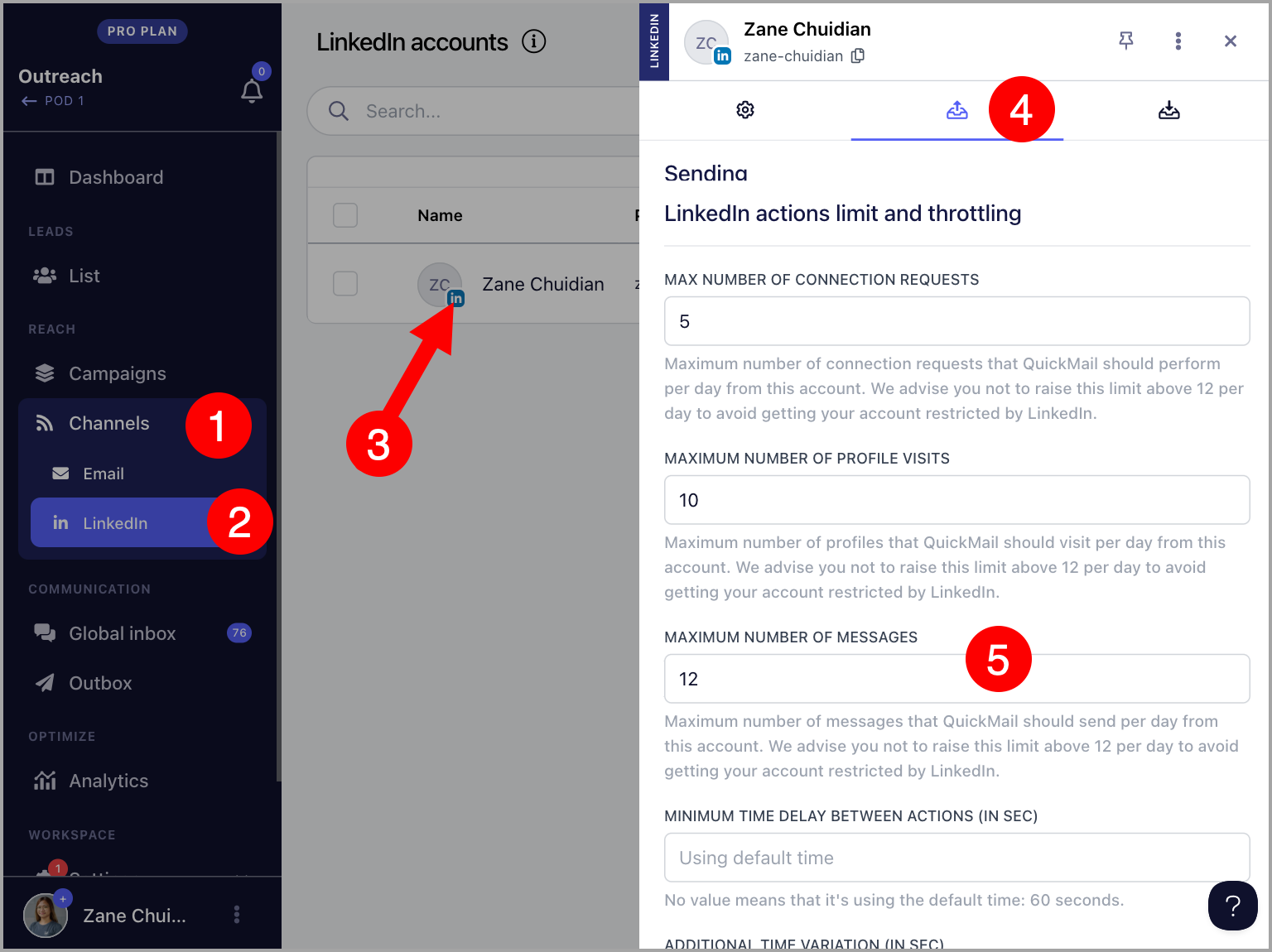
On the other hand, you can also set a limit to the LinkedIn messages you send daily.
How to send LinkedIn Messages?
Step 1. Setup LinkedIn Automation
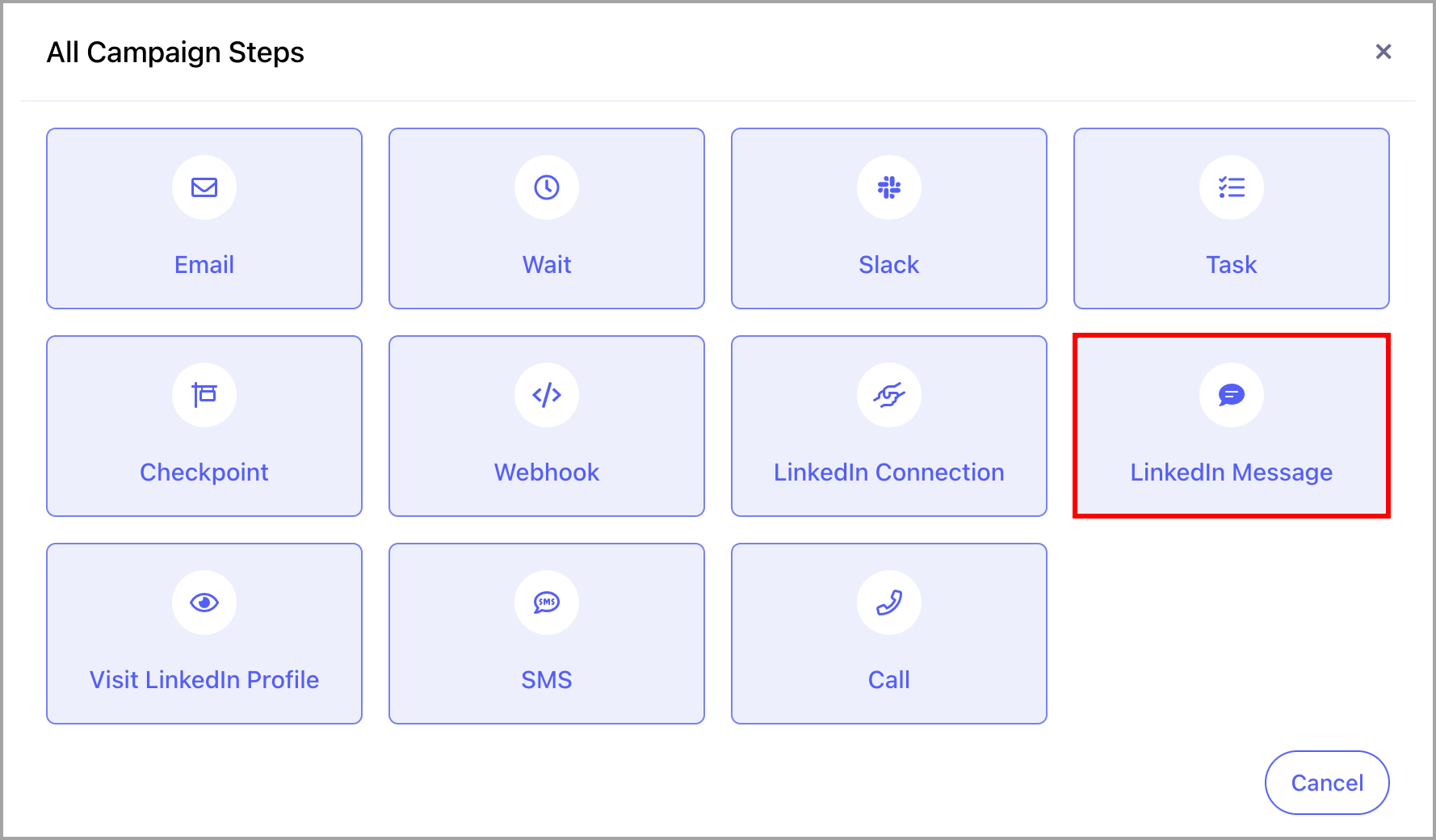
Step 2. From your campaign, go to Steps and add a LinkedIn Message step
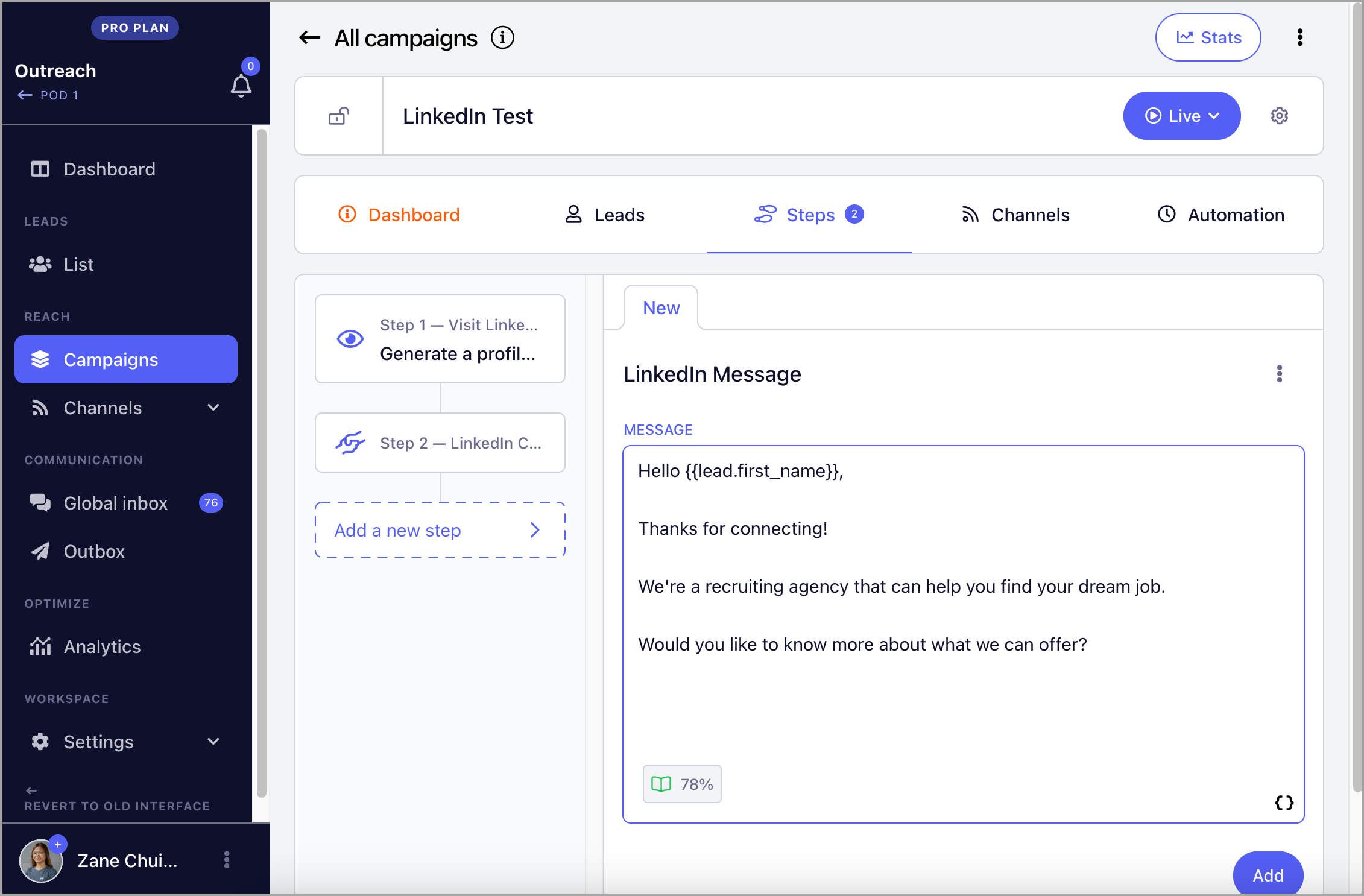
Step 3. Add the LinkedIn message you want to send. You can use custom fields to personalize your message.
How can I change the daily limits of my LinkedIn messages?
Go to LinkedIn → Select a LinkedIn account → Sending Tab → Maximum number of messages
Where can I see replies to LinkedIn messages?
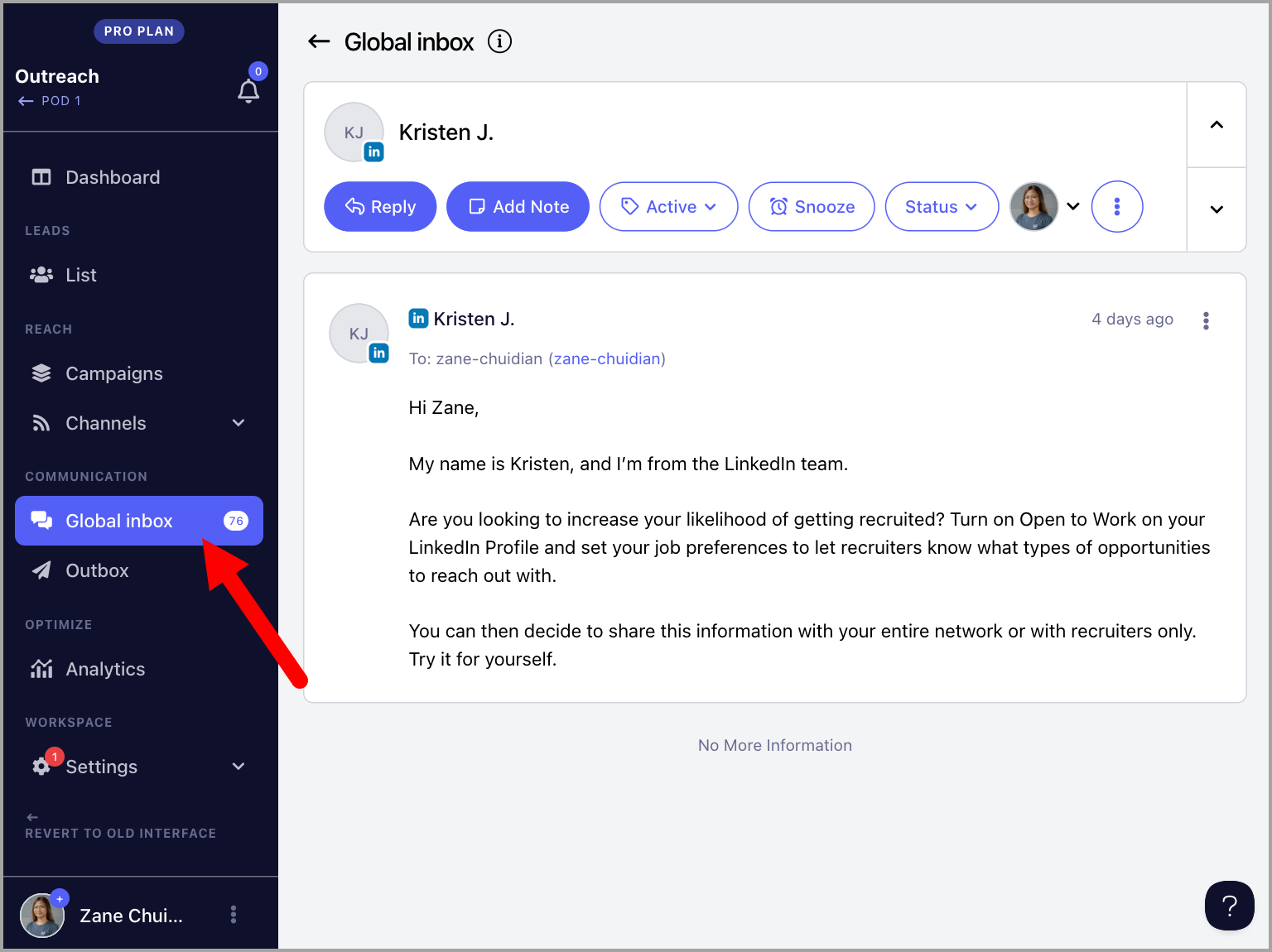
Once a LinkedIn account is added to QuickMail, we will automatically scan it for replies every 1-6 hours.
The replies are then collected and displayed on the Inbox page, allowing direct responses to LinkedIn messages.