Importing from a LinkedIn Post 📲
Importing from a LinkedIn Post 📲
You can import leads who engaged with a LinkedIn post directly into QuickMail.
Tip: You can also import leads from another person's LinkedIn post.
In this article:
- How to import leads from a LinkedIn post?
How to Import Leads from a LinkedIn Post?
Step 1. Add a LinkedIn account to QuickMail. Go to LinkedIn → + LinkedIn. This guide on adding LinkedIn accounts might come in handy. https://help.quickmail.com/linkedin/adding-linkedin-accounts/
Step 2. On a separate browser tab, go to the LinkedIn post you would like to import leads from and copy the post link.
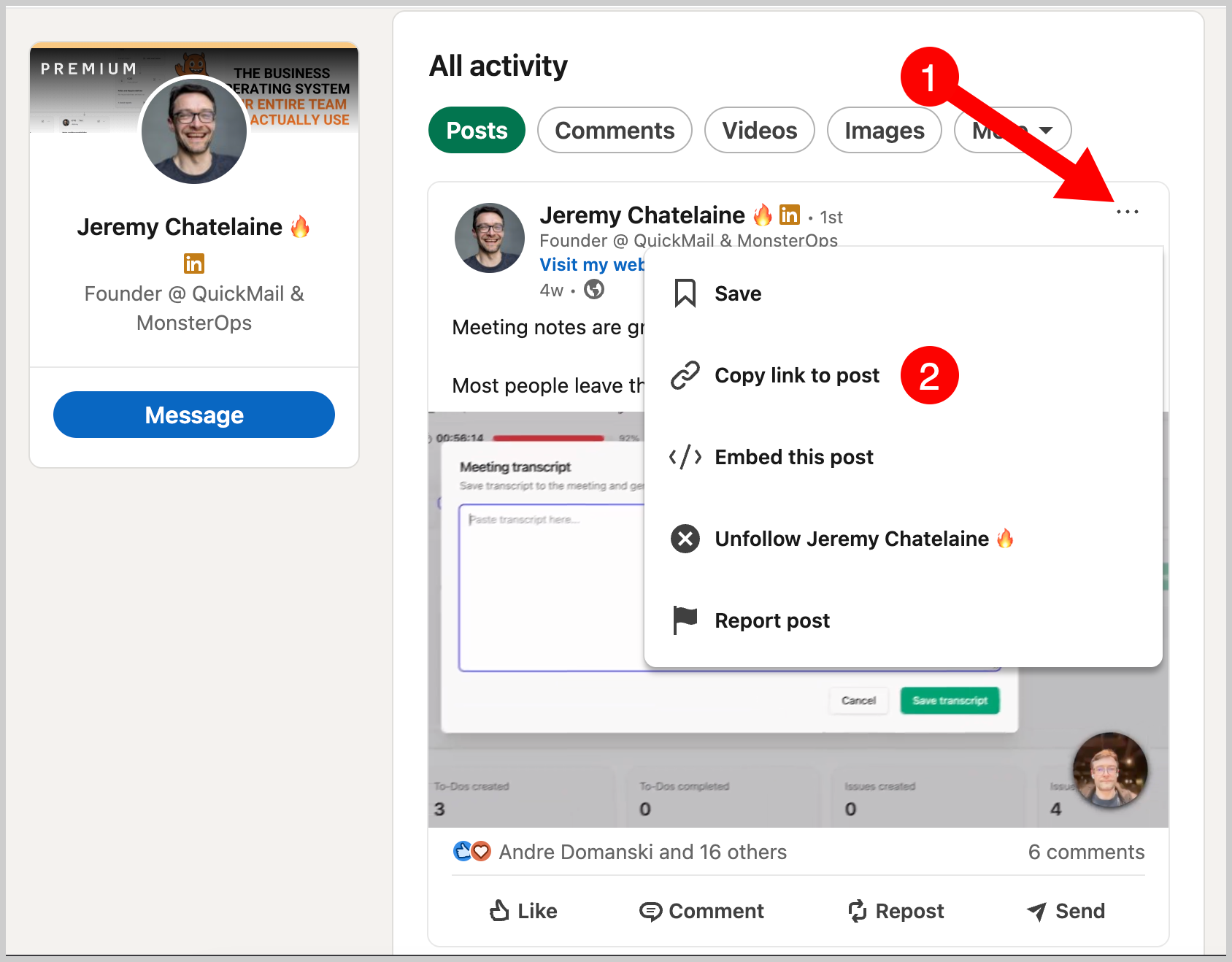
Step 3.
- Option 1 - Via Browser Extension (Recommended)
This allows you to Import from a LinkedIn post and send a connection request without needing to manually create a campaign, saving you time.
To get started, install QuickMail's Browser extension and go to 'Post Import' page:
After that, edit the connection request you'd like to send and hit save. Add a follow up step is needed. Then click 'Import'.
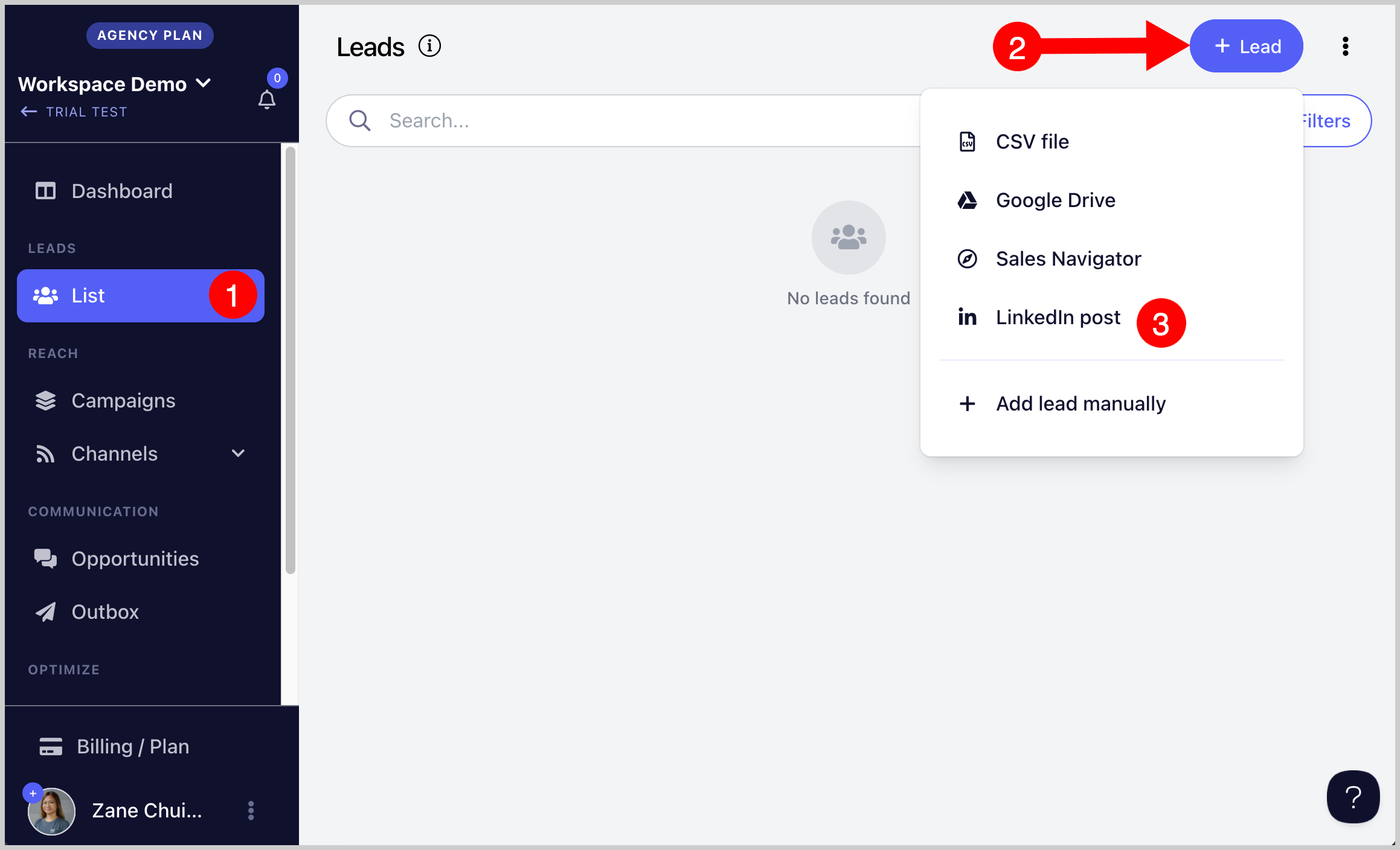
- Option 2 - Via Leads page Go to Leads → + Lead → LinkedIn Post.
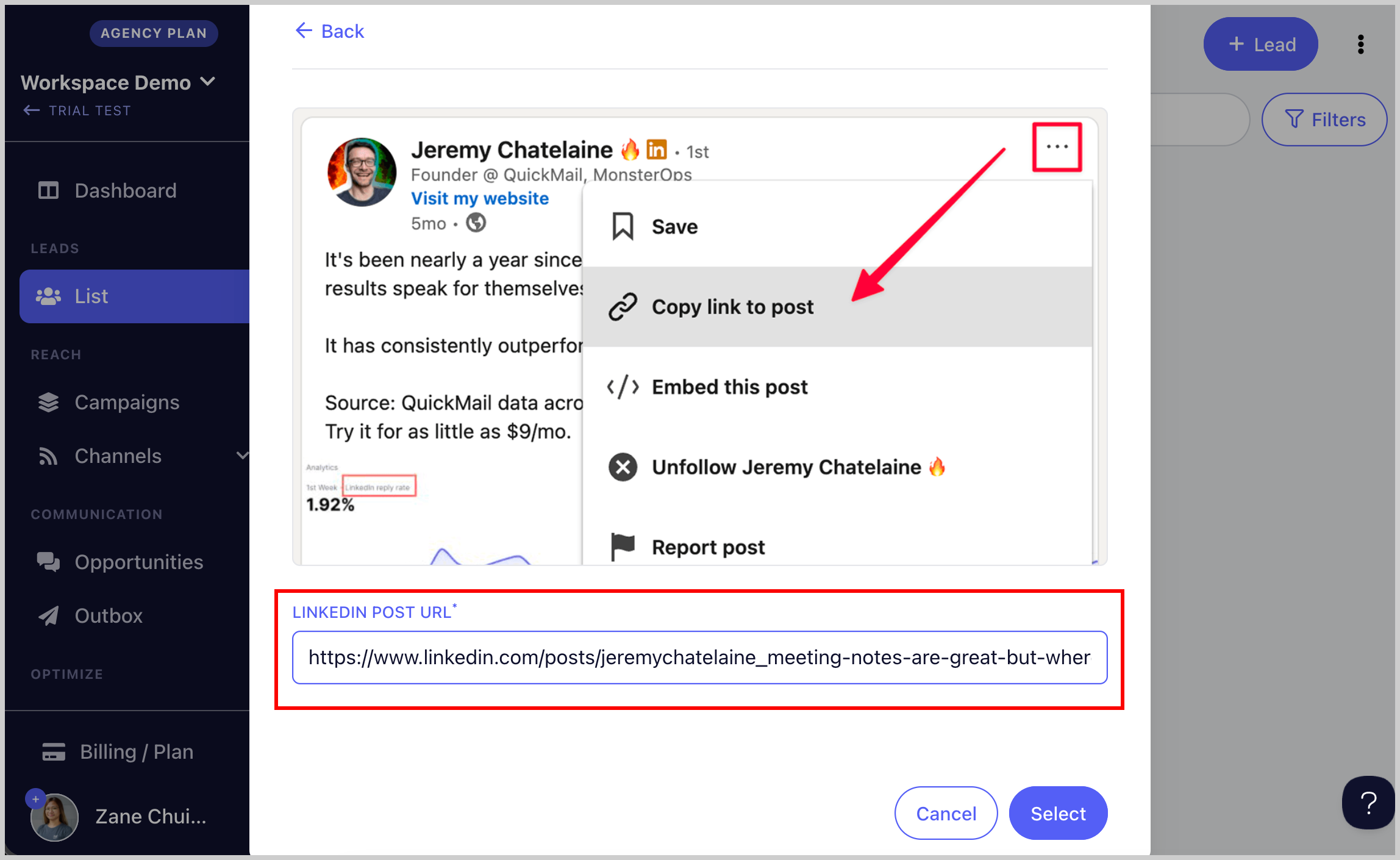
Step 4. Paste the LinkedIn post link into QuickMail.
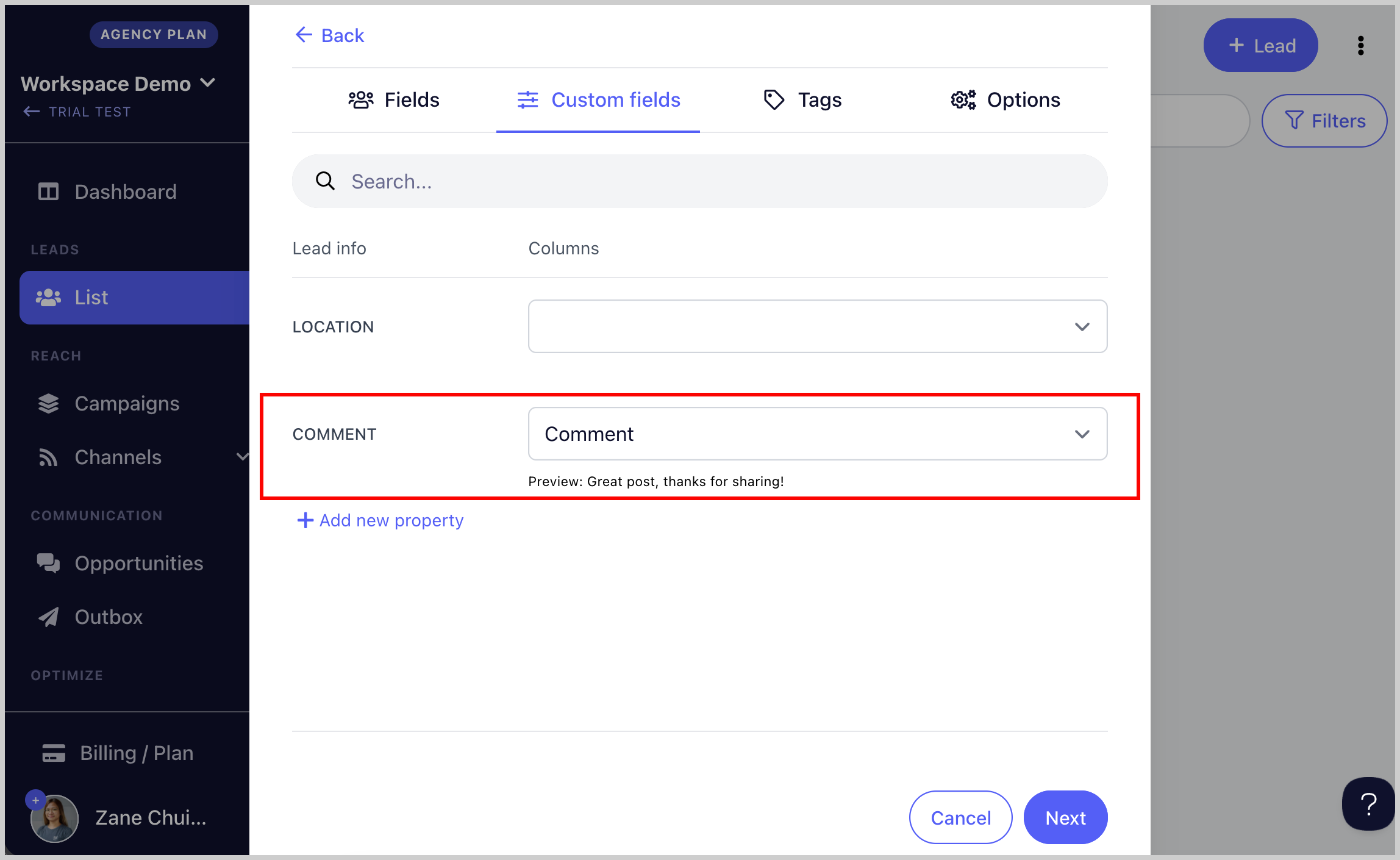
Step 5. Map the lead properties and add custom properties or tags if needed.
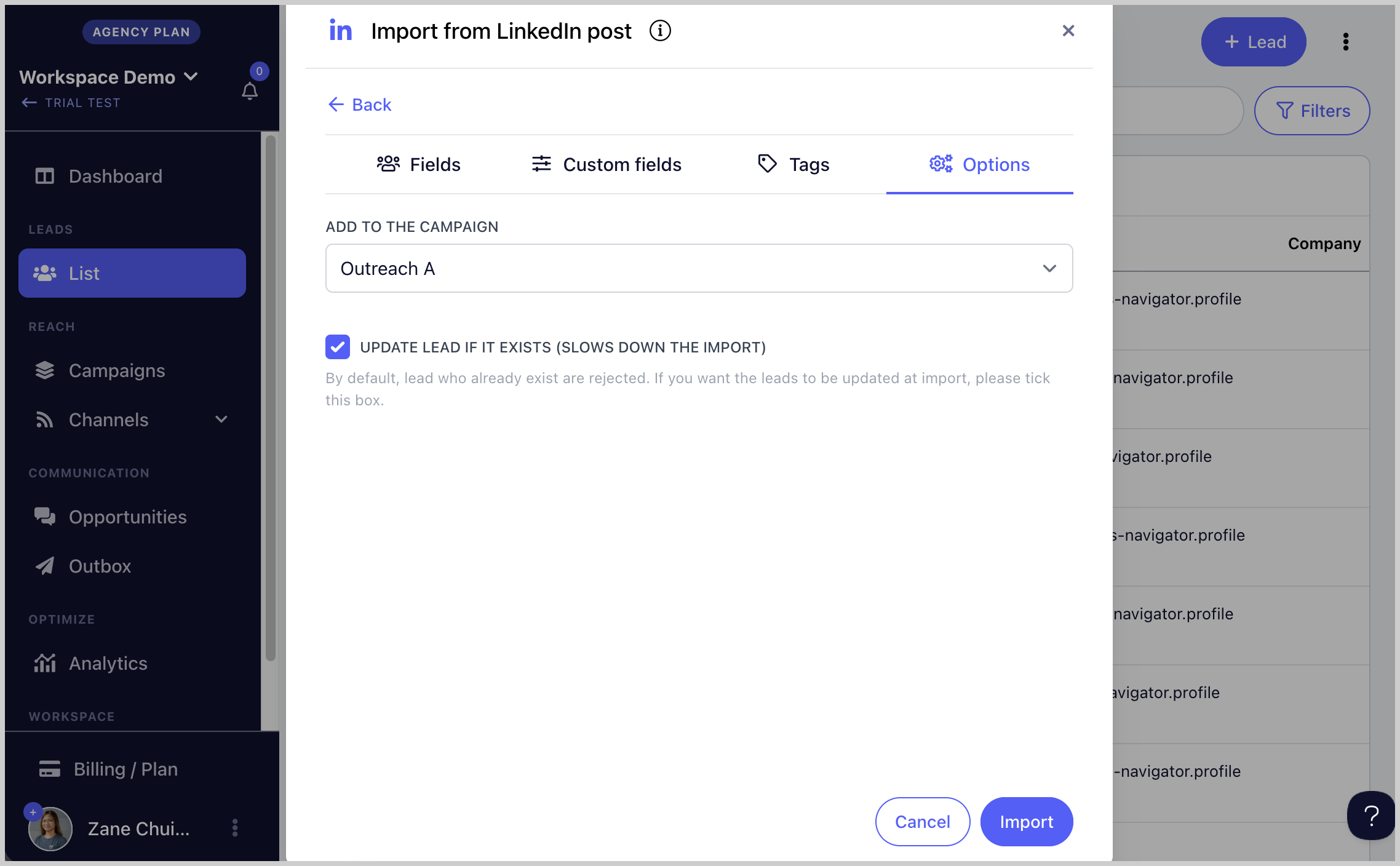
Step 6. Select the campaign where you would like to add the leads (optional) → click Import.
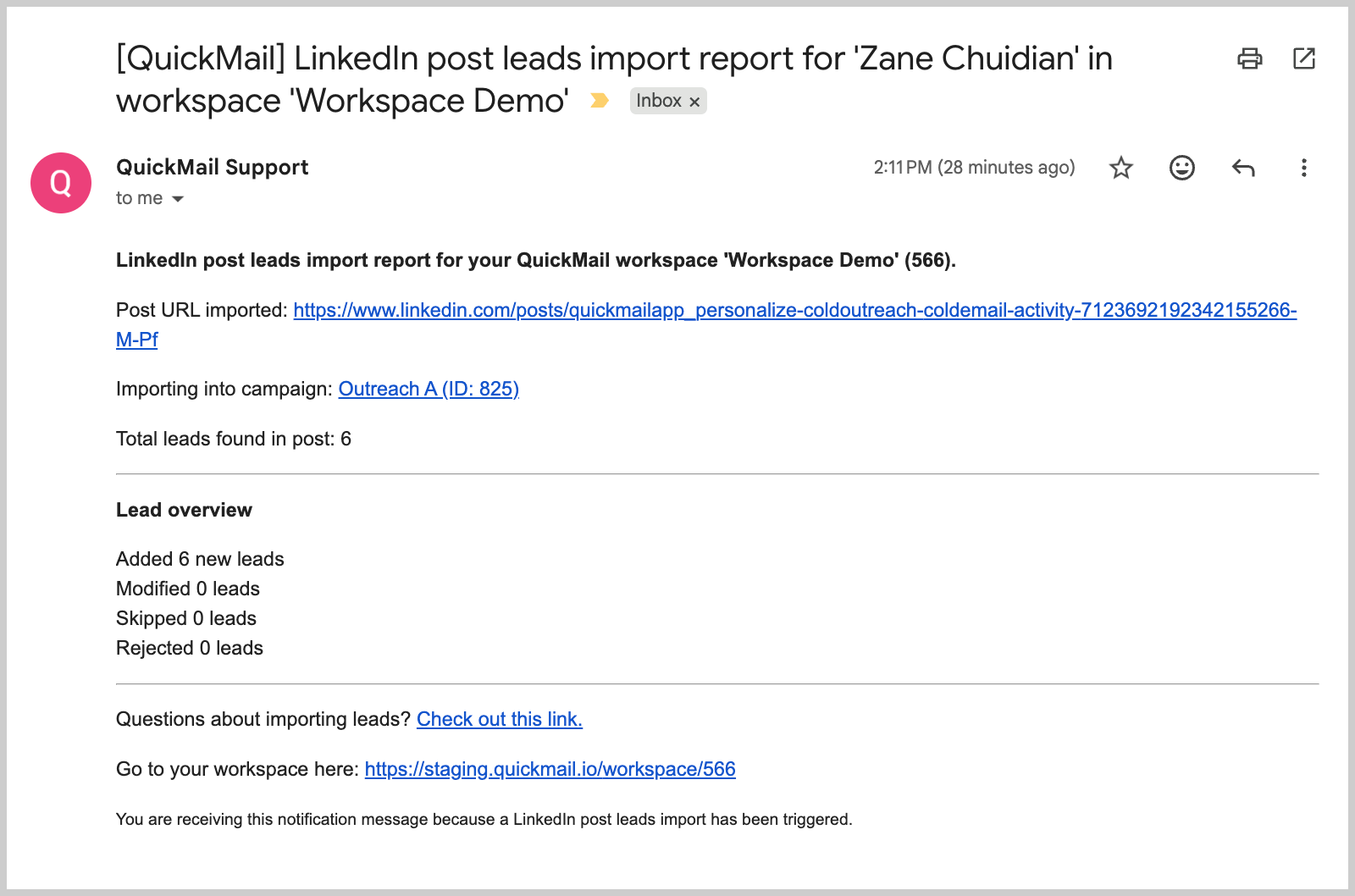
Step 7. An import report will be sent via email showing how many leads were imported or rejected.