Importing from LinkedIn Sales Navigator 🧭
Importing from LinkedIn Sales Navigator 🧭
QuickMail's integration with LinkedIn Sales Navigator lets you import selected leads directly into QuickMail - especially useful for running LinkedIn outreach campaigns.
Note: LinkedIn Sales Navigator, along with other newer LinkedIn features, is only available on the new pricing plan's Growth and Agency tiers. Also, While LinkedIn profile URLs and other lead details are imported, email addresses are not included.
In this article:
How to import from Sales Navigator?
Option 1: Manual import
Option 2: Auto-import
FAQs
How to Import from Sales Navigator?
Option 1: Manual Import
Step 1. Add a LinkedIn account that has a Sales Navigator subscription. Go to LinkedIn → + LinkedIn. This guide on adding LinkedIn accounts might come in handy: https://help.quickmail.com/linkedin/adding-linkedin-accounts/.
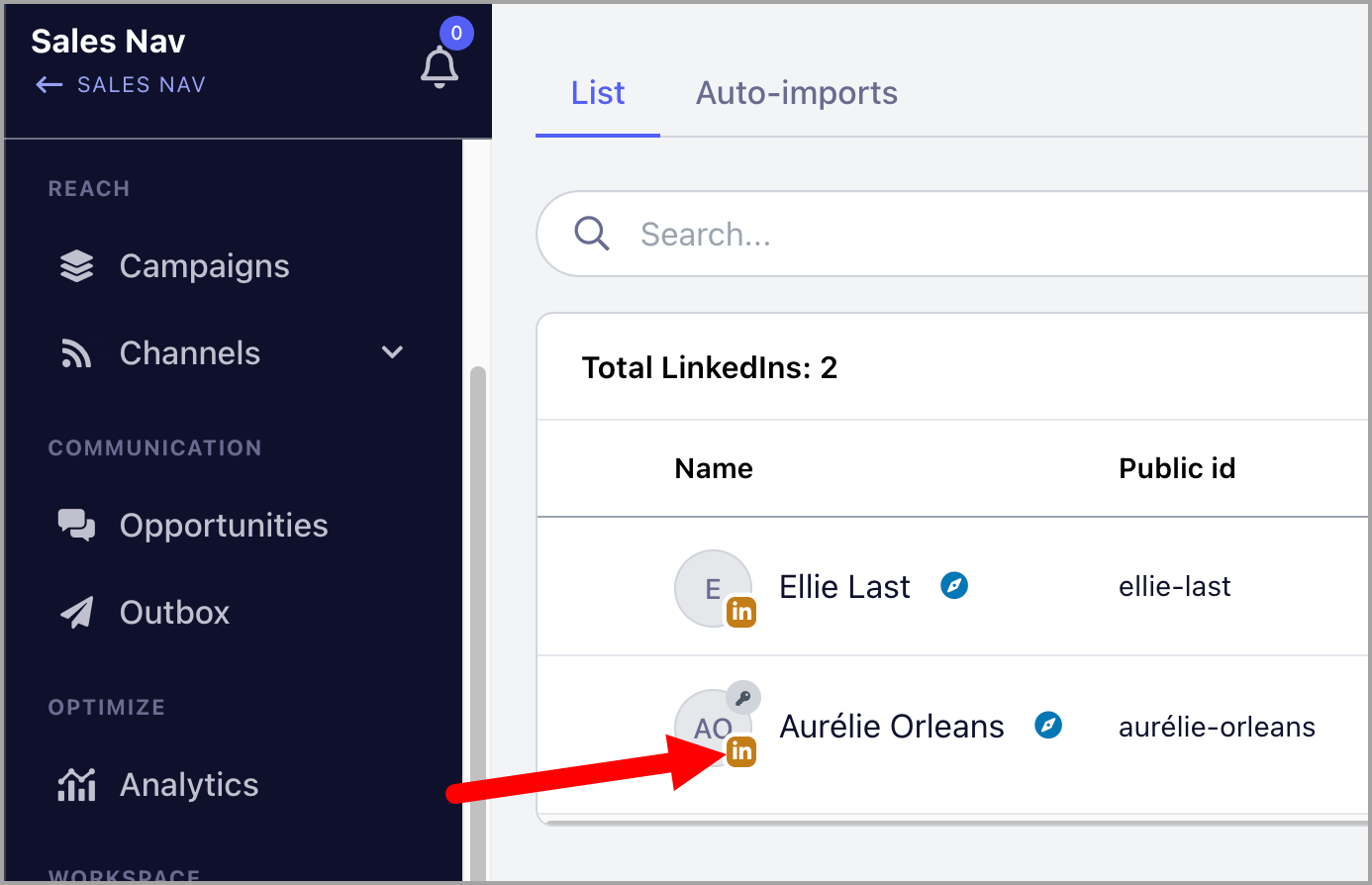
Note: LinkedIn accounts showing a brown icon are supported for Sales Navigator. If the icon is blue, the account is not compatible.
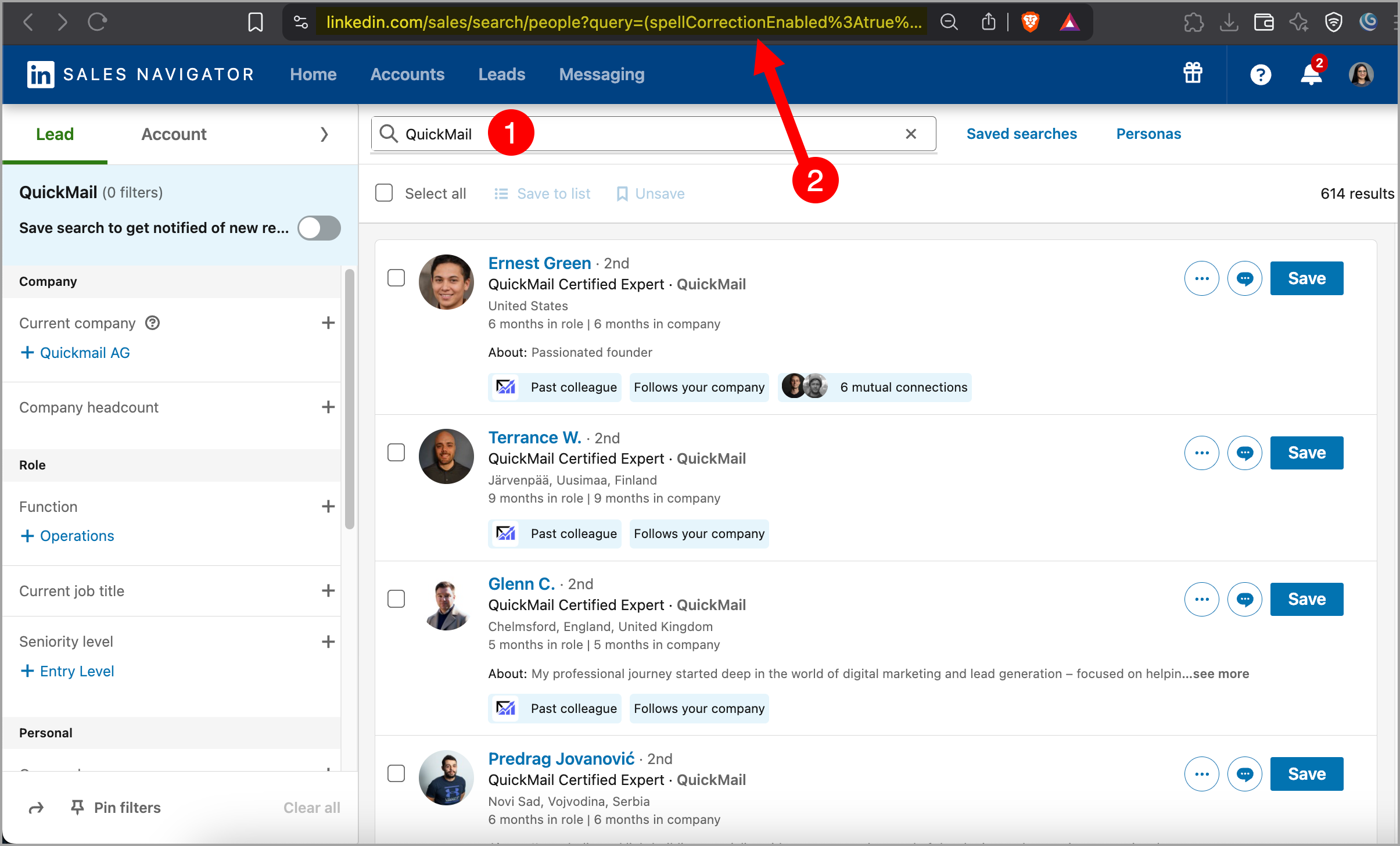
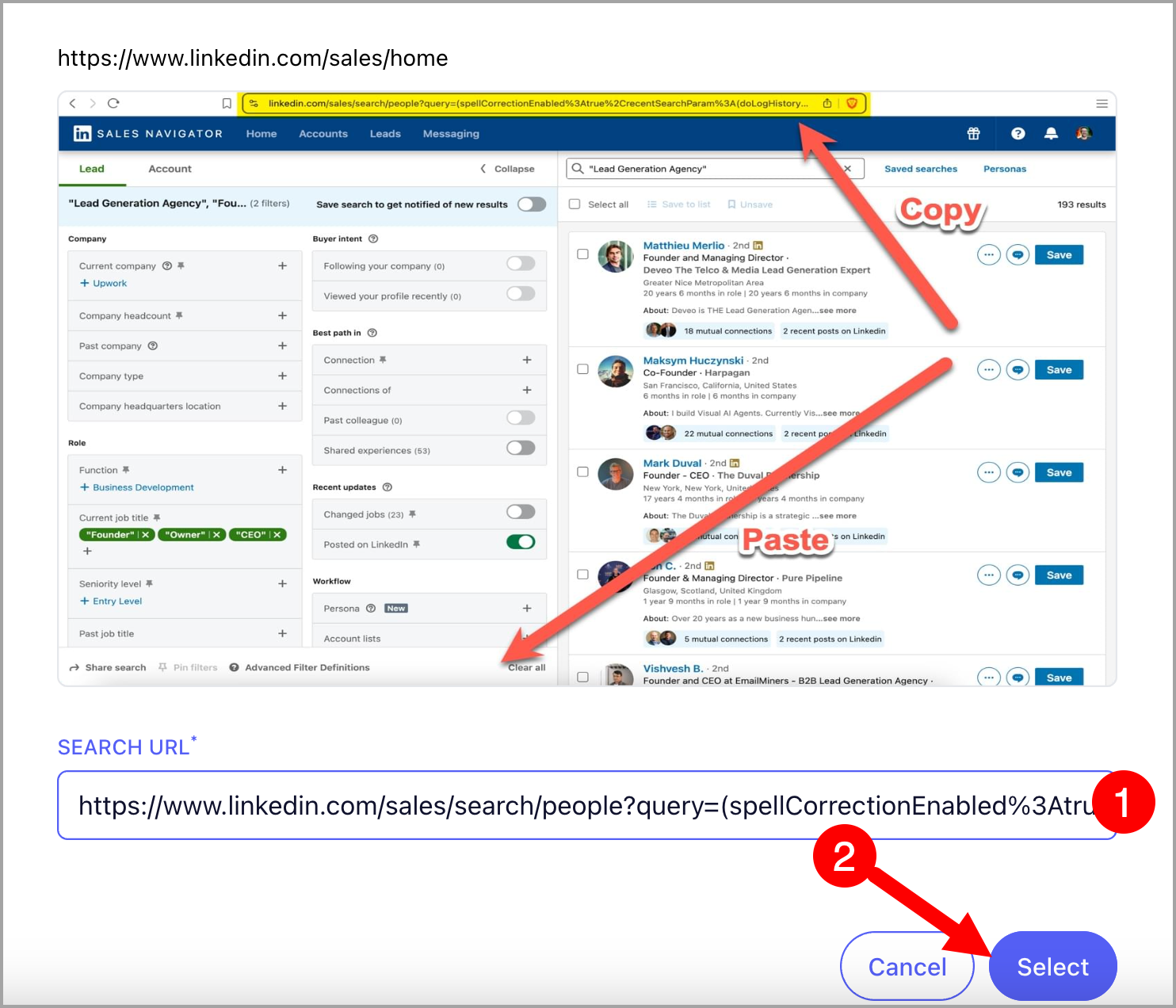
Step 2. Go to Sales Navigator → search for the leads you would like to import → use filters to narrow down your search if needed → copy the URL.
Note: Recent Search links are not yet supported. The URL must start with https://www.linkedin.com/sales/search/people?query= from a fresh search.
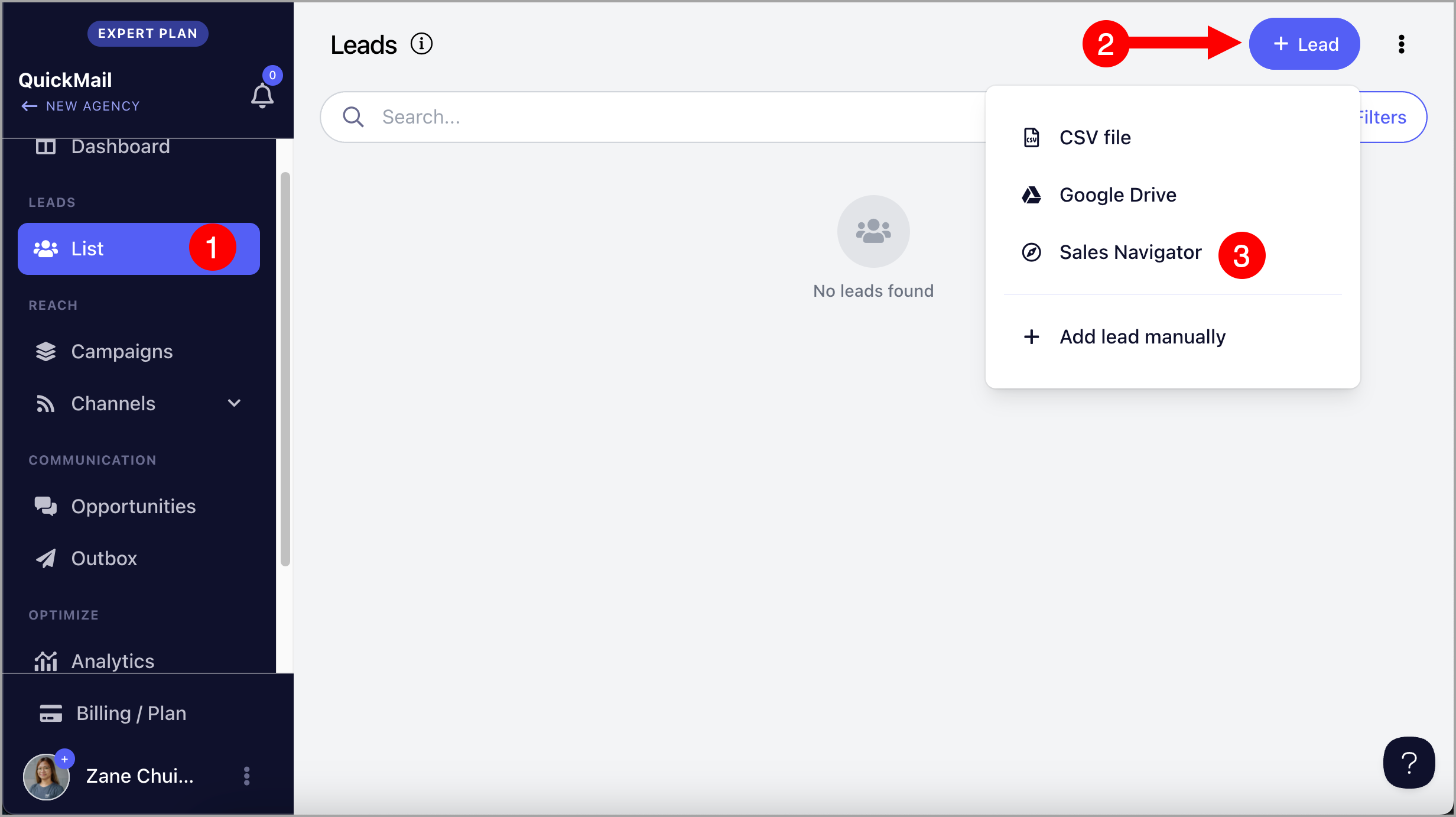
Step 3. Go to List → + Add Leads → Import from Sales Navigator.
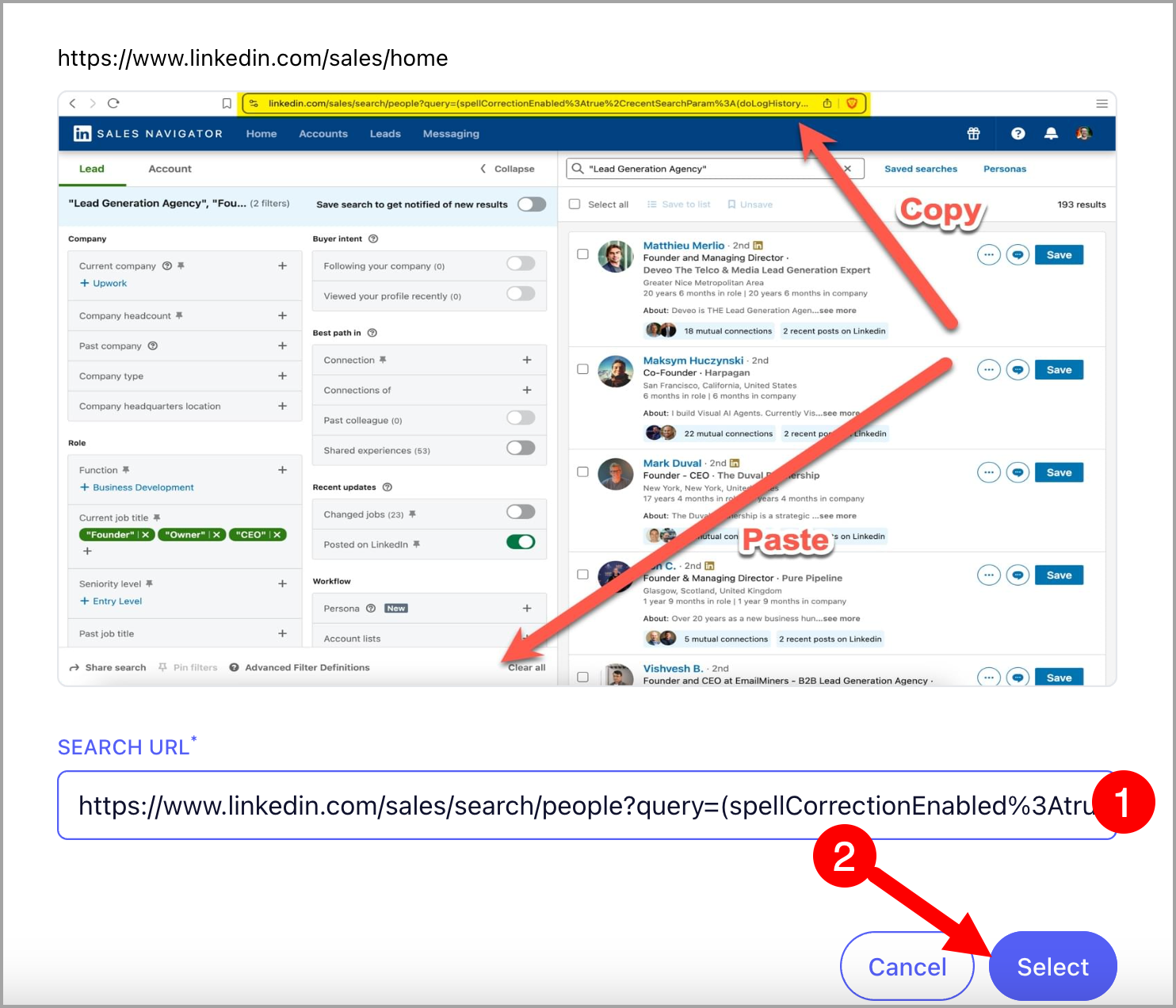
Step 4. Paste the URL copied from Sales Navigator → follow the on-screen instructions to set up the import.
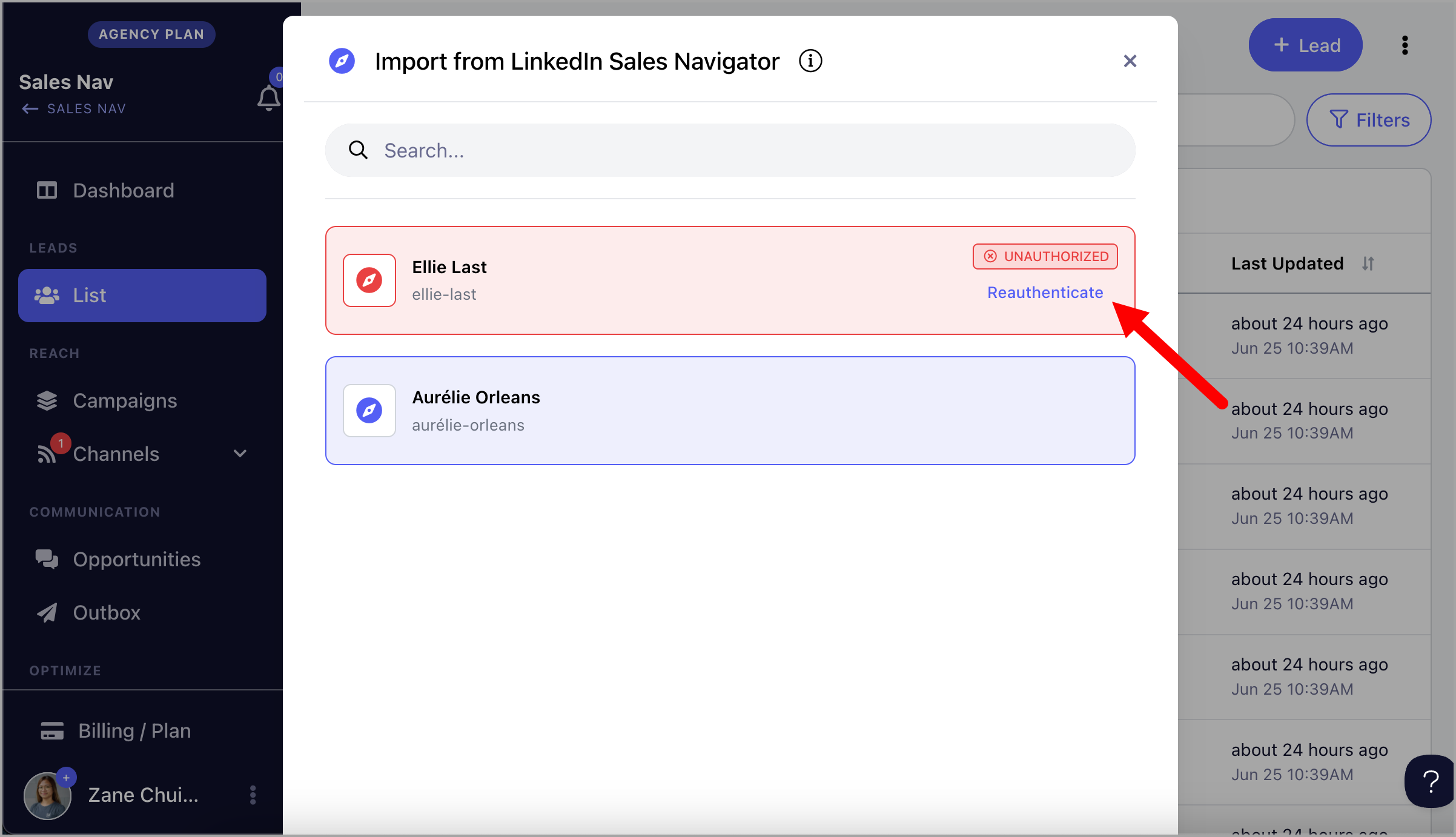
What happens when I lose permission to my LinkedIn account?
When permission to access your LinkedIn account is lost, it will be highlighted in red and imports from Sales Navigator will no longer be possible. Click Re-authenticate to restore access.
Option 2: Auto-Import
Auto-Import continuously monitors your saved Sales Navigator search. When a new lead appears, it is automatically added to your list or campaign.
Step 1. Add a LinkedIn account that has a Sales Navigator subscription. Go to LinkedIn → + LinkedIn. This guide on adding LinkedIn accounts might come in handy.
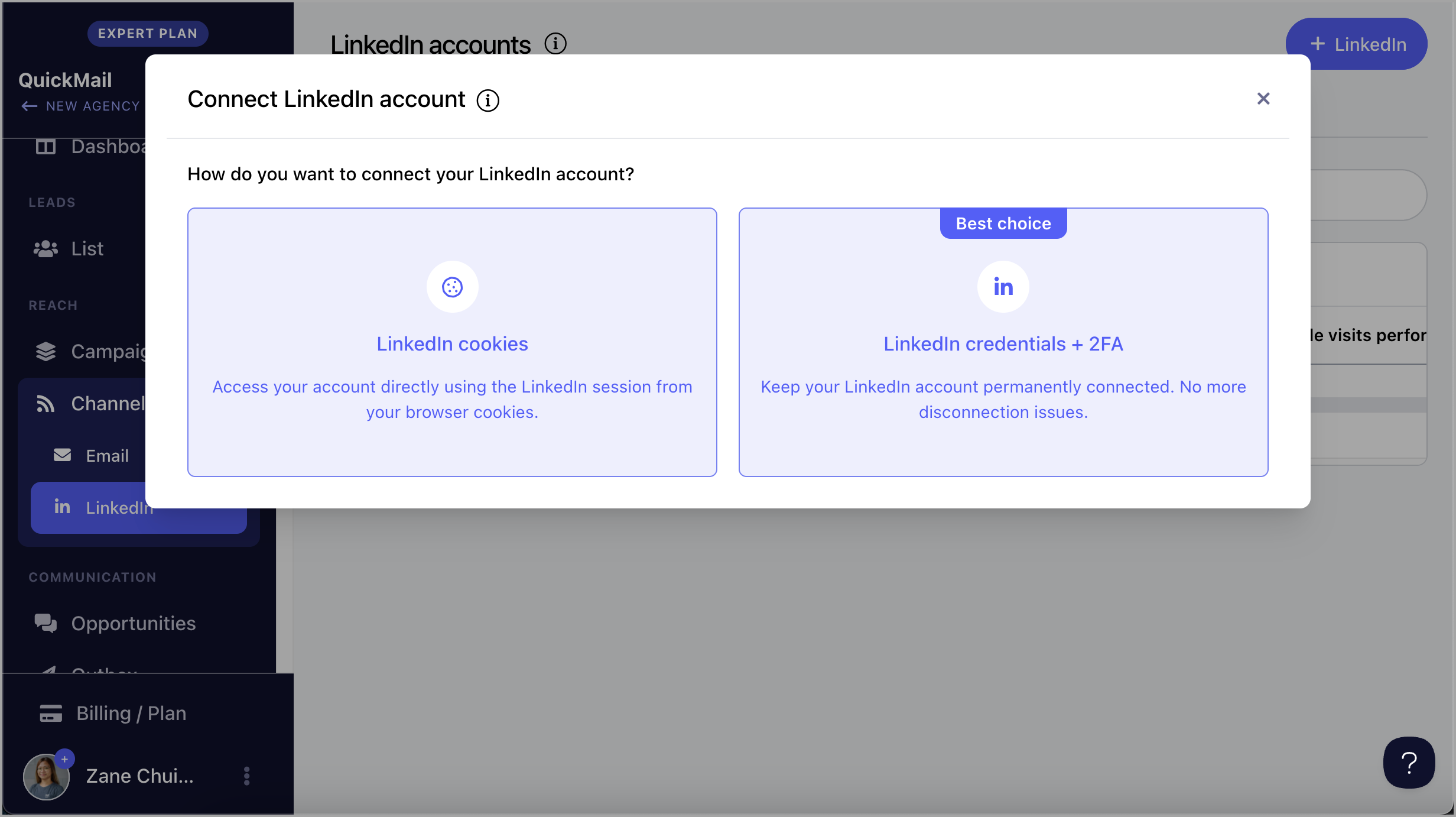
Note: LinkedIn accounts with a Sales Navigator icon support Sales Navigator. Accounts without the icon are not compatible.
If the account has Sales Navigator access, delete the LinkedIn account and visit the LinkedIn Sales Navigator page before re-adding it. Reassign it to the campaign immediately after re-adding, or pause the campaign before deleting the account.
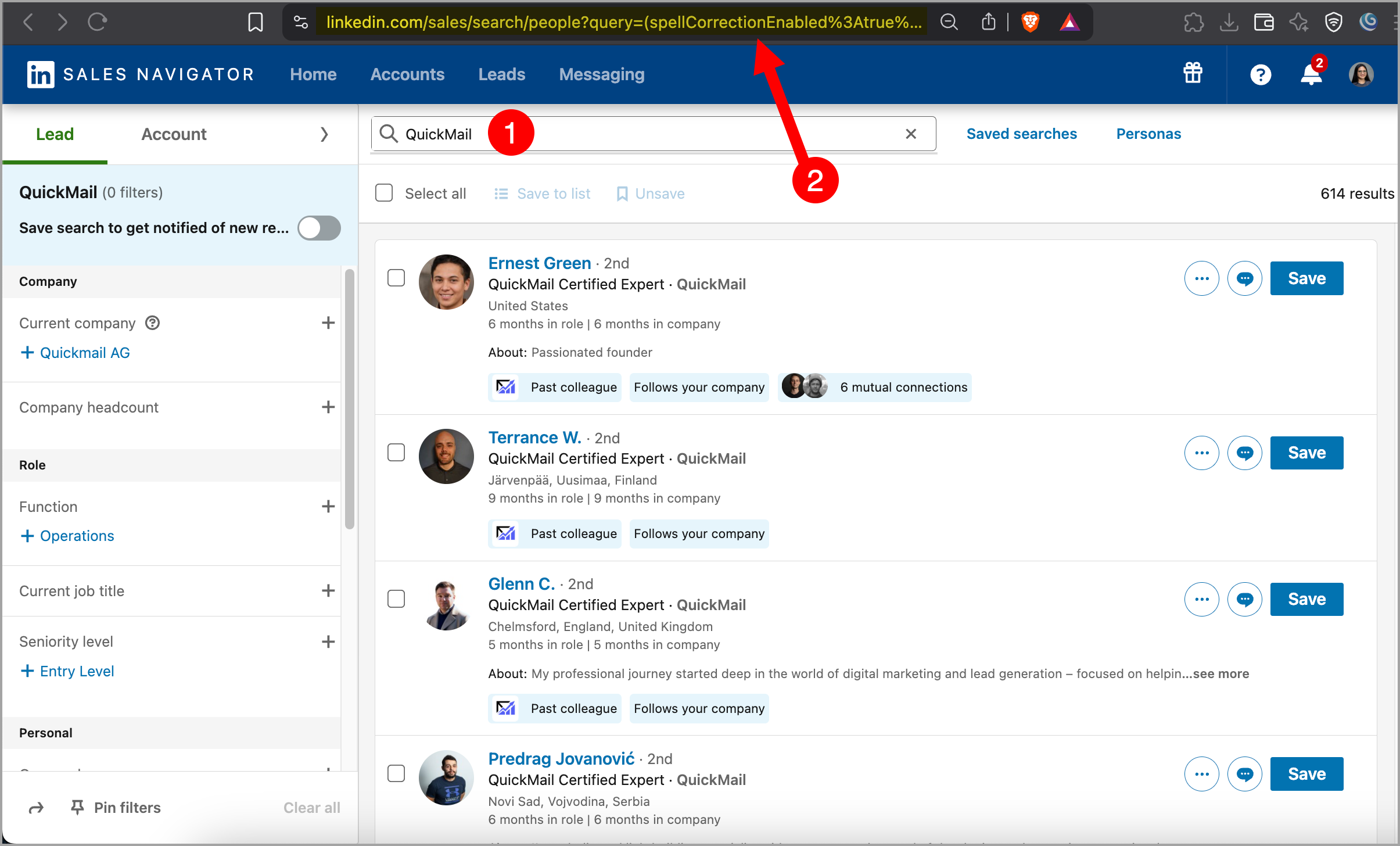
Step 2. Go to Sales Navigator → search for the leads you would like to import → use filters to narrow down your search if needed → copy the URL.
Note: Recent Search links are not yet supported. The URL must start with https://www.linkedin.com/sales/search/people?query= from a fresh search.
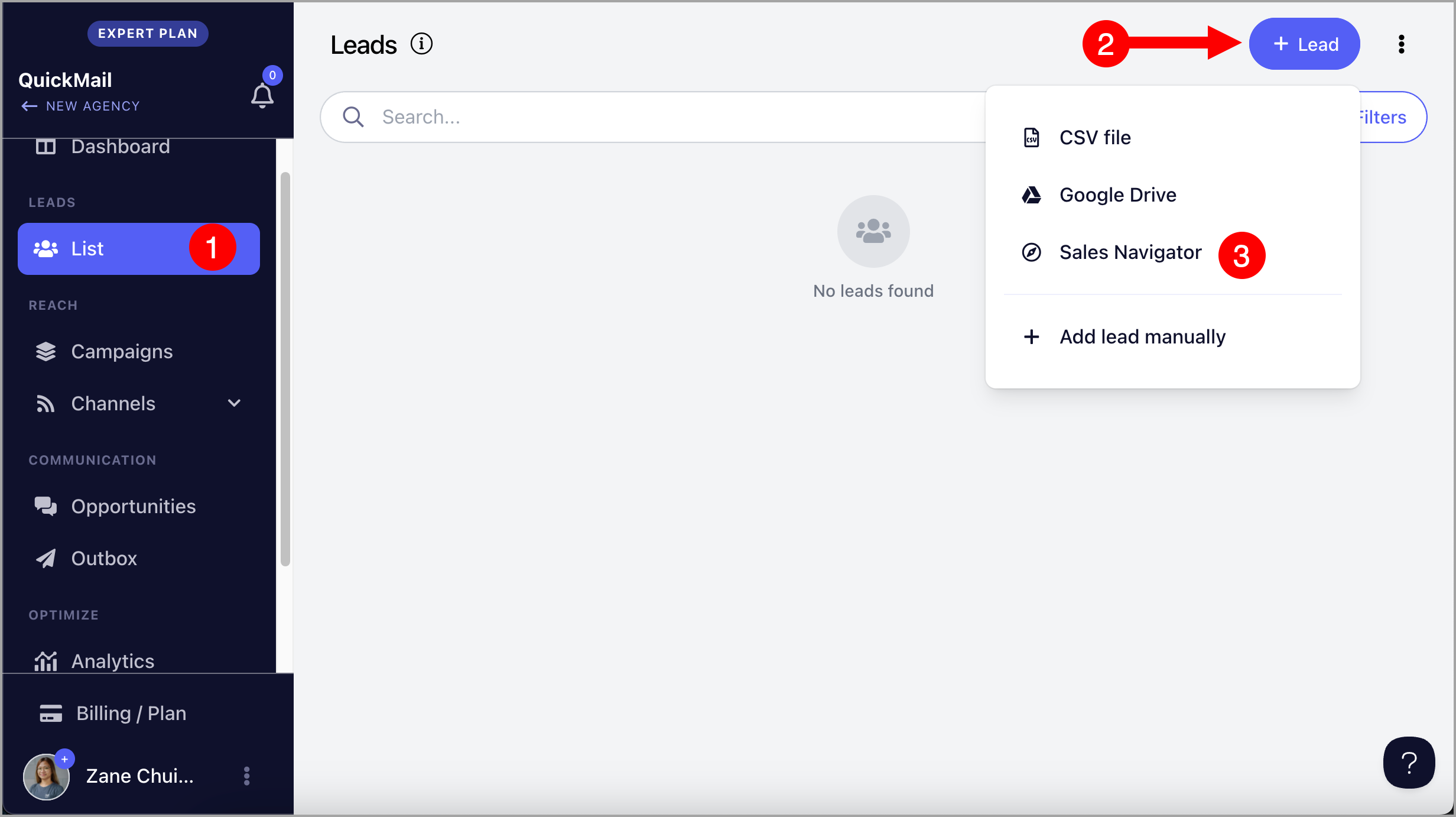
Step 3. Go to Leads → + Add Leads → Import from Sales Navigator.
Step 4. Paste the URL copied from Sales Navigator → follow the on-screen instructions to set up the import.
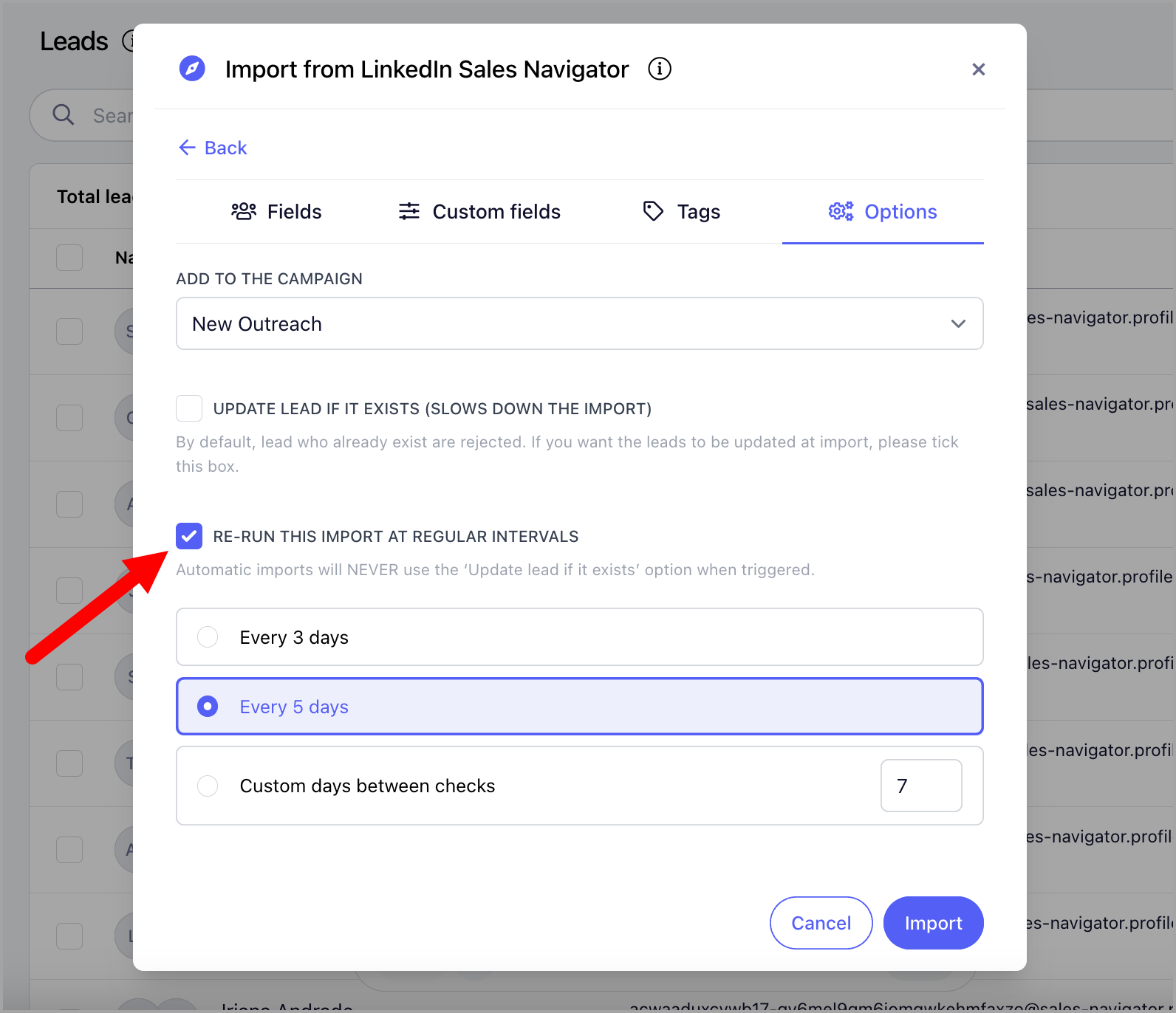
Step 5. Under Options, check the box Re-run this import at regular intervals → select your preferred interval.
Tip: You can select a campaign in the Add to Campaign dropdown to automatically add new leads from Auto-Import to a campaign.
Troubleshooting:
I tried importing via Sales Navigator and it keeps showing 0 leads found.
This is most often caused by the error "2FA Login challenge not found." This means LinkedIn is adding an extra security step — such as emailing you a login code or triggering a CAPTCHA — when you attempt to log in.
To resolve this, try the following:
- Log out of your LinkedIn account in your browser and log back in to see if the security challenge is triggered.
- If that does not work, try logging in through an incognito window to complete the login challenge.
- If neither works, you will need to wait until LinkedIn stops sending those codes before you can reconnect the account to QuickMail. This cannot be bypassed since the code is sent to an address or system that QuickMail does not have access to.
For more details, see: https://www.linkedin.com/help/linkedin/answer/a1339220/security-verification-when-signing-in?lang=en
I have Sales Navigator but my LinkedIn account is not being detected when importing from Sales Navigator
It’s likely that the Sales Navigator cookies weren’t detected when the LinkedIn account was added. To fix this:
- Delete the LinkedIn account from QuickMail.
- Log in to LinkedIn and visit the Sales Navigator page.
- Re-add the LinkedIn account to QuickMail.
If the LinkedIn account was assigned to any active campaigns, make sure to assign it back afterward.
I would like to update my leads’ email addresses in bulk, but I’m getting an error saying that the LinkedIn account already exists for another lead.
Lead imports in QuickMail are matched based on email address. There is currently no option to update leads’ email addresses in bulk.
As a workaround, you can either update each lead’s email address manually or delete the affected leads and re-add them with their new email addresses. You can filter the leads by tag or category to make this process easier.