Saving a Campaign as a Template (For Agencies)
Saving a Campaign as a Template (For Agencies)
In this article:
Why use the campaign library?
How does it work?
How to use the campaign library?
How to edit templates in the library?
Why Use the Campaign Library?
The campaign library allows you to reuse campaigns as templates for new ones. This is useful when applying the same email copy across different campaigns within the same workspace or for different clients, saving time during campaign setup.
Important: The campaign library is only available for agency accounts.
How Does It Work?
Once a campaign is saved to the library, it becomes available as a template. When creating a new campaign, you can select one of these saved templates to use as a starting point.
How to Use the Campaign Library?
Step 1. Add the campaign you'd like to use as a template to the library.
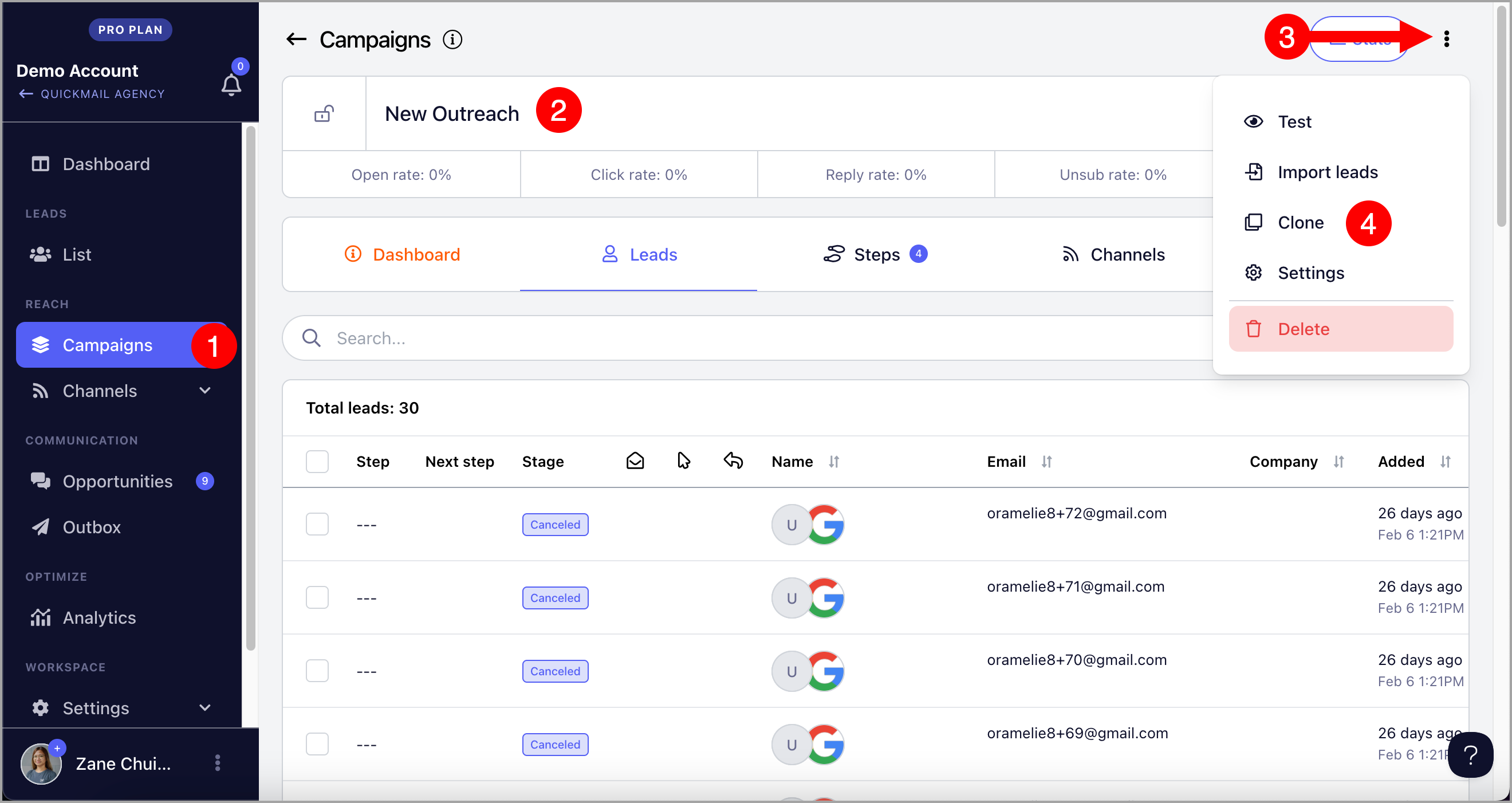
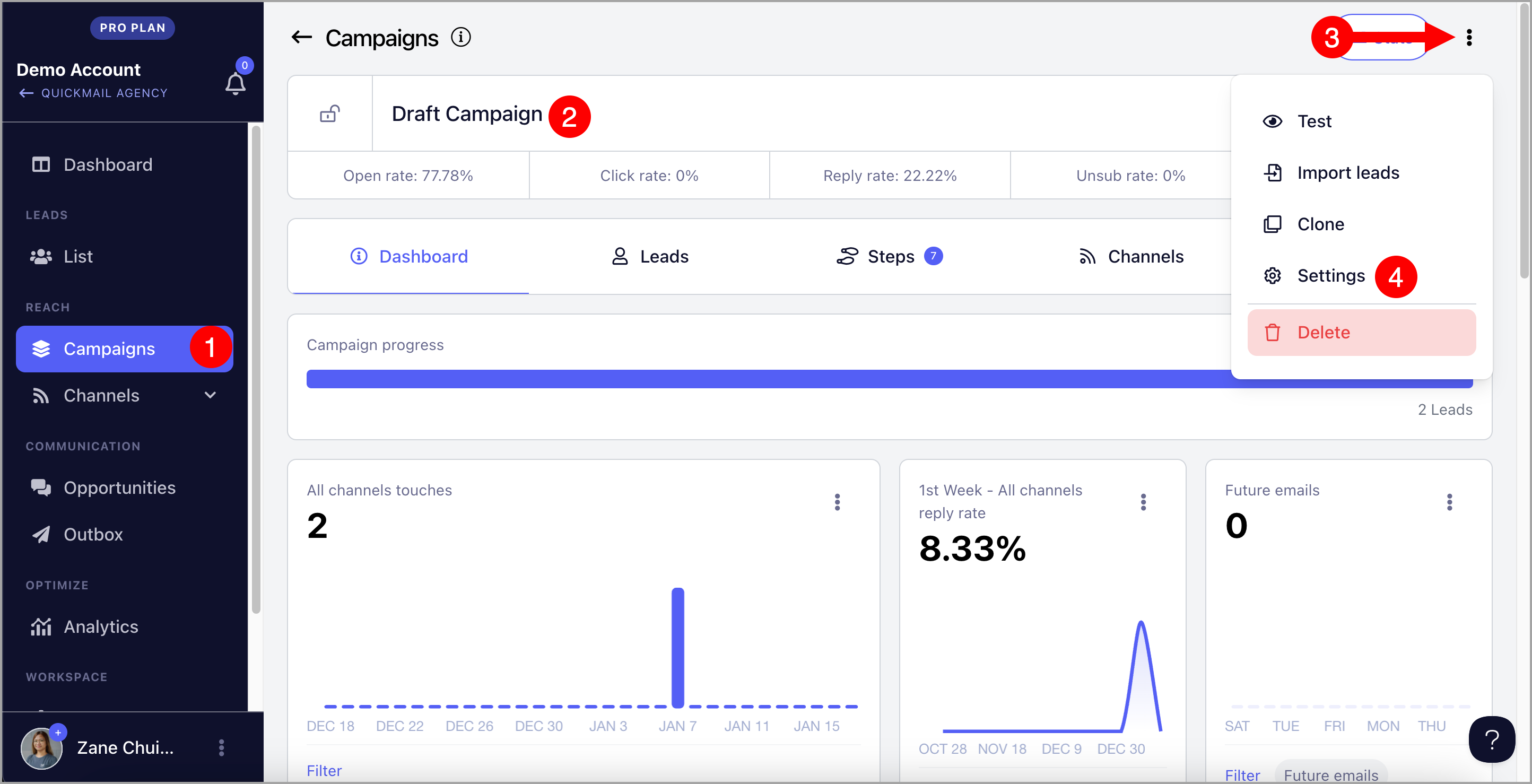
Go to the campaign → click the menu icon (three vertical dots) → Settings.
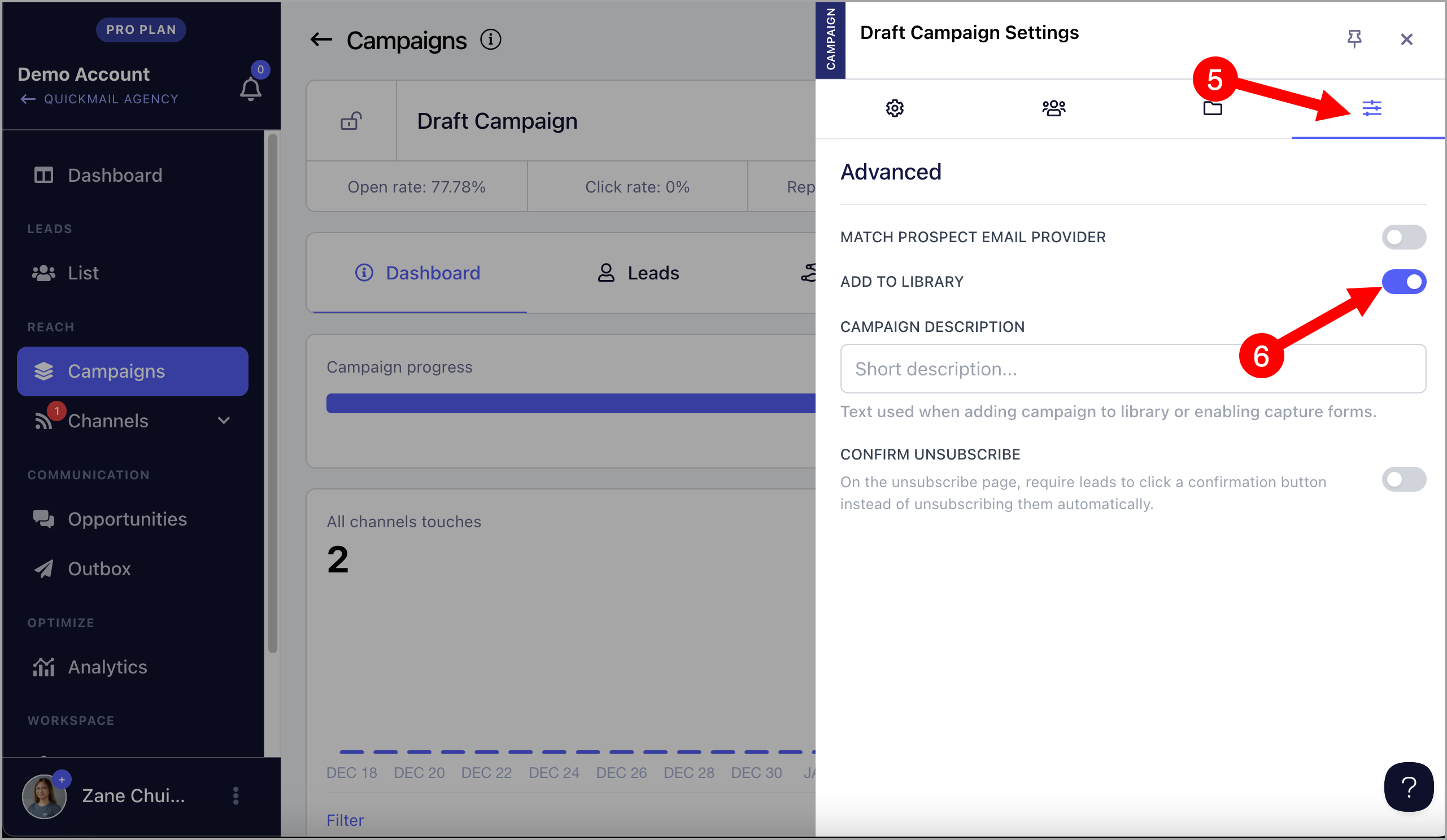
Go to the Advanced tab → toggle Add to Library on.
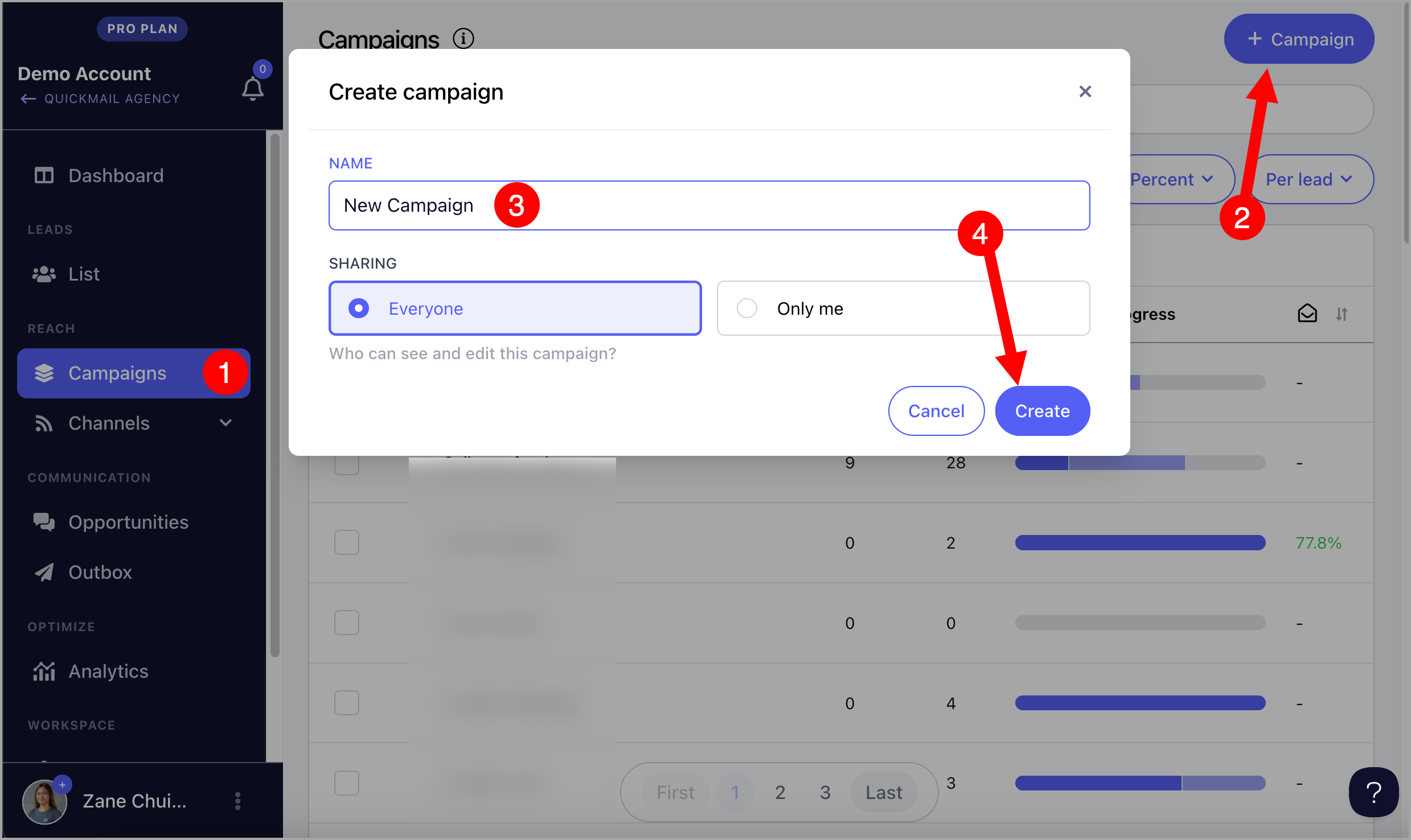
Step 2. Create a new campaign in the same workspace or a different one.
Go to Campaigns → + Campaign → name the campaign → Create.
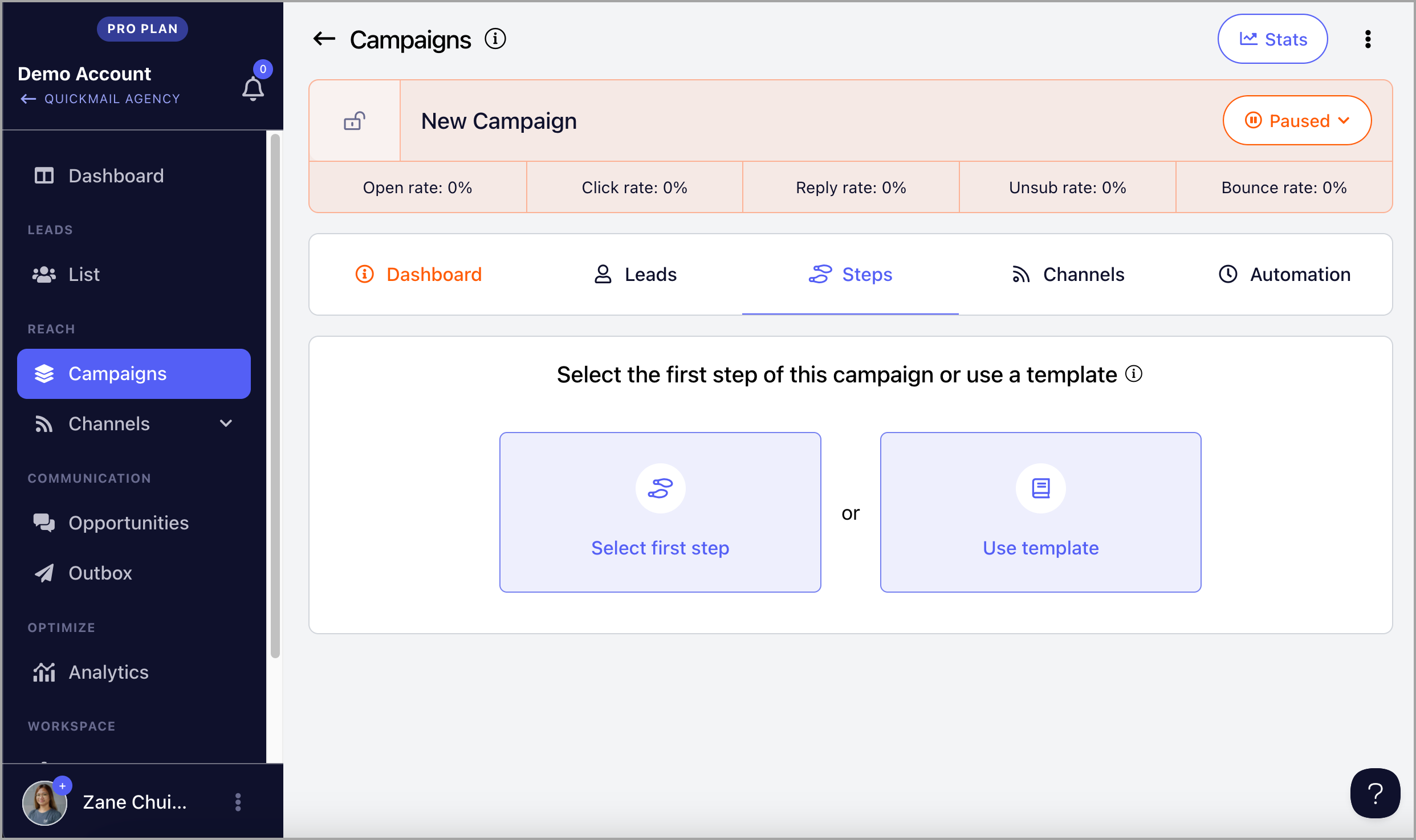
Step 3. After the campaign is created, you will be taken to the Steps page. Click Use Template.
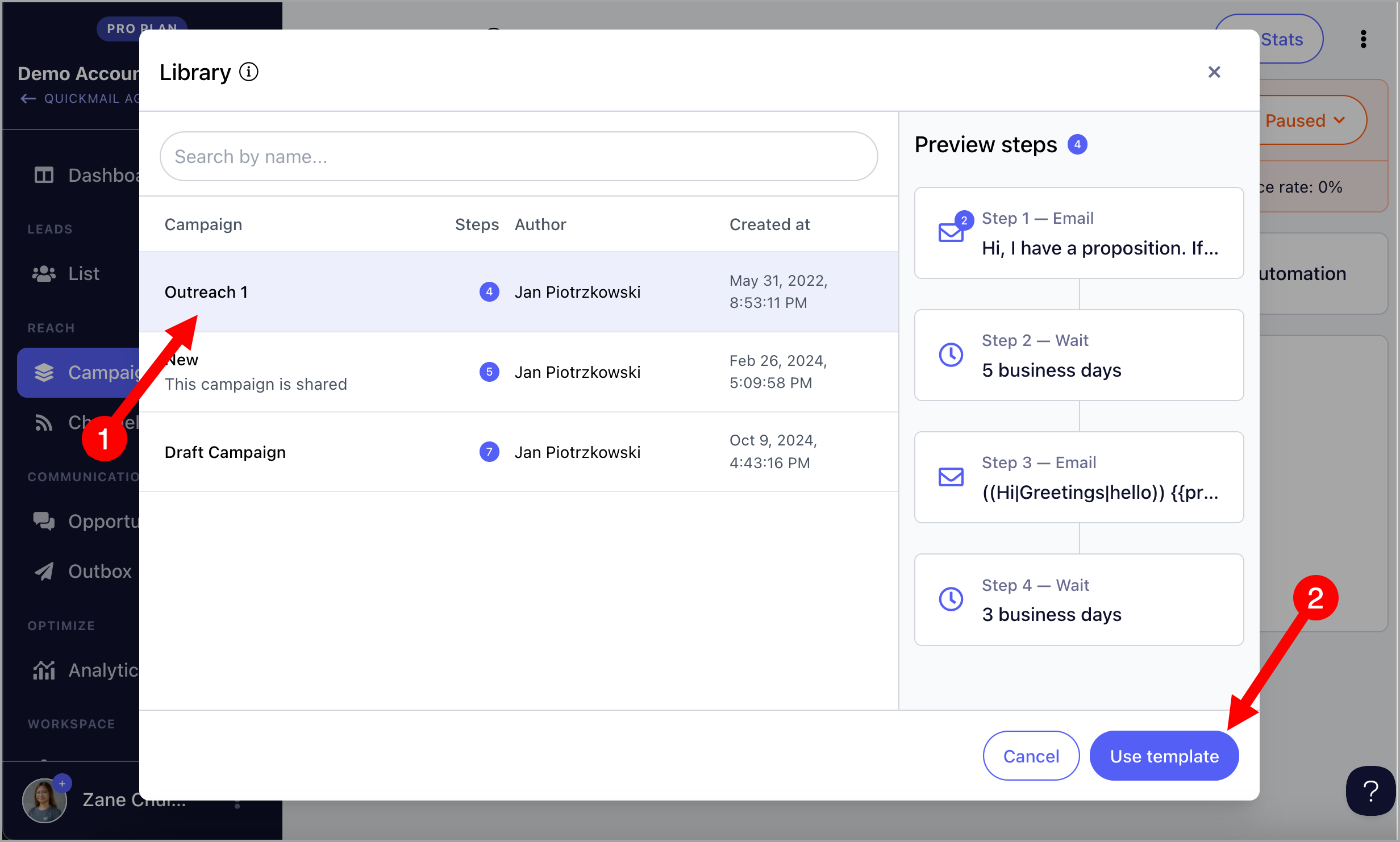
Step 4. A window will appear where you can select and preview available templates.
How to Edit Templates in the Library?
Templates can only be edited by editing the original campaign they were saved from. For example, if "Test Campaign" is in the library, you need to find and edit "Test Campaign" directly.
If you do not want to edit a campaign that is currently running, clone it first, then add the cloned campaign to the library instead.
To clone a campaign, go to the campaign → click the menu icon (three vertical dots) → Clone.