Creating Call Steps in a Campaign
Creating Call Steps in a Campaign
What Are Call Steps?
Call steps are non-email campaign steps that allow users to make calls to leads. Similar to a task step, a lead's progress in the campaign will pause when they reach a call step.
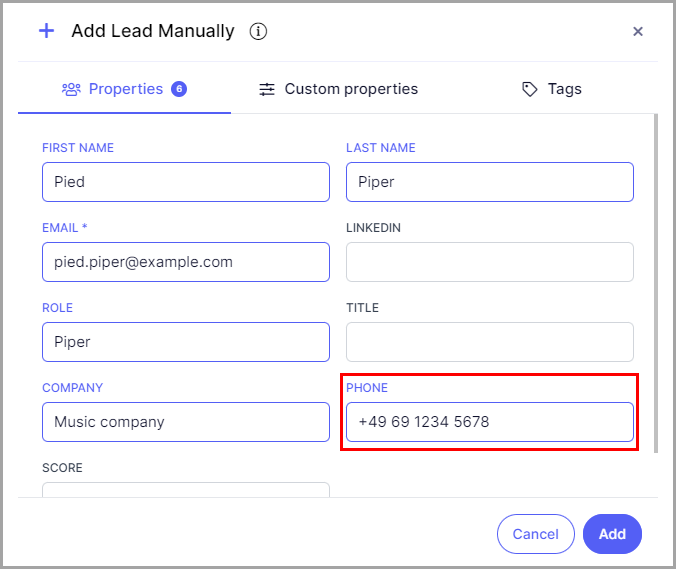
Note: A lead must have a phone number to be called when they reach a call step.
How to Create a Call Step?
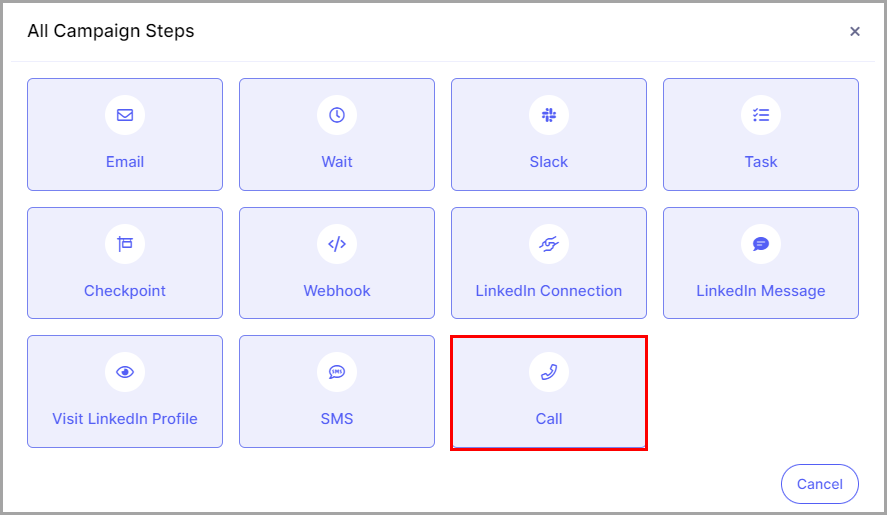
Step 1. Go to Campaigns → create or select an existing campaign → Steps → click Add a Step → select Call Step.
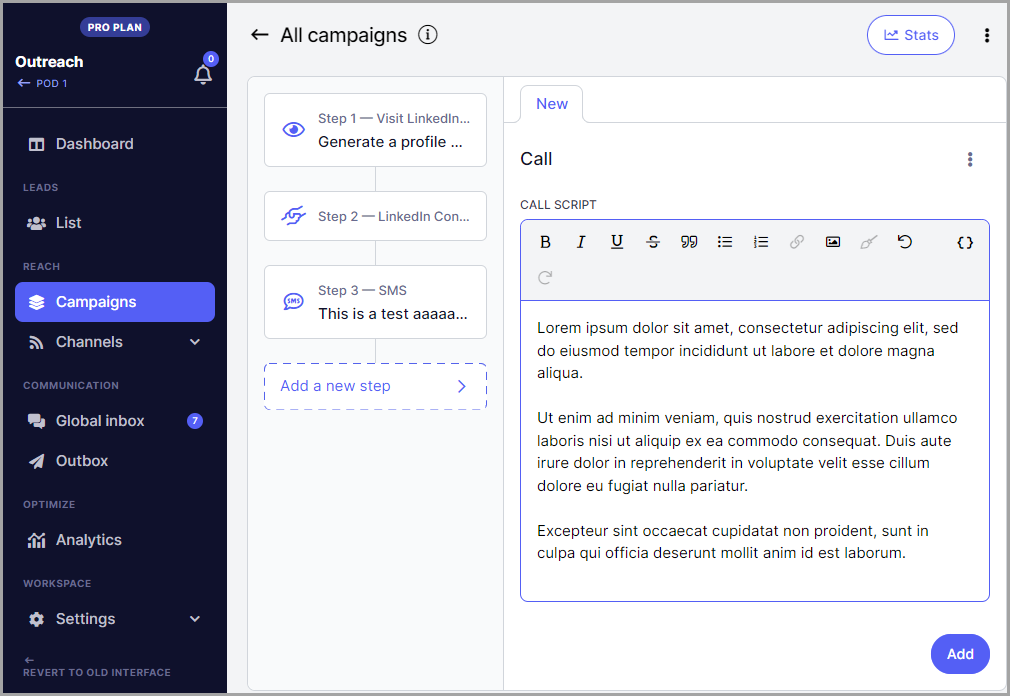
Step 2. Compose a call script that will be available to read when a lead reaches the call step.
Tip: You can use properties to automatically populate lead details in the script.
How to Make a Call?
When a lead reaches a call step, their campaign progress will pause and a call item will be added to the Inbox page.
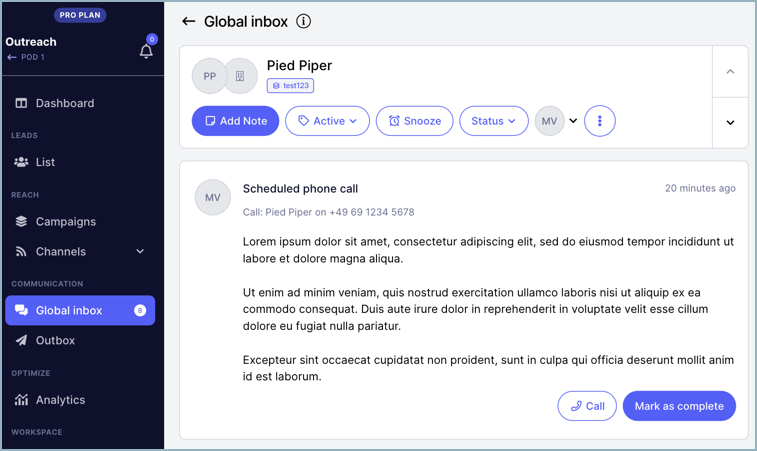
Step 1. On the Inbox page, open a call item to view the call script for that lead. Call items are labeled "Scheduled Call."
Step 2. Click the Call button to dial the lead's phone number using the call application associated with your browser or computer.
Note: The Call button will not appear if the lead does not have a phone number.
Once the call is completed, you have two options:
Mark as complete — resumes the lead's campaign progress and moves them to the next step.
Archive — archives the call item without resuming campaign progress.