Using Webhook Steps to Send Data to External Platforms
Using Webhook Steps to Send Data to External Platforms
Webhook steps let you send lead data from QuickMail campaigns to external platforms like Make, Zapier, or HubSpot.
Each webhook step can have its own unique URL, separate from your account-level webhook.
In this article:
Setting up a webhook step
Tracking send dates
Common webhook errors
Webhook steps vs account webhooks
How webhook steps with conditions work
Troubleshooting tips
Setting up a webhook step
Request type and payload
Use POST requests with a JSON payload to send data to most webhook platforms.
Example payload:
{ "first_name": "{{lead.first_name}}", "last_name": "{{lead.last_name}}", "email": "{{lead.email}}", "title": "{{lead.title}}", "role": "{{lead.role}}", "company": { "name": "{{company.name}}", "domain": "{{company.domain}}" }, "city": "{{lead.custom.city}}", "source_campaign_id": "1234" }
Available data fields
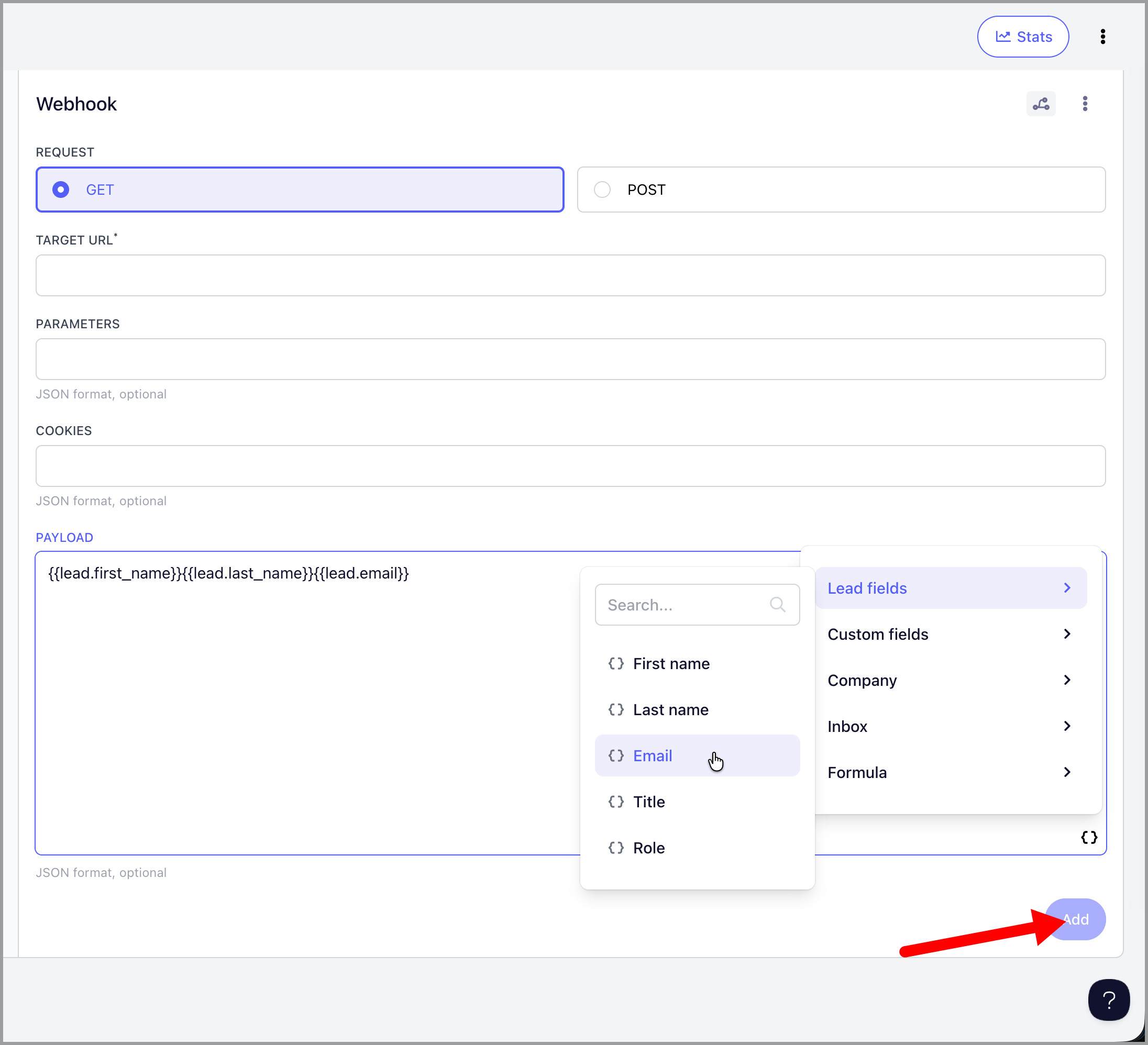
Webhook steps can send the following lead data:
{{lead.first_name}}{{lead.last_name}}{{lead.email}}{{lead.title}}{{lead.role}}{{company.name}}{{company.domain}}Custom fields using
{{lead.custom.field_name}}(example:{{lead.custom.city}})
You can also include static values like campaign IDs or tracking parameters in your payload.
To know the correct fields to use, click this on the webhook step and click the properties:
Tracking send dates
While QuickMail does not include send dates in webhook payloads, you can capture approximate send times using your automation platform.
The workaround
Place your webhook step immediately after an email step in your campaign. When the webhook fires, your automation platform (like Make or Zapier) can record the timestamp it receives the webhook. Since the webhook triggers right after the email sends, this timestamp will be very close to the actual send time.
In Make:
Use the
nowfunction to capture the current timestampConfigure your scenario to add a timestamp field when the webhook is received
Send that timestamp to your destination platform as the send date
In Zapier:
- Similar timestamp functions are available to capture when the webhook is received
Common webhook errors
404 Not Found
This error means the webhook URL could not be found on the receiving server.
How to fix:
Verify you copied the complete webhook URL from your platform
Make sure you are using the correct webhook type in your automation platform
Confirm the URL is still active and has not been deleted or regenerated
301 Moved Permanently
This error means the webhook reached the server but is being redirected to a different location.
How to fix:
Ensure your webhook URL starts with
https://(nothttp://)Copy the exact URL from your platform without adding or removing any characters
Do not add or remove trailing slashes
If the issue persists, regenerate a new webhook URL in your platform and paste it exactly as provided
Missing protocol (https://)
Some platforms provide webhook URLs without the https:// prefix. If your URL looks incomplete (example: hook.us2.make.com/path ), check your automation platform's documentation or contact their support to confirm the correct format.
Webhook steps vs account webhook
QuickMail has two types of webhooks:
Webhook steps (campaign-level):
Each step can have its own unique URL
Can be added multiple times within campaigns
Triggers when a lead enters that specific step
Limited to the available data fields listed above
Account webhook (account-level):
Only one webhook URL per account
Captures events across all campaigns
Can track opens, clicks, and other engagement events
Different payload structure and capabilities
You can use both types simultaneously.
How webhook steps with conditions trigger
Webhook steps trigger when a lead enters the step, not when an event occurs.
Example: If you create a webhook step with a condition "at least one open," the step will:
Let leads through if they already have an open at the time they reach the step
Skip leads that do not have an open yet
The step will not wait for a future open to happen.
It filters leads based on what they have already done at the moment they enter the step.
To track opens and clicks: Use the account-level webhook or a platform like Zapier instead of webhook steps.
Troubleshooting tips
Test your webhook URL in your automation platform before adding it to QuickMail
Use POST requests unless your platform specifically requires GET
Copy URLs exactly as provided by your automation platform
Check your automation platform's documentation for webhook requirements
Contact your platform's support if errors persist after verifying the URL and request type